X3i X7A Guía del usuario


Table of contents i
Chapter 1 - Getting Started 1
Introduction1
What’s Inside?1
Getting Started1
StepOne(ConnectYourDisplay)1
StepTwo(ConnectYourMouseandKeyboard)2
StepThree(ConnectYourExternalHardDrive)2
StepFour(ConnecttotheNetwork)2
StepFive(ConnectthePowerCord)2
StepSix(TurnYourComputerOn)2
Your Operating System2
openSUSELinux3
Windows7/83
Move Data Onto Your X7A Modular Computer3
Downloading/InstallingProgramsfromtheInternet3
InstallingProgramsfromaUSBThumbDrive3
InstallingProgramsfromaDVD/CD3
CopyingExistingFilestotheX7AModularComputer
fromanOlderPC3
Chapter 2 - External Components 5
Chassis Design5
Channels&Guides5
Attaching&Mounting6
Chapter 3 – Internal Components 7
The Classic Motherboard7
The Primary I/O Board and Secondary I/O Board7
The Dangers of Static Electricity8
Removing & Replacing Boards8
Turn Off Your X7A Modular Computer8
Restarting Your X7A Modular Computer8
Chapter 4 – BIOS Settings 9
Accessing the BIOS Settings9
Navigating the BIOS Menu9
Changing the Boot Device Priority9
Saving Your Settings and Exiting the BIOS Setup Utility 10
Chapter 5 – Troubleshooting 11
Primary Checklist 11
Xi3 Modular Computers Hate These 12
Energy Saving Settings 12
Service & Support 13
Chapter 6 – Legal Stuff 15
Important Safety Information 15
Important Handling Information 15
Patents, Trademarks & Copyrights 16
Regulatory Information 16
Glossary 17
Corporate Information 17
Xi3Corporation’smissionistoprovideefficientand
low-maintenancetechnologicalsolutionsthatimprovelives
withminimalenvironmentalimpact.We’vedesignedthe
X7AModularComputertomeetthelatestENERGYSTAR®
guidelinesforenergyefficiency.ENERGYSTARisaU.S.En-
vironmentalProtectionAgencyvoluntaryprogramtoreduce
energyconsumptionandpollution.Xi3computersareener-
gyefficientandcomewithdefaultENERGYSTARsettings
recommendedforoptimalenergysavings.Forspecifics,see
“EnergySavingSettings”onpage12ofthismanual.
Table of Contents

Chapter 1 Gettingstarted 1
Step One (Connect Your Display)
Togetstarted,firstconnectyourmonitorcabletoyourdisplayand
thentoeitheraminiDPportortheDisplayPort/HDMIcomboporton
thebackofyourX7AModularComputer.{NOTE: The X7A Modular
Computer can be connected to virtually any type of display, includ-
ing a computer monitor, screen, LCD or even a television display
at a maximum resolution of up to 4096x2160 pixels. Within these
parameters, the X7A Modular Computer can support up to 4 moni-
tors simultaneously as long as the total resolution is not greater than
4096x2160. If you choose to do so, you may connect additional
monitors to the X7A Modular Computer now or at a later time.}
Chapter 1 - Getting Started
Introduction
Ask100peoplehowlongtheykepttheirlastcomputerandroughly90willlikelyanswerbetween3to5years.
Whyisthat?Whycan’tpersonalcomputershaveausefullifeof6,8oreven10years?Theansweris“Theycan.”
IntroducingtheXi3Modular™Computer(ModelX7A)fromXi3Corporation.
Morethan10yearsindevelopmentandprotectedbymorethan1,000trademarks,copyrights,patentsandpatentspending
worldwide,theX7AModularComputerbreaksthemoldforPCsbymakingitpossibleforvirtuallyanyonetoupdate,upgrade
and/ormodifytheircomputer,andasaresult,extenditsusefullifebeyondwhathasbeenpossiblebefore.
Clearly,thisrealitygivesyou—thecomputerowner—greatercontrolofyourcomputinglife,aswellasdecreasingtheamount
ofmoneyyouspendfortheabilitytocomputeduringthelifeofyourX7AModularComputer.Italsomeansthatyoucanhelp
cutbackonthemillionsandmillionsofcomputersthatendupinlandfillsaroundtheworldeachyear,agrowingproblemof
eWastefortheenvironment.
ThankyouforinvitingXi3CorporationintoyourlifeandforbecomingpartoftheXi3Revolution.
What’s Inside?
WhenyouopentheboxcontainingyourXi3ModularComputer,you
shouldfind:
•OneXi3ModularComputer(ModelX7A),
•OnePowerCord,
•OnePowerAdaptor,
•One X7A Modular Computer Quick-start Guide/Limited
Warranty sheet.
Getting Started
Onthisandthefollowingpages,wewillwalkyouthroughthesteps
tobeginusingyourX7AModularComputerrightaway.
ShowntotherightisanillustrationofthestandardI/OPlateofthe
X7AModularComputer.

Chapter 1 Gettingstarted 2
Step Two (Connect Your Mouse and Keyboard)
ConnectyourkeyboardcabletoanyUSBportonthebackofyour
X7AModularComputer.Next,connectyourComputerMousecable
toadifferentUSBportonyourX7AModularComputer.{NOTE: If your
keyboard and mouse share a combo USB cable, connect this to any USB
port. Additionally, you can also use a wireless keyboard and/or mouse with
the X7A Modular Computer; if you choose to do so, insert the wireless
USB keyboard and/or mouse module(s) into any USB port(s) on the back
of the X7A Modular Computer.}
Step Three (Connect Your External Hard Drive)
Ifyouwillnotbeusinganexternalharddrive,skipthisstep.If,however,
youwillbeusinganexternalharddrive,connectthisdeviceintothe
appropriateportonthebackofyourX7AModularComputer:USBor
eSATAp.{NOTE: When we refer to external hard drives in this Step,
we are NOT referring to USB sticks or thumb drives. This is especially
noteworthy as a USB thumb drive cannot be used to launch a Windows
Operating System. Additionally, although it is possible to launch
openSUSE and other Linux Operating Systems with a USB thumb drive,
we strongly recommend against doing so as this will seriously degrade
the performance of the Operating System. Additionally, if you are using an
eSATA hard drive and it is not powered via a separate power cord, you will
need to connect the eSATA hard drive to your X7A Modular Computer with
an eSATAp cable, which provides power to your drive.}
Step Four (Connect to the Network)
IfyouintendtosurftheWorldWideWeboruseemail,youwillneedanetworkconnection.FormanyX7AModularComputer
owners,thiswillinvolveplugginganEthernetcableintotheEthernetPortonthebackofyourcomputer.(Seephotoon
Page1forlocationoftheEthernetPort.)If,however,youwanttoconnecttoanetworkwirelessly,youwillneedawireless
connectionforyourX7AModularComputer,suchasawirelessnetworkadaptor,whichcanbepluggedintooneofthe
unusedUSBPortsonthebackofyourcomputer.
Step Five (Connect the Power Cord and Power Adaptor)
FirstjointhePowerCordtothePowerAdaptorasshownintheillustration
totheright.NextconnectthesmallroundendofthePowerCordtothe
PowerCordport(labeled19Vdc)foundonbackoftheX7AModular
Computer.Theninsertthethree-prongACplugdirectlyintoanelectrical
walloutlet(orasurgeprotector/powerstrip).WhenyourPowerCord/
PowerAdaptorareproperlyconnectedtoyourX7AModularComputer
andissimilarlypluggedintoanelectricaloutletorviasurgeprotector/powerstrip,agreenindicatorlightonthePower
Adaptorwillbegintoglow,signifyingthatitisreceivingpower.Similarly,anorangeLEDindicatorlightinsidetheX7AModular
Computerwilllightupwhenthecomputeritselfisreceivingpower.{NOTE: If either indicator light does not come on, make
sure all power cord connections are connected properly.}
Step Six (Turn Your Computer On)
Asshownintheillustrationonpage1ofthisUserManual,thePowerButtonisfoundintheupperright-handcornerofthe
backoftheX7AModularComputer.BrieflydepressthisPowerButtontoturnonyourX7AModularComputer.{NOTE: You
should also turn on your computer monitor/display at this time.}
Your Operating System
ThestandardOperatingSystemfortheXi3ModularComputer(ModelX7A)isopenSUSELinux.However,baseduponyour
preferences,youmayhavepurchasedyourcomputerwithadifferentOperatingSystempre-installed,suchasWindows®or
evenanInternet-basedoperatingsystem.{NOTE: The X7A Modular Computer will work with any 32- or 64-bit Operating
System designed for x86-based computers, such as variants of UNIX®, AIX®, other Linux Operating Systems, and even Web-
or Cloud-based Operating Systems.}

Chapter 1 Gettingstarted 3
Listedbelowareinstructionsforgettingstartedwiththetwomostcommonoperatingsystems.
openSUSE Linux
AftercompletingStepsOnethroughSixabove(includingturningon
yourX7AModularComputerandyourcomputermonitor/display),the
mainscreenoftheopenSUSELinuxoperatingsystemshouldappear
onyourcomputermonitor,signifyingthatyouarereadytobeginusing
yourX7AModularComputer.{NOTE: When shipped from the factory,
the initial Root Password on an X7A Modular Computer pre-loaded with
openSUSE Linux is xi3password – all in lowercase. Please reset your
Root Password after initial use.}
Windows 7/8
AftercompletingStepsOnethroughSixonthepreviouspages
(includingturningonyourX7AModularComputerandyourcomputer
monitor/display),themainscreenofyourWindowsoperatingsystem
shouldappearonyourcomputermonitor,signifyingthatyouareready
tobeginusingyourX7AModularComputer.
Move Data Onto Your X7A Modular Computer
IfyoupurchasedyourX7AModularComputerwithcertainSoftware
Applicationspre-installedonyourmachine,youshouldbeabletosee
andusetheseprogramsonceyouhaveturnedonyourcomputer.
LoadingadditionalSoftwareApplicationsontoyourX7AModular
Computercanbeaccomplishedeitherbydownloading/installingtheseprogramsviatheInternetorbytransferring/installing
theprogramsfromaDVD/CDdiscorUSBdriveontoyourX7AModularComputer.
Downloading/Installing Programs from the Internet
TodownloadandinstallSoftwareApplicationsfromtheInternetontoyourX7AModularComputer,takethefollowingsteps.
1.MakesureyouareconnectedtotheInternet.
2.Gototheappropriatepageontheweb.
3.Followtheinstructionsfordownloadingtheapplication.
4.Downloadandinstalltheapplication.
Installing Programs from a USB Thumb drive
ToinstallSoftwareApplicationsfromaUSBthumbdriveontoyourX7AModularComputer,takethefollowingsteps.
1.InserttheUSBthumbdriveintoanopenUSBportonthebackofyourX7AModularComputer.
2.WithintheOperatingSystem,highlighttheSoftwareApplicationsyouwishtoinstallontoyourX7AModularComputer.
3.FollowtheOperatingSysteminstructionsandinstalltheSoftwareApplicationstoyourX7AModularComputerharddrive.
Installing Programs from a DVD/CD
ToinstallSoftwareApplicationsfromaDVDorCDontoyourX7AModularComputer,takethefollowingsteps.
1.ConnectanexternalDVD/CDdrivetoyourX7AModularComputer(typicallythroughanavailableUSBportontheback
ofyourX7A).
2.InserttheDVDorCDintoyourDVD/CDdrive.
3.WithintheOperatingSystem,highlighttheSoftwareApplicationsyouwishtoinstallontoyourX7AModularComputer.
4.FollowtheOperatingSysteminstructionsandinstalltheSoftwareApplicationstoyourX7AModularComputerharddrive.
Copying Existing Files to the X7A Modular Computer from an Older PC
Ifyouhavefiles,photos,videosorotherformsofdataonyourexistingcomputerthatyouwouldliketomoveontoyourX7A
ModularComputer,thereareseveralwaystoaccomplishthis.IfyouhavealotoffilestocopyandyouhaveaccesstoaDVD
orCDburner,youcancopythesefilesontoaDVDorCDandthenfollowthestepsoutlinedaboveintheInstallingPrograms

Chapter 1 Gettingstarted 4
fromaDVDorCDorInstallingProgramsfromaUSBthumbdrivesections.Youwillbeinstallingfilesinsteadof“programs.”
Therearealsonumeroussoftwareapplicationsthatarefree,orforanominalfee,thatcanbeinstalledontoyourX7AModular
Computerandwillwalkyouthroughthefiletransferprocessstepbystep.
Ifyouhaveonlyafewfilestocopy,however,youmaychoosetoemailthefilestoyourselfasthisisoftentheeasiestway
tomovefilesfromonecomputertoanother.Simplysendanemailtoyourselffromyouroldcomputerandattachthefiles
youwanttothatemail.ThenopentheemailonyourX7AModularComputerandsavethefilesontoyournewX7AModular
Computer.
Begin
Onceyouhavesuccessfullybooted-up/turned-onyourX7AModularComputerandhaveinstalledand/ortransferredallofthe
SoftwareApplicationsandfiles/dataontoyournewmachine,you’rereadytostartusingyournewX7AModularComputer.

Chapter 2 ExternalComponents 5
Chapter 2 - External Components
TherearethreemainbuildingblockconceptswithinthedesignandmakeupofanyXi3ModularComputer.Inthischapter,
we’lladdresstheexternalmodularityoftheX7AModularComputer.
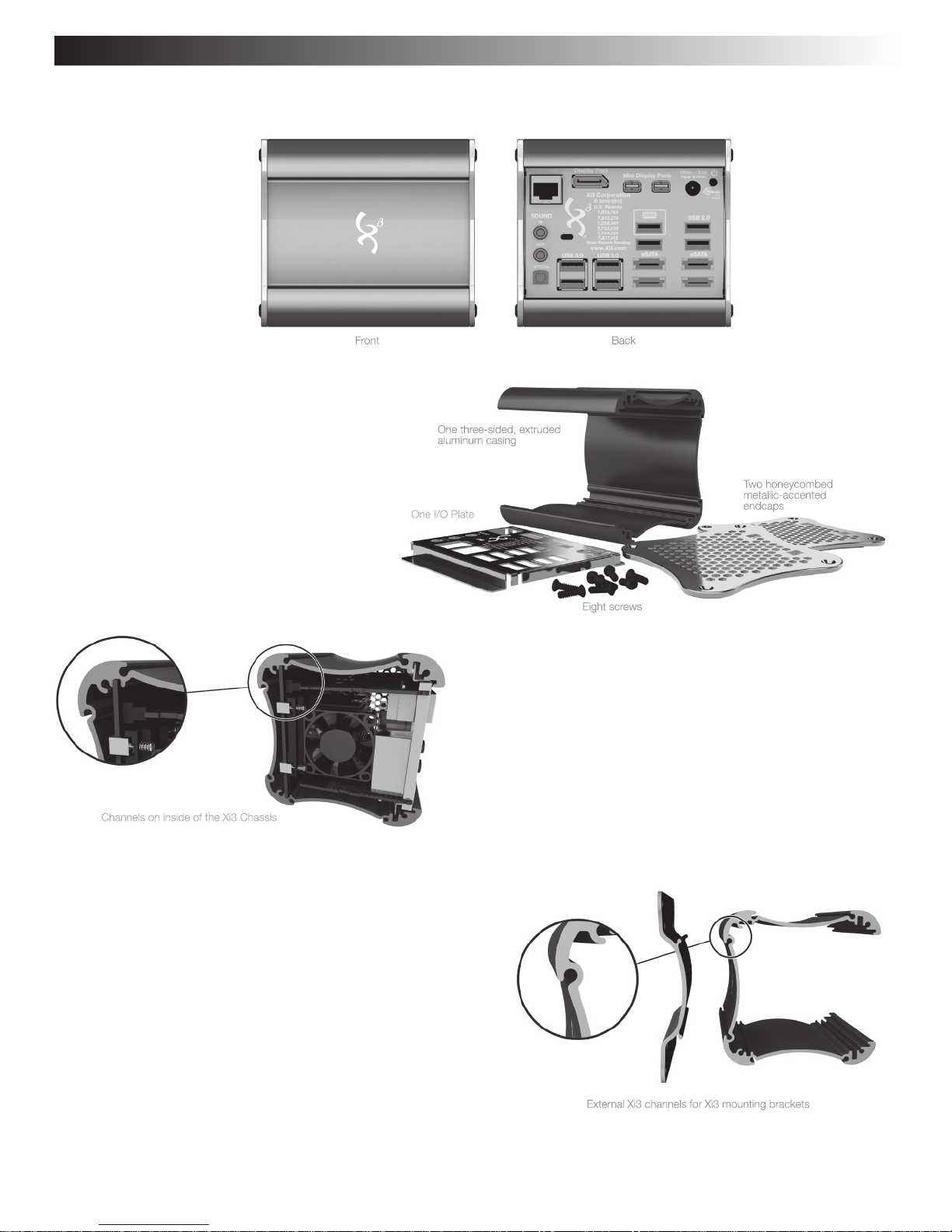
Chassis Design
TheX7AModularComputerisunlikeanyother
computereverinvented.Thisuniqueness
startswiththeexternalchassis.Asshownin
theillustrationtotheright,theX7AModular
Computerchassisismadeupof4pieces,held
togetherby8screws.
TheI/OPlateallowsuserstoaccessandusethevarious
Communication,VideoandAudioPorts,andthePower
ButtonsonthebackofanXi3ModularComputer.TheI/O
Platefurtherservestoholdtheboardsofthecomputerin
placewhentheI/OPlateandboardsareslidintothefour
channelsfoundinsidethechassis.
Channels & Guides
Thefront,topandbottomoftheoutsideofanXi3Modular
Computerchassisareconcave.Eachoftheseconcavesurfaces
arematchedwithapairofchannelsthatruntheentirelength
ofthechassis,withoneeachneartheouteredgesofthetop,
frontandbottomofthechassis.Thesechannelsaredesignedto
acceptcorrespondingguidestoallowanXi3ModularComputer
tobemountedorattachedtomanytypesofsurfacesinmultiple
environments.

Chapter 2 ExternalComponents 6
Attaching & Mounting
AsnotedinChannels&Guidesonthepreviouspage,onevalueof
thechannelsfoundontheoutsideofanyXi3ModularComputer
chassisistheabilitytouseanXi3MountingBrackettosemi-
permanentlyorpermanentlyattachormountanX7AModular
Computerto
•Awall,
•Aceiling,
•Adeskortable,
•Tothebackofacomputermonitor(asshowntotheright),orto
•Anyrigidsurface.
ThisabilitytousethechannelsfoundontheoutsideofeachX7A
ModularComputerchassisandcorrespondingguidesonXi3
MountingBracketsisanexampleoftheinnovativeexternaldesign
oftheXi3ComputerArchitecture.

Chapter 3 InternalComponents 7
Chapter 3 – Internal Components
SohowdoesbuildingblockapproachworkinsideanXi3Modular
Computer?Actually,therearethreemainaspectstointernalmodularity
withinthedesignandmakeupofanyXi3ModularComputer.
The Classic Motherboard
Thestandardmotherboardofacomputerisaprintedcircuitboardthat
holds/containsallofthevariouscomponentsanddevicesononePCB,
includingtheprocessor(s),RAM,storage/harddrive,externalcommunica-
tionports,powersupply,etc.InthecaseofanXi3ModularComputer,this
isnotso.
X7AModularComputersutilizetheXi3ComputerArchitecturetodividethe
classicmotherboardinto3interconnectedbutseparateboards,specifically
•TheXi3ProcessorBoard,and
•TwoXi3Input/Output(I/O)Boards.
TheXi3ProcessorBoardislocatedinthemiddleofthe3boardsshown
totherightanditcontainsthemicroprocessororbrainsofyourX7A
ModularComputer.TheRAM(orshort-termmemory)foryourX7AModular
Computerisalsohousedonthismodule.
The Primary I/O Board and Secondary I/O Board
ThePrimaryI/OBoard(PIO)ontherightsideofthe
illustrationisresponsibleforhandlingthemajorityofall
externalcommunications,asthisiswhereuserscan
accessandconnectmostcablesanddevicestothe
X7AModularComputer.The(PIO)andtheSecondary
I/OBoard(SIO)arealsotheboardsmostlikelytobe
updatedand/orreplacedasnewcapabilitiesand/or
functionsareintroducedintothemarketplace.
NotonlydoesthisabilitytoreplaceaPIOandSIO
makeitpossibletoextendtheusefullifeofyourX7A
ModularComputerforyearsbeyondtoday’sstandard
of3to5years,italsomeansthatyouwillbeableto
changethemainpurposeofyourcomputerinthe
future.Inotherwords,ifyoupurchasedthisX7AModularComputerforbasiccomputingpurposes(suchaswordprocessing,
surfingtheWeb,email,andthelike),youmightdecidetotransformthismachineintoaHomeAutomationcomputerinthe
future:adevicethatcontrolsyourheating,airconditioning,lighting,securitysystemandmore.Andmakingsuchachange
couldbeassimpleaschangingthePIOorSIOBoardinyourX7AModularComputerwithanewboardandconnectingyour
ModularComputertoyourhomenetwork.
OptionalPIOandSIOBoardswillbeavailablefromXi3CorporationandAuthorizedXi3Partnersinthefuture.
Xi3ModularComputercomponents
beingremovedfromtheChassis
ConnectedBoards
SecondaryI/OBoardProcessorBoardPrimaryI/OBoard

Chapter 3 InternalComponents 8
The Dangers of Static Electricity
Likeallcomputers,X7AModularComputersarepoweredbyelectricity.Asaresult,arandomstaticelectricitychargecan
causeseriousdamagetoyourX7AModularComputer(justasitcantoanyelectricaldevice).
IfyouchoosetoopenyourX7AModularComputerforanyreason,youmustdoeverythingpossibletopreventanaccidental
staticelectricaldischarge.Specifically,
•DOgroundyourself,whileseated,beforetouchingorhandlingyourX7AModularComputerbytouchinganygrounded
metallicobjectNOTconnectedtoortouchingtheX7AModularComputer.
• DONOTopenorworkonyourX7AModularComputerinacarpetedroomoraroomwithalinoleumfloor.
• DONOTworkonoropenyourX7AModularComputerduringorpriortoanelectricalstorm.
Removing & Replacing Boards
Upgrading,updatingand/orreplacingaPIOorSIOBoardwithinanX7AModularComputerisassimpleasfollowingthe12-
stepprocessbelow:
1. TurnoffyourX7AModularComputer(asnotedabove).
2. DisconnectthePowerCord/PowerAdaptorandallothercordsfromyourX7AModularComputer.
3. Unscrewthe4screwsononehoneycombedendcapoftheX7AModularComputerchassis.{NOTE: This requires a
Torx T-10 wrench or bit.}
4. Removethehoneycombedendcap.
5. Slideoutthe3boardsandI/OPlatefrominsidetheX7AModularComputerchassis.
6. RemovetheI/OPlatefromthe3boards.
7. DetachthePIOBoardorSIOBoard(asneeded)bypullingitupwardandawayfromtheXi3ProcessorBoard.
8. AttachthereplacementPIOorSIOBoardbyclickingitintoplaceinthecorrespondingslotsontheXi3ProcessorBoard.
9. ReattachtheI/OPlateontothe3boards.
10. Slidethe3boardsandtheI/OPlatebackintotheX7AModularComputerchassis.{NOTE: If your new PIO or SIO Board
is not identical to the one being replaced, you will need to use a new I/O Plate. You should have received this new I/O
Plate with your new PIO or SIO Board.}
11. Reattachthehoneycombedendcapbyscrewingthe4screwsbackintoplace.
12. ReconnectthePowerCord/PowerAdaptorandallothercordstoyourX7AModularComputer.
Turn Off Your X7A Modular Computer
HerearethesimplestepstoturnofforshutdownyourX7AModularComputer.
1.CloseanyopenfilesonyourX7AModularComputer.
2.CloseanyapplicationsinuseonyourX7AModularComputer.
3.Closeanyopenwebbrowsers.
4.ForopenSUSELinuxusers:
a. FindandclickontheopenSUSEiconfoundinthebottomleft-handcornerofyourdisplayscreen.
b. Nextclickonceonthe“KickoffApplicationLauncher”icon.Thenuseyourcursortomouseoverthe“Leave”icon.
Nextclickonceonthe“Shutdown”icon.
c. TheopenSUSELinuxOperatingSystemwillnowautomaticallyshutdownin30seconds.Oryoucanexpeditethe
shutdownbyclickingyourcursoronceonthe“Turnoffcomputer”button.
5.ForWindowsusers:
a.ClickontheStarticoninthebottomleft-handportionofyourmonitor.
b.ClickontheShutDownicon.
Restarting Your X7A Modular Computer
YoucanrestartyourX7AModularComputerbybrieflydepressingthePowerButtononthebackofthecomputer.
Tabla de contenidos