
X-Vision XRN0808E Manual de usuario

Professional HD IP NVR
Quick Setup Guide
Version 1
Thank you purchasing the XRN HD IP NVR from Xvision Pro HD.
Please ensure that you read and understand this Quick Setup Guide before operating the camera.
Please store this Quick Guide in an easily accessible location.
HD IP
PRO
PRO
PRO PRO
PRO PRO PRO
PRO PRO PRO
PRO PRO
PRO
8 Camera 8 Camera 16 Camera
20 Camera 36 Camera

XRN Quick Setup Guide
PRO
2
www.xvision.com
Contents
1. Introducon ........................................................................................... 4
1.1 Package Contents ........................................................................... 4
2. Installaon ............................................................................................. 6
2.1 Pre-requisites ................................................................................. 6
2.2InstallangHDD............................................................................. 6
2.3XRN1609HDDInstall..................................................................... 7
2.4XRN2016/3625HDDInstall............................................................ 8
2.5ConneconGuide.......................................................................... 9
3. Wizard Setup .......................................................................................... 10
4. Network Setup ....................................................................................... 12
4.1Windows........................................................................................ 12
5. Adding an IP Camera .............................................................................. 14
5.1 Auto IP ........................................................................................... 14
5.2ManuallyAddingACamera........................................................... 15
5.2.1SearchIPCamera............................................................ 15
5.2.2AutomacAdd................................................................ 15
5.3ManualAdd................................................................................... 16
5.4CameraSengAdjust................................................................... 16
5.5ChangingSubStreamResoluon................................................... 17
5.6HDDSengs.................................................................................. 20
5.7RecordingSchedule....................................................................... 21
5.7.1RecordTime.................................................................... 21
5.7.2AdvancedRecord............................................................ 22
5.7.3MoonDetecon........................................................... 22
5.8VideoPlayback............................................................................... 23
5.9BackupSeng............................................................................... 24
6. Device Search Tool ................................................................................. 25
7. Accessing The XRN/XC via IE ................................................................... 26
7. FAQ’s ...................................................................................................... 30

XRN Quick Setup Guide
PRO
3
www.xvision.com
Safety Precauons
1. Do not install the equipment in an environment with too much moisture, dust or smoke dust as this
may result in re or electric shock.
2. In the unlikely event that the equipment should malfuncon and emit an abnormal smell or smoke,
please immediately stop it, shut o the power and contact your supplier.
3. Please do not place this equipment near a heat source to avoid risk of re.
4. Please do not store, install and use this product in danger areas with inammable or explosive
substances.
5. Please make sure the power is turned o when installing the product.
6. Please ensure that you install the camera in an area with good venlaon.
7. When installing the camera, please make sure that it does not face any objects giving out strong lights
as this will damage the CCD of the camera.
8. Please do not use the camera in an environment where temperatures that exceed either -20°C to
+55°C.

XRN Quick Setup Guide
PRO
4
www.xvision.com
ThisManualwillcoverthefollowing:
• InstallofXRNNVR
• BasicsengupoftheNVR
• Auto IP
• SengaLANIPaddress
• Recording
• ViewingonIE
1.1 Package Contents
1. Product Overview
1. Introducon
XRN0808E/XRN0808P
XRN0808E NVR or
Soware CD 5V PSU
XRN0808P NVR

XRN Quick Setup Guide
PRO
5
www.xvision.com
XRN1609/XRN2016/XRN3625
XRN1609 NVR or
Soware CD PSU
USB Mouse SATA Cables
Remote Control Rack Mount
Mounng Accesories
XRN2016 NVR or XRN3625 NVR

XRN Quick Setup Guide
PRO
6
www.xvision.com
1. Product Overview
2. Installaon
Itisrecommendedthattheunitsbesetupandtestedbeforebeingmountedorinstalled.
PleasenotethatasofFebruary2014alloftheXRN/XCunitsonlysupportInternetExplorerandtheCMS
soware.Newrmwareisininthenalbetastagestosupportallbrowsers,thiswillbeavailableon
websiteandwillalreadybeloadedtocameraspurchasedinApril2014.
Theseinstruconsareforguidanceonlydetailedinformaonisinaccordancewiththeproduct.
Theinstruconsmayincludesometechnicalinaccuraciesortypographicalerrors,thesewillbecorrectedin
futureupdates.
Theproductorproceduresdescribedintheinstruconsmaybechangedorupdatedatanymewithout
priornoce.
Screenshotsusedintheinstruconareonlyforindicaonsandexplanaons.
Checkyouhaveeverythingshowninthecontentspages,ifyoudonotpleasecontactyouplaceof
purchase.
Youwillneedthefollowingtobegininstallaon:
• HDMI/VGACableandMonitor
• USB Mouse
• ESATAorHDDforrecording(Oponal)
• Router/Switch/HubforyourLANtoconnectallnetworkIPequipmenttogether.
• WindowsPC/LaptoponsiteandconnectedtothesameLAN(Router)asyourequipment
• Cat 5 Patch cables
• ScrewDrivers(NotsuppliedwiththeXRN0808E)
• AccessoriesboxincludedwithXRN
• SATAHardDrive
2.1 Pre-requisites
IfyoupurchasedtheXRN0808EthenthisunitonlyacceptsUSBandESATAharddrives.Ifyouchoosetouse
anythingabove2TB,thenyouwillhavetouseESATA.IfyoupurchasedyourXRNwithoutaHDDyouwill
needtofollowthesesteps.
AlltheunitshavescrewsholdingthetoplidsonexcepttheXRN0808E.Onceyouhaveremovedthescrews
movetheunitsothefrontpanelisfacingyou.Then,slidethelidawayfromyouandliotoremove.
WheninstallingintheXRN1609,oncethescrewshavebeenremovedthislidwillliofromthesidesand
awayfromthefrontpanel.
Theuserneedstobefamiliarwithhandlingharddrivesorgetaqualiedpersontoinstall.
2.2 Installang HDD
XRN Quick Setup Guide
PRO
7
www.xvision.com
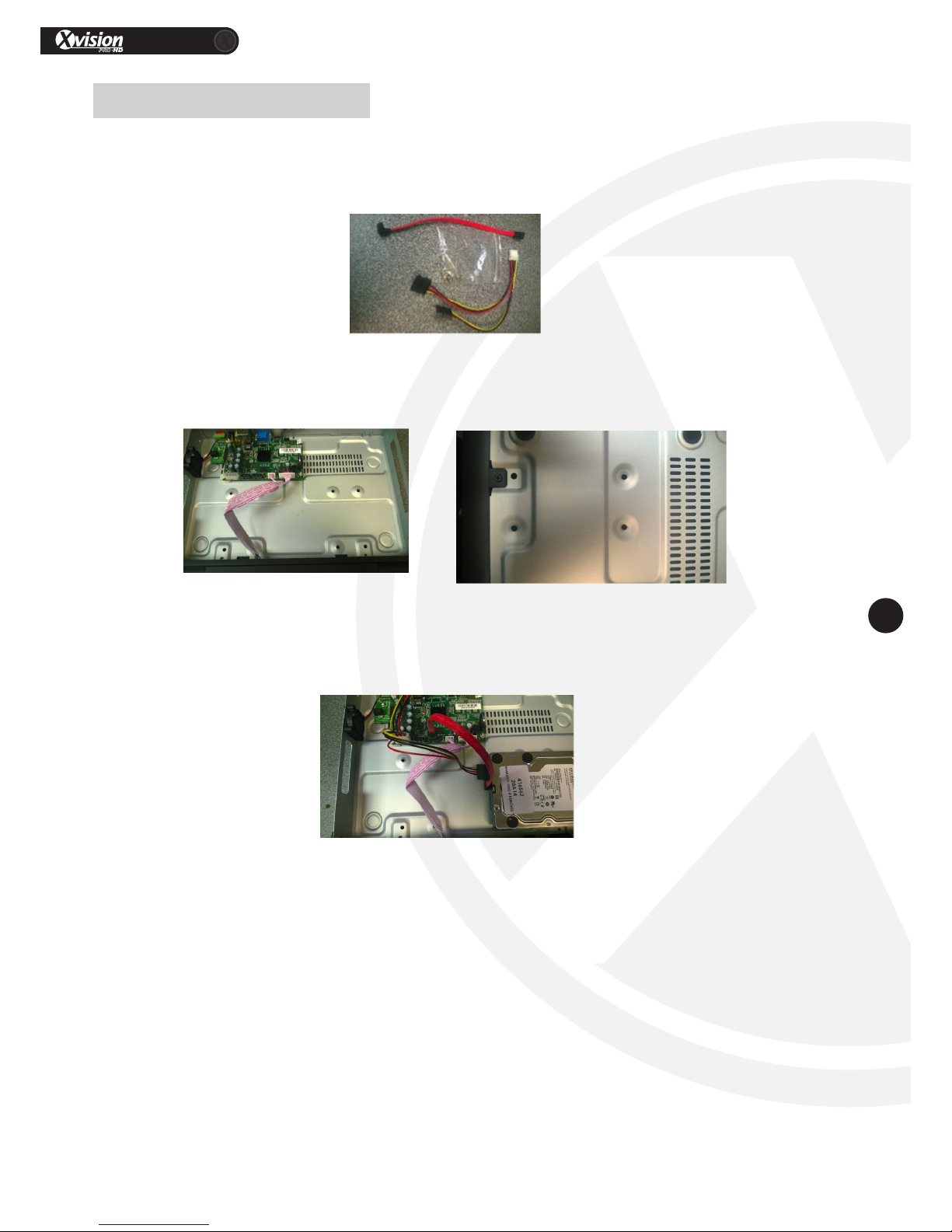
1.Oncethelidisremovedyouwillnocethereareholesintheboomofthecase.RemovetheRedSATA
cables,SATApowerMolexandthescrewbagfromyouraccessoriesbox,whichcamewithyourXRN1609
(picturedbelow).
2.3 XRN1609 HDD Install
2.RemovetheHDDfromitsprotecvepackaging,holditinplaceoverthe4screwholes.TurntheXRN1609
overandscrewtheunitinplace.
ScrewinfromtheboomoftheDVR
3.Whentheunitissecured,turnoverandconnecttheSATAandMolexCables(shownbelow).

XRN Quick Setup Guide
PRO
8
www.xvision.com
1.Whenthelidisremovedyouwillseesilverracks.RemovetheRedSATAcables,SATApowerMolexand
thescrewbagfromyouraccessoriesboxwhichcamewithyourXRN2016/3625aspicturedbelow.
2.4 XRN2016/3625 HDD Install
2.Takeoutyourscrewdriverandremovethescrewsholdingtherackinplace.
3.TheXRN2016willhaveonelevelandtheXRN3625willhavetwolevelsformounngharddrives.Place
yourharddriveontheundersideoftherack(shownbelow)andsecureinplaceusingthescrewsthatcame
intheaccessorybox.
4.Onceinplace,connectyourSATAandMolexcabletotheharddroveandyourXRNmotherboard.
Please Note
Theuserneedstobefamiliarwithhandlingharddrivesorgetaqualiedpersontoinstall.Y3Kwillnotbe
liableforanydamagecausedtotheunitintheprocessofinstallaon.

2.5 Connection Guide
USB
Mouse*
PSU
HDMI to
Monitor*
HDD
USB2.0*
Router
Network
Switch
PoE Switch
PSU XC Camera
Windows
PC/Laptop*
LAN
VGA
to Monitor*
HDD
ESATA*
XC Camera
Optional**
** If adding more than one XRN/XC device
XC Camera***
*** XC1080 range PoE. XC720 requires a PoE splitter/injector/PSU
PSU
Network Cable
* Required but not supplied
Optional**
1Connect either your VGA*/HDMI*cable to your XRN
and the other end of the cable to your monitor.
2
Place the Ethernet (CAT 5) patch cable next to your
XRN and then the other end to your Switch*/Router*.
Please remember not to plug into your XRN unit yet.
3Next plug in the Mouse*to one of the 2 available USB
ports.
4Next, plug in you’re chosen recording hardware
either ESATA*or USB2.0 HDD*.
5To power the unit, connect the PSU to the micro USB
on the XRN.
6
Finally, turn your power source on, press the
button on the top of the XRN0808E marked ‘Power’.
For the other XRN there is an on/o at the back
of the units.
Instructions
Scenario 1
*
Scenario 2
Scenario 3
PSU
Key:
Power Supply
VGA or HDMI Cable
Network Cable
USB Cable

XRN Quick Setup Guide
PRO
10
www.xvision.com
1. Product Overview
3. Wizard Setup
AerapplyingpowertotheXRNandhavingamonitorconnected,youwillseethemainscreen.
RightclickonyourmouseandselectStart>Login.Thedefaultusernameis‘admin’andthereisno
password.
Next,selectthedesiredlanguage.
Then,changeyourvideoformatandresoluon(pleasemakesureyourmonitorcansupporttheresoluon
thatyouhaveselected).
Otros manuales para XRN0808E
1
Este manual sirve para los siguientes modelos
4
Tabla de contenidos
Otros manuales de Hardware de red de X-Vision



Manuales populares de Hardware de red de otras marcas

Matrix Switch Corporation
Matrix Switch Corporation MSC-HD161DEL Manual de usuario

B&B Electronics
B&B Electronics ZXT9-IO-222R2 Manual de usuario

Yudor
Yudor YDS-16 Manual de usuario

D-Link
D-Link ShareCenter DNS-320L Manual de usuario

Samsung
Samsung ES1642dc Instrucciones de uso

Honeywell Home
Honeywell Home LTEM-PV Instrucciones de montaje


