
WowWee Roboremote Manual de usuario

Ages 8+
Item No. 8000
User
manual

Introduction..................................................................................................................... 1
Package contents........................................................................................................... 2
Battery details................................................................................................................ 3
Battery requirements................................................................................................... 3
Battery installation.......................................................................................................3
Roboremote basics....................................................................................................... 4
Terminology..................................................................................................................4
Remote controller....................................................................................................... ..4
Roboremote software interface............................................................................... ..6
System requirements.................................................................................................. ..6
Installing the software................................................................................................ . 7
Running the software................................................................................................. . 7
Software overview........................................................................................................ . 8
Introduction to the Roboremote software.......................................................... . 9
Connecting to your computer................................................................................. 11
Using the Roboremote software............................................................................. 13
Creating and playing control functions...................................................................... 13
Assigning and uploading the control function to Roboremote.................................. 14
Testing and saving the control function...................................................................................15
Playing the control function....................................................................................... 16
Roboremote software updates................................................................................... 16
Programming control functions using your robot’s remote controller....... 17
FAQs................................................................................................................................ 19
Limited warranty......................................................................................................... 20
Index............................................................................................................................... 21
Contents

Introduction
Thank you for purchasing the WowWee® Roboremote!
Your WowWee® Roboremote is a universal remote controller designed to be used
with any robot in the WowWee product line controlled by IR sensors! Create and
control a sequence of multiple actions with just one button and store different
sequences directly onto the remote controller.
1

Package contents
• 1 x Roboremote
• 1 x USB cable
You can download the Roboremote software and user manual from the Internet.
See page 8 for details.
Package contents
2

Battery details
This section describes battery requirements and installation procedures for Roboremote.
Battery requirements
Roboremote uses 3 x size “AAA” sized batteries (not included).
Battery installation
Installing or changing batteries in Roboremote:
1. On the back side of Roboremote, using
a Phillips screwdriver (not included),
remove the screw on the battery
compartment cover and then remove
the battery compartment cover.
2. Remove the old (if any) 3 x “AAA” batteries
from the battery compartment, and replace
with fresh batteries.
IMPORTANT: Make sure you align the polarities
and positions of the batteries with corresponding
markings inside the battery compartment.
3. Replace the battery compartment cover
and replace the screw that holds it in place.
Important battery information
• Use only fresh batteries of the required size and recommended type.
• Do not mix old and new batteries, different types of batteries [standard (Carbon-Zinc),
alkaline or rechargeable] or rechargeable batteries of different capacities.
• Rechargeable batteries are only to be charged under adult supervision.
• Respect the correct polarity, (+) and (-) as indicated.
• Do not try to recharge non-rechargeable batteries.
• Do not dispose of batteries in re. Batteries might explode or leak.
• Replace all batteries of the same type/brand at the same time.
• The supply terminals are not to be short-circuited.
• Remove exhausted batteries from the toy.
• Batteries should be replaced by adults.
• Remove batteries if the toy is not going to be played with for some time.
• Rechargeable batteries are to be removed from Roboremote before being charged.
3
Battery details
Roboremote basics
This section discusses basic components of the Roboremote remote controller.
Terminology
The Roboremote documentation uses some specic terms to describe some of the
components of the software. The following are some of the terms used in this User
Manual.
BodyCon: A term used to describe any motion or sequence of motions that can be
associated with a specic audio le. In the Roboremote software, you can add BodyCons
from the Action category selector to the timeline.
Control function: Describes a movement or sequence of movements that you create on
the Roboremote software timeline.
Remote controller
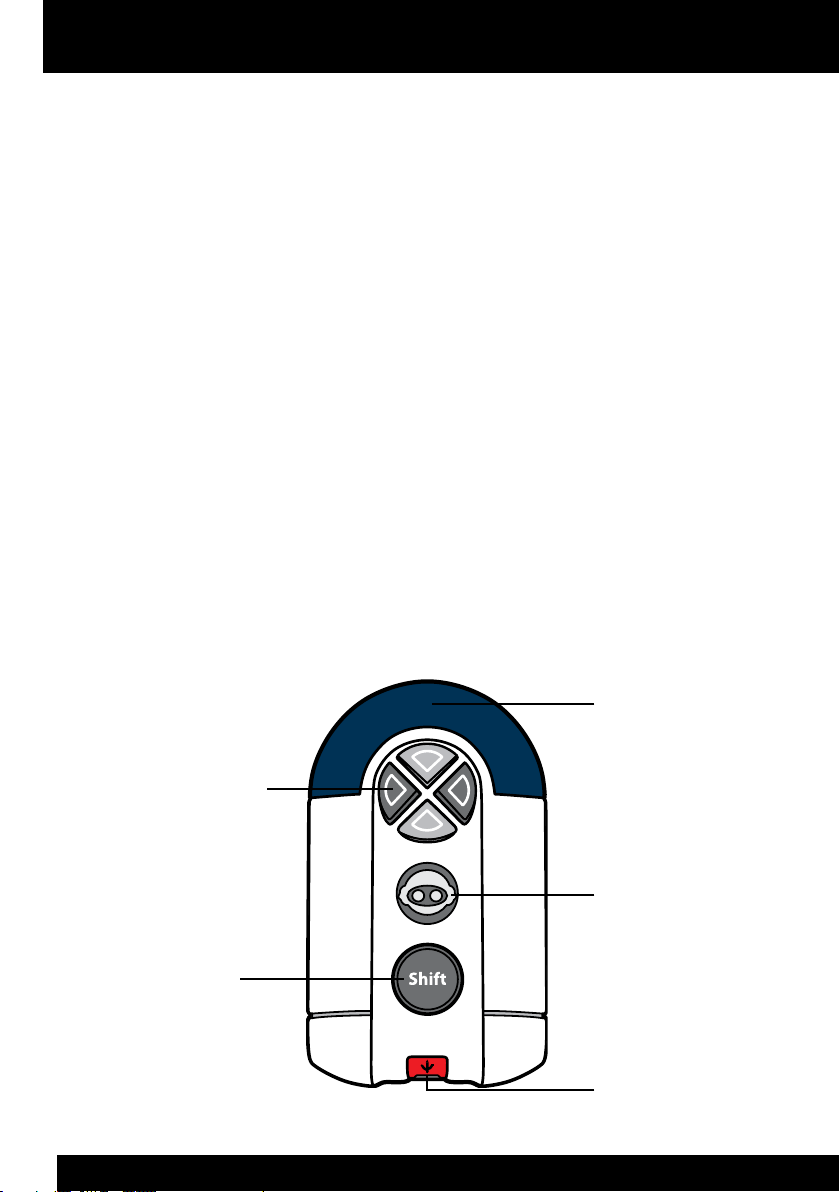
The Roboremote remote controller is equipped with a tri-color LED indicator, four
customizable function buttons, one shift button that toggles the Roboremote shift levels,
IR transmitter and IR receiver.
Customizable
function buttons
Shift button
USB port
IR Transmitter
& IR Receiver
Tri-color LED
indicator
Roboremote basics /
Terminology / Remote controller
4

Roboremote basics / Remote controller
5
LED indicator: A tri-color LED, the different colors represent the shift levels on
Roboremote. You can toggle the shift levels using the shift button.
Green: First shift level (no shift)
Orange: Second shift level.
Red: Third shift level.
Shift button: Allows you to toggle between shift levels (rst, second and third) to access
saved control functions on Roboremote.
Function buttons: Allows you to trigger control functions saved on the Roboremote
controller. Use the Shift button to toggle between the different functions saved on each
function button (when a control function is available).
IR transmitter: Transmit the control function to your WowWee robot’s IR receiver.
NOTE: Do not block the IR transmitters when it is transmitting.
IR receiver: Receives control functions directly from your WowWee robot’s remote
controller.

Roboremote software interface
This section discusses the Roboremote software interface, including installation, and
usage.
The following are the minimum system requirements to run the Roboremote software
used to program the Roboremote.
NOTE: Your computer must meet the minimum requirements in order to properly run the
software.
System requirements
PC compatible computer with a minimum Pentium 4 processor (or equivalent) running
the following:
• Windows XP™/ Windows Vista™ operating systems
• 256 Mbytes of RAM
• Microsoft .NET Framework Version 2.0 or higher (if using Windows XP)
• USB connectivity
Windows is a registered trademark of Microsoft Corporation in the United States
and other countries.
Roboremote software interface /
System requirements
6

Installing the software / Running the software
7
Roboremote comes with its own software interface which you can use to program
sequences for your WowWee robot, and then store it on your Roboremote so you can
take it with you.
Installing the software
NOTE: Before you install the Roboremote software, make sure your computer meets the
minimum system requirements. See the System requirements section for details.
To install the Roboremote software, do as follows:
1. In your Internet browser, go to www.wowwee.com/roboremote, locate
and click on the Download Roboremote Software link.
When prompted, save the Roboremote.msi le onto your computer.
2. Locate and double-click on the le to begin installing the software.
3. Follow the instructions that appear onscreen to install the software.
Once the installation is nished, you can use the Roboremote software to create and
customize your robot control functions.
To uninstall the software:
1. From your Windows Control Panel, locate the Add or Remove Program
Files item.
2. In the Add or Remove Programs dialog, locate the Roboremote software
item, and then click on Remove.
3. Follow the instructions that appear onscreen to uninstall the software.
Running the software
After installing the software, you can begin using it. To run the software, click on the
Roboremote software shortcut on your computer desktop.
NOTE: The program will automatically install any updates available from the Internet
Internet using the automatic web update feature.

Introduction to the Roboremote software
Software overview
The Roboremote software interface can be divided into six main areas:
1. Main menu bar
2. Robot selector
3. Action category selector
4. Command list selector
5. Selector pane
6. Control panel
1
5
2 3 4
6
Software overview
8
Este manual sirve para los siguientes modelos
1
Tabla de contenidos


