Vivotek NBV27CB2 Manual de usuario

In order to continue serving our customers and providing the best products, our product information
including our user manuals may receive updates from time to time. Please check our website for the
latest user manuals and product materials.
NBV27CB2
GAMING MONITOR
USER MANUAL


3
Table of Contents
Section 1: Safety Precautions..................................................... 4
Section 2: Box Contents.............................................................. 5
Section 3: Product Overview....................................................... 6
3.1 – Monitor Buttons ............................................................... 6
3.2 – Monitor Ports................................................................... 6
Section 4: Stand Installation ....................................................... 7
Section 5: Mount Installation ...................................................... 8
Section 6: Basic Operation.......................................................... 9
Section 7: Indicator Light ............................................................ 9
Section 8: OSD.............................................................................. 10
8.1 – OSD Menu Functions ...................................................... 10
Section 9: Display Shortcut Menus ........................................... 12
Section 10: Troubleshooting ....................................................... 13
Section 11: Cleaning..................................................................... 14
Section 12: Specifications........................................................... 15
Section 13: Three-Year Limited Hardware Warranty................. 16

4
Section 1: Safety Precautions
Read and observe the following warnings and information below.
1. Before cleaning, always unplug your monitor. It is recommended that you use
dry cloth or lightly damp cloth to clean your monitor. Dry cloth is, however,
the safest. If using damp cloth, wait for your monitor to completely dry before
plugging it in again.
2. Do not use alcohol or ammonia-based cleaner and/or liquids to clean your
monitor.
3. This monitor features ventilation openings on the back of the unit. Avoid blocking
these openings to prevent the monitor from overheating.
4. Avoid placing this monitor near any heat sources, e.g., portable heaters or
heating vents, as this may cause damage to your monitor.
5. Do not spray cleaner and or any kind of liquid directly onto the monitor’s screen
or any part of the monitor.
6. Do not insert anything into any part of the monitor especially the ventilation
openings.
7. Always make sure your monitor is placed on a secure, level surface to prevent it
from falling and sustaining damage.
8. Unplug your monitor during any extended periods of non-use.
9. Do not place heavy items on the monitor or monitor cables.
10. Do not attempt to disassemble or remove parts from the monitor. Any
disassembly or modication etc. not performed by an authorized technician
can result in damage to the monitor and/or possible exposure to high voltage
electricity which may lead to serious injury or death.
VIOTEK®shall not be held responsible for injury or damage of products or persons
due to failure to adhere to the aforementioned precautions or any others noted
hereafter.
The terms HDMI and HDMI High-Denition Multimedia Interface, and
the HDMI Logo are trademarks or registered trademarks of HDMI
Licensing Administrator, Inc. in the United States and other countries.

5
Section 2: Box Contents
Monitor x 1 Stand Stem x 1 Stand Base x 1
Power Cable x 1
NO. 2 Screw x 1
(PM 5 x 12mm)
NO.1 Screws x 4
(PM 4 x 10mm) HDMI Cable x 1
User Manual x 1

6
Section 3: Product Overview
3.1 – Monitor Buttons
7 Speakers: Audio output.
8 HDMI Connector: Insert one end of the HDMI cable into the computer’s
HDMI output and connect the other end to the monitor’s HDMI port.
9 VGA Connector: Insert one end of the VGA cable into the computer’s VGA
output and connect the other end to the monitor’s VGA port.
10 LINE IN: Audio source input connector. When using VGA signal source input,
you must connect LINE IN connector to input audio source.
11 Power Connector: Insert the power cable to supply power to the monitor.
8
7 7
9 10 11
1
2
3
4
5
6
1 M Menu Button: Press to display the OSD menu or enter sub-menus.
2 E Exit Button:Press to exit menu/sub-menu or activate Input Source shortcut.
3 Up Button: +/ Press to adjust Brightness effect or press to move up in the
menus.
4 Down Button: -/ Press to adjust volume or press to move down in the
menus.
5 Power Button: Press to turn the monitor on/off.
6 LED Indicator: Changes colors to indicate status. Power On status is blue
color, while standby status is red color. Refer to Section 7.
3.2 – Monitor Ports
HDMI 1.4

7
Section 4: Stand Installation
Keep the foam underneath the monitor before attaching the stand.
1. Open the package and take out the monitor with foam still attached. Gently place
it top-down on a desktop or table.
2. Take out the stem and base. Insert the stand stem into the base, then use a
screwdriver (not included) and one NO.2 screw to fasten base to the stem.
NO.2 Screw x 1
Stand Stem
Base
3. Attached the stem onto the back of monitor. Use the included four NO.1 screws to
install it onto the monitor.
NO.1 Screws x 4
4. Take out the decorative cover from the package and cover it onto the back of
monitor. With the stand fully assembled, remove the remaining foam on monitor
and stand it up on a at, level desktop or table.
Decorative Cover
Make sure the monitor is laid on a at surface before removing the stand.

8
Section 5: Mount Installation
1. Open the package and take out the product with foam still attached. Gently place
it on a desktop or table. If the monitor is already attached to the stand, remove
the stand.
2. Tighten four M4 (10mm) screws (not included) onto the mounting holes on back of
monitor.
4x M4 (not included)
3. Remove the extra parts and the foam covering the monitor. Then install the
monitor on the wall, mount, or xture as desired.
Mount
(not included)

9
Section 6: Basic Operation
1. Insert one end of the HDMI cable into your PC’s graphics card. An VGA
cable (not included) may also be used. An HDMI cable is included for your
convenience.
VGA cables do not carry audio.
2. Connect the other end of the cable to the corresponding connector on your
monitor.
Audio In
HDMI 1.4 VGA
3. Connect the power cable to your monitor, then connect the other end to your
power source. It is recommended that you use a surge protector with adequate
voltage if a wall outlet cannot be reached directly.
4. Locate the power button on the monitor and press it to turn the monitor on.
Section 7: Indicator Light
Solid blue light indicates power is on and the monitor is operating normally. Red light
indicates no video source and in standby mode. Please ensure your computer is on
and all video cables are fully inserted and/or connected.
Indicator Light

10
Section 8: OSD
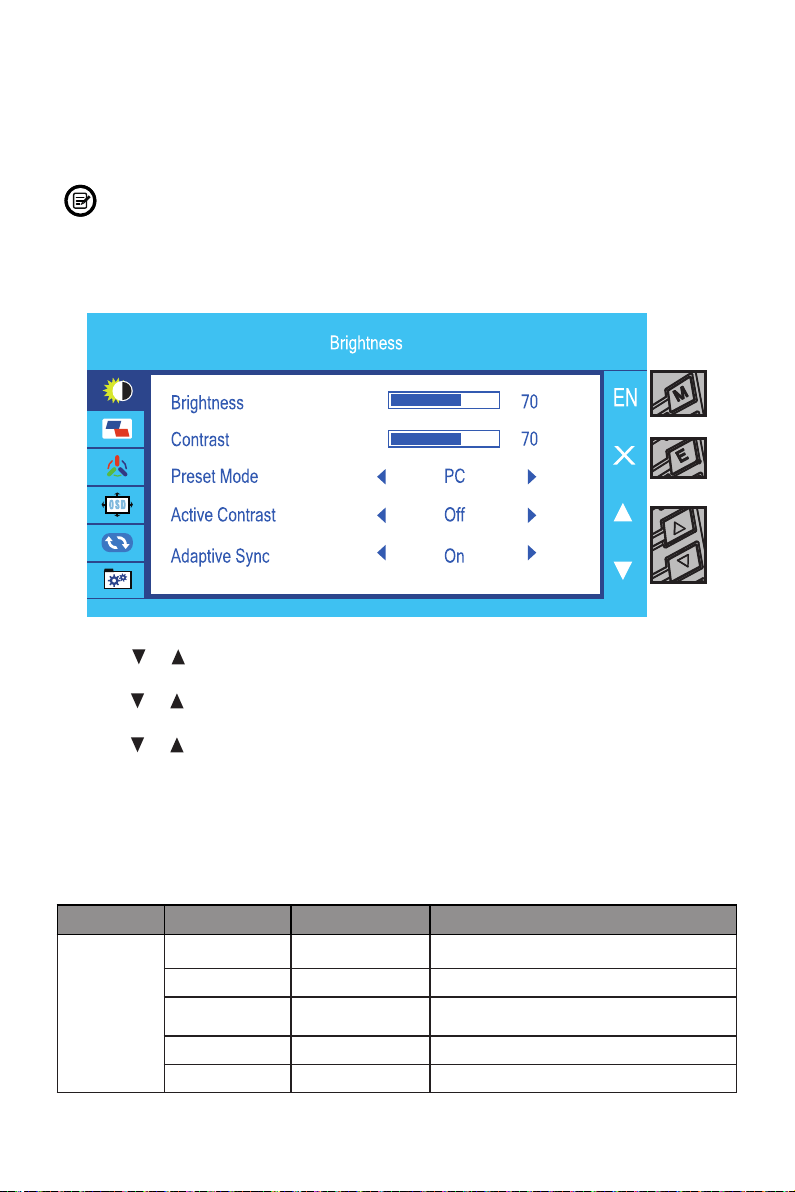
The On-Screen Display (OSD) Menu may be used to adjust your monitor’s settings
and appears on screen after turning on the monitor and pressing the M(EN) button.
When using the monitor for the rst time, settings will automatically adjust to
optimal settings according to your computer’s standard conguration settings.
1. Press M(EN) to enter the OSD menu.
2. Press or to browse functions.
• Highlight the desired function, then press M(EN) to enter the sub-menu.
• Press or to browse sub-menus, then press M(EN) to highlight the desired
function.
• Press or to highlight an option, then press M(EN) to conrm the settings and
exit the current screen.
3. Press E (X) to exit the current screen.
8.1 – OSD Menu Functions
Main Menu Sub-Menu Options Description
Brightness
Brightness 0~100 Adjust display brightness
Contrast 0~100 Adjust display contrast
Preset Mode PC, Movie, ECO,
FPS, RTS Set visual mode according to activity
Active Contrast On, Off Turn on/off Active Contrast function
Adaptive Sync On, Off Turn on/off Adaptive Sync function
Tabla de contenidos
Otros manuales de Monitor de Vivotek