VIP Officebox Manual de usuario

Officebox
Users’ manual

2
Contents
Welcome to the world of Officebox! 3
Contents of the box 4
Closer look at the Officebox device 4
How to start using Officebox for telephone calls? 5
What you should know about Officebox and telephony... 7
What do indicators on the LCD screen stand for 7
How to connect to the Internet for the first time 8
Internet connection speed 13
Advanced user instructions 14
Wireless LAN connection of Officebox and computer 14
Advanced functions of the device 16
Help and support 17
Glossary 18
General use recommendations 21

3
Welcome to the world of Officebox!
Dear user, we would first like to thank you for trusting us and choosing Officebox solution for your voice calls and Internet
access - fixed line service in your office.
Officebox activation and use is simple and fast! Look for the instructions inside this Manual.
For additional information please visit http://officebox.vipnet.hr or call Customer Support at 091 77 22.
It is good to know:
When buying the Officebox device, each customer has the right to return it and terminate the subscription
contract within 5 working days from the purchase made, in case of dissatisfaction with the service or
coverage of the area in which the device is to be used.

4
- The Officebox device
- Power supply adapter for the Officebox device
- LAN cable for the Officebox device and computer connection
- Plastic card containing PIN and PUK code
- User manual
- Quick start guide
- CD with detailed instructions for advanced users (in English)
Contents of the box
Note:
It is not possible to connect a fax machine to Officebox or to send and receive fax messages as you usually do.
3. Socket for LAN network
Connect LAN Ethernet network cable that came with the device, and by which you connect your computer to Officebox.
You should use exclusively LAN cable for the first connection of Officebox and computer. After the first connection, it is
possible to connect computer and Officebox via wireless LAN connection (WLAN).
Closer look at the Officebox device
0. What is beneath the sticker?
Beneath the sticker you can find the holder for the SIM card, necessary for
voice services and data connection via Officebox.
Note:
Removal of the sticker is not allowed.
According to Conditions of use the use of the SIM card received
with the Officebox device is not allowed in other devices.
Please study Conditions of Use for more details.
1. Power supply
Plug in the adapter that came with the Officebox device (DC 5V).
In case of power outage, it is not possible to make a call via Officebox or
connect to the Internet.
2. Telephone socket
Disconnect your fixed telephone from the wall socket and plug it into the
upper socket, for telephone.
0
2
3
1

5
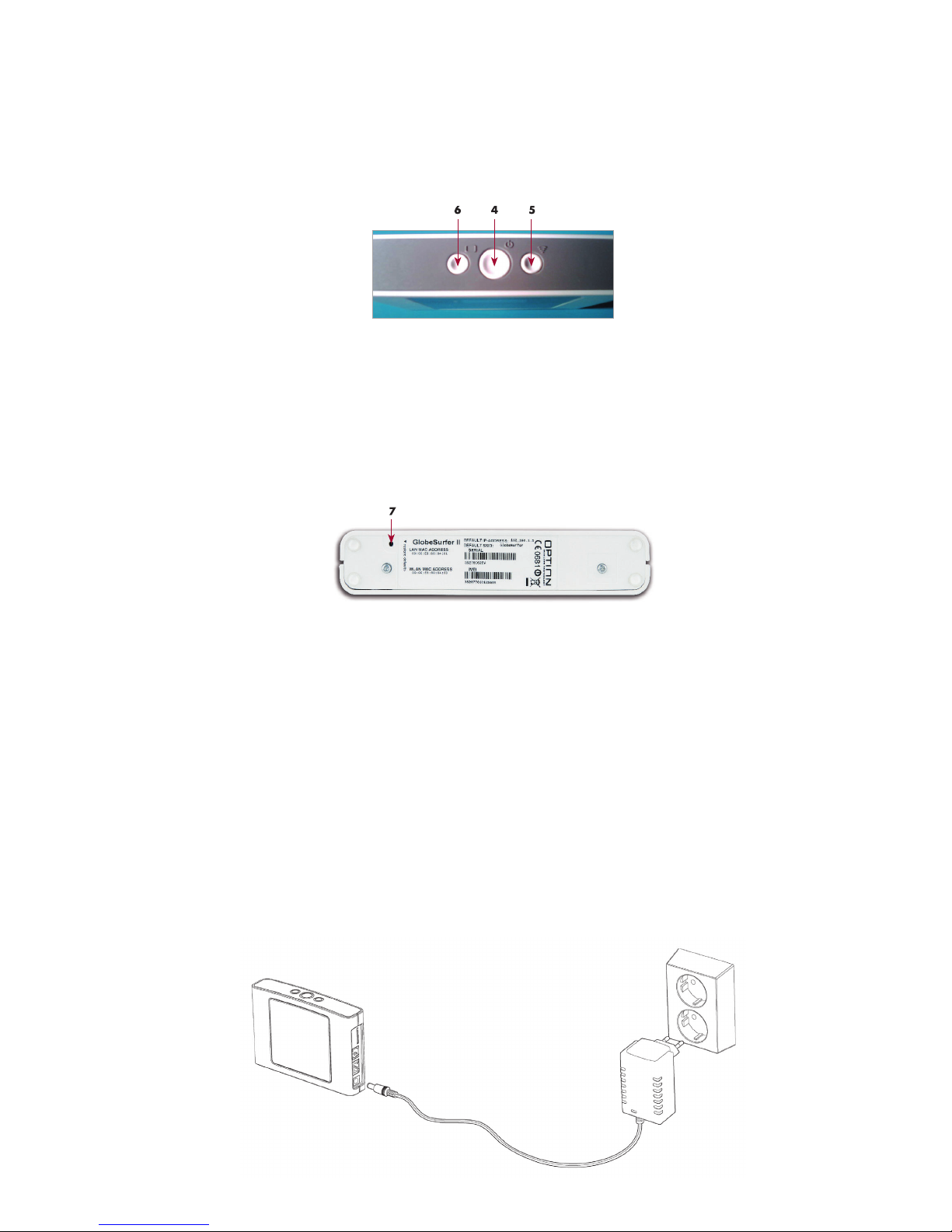
4. Turn on/off button
5. Button for connection to the Internet (or LAN), or disconnection from the Internet
By simply pressing the button, you launch the connection to the Internet via HSDPA/UMTS or EDGE/GPRS network.
6. Button for display change on LCD screen
The network you are connected to, Internet connection status as well as missed phone calls will be displayed on the LCD
screen of the device
By pressing the button for information change, you will scroll through the options - for ex. from the home screen to the
screen displaying missed calls.
7. Reset button (restoring the initial setup of the device)
Reset button is located on the lower part of the device; in order to press this button and activate resetting use a sharp
object, like a paper clip.
Note: By activating the reset button you will restore the initial setup of the device. By doing so, you will lose all settings
and passwords created in the meantime.
How to start using Officebox for
telephone calls?
Step 1: Connect the power supply

6
Plug the power adapter into the power supply socket on the Officebox device. Then plug the adapter into the standard
grounded power socket (220V).
CAUTION: Use exclusively the network adapter that came with the Officebox device. Using other network adapters may
cause damage to your device.
Officebox will be initialized in about thirty seconds.
After the welcome message, the message “Enter PIN code“ will be displayed on the LCD screen.
Step 2: Connect the fixed telephone
It is possible to connect cordless or wired fixed telephone to Officebox. Simply plug the standard telephone cable of
the wired telephone into the telephone socket. For cordless or DECT telephone connect the telephone base station to
Officebox.
(Note: It is not possible to connect ISDN telephone to the Officebox device).
Step 3: Enter PIN code
In order to make phone calls and to access the Internet via the Officebox device, it is necessary to use the SIM card.
PIN code protects every SIM card against unauthorized use and it is necessary to enter PIN code upon activation of the
Officebox device.
You will find PIN code of your SIM card on the plastic card, on the inner side of the package cover.
Pick up the receiver of the fixed telephone connected to Officebox, and simply type *PINcode# and press the dial
key (following the example below you would type *1239#).
Messages “Initialization“, then “Searching“, and finally the sign of the network HR VIP will appear on the device display.
And - that’s it.
You are ready to make phone calls via Officebox!
PIN: 1239
PUK: 57881472
PIN2: 1627
PUK2: 27235917
8938591006010175011

7
What you should know about Officebox and
telephony...
- Free telephone dial tone in Officebox device differs from the normal fixed telephone line signal by being a flat
tone.
- You dial numbers as you usually do via fixed line - if you call a number in the county, it is not necessary to dial the
prefix.
- When you receive a call, the caller’s number is displayed on the screen of the device.
- You will be able to see missed calls on the LCD screen, or via computer, after having it connected to Officebox
(System configuration/Telephone). You will also be able to delete messages on missed, incoming and outgoing
calls.
- The Officebox device does not support fax service.
- During an active Internet connection via GPRS/EDGE network, you will not be able to receive and make
phone calls. The caller will receive the message “the person you have called is temporarily not available“ or “the
person you have called has turned off the phone“ (The information about the network through which you are connected
is displayed on the lower left corner of the LCD screen of the device).
For further information and FAQ visit http://officebox.vipnet.hr
What do indicators on the LCD screen
stand for
- HR VIP is the name of the network through which you are connected.
- Indicators (the number of bars) on the right side indicate signal strength of the Vip network.*
- Telephone icon stands for missed call and it will disappear from the screen after you have checked all missed calls
on the LCD screen or on the computer
- Computer icon and the number next to it stand for the number of computers connected to Officebox via WLAN
connection
- The sign of technology through which you are connected is displayed in the lower left corner such as GPRS, EDGE or
UMTS.
When you connect to the Internet:
- if you are located in the HSDPA coverage area, the network sign will change from UMTS to HSDPA
It is good to know...
* Officebox makes wireless telephone and Internet connection via Vip UMTS/ HSDPA or GSM/GPRS/EDGE
network. Check the signal level of the network on the device screen. For better signal reception, place
your Officebox near the window.
HR VIP

8
How to connect to the Internet for the first time
Step 1: Connect Officebox to the computer
1a) If you have already connected fixed telephone to Officebox, connect your computer and Officebox with the network
cable that came with the device.
1b) If you have not connected fixed telephone to Officebox yet, first turn Officebox on (connect power supply and press
middle key on the top of the device).
When the message Enter PIN appears on the device display, connect the computer and Officebox with the network
cable that came with Officebox.
You must necessarily use the network cable for the first connection of Officebox and computer. If you
wish to use wireless LAN connection to connect to Officebox, look for further information in the chapter “Wireless
connection of Officebox and computer via WLAN connection“, on the page 14.
Step 2: Settings set-up
The interface for access to the Officebox device settings opens in web-browser.
Start your web-browser, for e.g. Internet Explorer, or Opera, or any browser that you usually use to surf the Internet.
Check if the web-browser allows the so called cookies (if you are not sure what this means or how to setup the required
settings look for the explanation on the page 29).
Type http://start or http://192.168.1.1 in your web-browser and click “Go” or press Enter:

9
The Officebox interface will open, as shown at the picture below:
What is GlobeSurfer II?
The producer’s factory name GlobeSurfer II is The company Option produced Officebox used for the Officebox device.
(www.option.com) for Vipnet.
Step 3: The window “Welcome“ - what should you do?
1. Select the language that you will use when working with Officebox.
2. If you wish you can enter your new administrator account password.
User name: admin and password: admin are automatically pre-entered in the new Officebox device. You have the
possibility to change the password here.
User name and password are necessary for access to Advanced options of the device. However, you do not have to
enter them each time you connect to the Internet, but only if you want to change a certain setting.
3. Click “OK“ to save the password.
About password:
Next time you log in to Officebox enter user name admin and password that you can now choose and
save.
Piece of advice:
Save the address of the Officebox interface home page as bookmark (save the http://start in your web-
browser). This enables easier access to Officebox in case you want to enter some changes or to setup
new Officebox settings.

10
Step 4: Setup wizard
When you connect to Officebox for the first time, you will setup the settings. Your Wizard will lead you through the
settings setup. Simply follow the instructions on the screen which explain each setting in detail.
When you select or enter a setting, click Next to continue stepping through the Wizard until the final window.
Note:
Do not change the settings in the windows Telephony (ETSI DTMF) and Network (APN: data.vip.hr),
because they were originally set to function properly with the Vip network.
WLAN (Wireless Local Area Network) is initially turned off on the Officebox device. If you wish to establish wireless
connection from the computer to Officebox, read the instructions in this chapter through, and then look for further
instructions on using WLAN on the page 14.
Step 5: The last window displays the list ofclick “Finish“ and “OK“ again in the next
all chosen settings. To save the settings click “Finish“ and “OK“ again in the next window.
Step 6: Enter PIN (if you have not already entered PIN via telephone)
The Officebox device uses the SIM card to make phone calls and to access
the Internet.
The PIN code protects every SIM card from the unauthorized use and it is
necessary to enter it upon activation of the Officebox device, via telephone
or via computer, depending on which one you connect to Officebox first.
You will find the PIN code of your SIM card on the plastic card, that came
in the Officebox package.
PIN: 1239
PUK: 57881472
PIN2: 1627
PUK2: 27235917
8938591006010175011
Tabla de contenidos