
VIETA BBT06 Manual de usuario
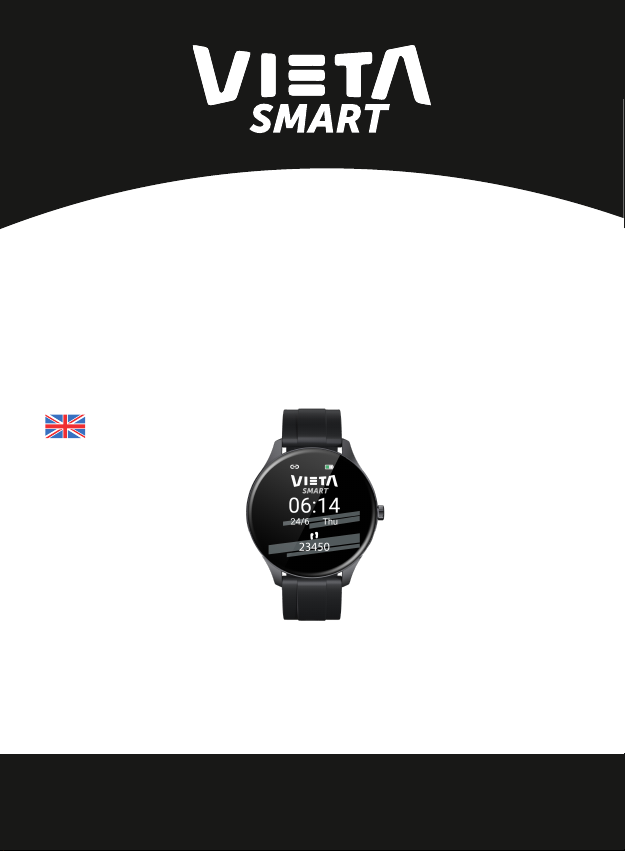
USER MANUAL
BBT06
Thank you for purchasing the Wear Smartwatch BBT06.
To ensure correct operation, please read this manual carefully before use.
English
Wear
Smartwatch
Have a problem
with your product?
Contact us at:
Email: [email protected]

www.vietapro.com
The adaptation platform requirements
Android 4.2 and above support.
iOS 9.0 and above support.
Bluetooth 4.0
2. Android/Apple:
Android: search for "Da Fit" though the software application (Google
Play Store) to download and install the application.
Apple: search for " Da Fit " though the software application (Apple App
Store) to download and install the application.
1. Scan the QR with your smartphone
to access to Da Fit application.
App download method
You have these options:

www.vietapro.com
IMPORTANT: The recommended Da Fit app versions for Android and
iOS is 2.0.
IMPORTANT:Please instead of pairing from smartphone “Bluetooth”
settings, follow the steps described on “How to pair” (to get all the
Bluetooth communication between smartphone and watch).
NOTE: User can customize the wallpaper of the smartwatch with “Da
Fit” application. To do this, look for information in the application’s
user manual.
Care for Vieta Smart Wear before using
To ensure the normal use of smartwatch, please charge it before using
it for the first time.
Please use matching charging cable to charge, and connect the
charging points on bracelet with the pin on the charger following the
correct position.
For charging the smartwatch, please plug the USB end of the charging
cable into the USB port of a standard phone charger, desktop or laptop
computer with a standard 5V output. Not recommended to charge

www.vietapro.com
using power bank as the output voltage is not of standard 5V.
On the smartwatch screen, the charging process will be displayed,
showing the battery status. Once charged it, the full battery will be
displayed as full of charge.
It’s not possible to set the time of the smartwatch without synchroni-
zing with the Smartphone, because the watch time always show the
same as Smartphone have. If you set the time on your Smartphone, it
will automatically sync to the smartwatch.
NOTE: The battery consumption of the smartwatch is higher when it
remains connected and synchronizing data with your smartphone.
Therefore, it’s recommended keep it disconnected when you finish to
use between them.
Connect the magnetic connector into
the charging position as shown in the
figure below, using smartphone charger
5V/1A.
Charging instructions

www.vietapro.com
Turn on the smartwatch; press and hold the right button for many
seconds to turn the device on (and o).
Verify that your smartwatch is not connected to another smartphone
before connecting your smartphone. Otherwise, as the smartwatch is
already connected to another smartphone, you will not be able to
connect yours. To verify this, on the main watch screen, slide your finger
from top to bottom to access the basic settings center, and verify that the
Bluetooth icon does not appear (indicated in the image below), indicating
that there is no active pairing [Bluetooth unpaired (Disconnected)].
Bluetooth not
paired.
(Disconnected from
smartphone).
Bluetooth paired.
(Connected to
smartphone).
Pair the Vieta Smart Wear with your smartphone

www.vietapro.com
In the event that the icon appears without being connected to your
smartphone, check on the other smartphones that the disconnection was
successful. Once the smartwatch is cleared of Bluetooth connections,
you can start the pairing process with your smartphone.
Available the Bluetooth on your Smartphone. Active your GPS on the
smartphone.
Go to the Da Fit application (previously downloaded on your smartpho-
ne), go to "Devices" and select "Add a Device".
In the list, Vieta Wear will appear. Select the device and verify that the
status that appears is "Connected".

www.vietapro.com
When in the Da Fit application it appears as "Connected", check the
Bluetooth icon on the clock.
IMPORTANT: Before the entire pairing process between Vieta Smart
Wear and your smartphone, it is important that you have activated the
GPS location of your smartphone, in order to start the pairing process.
IMPORTANT: This watch model allows you to manage incoming calls but
not talk through it.
That is, you can only ignore or reject the call, but not answer it.
You can connect a Bluetooth headset / speaker to your smartphone if you
wish, as you will be able to speak through the paired device.

www.vietapro.com
Smartwatch right side button: use this button to;
Power ON/OFF: press and hold the button for many seconds to turn
ON/OFF the device.
Standby (turn ON/OFF the display): if you click once briefly on the button,
it puts the clock screen in energy saving state, and turns off the screen light
Return to the main screen: when you are in an application of the
smartwatch, pressing the button, you will go back to the main screen of
the device, thus existing the application that you were previously viewing.
When you are inside the any application, if you slide you finger from left
to right, you can go back to the previous screen (without having to press
the side button on the watch to go back to the main screen).
Smart Watch Display;
By swiping from left to right, or from top to bottom, dierent function
menus will appear and become accessible by further selection.
Start-up functions of Vieta Smart Wear

www.vietapro.com
IMPORTANT: The smartwatch must be paired first with smartphone.
Press & hold on the wallpaper: Pressing and holding on the current
wallpaper (watch face) for 2 seconds will bring out wallpaper selection
menu, with wallpaper selections made available by swiping horizontally.
The wallpaper then is selected, saved and replaced the existing wallpaper
by clicking on wallpaper that you like.
Applications center: from the main screen, swipe from down to up to
access the all applications directory; find my smartphone, Steps, Sleep,
Heart Rate, Music… To exit from this directory, briefly press the right
button on the Vieta Pro Wear.

www.vietapro.com
Steps. Vieta Smart Wear automatically tracks steps taken,
Calories burned, Distance travelled and displays on the
screen. [1]
IMPORTANT: Your movement stats reset to zero at midnight.
Sleep. If you keep wearing Vieta Smart Wear in your sleep, it
can provide the hours slept and quality of sleep stats on both
the screen and the Da Fit app. [1]
IMPORTANT: Sleep stats reset to zero at 8.00PM.
HR. Heart Rate Test: tap the heart rate icon to start measuring
your heart rate. On the heart rate page, it can show the heart
rate measured data of the last times. [1]
MMHG. Blood Pressure Test: tap the blood pressure icon to
start measuring your blood pressure. On the blood pressure
page, it can show the blood pressure measured data of the
last times. [1]
Tabla de contenidos
Otros manuales de Mirar de VIETA


