VidaBox SLIM Manual

Hardware
Installation Guide
MODEL
SLIM


ii
VIDABOX™ – SLIM™
Hardware Installation Guide
©VidaBox LLC
172 Garden Street • Garden City, NY 11530
Support: http://www.vidabox.com/support

Table of Contents
Introduction 4
CHAPTER 1
OVERVIEW
How to Best Use This Guide 5
Parts List 6
CHAPTER 2
INSTALLATION
VidaBox™ Diagrams 7
VidaBox™ Placement 8
Connect the:
Power Cable 8
Wireless Keyboard Receiver 8
Remote Receiver 8
FM Antennas 8
LAN Port 9
USB Card Reader 9
Wireless USB Networking Module (Optional) 9
Connect the TV Input
Do You Have a Set-top Box (STB)? 10
Connecting Directly from a Coaxial cable 10
How Many STB’s Do You Have? 10
Connecting a Splitter 10
How Did You Connect the TV to the STB? 11
Connecting from a Coaxial Cable 11
Connecting from S-Video/RCA Cable 11
Connect the Video Output
Which Video Output/Cable Are You Using?
Connecting via VGA 12
Connecting via Component 12
Connecting via S-Video 13
Connecting via Composite 13
Connecting via Coaxial 13
Connect the Audio Output
Which Audio Output/Cable Are You Using?
Connecting via Analog Sound 14
Connecting via Digital Sound 14
Connect the Wireless Keyboard 15
CHAPTER 3
POST INSTALLATION
The Next Step 16
CHAPTER 4
SERVICE INFORMATION
Contact your Dealer/Place of Purchase 17
Contact VidaBox LLC 17

INTRODUCTION
4
Introduction
Congratulations on your purchase of the VidaBox SLIM™! You have made
an investment in attaining a state-of-the-art audio and visual experience for your
home!
he VidaBox™ is the culmination of research in the latest home audio and
visual technology.
This “all-in-one” device combines the functions of multiple home entertainment
components, such as a DVD player, a CD/MP3 player, a computer, and TiVo® box
into one, easy-to-use appliance (unit).
Every VidaBox™ is preconfigured for easy installation and minimal setup time.
Everything works right out of the box.
All of our systems are fully featured, providing an unmatched digital experience.
We hope enjoy using your VidaBox SLIM™, and encourage you to read through this
comprehensive installation guide if you decide to install it yourself. Please be sure to
check out our website and support forum, where new features, questions, and answers
are available everyday.
Enjoy your VidaBox™ and have a great entertainment experience!
Sincerely,
Steven W. Cheung
Owner
Sergio DeAlbuquerque
Owner
T
MODEL
SLIM

OVERVIEW
5
How to Best Use This Guide
n order avoid improper installation, we recommend that you read through this
guide and follow the setup steps carefully.
Please pay close attention to these icons. They alert
you to key pieces of information that are needed for a
successful installation of the VidaBox™.
If your system is professionally installed, the
installation technician should go over the main features
of the VidaBox™ with you. Keep this booklet as a
reference guide in case it is needed in the future, and
read over the User's Guide next.
We hope enjoy using your VidaBox SLIM™, and
encourage you to read through this comprehensive
installation guide if you decide to install it yourself.
Please be sure to check out our website and support
forum, where new features, questions, and answers are
available everyday.
FILL IN AND SAVE
Look in the rear of your VidaBox™ and locate the serial number & Windows Product
Key. Write it here and retain it for future reference.
Serial No. __________________________________________________
Date of Purchase
Windows
Product Key:
__________________________________________________
__________________________________________________
I
ICON KEY
New Section
Checklist Items
Valuable Information
Answer Before
Proceeding
Move on to the next
section
Keyboard Required

OVERVIEW
6
Parts List
Please check and make sure all of the parts below are in your box before getting
started. See the Packing List to find which optional accessories came with your
VidaBox SLIM™.
VidaBox SLIM™ Unit (Black or Silver)
This Installation Guide
Comprehensive User’s Guide
Software Configuration Guide
Troubleshooting Guide
SLIM™ Quick Hardware Installation Guide
Standard & Optional Accessories – Check List below
Standard Accessories
Standard 120V 3-prong Power Cable
High Quality 6’ RCA Audio Cable
High Quality 6’ S-Video Cable
Two (2) FM antennas
Wireless keyboard USB RF Receiver
7-in-1 USB card reader
3.5mm to L/R RCA Adapter
1-to-2 Coaxial Cable splitter
Two (2) Short Coaxial cables
Microsoft Media Center Remote
Wireless RF keyboard with integrated trackball & storage sack (33’ range)
Remote receiver dongle with two (2) IR blasters
TV-Out Dongle – for S-Video, Component Video Outputs
Optional Accessories
Logitech Harmony® Programmable Remote
Karaoke Kit 400 or Karaoke Kit 900 – 400 or 990 songs with video
Wireless Microphone Kits - Two (2) microphones with integrated mixer
Wireless USB Networking Adapter
Missing Parts?
Don’t panic!! Simply call
the dealer or your place
of purchase immediately
and someone will be
able to assist you.

INSTALLATION
7
VidaBox Diagrams
Please take some time to familiarize yourself with the SLIM™ before proceeding.
FIGURE 1.0 – VIDABOX SLIM™ FRONT & BACK PANELS
Please familiarize yourself with the Quick Hardware Installation Guide and its
diagrams before proceeding.
We recommend
that the VidaBox™
be professionally
installed to yield
the best possible
audio-visual
experience.
GSPDIF-Out
L TV Coaxial Inputs
M FM Antenna Inputs
N TV S-Video &
RCA Inputs
I 7.1 Surround
Sound Output
HUSB 2.0 Ports
P FireWire /
i.Link/
IEE1394 Port
OLAN
Port
SVGA Output
J
S-Video &
Component Output
K P/S 2 Keyboard
RParallel Port
QP/S 2 Mouse
CUSB 2.0 Ports DPower Button
B Dual-layer DVD±RW Drive
A
Reset Button
EDVD Tray Eject
FPower Input

INSTALLATION
8
VidaBox™ Placement
The VidaBox™ should be placed in a well-ventilated area. This will help facilitate the
exchange of heat out of the system, thereby minimizing operating fan noise. At a
minimum, any area with a fan grille should have about four (4) inches of clearance.
This will allow fresh air to circulate through the SLIM™.
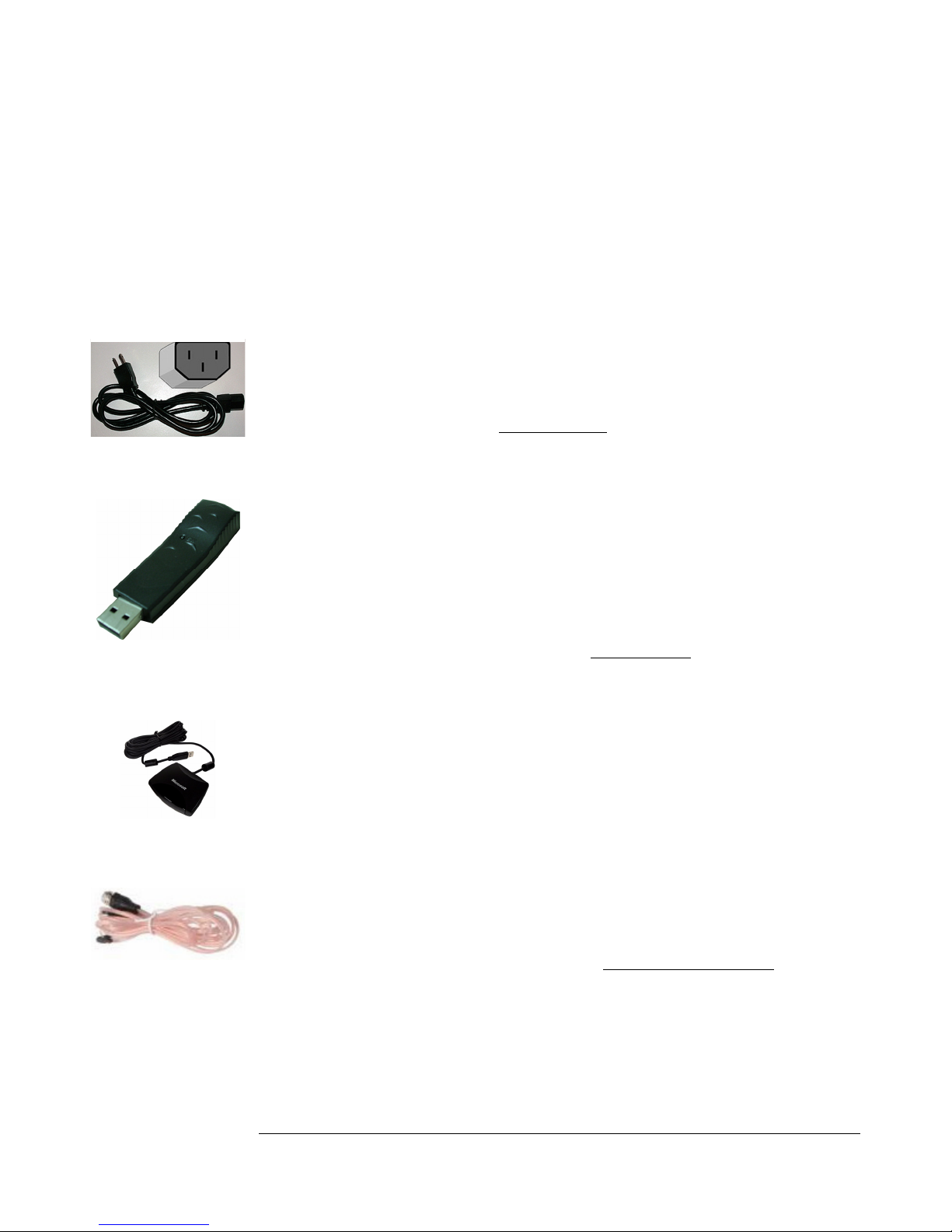
Connect the Power Cable F
Connect the Power Cable into the FPower Input. Make sure it is plugged in securely.
Connect the Wireless
Keyboard Receiver H
Then, connect the USB keyboard receiver into any available USB port. The keyboard
receiver should be placed in an open area for best performance. Like the wireless
module, you will want to connect it in the back HUSB Ports using the included USB
extension cable.
Connect the Remote Receiver H
Next, connect the USB remote receiver into any available USB port. This adapter
needs a clear line-of-sight to your entire room.
Connect the FM Antennas M
Connect the two included FM Antennas into the MFM Antenna Inputs. Make sure
they are connected securely.
Power Cable
Wireless Keyboard Receiver
IR Remote Receiver
Help! My Parts
Look Different!
These pictures are for
illustration only. The parts
in your box may look
slightly different.
FM Antennas

INSTALLATION
9
Connect the LAN Port O
If you have a hard line internet connection available, you can connect to it directly with
a CAT-5 Ethernet cable to the OLAN Port.
Connect the USB Card Reader C
Connect the USB card reader remote receiver into any available USB port. You may
wish to connect this in the front CUSB ports for easy access, and store it away when
it’s not in use to minimize clutter.
Connect the Wireless USB
Networking Module H (Optional)
Simply stick the wireless module into any available USB port. For optimum
connection, you can use the included USB extension cords to connect it to the back
HUSB Ports, so that it is hidden.
* - All pictures shown are for illustration purposes only. Actual product appearance
may vary.
USB Card Reader
Wireless / WiFi module
CAT-5 Ethernet Cable
Otros manuales para SLIM
2
Tabla de contenidos
Otros manuales de Decodificador de VidaBox