
Viavi G4-40G-100-384T Manual de usuario

1
g440g100384t - 1
G4-40G-100-384T
The G4-40G-100-384T is best suited for Multi-40 Gb data centers.
G4-40G-100-384T technical specifications
System -
Deployment 100 Gb data center
Base storage 384 TB
Max storage 384 TB
Lights Out Management (LOM) Yes
Redundant OS drive Yes
OS drive hot swappable Yes
OS drive size 1 TB
RAID drive hot swappable Yes
RAID version 60
Rail kit Yes
Operating system Windows 2012 R2
Physical -
Height 8U
Width 19 in
Depth 26.5 in
Weight (with mounted rail kit or portable
unit without a travel case)
216 lbs
Weight (handling or portable unit in a
travel case)
227 lbs
Media -
Monitoring interfaces 2
Speed 100 Gb
Accepted transceivers 1QSFP28
Performance -
Aggregate performance 40 Gbps

Parts list
Power -
Redundant power supply Yes
Input frequency 50/60Hz
Input voltage 100V-240V Auto Select
Operational current (amps) 7.29
BTU/hr 2986
Operational voltage 120V
Power dissipation (watts) 875
Relative humidity (non-condensing) 8% to 90%
Temperature (operating) 10°C ~ 35°C (50°F ~ 95°F)
Temperature (storage) -40°C to 60°C (-40°F to 140°F)
Compliance RoHS, FCC, CE
1. For SFP, the SFP may be any of Copper 10/100/1000, 1Gb SX/LX. For SFP+, the SFP+ may be any
of 10Gb SR/LR. For QSFP+, the QSPF+ may be any 40Gb SR/LR/BiDi/Universal. For QSFP28, the
QSFP28 tranceivers may be SR4, LR4, or BIDI.
Parts list
Each appliance comes packed in a box or several boxes. The boxes contain the
various components necessary for a successful installation. The G4-40G-100-384T
appliance box contains the following components:
●1 Head unit with RAID drives preinstalled
●1 Rail kit
●2 Power supply cables
●2 Ethernet cables
●1 External SAS cable
●1 Product Activation Information envelope containing the product
license
●1 Quick Start Guide
●1 JBOD Units with 48 drives preinstalled
●1 Label listing serial numbers of all JBODs for this system. This label
appears on top of the head unit and was attached to the outside of
the head unit’s box. Use this label to sort and connect the proper
JBODs to the head unit.
●SFP transceivers (if ordered)
Before installing, ensure you received all of the parts required for your system.

Quick start for experienced installers | 3
Quick start for experienced installers
First time installers should use the installation instructions (page 5) on the next page.
Caution: Do not attempt in-cabinet repairs of your appliance. The appliance is very
heavy! Always use a server lift or work with a partner to install or remove the appliance
from the cabinet to perform any maintenance.
1. Mount the appliance in your cabinet. Refer to the instructions on VIAVI Rail Kit (page
10). Use a server lift if necessary. Do not remove the drives from the chassis.
2. Connect the cables.
●Power
●Ethernet
●TAP/Span
●IPMI (optional)
3. Insert the transceivers.
4. Connect the KVM.
5. Turn on the JBODs.
Caution: JBODs must be turned on before the head unit. The drives do not properly
initiallize if the JBODs are not started first. If this happens, restart the head unit.

4 | © 2020 Viavi Solutions (3 Feb 2020) — viavidoc.com/observerstart
6. Turn on the head unit (A1).
7. Set the ip address.

G4-40G-100-384T installation | 5
G4-40G-100-384T installation
Getting your appliance installed is the first step to greater visibility of your network. This topic
covers installing your appliance in the cabinet and connecting it to your network.
Caution: Do not attempt in-cabinet repairs of your appliance. The appliance is very
heavy! Always use a server lift or work with a partner to install or remove the appliance
from the cabinet to perform any maintenance.
1. Take the appliance and all other components out of the packing materials.
2. Attach the official rail kits (page 10) to your server rack or cabinet.
3. Install the JBOD unit(s) into your server rack or cabinet.
4. Install the head unit (A1) into your server rack or cabinet. See the head unit image.
5. Using the SAS cables, connect the RAID ports from the JBOD unit(s) to the head unit and to
other JBOD unit(s).
6. Using an Ethernet cable, connect the ETH0 port to the network.
Connecting the ETH0 port allows you to use Windows Remote Desktop or other tools to
control or configure Windows or Windows applications, such as Observer Analyzer.
7. (Optional) Connect an Ethernet cable from your router or switch to the LOM or IPMI port.
(Optional) A Lights Out Management or IPMI port provides you a dedicated management
channel for device maintenance. It allows you to monitor, start, stop, and manage your
appliance remotely regardless of whether the appliance is powered on.
8. Install SFP transceivers (page 6)1 into the open slots on the back of the capture card(s).
9. If you are connecting to SPAN/mirror ports of a network switch: connect a straight-through
Ethernet cable from the SPAN/mirror ports on your switch to the SFP transceivers on the
capture card.
10. If you are connecting to a network TAP (sold separately):
Figure 1: Connecting the TAP to the network device, switch, and analyzer
a. Connect the TX port from your server, firewall, router, or switch to the Link A port on
the TAP.
b. Connect the TX port from your other switch to the Link B port on the TAP.
c. Use two analyzer cables to connect the analyzer port on the TAP to the SFP transceivers
in the capture card.
d. If you have more than one TAP to connect, repeat the process for each TAP.
11. Ensure the time zone settings match your environment.
12. (Optional) Change the IPMI port (page 7) in the BIOS using a static IP address provided
by your network administrator.
13. Double-click the Observer icon on the Desktop to start Observer.
Your hardware appliance is installed and on your network.
Next, give the ETH0 IP address and IPMI port address, if using, to the Observer administrator.
They need the addresses to add this GigaStor probe to Observer to capture network traffic
with a probe instance.
1.SFP, SFP+, QSFP+, and QSFP28 transceivers are sold separately.

6 | © 2020 Viavi Solutions (3 Feb 2020) — viavidoc.com/observerstart
Configuring your system
There are a number of items to do to get your system on your network and ready to use.
Startup and shutdown
There are several procedures to turn on or off your system.
First plug in the power cord
1. Press the power button once. The control board initiates the power up sequence in three
seconds.
After normal shutdown by IPMI or power button
Press the power button once.
After a power loss
The system will power up automatically approximately fifteen seconds after the power
returns.
Power down
How to install the SFPs
This product uses hot-swappable SFPs, but you should disconnect any cables before changing
the SFP modules.
Caution: Wear a grounding strap when handling SFPs to avoid damaging them or other
components. Avoid exposure to laser radiation from optical components by keeping the
dust plugs installed until you are ready to install the cables.
♦Your transceivers can be inserted into any open port and in any order.
♦You can hot-swap the connected transceivers at any time, but it is recommended you
then re-launch Observer Analyzer so that the new speeds can be identified.
Figure 2: 8-port 1/10 Gb 5U capture card port assignments
Figure 3: 2-port 40 Gb 5U capture card port assignments
Figure 4: 2U capture card port assignments
How to set the IP address
Set the IP address of the hardware appliance while you still have physical access to it, such
as immediately after it is racked and cabled. Setting the IP address ensures the hardware
appliance has a visible and permanent network presence.

Configuring the LOM or IPMI port | 7
Prerequisite(s):
♦A KVM switch or keyboard, monitor, and mouse are connected. The user input devices
or KVM switch are only temporarily needed to set the IP address, so you can disconnect
them after the IP address is set.
♦The IP, subnet, and gateway or router addresses are available and known to you.
1. Log in to the Windows operating system using the Administrator account and its default
password admin.
You can change the Administrator account password after logging in. See the Windows
documentation if necessary.
2. Select Internet Protocol Version 4 (TCP/IPv4), and click Properties.
3. Set the IP address, subnet mask, router or gateway, and DNS server for your environment
and click OK.
Figure 5: Default TCP/IP settings
4. Click OK again to close the Properties dialog for that network connection.
You interact with the hardware appliance through the Apex UI.
1. Navigate to https://hostname where hostname is the IP address or DNS name for the
appliance.
2. Log into the interface using the username admin and default password admin.
Configuring the LOM or IPMI port
Your appliance comes with an on-board LOM or IPMI port that provides you a dedicated
management channel for device maintenance. It allows you to monitor, start, stop, and manage
your appliance remotely regardless of whether the appliance is powered on.
Prerequisite(s):
♦A GigaStor system.
♦Keyboard, monitor, and mouse or KVM attached to the GigaStor.
♦The static station IP, subnet, and gateway/router addresses are available and known to
you.
If you want to use Lights Out Management features, you must first configure the IP address
for the IPMI port from the BIOS. Then, you should change the administrator password to
something different than the default.
1. Connect an Ethernet cable from your router or switch to the IPMI or LOM port.
2. When starting your appliance, press Delete during POST to enter the BIOS setup.
3. In the BIOS, choose IPMI > BMC network configuration.

8 | © 2020 Viavi Solutions (3 Feb 2020) — viavidoc.com/observerstart
Figure 6: BIOS IPMI tab
4. Set Update IPMI LAN configuration to Yes.
5. Set Configuration Address source to Static.
6. Configure the Station IP address, Subnet mask, and Router address.
These values must be valid and usable on your network!
Figure 7: BIOS IPMI: IP Address configured
7. Press F4 to save your changes and to exit the BIOS setup.
The system automatically shuts down and restarts.
The IPMI port is now accessible from the IP address you chose.
Now you can log on to the IPMI web interface and change the default password.
8. To change the default password, open a web browser to http://<IpAddressOfIPMIport>, and
log on with the user name ADMIN and password ADMIN in caps.
IpAddressOfIPMIport is the station IP address you configured in step 6. The user name and
password boxes are always case-sensitive.
9. Choose Configuration > Users, and select the second user account (ADMIN account).
10. Click Modify User, and change the password.
11. (Optional) Set up alerts.
There is no audible alarm if there is an issue with a power supply unit. Other alerting
options are available. Each must be configured separately using details from your
environment.
●To receive email alerts, change the settings at Configuration > SMTP.
●To receive SNMP traps, change the settings at Configuration > SNMP.
●To receive Syslog messages, change the settings at Configuration > Syslog.
You configured the IPMI port and changed the default password. You may have also configured
your system to send alerts when certain situations arise.
How to configure the JBOD IPMI port
The JBOD chassis offers intelligent management with IPMI providing hardware health
monitoring and remote power control.

How to configure the JBOD IPMI port | 9
Prerequisite(s):
Your host computer must be on the same network as the JBOD IPMI interface. If necessary,
change your host IP to 192.168.1.10/24.
JBODs must be monitored separate from any head unit. Like the head unit, there is no audible
alarm. You should set up alerts to notify you of any power supply issues.
1. Directly connect using your host computer to the JBOD IPMI port using an Ethernet cable.
2. On the host computer open a web browser to http://192.168.1.99, and log on with the
user name ADMIN and password ADMIN in caps.
If you have trouble connecting, see JBOD IPMI reset FAQ.
3. Make changes as needed, such as:
●Change the ADMIN password
●Change the network configuration to use DHCP
●Set up alerts
10 | © 2020 Viavi Solutions (3 Feb 2020) — viavidoc.com/observerstart
VIAVI Rail Kit
Decide on a suitable location for the rack unit that will hold your chassis. It should be a
clean, dust-free area that is well ventilated. Avoid areas where heat, electrical noise and
electromagnetic fields are generated. A nearby grounded power outlet is required.
How to attach the rails
Rail assemblies must be attached to the chassis and rack before inserting the system into your
rack.
Prerequisite(s):
The box your chassis was shipped in should include:
♦two sets of rail assemblies
♦two rail mounting brackets
♦mounting screws and washers to mount the system into the rack
This rail will fit a rack between 26.5" and 36.4" deep.
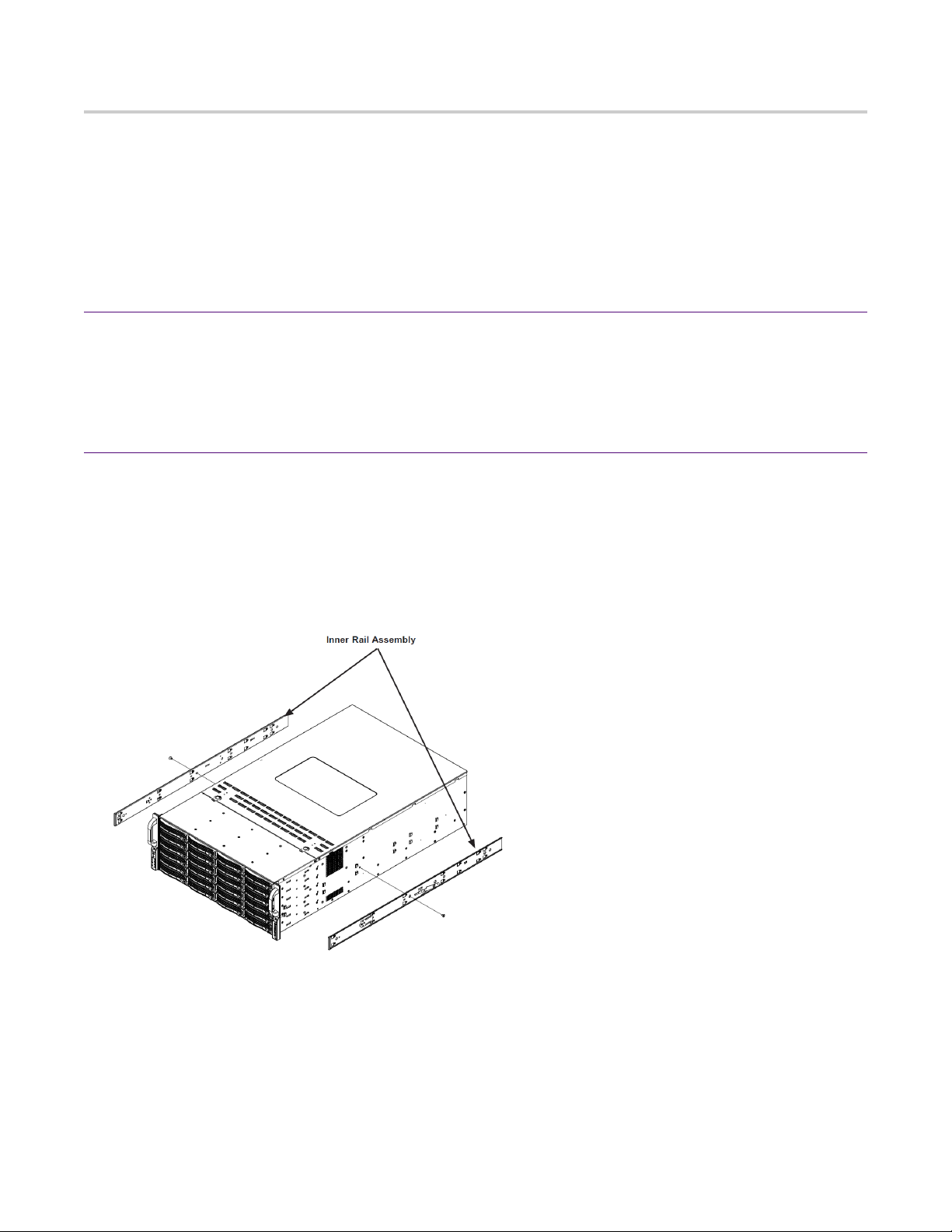
1. Identify the inner rack rails.
The chassis package includes one pair of rack rail assemblies in the rack mounting kit.
Each assembly consists of an inner rail that secures to the chassis and an outer rail that is
attached directly to the rack. The inner rails are etched with “L” (Left side) and "R" (Right
side). The rail is on the correct side and mounted correctly if the lettering if face-up.
Figure 8: Rail kit inner assemblies
2. Identify the left and right side inner rails. Place the correct inner rail on the side of the
chassis, aligning the hooks of the chassis with the inner rail holes. Make sure the rail faces
"outward" so that it will fit with the rack's mounting bracket.
3. Slide the rail toward the front of the chassis to hook the inner rail onto the side of the
chassis.
4. (Optional) If desired, secure the rail with two flat head M4 x 4mm screws (and washers) as
illustrated.
5. Repeat for the other inner rail.
Este manual sirve para los siguientes modelos
1
Tabla de contenidos
Otros manuales de Servidor de Viavi

Viavi
Viavi G3-GS-8P-288T Manual

Viavi
Viavi G4-GigaFlow Manual de usuario

Viavi
Viavi G4-20G-010-192T Manual de usuario

Viavi
Viavi G4-Apex-ENTERPRISE-HW Manual

Viavi
Viavi G4-Apex-ENT-80T Manual de usuario

Viavi
Viavi G4-60G-010-576T Manual de usuario

Viavi
Viavi G3-GS-8P-576T Manual

Viavi
Viavi G4-40G-010-384T Manual de usuario

Viavi
Viavi G4-10G-010-96T Manual de usuario

Viavi
Viavi G4-PT-010-8T Manual


