
VIA Technologies ARTiGO A3000 Manual de usuario

QUICK START GUIDE
VIA ARTiGO A3000
Android 12.0 EVK
1.00-18092023

Copyright
Copyright © 2023 VIA Technologies Incorporated. All rights reserved.
No part of this document may be reproduced, transmied, transcribed, stored in a retrieval system, or translated into any language, in any
form or by any means, electronic, mechanical, magnec, opcal, chemical, manual or otherwise without the prior wrien permission of
VIA Technologies, Incorporated.
Trademarks
All brands, product names, company names, trademarks and service marks are the property of their respecve holders.
Disclaimer
VIA Technologies makes no warranes, implied or otherwise, in regard to this document and to the products described in this document.
The informaon provided in this document is believed to be accurate and reliable as of the publicaon date of this document. However,
VIA Technologies assumes no responsibility for the use or misuse of the informaon (including use or connecon of extra device/
equipment/add-on card) in this document and for any patent infringements that may arise from the use of this document. The informaon
and product specicaons within this document are subject to change at any me, without noce and without obligaon to nofy any
person of such change.
VIA Technologies, Inc. reserves the right the make changes to the products described in this manual at any me without prior noce.
ii

iii
VIA ARTiGO A3000 Android 12.0 EVK Quick Start Guide
Revision History
Version Date Remarks
1.00 18/09/2023 Inial release

iv
VIA ARTiGO A3000 Android 12.0 EVK Quick Start Guide
Table of Contents
1. Introducon.................................................................................................................................................... 1
1.1 EVK Package Contents........................................................................................................................... 1
1.1.1 Firmware Folder Contents ............................................................................................................. 1
1.1.2 Document Folder Contents............................................................................................................ 1
1.1.3 Tool Folder Contents...................................................................................................................... 1
1.2 Version Informaon and Supported Features....................................................................................... 2
2. Image Installaon .......................................................................................................................................... 3
2.1 Installing with the Fastboot Mode........................................................................................................ 3
3. Hardware Funcons ....................................................................................................................................... 6
3.1 Using the Debug Console...................................................................................................................... 6
3.2 Changing the Kernel Debug Level ......................................................................................................... 6
3.3 Checking the BSP Version...................................................................................................................... 6
3.4 DVFS...................................................................................................................................................... 7
3.5 MTK NeuroPilot AI APU Hardware Acceleraon ................................................................................... 7

1
VIA ARTiGO A3000 Android 12.0 EVK Quick Start Guide
1. Introducon
This Quick Start Guide provides an overview of how to boot the Android image for the VIA ARTiGO A3000
starter kit and congure the supported hardware funcons in the build.
The VIA ARTiGO A3000 Android 12.0 EVK is developed based on the MediaTek Android 12.0 BSP, and it enables
the hardware features of the VIA ARTiGO A3000.
1.1 EVK Package Contents
There are three folders in the package listed as below.
Firmware folder Descripon
VIA_ARTiGO_A3000_Android_12.0_EVK.zip Android evaluaon image
Document folder Descripon
VIA_ARTiGO_A3000_Android_12.0_EVK_Quick_Start_Guide.pdf Quick Start Guide
Tool folder Descripon
VIA_Android_USB_Driver.zip VIA USB driver
PoseDetector_Image.apk Sample test program
1.1.1 Firmware Folder Contents
VIA_ARTiGO_A3000_Android_12.0_EVK.zip: Contains the precompiled Android image for evaluang the VIA
ARTiGO A3000.
1.1.2 Document Folder Contents
VIA_ARTiGO_A3000_Android_12.0_EVK_Quick_Start_Guide.pdf: This Quick Start Guide provides an overview
on how to boot the Android image for the VIA SARTiGO A3000 and congure the supported hardware
funcons in the build.
1.1.3 Tool Folder Contents
VIA_Android_USB_Driver.zip: The VAI driver for ADB-over-USB.
PoseDetector_Image.apk: A sample program to test MTK NeuroPilot AI APU hardware acceleraon.

2
VIA ARTiGO A3000 Android 12.0 EVK Quick Start Guide
1.2 Version Informaon and Supported Features
• Kernel version: 5.10.101
• Evaluaon image: Android 12.0
• Development based on MediaTek Android 12.0 BSP
• Supports eMMC boot
• Supports HDMI display
• Supports HDMI audio output
• Supports COM port as RS-232 mode (TX/RX)
• Supports 10/100Mbps Ethernet port
• Supports MediaTek MT6357 Line-out and Mic-in
• Supports MediaTek MT6631 Wi-Fi 802.11ac and Bluetooth 5.0
• Supports VIA EMIO-2573 (EC25) 4G LTE mobile broadband miniPCIe module
• Supports MediaTek NeuroPilot AI APU hardware acceleraon

3
VIA ARTiGO A3000 Android 12.0 EVK Quick Start Guide
2. Image Installaon
This secon explains the setup requirements for installing the Android evaluaon image on the VIA ARTiGO
A3000.
The precompiled images are provided in the "Firmware" folder.
2.1 Installing with the Fastboot Mode
Follow the steps below to install Android EVK image:
Step 1
Prepare the "fastboot tool" and install the "VIA USB driver" into your Windows 10 host machine.
To get the "fastboot tool" for Windows, please refer to the "SDK Plaorm Tools release notes" chapter on the
Android developer website hps://developer.android.com/studio/releases/plaorm-tools.
To install the "VIA USB driver", right-click "android_winusb" and select "Install".
Then click "Install" when the installer opens.
When the installer nishes, it will show a conrmaon message "The operaon completed successfully".
Step 2
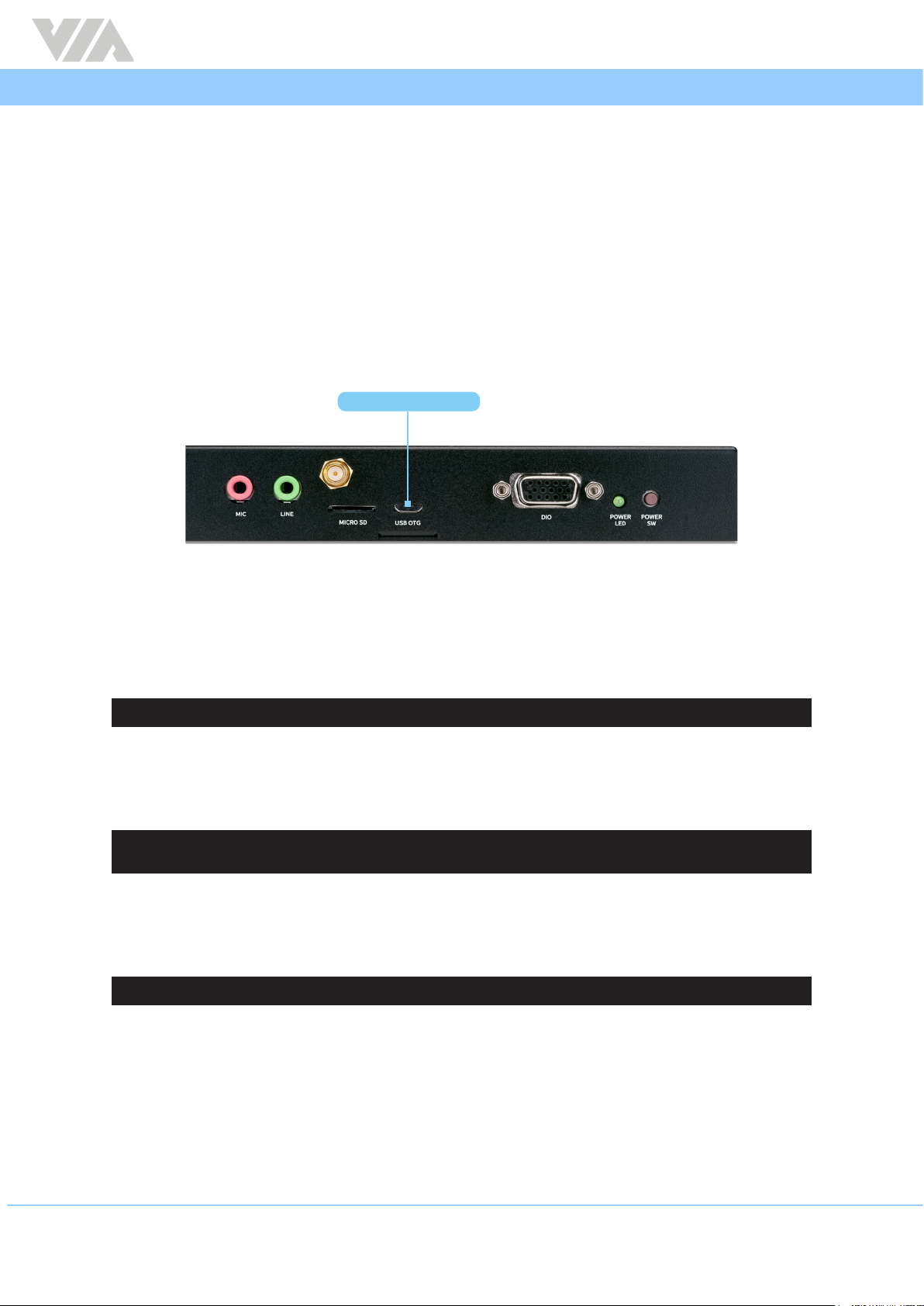
Connect the Windows 10 host machine and the VIA ARTiGO A3000 through the Micro USB 2.0 port using the
Micro USB cable.

4
VIA ARTiGO A3000 Android 12.0 EVK Quick Start Guide
Micro USB 2.0 OTG
Micro USB 2.0 port diagram
Step 3
Plug in the AC-to-DC power adapter to power on the VIA ARTiGO A3000 .
If the EVK image is not installed, the VIA ARTiGO A3000 will stop at "fastboot: processing commands" as shown
in the debug console below. Proceed to step 4 directly.
Fastboot Mode
If the EVK image is already installed, use the following command to enter the Fastboot Mode on your Windows
10 host machine.
D:\platform-tools>adb shell reboot bootloader
Note:
Aer powering on the VIA ARTiGO A3000, make sure the Windows 10 host machine detects it as an ADB device.
Step 4
Extract the VIA_ARTiGO_A3000_Android_12.0_EVK.zip le on your Windows 10 host machine.
To install the image, use the following command:
D:\VIA_ARTiGO A3000_Android_12.0_EVK>set PATH=D:\platform-tools;%PATH%
D:\VIA_ARTiGO A3000_Android_12.0_EVK>viaash.exe --android
VIA: Operating system is Android12
VIA: installing preloader.img
VIA: installing GPT.img
VIA: erasing proinfo partition
VIA: erasing boot_para partition
VIA: installing cam_vpu1.img
VIA: installing cam_vpu2.img
VIA: installing cam_vpu3.img
VIA: erasing cam_vpu1_b partition
VIA: erasing cam_vpu2_b partition
VIA: erasing cam_vpu3_b partition
VIA: erasing nvram partition
VIA: installing protect1.img
VIA: installing protect2.img
VIA: installing persist.img
VIA: installing nvcfg.img
VIA: erasing seccfg partition
VIA: installing lk.img
VIA: erasing lk_b partition
VIA: installing boot.img
VIA: erasing boot_b partition
VIA: installing vendor_boot.img

5
VIA ARTiGO A3000 Android 12.0 EVK Quick Start Guide
VIA: erasing vendor_boot_b partition
VIA: erasing para partition
VIA: installing logo.bin
VIA: installing dtbo.img
VIA: erasing dtbo_b partition
VIA: erasing expdb partition
VIA: erasing frp partition
VIA: installing tee.img
VIA: erasing tee_b partition
VIA: erasing kb partition
VIA: erasing dkb partition
VIA: erasing metadata partition
VIA: installing nvdata.img
VIA: erasing md_udc partition
VIA: installing vbmeta.img
VIA: erasing vbmeta_b partition
VIA: installing vbmeta_system.img
VIA: erasing vbmeta_system_b partition
VIA: installing vbmeta_vendor.img
VIA: erasing vbmeta_vendor_b partition
VIA: installing super.img
VIA: installing userdata.img
VIA: rebooting target system
D:\VIA_ARTiGO A3000_Android_12.0_EVK>
Step 5
Unplug the AC-to-DC power adapter to power o the VIA ARTiGO A3000.
Step 6
Unplug the Micro USB cable, press the Power Buon for 2 seconds and release it to power on the VIA ARTiGO
A3000.
When the boot process has completed, you will see the Android 12.0 desktop.
6
VIA ARTiGO A3000 Android 12.0 EVK Quick Start Guide
3. Hardware Funcons
This secon explains how to enable and test the hardware funcons precompiled in the VIA ARTiGO A3000
Android 12.0 EVK.
3.1 Using the Debug Console
Follow the steps below to enable ADB debugging:
Step 1
Connect the Windows 10 host machine and the VIA ARTiGO A3000 through the Micro USB 2.0 port using the
Micro USB cable.
Micro USB 2.0 OTG
Micro USB 2.0 port diagram
Step 2
Power on the VIA ARTiGO A3000 to iniate the boot process.
Step 3
When the VIA ARTiGO A3000 has completed boong, use the following command to open ADB debugging:
E:\platform-tools>adb shell
3.2 Changing the Kernel Debug Level
To disable the kernel messages, modify the debug level using the following command:
console:/ # su
console:/ # echo 3 > /proc/sys/kernel/printk
3.3 Checking the BSP Version
To check the BSP version, use the following command:
console:/ # cat /proc/version
Otros manuales para ARTiGO A3000
1
Tabla de contenidos
Otros manuales de Sistema de control de VIA Technologies


