
Veikk VK1560 Manual de usuario

VK1560 Pen Display
BATTERY-FREE PEN DISPLAY
Windows 10/8.1/8/7/Vista/XP(32/64 bits)
Mac OS 10.8 or later
www.veikk.com
User Manual

IMPORTANT SAFETY INSTRUCTIONS
WARNING
Donotusethisproductinacontrolsystemthatrequiresahigh
degreeofsafetyandreliability.
Insuchasystem,thisproductcouldnegativelyaffectother electronic
devicesandcouldmalfunctionduetotheeffectofthosedevices.
Donotusethisproductinalocationfrequentedbylittle
children.
Makesurethatachilddoesnotputthepenor pentipinhis/her
mouth.
Thepentiporsideswitchcovercouldbedetachedandbe
accidentally swallowed.
Turnthepoweroffinareaswhereuseof electronicdevicesis
prohibited.
On boardanaircraftorinanyotherlocationwhereuseofelectronic
devicesisprohibited,thisproduct,iflefton,couldnegativelyaffect
other electronicdevices.UnplugtheUSB connector fromthis product
andturnthepower off.
CAUTION
Donotplacethisproductonanunstablesurface.
Placingthisproductoranunstableortiltedsurfaceorinalocation
exposed toexcessivevibrationscouldcauseittofalloffresulting
ininjury.

WARNING
Avoid high or low-temperature locations for storage.
Do not store this product in a location where the temperature drops
below 5℃ or goes above 40℃and in locations subject to excessive
temperature fluctuations. Failure to heed this caution could result in
damage to the product and its components
Do not disassemble.
Do not disassemble or modify this product as this could expose you
to heat, fire, electric shock and injury. Disassembling the product will
also void your warranty.
Do not use alcohol for cleaning.
Never use alcohol, thinner, benzene or other mineral solvents as
they could discolor or cause deterioration to the product.
Do not expose to water.
Do not place glasses or vases filled with water or other liquids near
this product. Exposure to water or liquid could damage the product.
Donotplaceheavyobjectsontopofthisproduct.
Donotsteporplaceheavyobjectsonthisproductasthiscould
damageit.

CAUTION
LimitationofLiability
Donotplacemetalobjectsonthisproductduringoperation.
Placingmetalobjectsonthisproductduringoperationcouldcauseitto
malfunction ordamageit.
Donotstrikethepenagainsthardobjects.
Strikingthepenagainsthardobjectcoulddamageit.
Donothandlethepenwithsoiledhands.
Thepenisahigh-precisioninstrument. Handlingitwithsoiledhands or
usingitinlocationsexposedtodustor strongodorsmaycause theentry
offoreignmatterwhichwillresultinbreakdown.
VEIKKshallinnoeventbeliablefordamagesresultingfromfiresor
earthquakes, thosecausedbythirdpartiesandthosearisingfromuser
misuse, abuseorneglect.
VEIKKshallinnoeventbeliableforincidentaldamages-includingbut
notlimitedtolossofbusinessincome, interruptionofbusinessactivities,
corruptionorlossof data-thatariseoutof theuseorfailuretousethis
product.
VEIKKshallinnoeventbeliablefordamagesresultingfromusesnot
documentedinthismanual.
VEIKKshallinnoeventbeliablefordamagesfrommalfunctioncaused
by connectiontootherdevicesoruseofthirdpartysoftware.

Catalog
1.General Information ..................................................................1
1.1Overview
................................................................................1
1.2System Requirement
.............................................................1
1.3Hardware Specification ..........................................................1
1.4Display Connection ................................................................2
1.5Installation on Windows .........................................................3
1.6Monitor Mapping ....................................................................5
1.7Specification
..........................................................................6
2.VK1560 Pen Display Configuration .........................................7
2.1Pen
........................................................................................7
2.2Mapping .................................................................................8
2.3Function ...............................................................................11
2.4About us
..............................................................................13
3.FAQ ..........................................................................................15

1.General Information
1.1Overview
1.2 System Requirement
Welcometothe VEIKK!Thisuser manualwillhelpyousetuptheVK1560and installthedriver.
Either you are a beginner or professional, this one can satisfy your requirement .For the driver,
please download from http://www.veikk.com/download
Windows 10/8.1/8/7/Vista/XP(32/64 bits)
Mac OS 10.8 or later.
1.3 Hardware Specification
1

1.4 Display Connection
Note 1:WerecommendyouinserttheVEIKKUSBcabletothehostUSBportofyourcomputer. You
mayuseaUSBhubwithanattachedexternalpowersupplytoadequatelypoweryourVEIKKifneeded.
Note 2:Makesureyourcomputersupportsmultiplemonitors.CheckifyourcomputerhasextraHDMI
ports.Ifyourcomputerhasanindependentvideocard, pleaseusetheHDMIportsthere.
Note 3:Ifthere isn’t any input signal,itmeansthetabletdoesn’t receiveHDMIvideoinput.Please
reconnect the HDMI cable, or change another HDMI cable or change another computer to have a try.
2

1.5 Installation on Windows
1. Before installing driver, please uninstall all tablet drivers from your computer, and keep all
antivirus program closed
2. Connect the tablet to your computer before installation
3. Please download updated driver from www.veikk.com
4. Unzip downloaded file to desktop, open the new unzipped folder
5. Click VK TabletDriver.exe and follow onscreen instructions
3

6. After installation then restart your computer.
4
1.6 Monitor Mapping
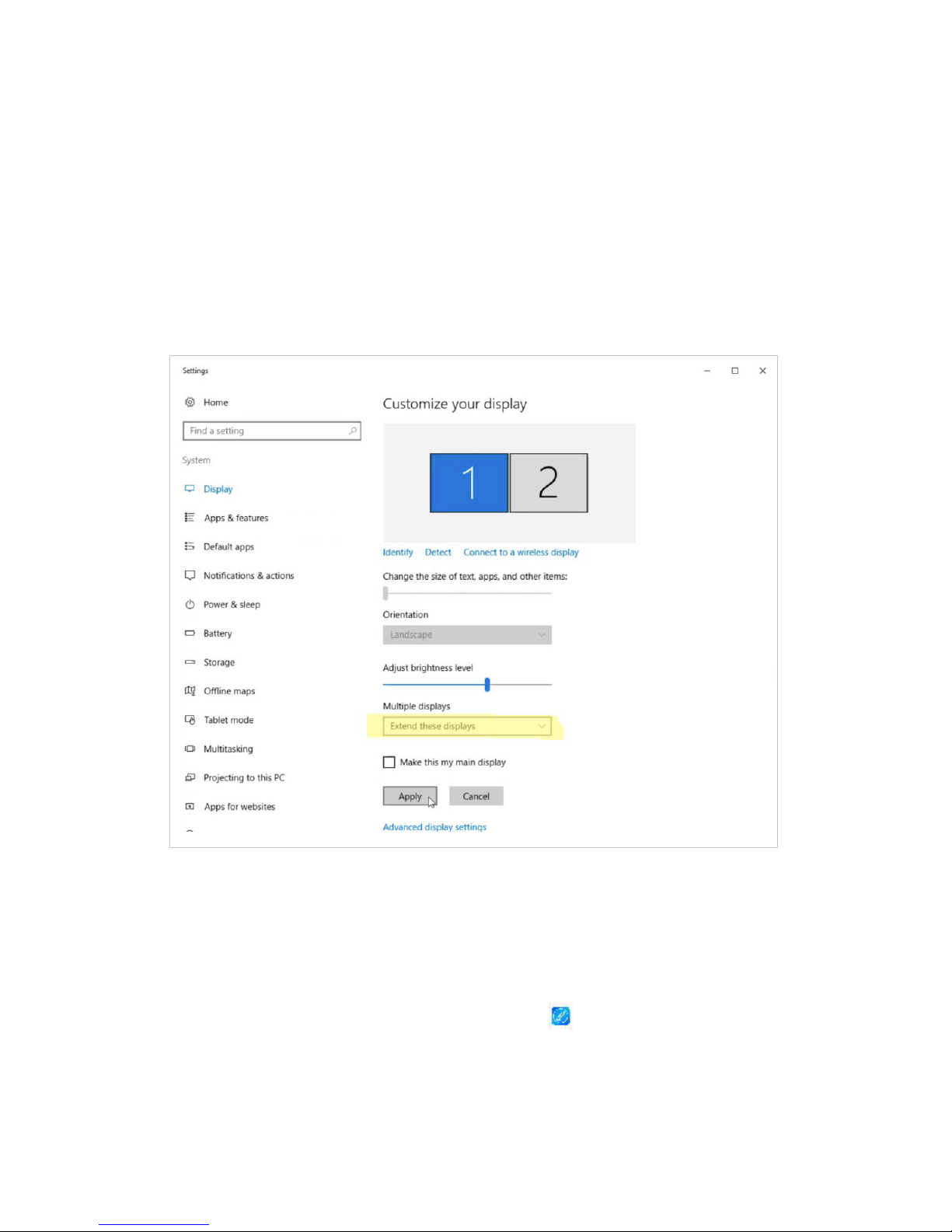
How to Change to Extended Display
Extended Display means you work with a larger Windows desktop area spanning your computer
monitor and your VK1560 LCD Display. Applications can be moved from one display to the other,
and will allow you to work in different screen resolutions.
1. Right-click your desktop and select Screen Resolution.
2. In Multiple Displays dropdown, change to [Extend these Displays]
3. If your computer is equipped with more than one monitor, your VK1560 pen display will map to
the monitors based on how they are configured in the DISPLAY PROPERTIES control panel.
4. After you have correctly configured your computer for multiple monitors, you can then adjust your
VK1560 pen display mapping by opening the driver icon and changing the appropriate
options. This enables you to toggle the current VK1560 mapping and screen cursor between the
system desktop or primary display and your other monitors.
5
Otros manuales para VK1560
1
Tabla de contenidos
Otros manuales de Monitor de Veikk


