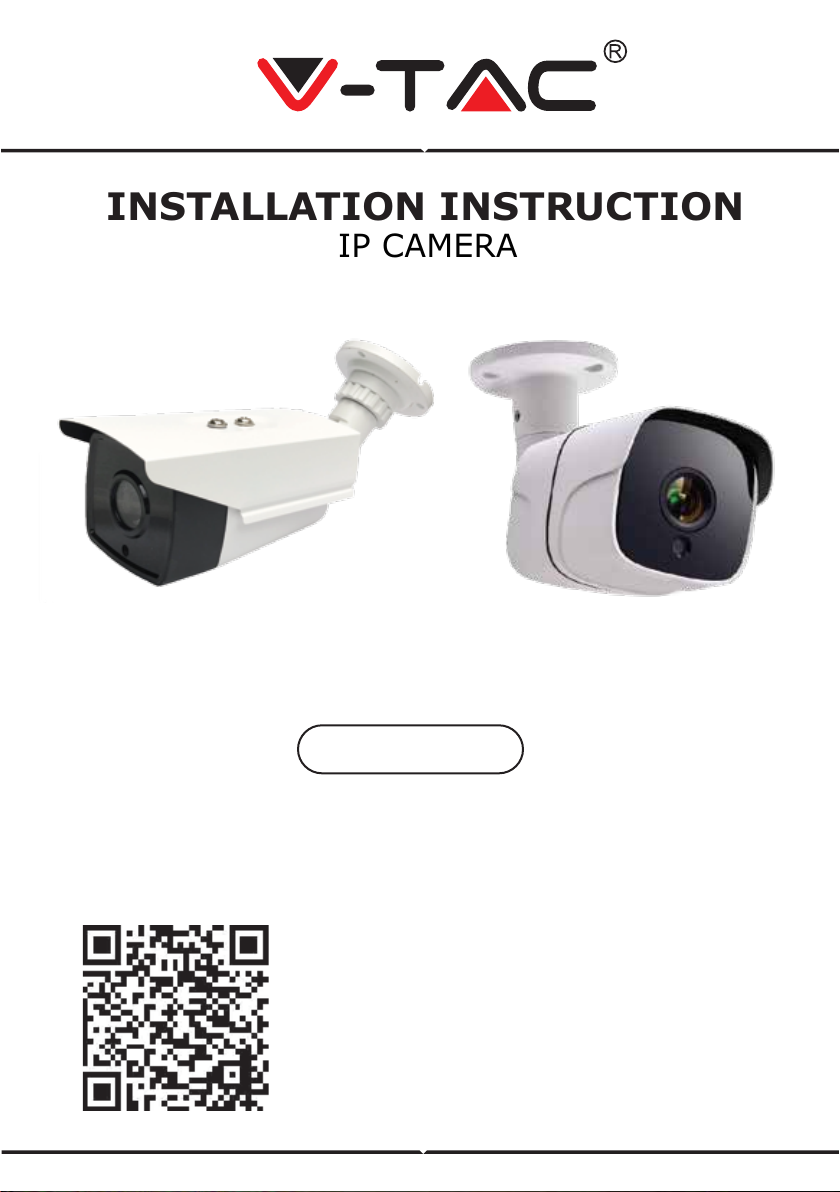
V-TAC VT-5136 Manual de usuario

R
TABLE OF CONTENTS
ENGLISH........................................................................1-8
FRENCH.........................................................................9-12
GERMAN........................................................................13-16
BULGARIAN...................................................................17-20
CROATIAN......................................................................21-24
SPANISH.........................................................................29-32
HUNGARIAN...................................................................33-36
ITALIAN...........................................................................37-40
POLISH ..........................................................................45-48
ROMANIAN.....................................................................49-52
CZECH............................................................................53-56
GREEK ...........................................................................41-44
PORTUGUESE...............................................................25-28

INSTALLATION INSTRUCTION
IP CAMERA
VT-5135
VT-5136
WEEE Number: 80133970
1
Thank you for selecting and buying V-TAC product. V-TAC will serve you the best.
Please read these instructions carefully before starting the installing and keep this
manual handy for future reference. If you have any another query, please contact
our dealer or local vendor from whom you have purchased the product. They are
trained and ready to serve you at the best.
INTRODUCTION
Multi-Language Manual QR CODE
Please scan the QR code to access the manual
in multiple languages.
ENGLISH

TECHNICAL SPECIFICATIONS - VT-5135
Key Features VT-5135
Sensor Type
1/2.8" Low Illuminaon CMOS
Sensor
Minimum illuminaon
Color-0.01Lux @(F1.2,AGC ON); 0
Lux with IR
Black and white
0.001 Lux @ (F1.2, AGC ON), 0 Lux
with IR
Shuer
1/50 (1/60) seconds to 1/10,000
seconds
Lens 3.6mm@F1.8
Lens type
M12
Day and night conversion mode
Support IR-CUT
Maximum Pixel
1920*1080
Frame rate
1080P@20fps
Image sengs
Saturaon, brightness, contrast
adjustable through the client or
browser
Compression standard
H.264
Storage funcon
Network storage
Support protocols
TCP/IP, HTTP, DHCP, DNS, DDNS,
PPPoE, SMTP, NTP
Communicaon interface
1 10/100Mbps adapve Ethernet
port, RJ45 interface
Audio I/0
No
Working temperature
-10°C-+60°C
Working humidity
10%-90% RH
Power supply
DC12V±10%
Infrared distance
20-30 meters;
Power consumpon
MAX 7W
Material
Aluminum
Waterproof Index
IP65
2
ENGLISH

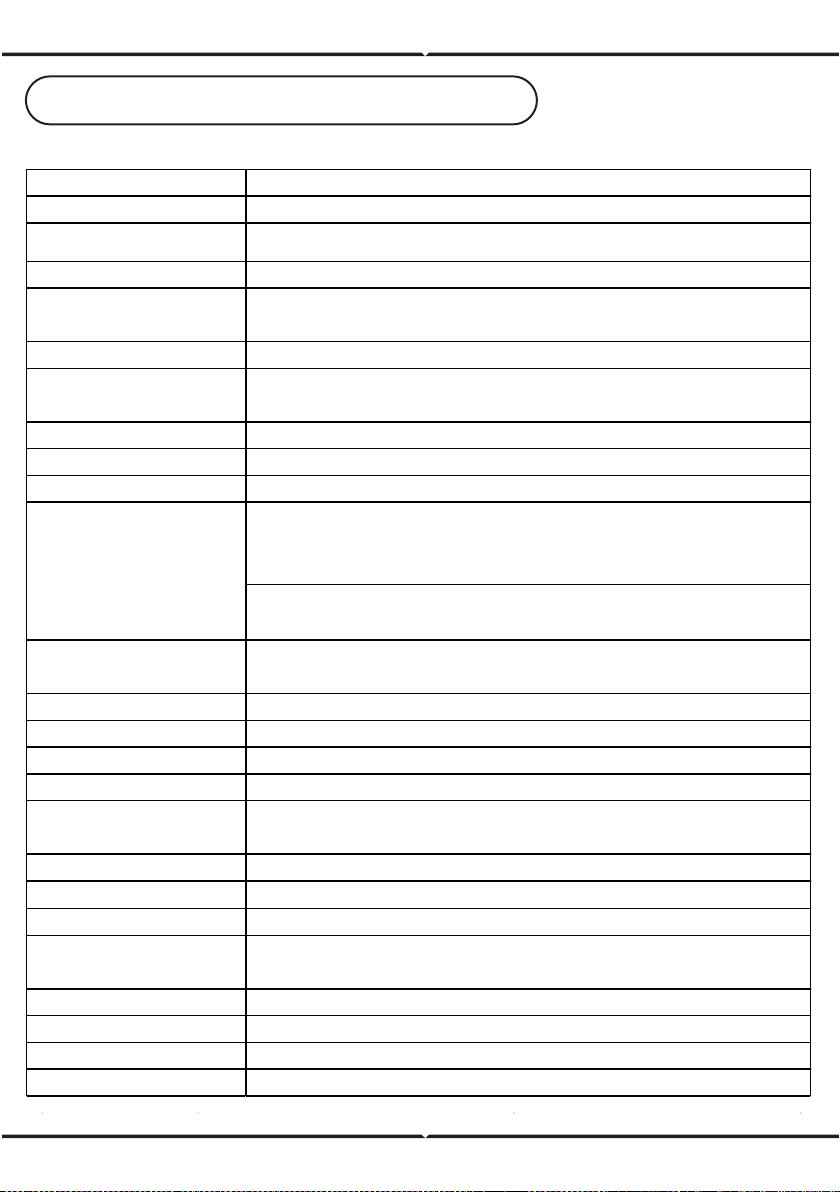
TECHNICAL SPECIFICATIONS - VT-5136
Key Features: VT-5136
Effective pixel 2.0 Mega Pixel
Sensor 1/2.7” CMOS 0.001Lux/F1.2(colorful)
;
Electronic shutter 1/25---1/10000 Second
Day and night conversion
mode
Full Color
Digital noise reduction 3D DNR
Video compression
standard
H.265
H.265 encoding type PROFILE_BASELINE
Video compression rate 32 Kbps~ 8Mbps
Maximum image size 1920*1080
Main
stream:1920*1080(1080P)、1280*960(960P)、1280*720(7
20P
)、
704*576(D1)
、
640*480(VGA)
Slave stream
:
640*480(VGA)
、
352*288
(
CIF
)
、
176*144(QVGA)
Main stream resolution and
frame rate
1080P; 25fps
Area of interest Support setting 8 ROI areas
Masking settings Support 4 sets of masking block settings
Image settings Brightness, contrast, saturation, gain, shutter, white balance
Mirroring supports horizontal, vertical, diagonal mirroring
Intelligent alarm
motion detection, occlusion alarm, video loss, network cable
disconnection, IP address conflict
Support Protocols TCP/IP, DHCP, HTTP, DNS, RTP RTSP
Docking Protocols ONVIF
,
Hikvision, Dahua
Platform docking Built-in powerful P2P function for flexible remote monitoring
Universal feature
One-click recovery, dual stream, heartbeat, mirroring, video masking,
anonymous access
Communication interface 1 RJ45 10M / 100M adaptive Ethernet port
Power supply DC12V
Power Consumption 1.2W
Waterproof Index IP65
Support image format
3
ENGLISH

INSTALLATION DIAGRAM
A. CONNECTION OF IPC SYSTEM WITHOUT POE
B. HOW TO CONNECT IP CAMERA
Network Switcher
Network Switcher
Video Recorder
Computer
IPC without POE
RJ45
Plug
RJ45 Plug
RJ45 Plug
Network
Cable
Power Supply
Power Supply
IP Camera
Camera’s Power Input
Camera’s video output
Connect it with
Recorder or computer
4
ENGLISH

TIPS
When installing the camera, please don’t make the camera lens face towards
strong light, mirror-type objects, or extremely light-coloured objects i.e. glasses,
water surface, lamps. Front-Lighting Installation is recommended for camera
placement.
BACK-LIGHTING VIEW FRONT-LIGHTING VIEW
IOS APP
ANDROID APP
DOWNLOAD THE APP
• Google Play Store - Search “XMEYE”
• IOS (Apple Store) - Search “XMEYE”
• Android phones and IOS (Iphone) can download by scanning the following
QR codes.
5
ENGLISH

REGISTER NEW ACCOUNT
After successfully logging in, click the ‘+’ icon on the top right corner to add
device 1) automatically by the XMEYE QR Code or 2) manually by entering
the device name, username (arbitrary), and the password (default password
is empty). Click the device name, and choose your preferred channel.
1. Tap on “Register” to sign up
with your email address as
user ID and tap on “Next”
to get confirmation Code.
2. The APP will send a
confirmation code to your
email ID. Please confirm the
code to complete the
registarion process. Enter
new user ID and password.
6
ENGLISH

1. Access www.xmeye.net on IE browser. Go to
'Device Login’. Enter your serial number. Now
you can access remote viewing with playback
operation and more.
2. Click ‘Main Stream’ or ‘Deputy Stream’ on the
interface to see the live feed on IE browser.
REMINDER:
When remote viewing has failed, click the
main menu on your left-hand side. Go to
System Information > Version Information
to check equipment status. If it is searching
DNS, please check if your network connec-
tion is normal or not and remove the ‘Auto-
matically Obtain IPAddress’ option. Manually
change the IP address of LAN and match the
gateway with the routing gateway.
GUIDE TO MANAGING CMS ON YOUR COMPUTER
IE VIEWING METHOD
Insert the CD installer, download, and install CMS for Windows. Login (default
admin + password is empty) and go to System Setting >Monitoring Point Manage-
ment > Add Area. Select an area then click 'Add Device’, then ‘Add Settings’. Now,
you can see a preview in the software for equipment management. Note: Remote
Viewing can only be activated by logging on to the cloud (http://www.xmeye.net.-
main) and entering the serial number.
7
ENGLISH

A. MULTI-CONTROLLING B. PLAYBACK REMOVE
VIDEO ON MOBILE
C. STORE REMOTE VIDEO
TO LOCAL DEVICES
D. PTZ THROUGH MOBILE
OTHER FUNCTIONS OR REMOTE MONITORING
8
ENGLISH

9
ASTUCES
Lors de l’installation de la caméra, veuillez ne pas orienter la lentille de caméra
vers une lumière vive, des objets de type miroir ou des objets extrêmement
clairs, par ex. verres, surface de l’eau, lampes. Pour le placement de la caméra
est recommandée une installation de l’éclairage avant.
TÉLÉCHARGEMENT DE L’APPLICATION
• Google Play Store - recherche “XMEYE”
• IOS (Apple Store) - recherche “XMEYE”
• Les téléphones Android et IOS(Iphone) peuvent la télécharger en scannant les
codes QR.
INTRODUCTION
Merci d’avoir choisi et acheté un produit à V-TAC. V-TAC vous offrira le meilleur.
Veuillez lire attentivement ces instructions avant de commencer l’installation et
conservez ce manuel à portée de main pour référence ultérieure. Si vous avez
d’autres questions, veuillez contacter notre distributeur ou le fournisseur local
auprès duquel vous avez acheté le produit. Ils sont formés et prêts à vous servir
au mieux.
IOS APP
ANDROID APP
FRENCH
Este manual sirve para los siguientes modelos
1
Tabla de contenidos
Idiomas: