UROVO P8100P Manual de usuario

Urovo Technology Co., Ltd. Tle:400 888 6989 Fax:+86 755 86186290 Website:www.urovo.com
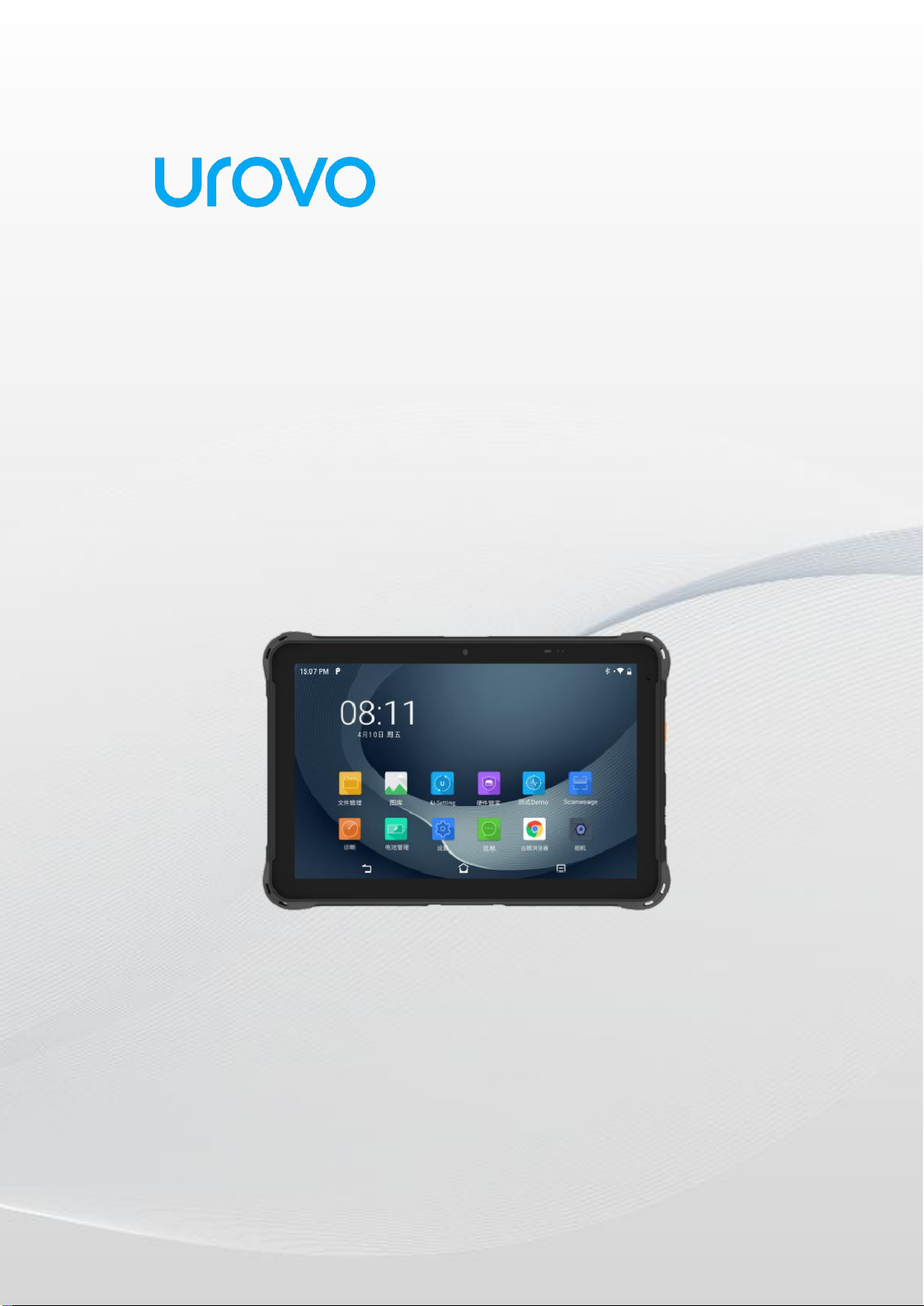
Enterprise Tablet
P8100P
User Guide
Urovo Technology Co., Ltd.

Urovo Technology Co., Ltd. Tle:400 888 6989 Fax:+86 755 86186290 Website:www.urovo.com
Note:
* This Guide introduced general functions of P8100P. Your PDA device
may have different functions wherein or description.
* There may be differences between the illustrations in this Guide and
the actual product. And the actual product shall prevail.
© All rights reserved Shenzhen Urovo Technology Co., Ltd. 2023

Urovo Technology Co., Ltd. Tle:400 888 6989 Fax:+86 755 86186290 Website:www.urovo.com
Terms of usage
Statement
This Guide includes proprietary information of Shenzhen Urovo
Technology Co., Ltd. Its purpose is to help users better operate, use and
maintain the device described herein only. Without written permit of
Urovo, the proprietary information in the text shall not be copied or
disclosed to any other party.
Product improvement
Urovo will keep improving its products but give no further notice in
case of any change in the specification or design.
Disclaimer
All the user guides and specifications published by Urovo are correct.
In the event of any wrong information, Urovo shall reserve the right to
correct such errors but waive rights of liability and claim.
Urovo shall not be liable for personal and property safety of users in
the following cases:
User or any third party delegated fails to transport or store the
battery in the correct way specified in this Guide;
The battery used by the user is not purchased from any official
channel of Urovo;

Table of Contents
About the Guide ............................................................................................... 1
Chapter 1 Getting Started .................................................................................4
1.1 Unpacking ............................................................................................ 4
1.2 Appearance .......................................................................................... 5
1.2.1 Front Side ....................................................................................5
1.2.2 Side ............................................................................................. 5
1.2.3 Back Side .....................................................................................6
1.3 Installation Guide ................................................................................. 6
1.3.1 Instruction of battery .................................................................. 6
1.3.2 Instruction of battery replacement .............................................. 7
1.3.3 Instruction on SIM/TF Card replacement .....................................7
1.4 Caution on Battery Charging ................................................................ 8
1.5 Charging Method ................................................................................. 9
1.5.1 Charge by USB ............................................................................ 9
1.5.2 Charge by desktop charger ......................................................... 9
1.6 Battery Optimization ...........................................................................10
1.7 Usage of Touchscreen ........................................................................ 10
Chapter 2 Device settings ............................................................................... 12
2.1 Access device settings ........................................................................ 12
2.2 WLAN ................................................................................................. 13
2.3 WWAN................................................................................................16
2.4 Bluetooth ............................................................................................16

Urovo Technology Co., Ltd. Tle:400 888 6989 Fax:+86 755 86186290 Website:www.urovo.com
2.5 Display................................................................................................18
2.5.1 Screen Rotation Settings ........................................................... 18
2.5.2 Sleep Settings ............................................................................19
2.6 Sound Settings ................................................................................... 20
2.7 Privacy Settings .................................................................................. 22
2.8Date and Time Settings .......................................................................24
2.9Reset Settings..................................................................................... 26
2.10About Devices ...................................................................................27
2.11Scan Settings .................................................................................... 27
2.11.1 Floating action button ............................................................. 27
2.11.2 Triggering Mode ..................................................................... 28
2.11.3 Keystroke output ..................................................................... 29
2.11.4 Reader Params.........................................................................31
2.11.5 Basic data formatting .............................................................. 33
2.12ScanWedge Profiles .......................................................................... 36
2.13 Feature Settings ..................................................................................38
2.14Remap Key ........................................................................................39
Chapter 3 Application ..................................................................................... 44
3.1 Access the application ........................................................................ 44
3.2 App Profile ..........................................................................................45
3.3 Enterprise Launcher ............................................................................ 47
3.4 U Stage ............................................................................................... 51
3.5Description of Computer Connected Operation ..................................52

Urovo Technology Co., Ltd. Tle:400 888 6989 Fax:+86 755 86186290 Website:www.urovo.com
3.5.1 Developer options ..................................................................... 52
3.5.2 File management by media transfer protocol (MTP) ..................53
3.5.3 Picture management by picture transfer protocol (PTP) ............ 54
3.5.4 Charging mode ......................................................................... 55
3.5.5 Disconnection from PC .............................................................. 56
Charter 4 Accessories ......................................................................................57
4.1 List of Standard Accessories ............................................................... 57
4.2 List of Optional Accessories ................................................................ 57
Chapter 5 Maintenance and Troubleshooting ....................................................... 60
5.1 Maintenance ......................................................................................... 60
5.2 Cleaning ............................................................................................. 60
5.3 Troubleshooting ................................................................................. 61

Urovo Technology Co., Ltd. Tle:400 888 6989 Fax:+86 755 86186290 Website:www.urovo.com
1
About the Guide
Introduction
This Guide offers information on usage of P8100P mobile computer and its
accessories.
Note: The screens and windows described in this Guide are samples, which can differ
from actual ones.
Software version
To determine the software version of the current device, please touch Settings
-System-About Phone.
Android Version——display operating system version
Version No.——display software build version number.
Chapter description
This Guide covers the following topics:
Getting Started offers information on putting P8100P into operation for
the first time.
Device Setting describes each setting of P8100P.
Applications describes usage of built-in apps.
Accessories describes information on standard and optional parts.
Sign convention
The following convention applies in the text:
Bold:

Urovo Technology Co., Ltd. Tle:400 888 6989 Fax:+86 755 86186290 Website:www.urovo.com
2
Emphasis
Title
Dialog box, window, part name, and screen icon
Keyword
Button name
(●):
Operational option
Order list
Step list needed, which may not be continuous
(√):
Functional option
Italic:
Marked emphasis
Relevant Document
Quick Start Guide for P8100P Handheld Intelligent Terminal
P8100P Brochure
P8100P Specification
For the latest edition of this Guide and all the other guides, please visit:
http://www.urovo.com
Service information
You can visit the official website (enurovo.com) of Urovo Technology Co.,
Ltd. (hereinafter referred to as Urovo) whenever possible to gain quick network
support services:

Urovo Technology Co., Ltd. Tle:400 888 6989 Fax:+86 755 86186290 Website:www.urovo.com
3
Click the search box and enter corresponding product model to query the
machine's configuration information. Click maintenance query to query
information of the nearest service center or enter the serial number (SN) of your
device in the search box for maintenance progress to query the maintenance
state to follow up the state of the device in maintenance in time! Service hotline:
400-888-6989
Please offer the following information while contacting the Support Center:
Device SN (Serial Number)
Model or product name
Software type and version number: check the device “Settings-
System-About Phone”
Thanks for your cooperation!
Provision of document feedback
If you have any comment, question or advice on this Guide, please e-mail

Urovo Technology Co., Ltd. Tle:400 888 6989 Fax:+86 755 86186290 Website:www.urovo.com
4
Chapter 1 Getting Started
Introduction
This chapter describes product information and instruction of device for
the first time.
1.1 Unpacking
1 . Please carefully remove all the protective materials around P8100P and
keep the device case for storing and transporting the device in the future.
2. Please check the following elements:
P8100P intelligent terminal×1
Adapter×1
USB cable×1
Quick start guide×1
3. Inspect the device for damage. If any equipment is damaged or missing,
please contact the customer service support or local distributor.
4. Please remove the screen shipping protective film before using.
Tabla de contenidos
Otros manuales de Tableta de UROVO