
Uplink L3-5200 Manual de operación

INSTALLATION &
USER’S GUIDE
®
BROADBAND
ALARM COMMUNICATOR
5200
PRODUCT ID # 2033325200XX00

®5200
®5200
© 2013 Uplink Security, LLC. All rights reserved. Uplink is a trademark of Uplink Security, LLC.
No part of this publication may be reproduced or used in any form without permission
in writing from Uplink. This includes electronic or mechanical means, such as
photocopying, recording, or information storage and retrieval systems. The material in
this manual is subject to change without notice.
Uplink reserves the right to make changes to any software or product to improve
reliability, function or design.
Uplink is a registered trademark of Uplink Security, LLC. All other trademarks are the
property of their respective owners.
PRODUCT ID # 2033325200XX00
BROADBAND
ALARM COMMUNICATOR

2
BROADBAND
ALARM COMMUNICATOR
TABLE OF CONTENTS
Table of Contents ....................................................................................2
Introduction .............................................................................................3
Installation ...............................................................................................4
Connections Used...................................................................................5
Activation.................................................................................................6
Network Conguration ............................................................................7
Dialing The Alarm System For
Touch-Tone Phone Remote
Control & Upload And Download
Over Dial Up Connection.........................................................................8
Troubleshooting.......................................................................................9-10
Standard 12-Month Limited Warranty.....................................................11-12
Fcc & Industry Canada Regulatory Compliance .....................................13
FCC RF Exposure Information ................................................................14
Technical Support....................................................................................15

®5200
3
INTRODUCTION
The Uplink®5200 Broadband communicator expands the capability of a Contact
ID dial-up alarm system by enabling it to transmit signals over the internet. It is a
cost-effective solution where there is broadband internet service. The 5200 can be
used for retrots on existing alarm systems, takeovers and new installations.
The 5200 converts the dialer output of an alarm system to an IP signal that can
be transmitted securely over the internet to an Uplink server. A connection is then
made to the central station to deliver the alarm signal. The 5200 supports two-way
voice sessions as well as remote programming for most systems.
Installation is fast and easy. Using the provided cables, the 5200 communicator is
hardwired between alarm dialer and internet service.

BROADBAND
ALARM COMMUNICATOR
4
INSTALLATION
The physical installation of the Uplink 5200 is simple, but it is important to plan
it beforehand. The unit requires power, a connection to the alarm panel, and a
connection to the Internet. Choose a location where the 5200 can be connected
to all of these things. In most cases, the 5200 should be placed near the alarm
panel, but in some installations it may be easier to place it near the router and run
a long phone cord to the alarm panel. Connect the Alarm Broadband Adapter
to the Internet using either an Ethernet cord to the router, a wireless bridge, or a
power line bridge. (If the alarm panel was connected to a multi-pair phone line with
line seizure, the line-seizure pair can be used as a phone connection between the
panel and a phone jack near the customer’s router)

®5200
5
CONNECTIONS USED
LAN (RJ45 included) .................... Connection to an internet router
PHONE (RJ11) ............................. Connection to alarm system
POWER ........................................ Power adapter connection or 12V DC power
1. Connect one end of an RJ45 Ethernet cable to the “LAN” port of the 5200 and
connect the other end to the Internet Router or Modem in the premises
NOTE: THE 5200 MAY BE LOCATED BY THE ALARM SYSTEM OR BY THE
ROUTER. ADDITIONAL CABLING, NOT INCLUDED, MAY BE NECESSARY.
2. Connect the power adapter to the “POWER” and plug the adapter into a wall outlet.
The 5200 may also use other sources of 12V DC power such as an alarm system
or battery instead of the included transformer. The 5200 will use as much as 300mA
when the device is communicating an alarm signal.
3. Conguration and registration of the device may take 2 minutes. Do not proceed
until the LED on the right is lit steady green with an occasional ash of amber.
NOTE: DO NOT POWER CYCLE THE 5200 DURING SYSTEM BOOT UP.
4. Connect the alarm system to the “PHONE” port of the 5200 using a standard two-
wire RJ11 cord (only tip & ring required).
5. IF using an RJ31X connection, use the in-line adapter and cord included with the
5200 (which will close the Tamper Loop)
a. Plug the short black cord extending from the in-line adapter into the “PHONE”
port on the 5200
b. Plug the RJ31X cord into the opposite end of the adapter
c. RJ11 cable into the port “PHONE”

BROADBAND
ALARM COMMUNICATOR
6
ACTIVATION
1. Activate the unit on the Uplink Dealer Portal with the full ten digit unit serial number.
The unit serial number begins with “B” and is found on the box label and device label.
a. Enter the unit name and tracking number for your reference
b. Enter the Panel make and model connected to the unit
c. Select the panel test interval: none/daily/weekly
d. Select service class: Standard or Two-way voice Verication System
e. Select Central Station receiver type: Contact ID dial-up or IP
NOTE: MUST BE CONTACT ID DIAL UP FOR TWO-WAY VOICE.
f. Enter a Central Station Receiver Phone Number
• This will override any receiver phone number in the alarm panel
• This number will be used if Contact ID over IP fails
g. Enter the Central Station account number
• This will override any in the alarm panel
h. Internet Connection Fault Notications
• Select Notify on Internet Connection Lost: Yes/No
• Select Notify on Connection Restoral: Yes/No
2. To test the unit’s registration status, select Send Status Request Signal from the “Test”
tab on the Uplink Dealer web site. View device registration status.

®5200
7
NETWORK CONFIGURATION
All settings in the 5200 can be changed by plugging a standard touchtone telephone
into the PHONE port and using a simple voice prompt menu. To access the menu,
follow these steps.
Unplug your alarm system from the 5200 and plug in a touchtone telephone. The
phone should connect to the PHONE port on the 5200.
Pick up the phone, and whether or not you hear dial tone, press *** (press * three
times on the phone).
You will hear a voice prompt: “Enter a menu option.”
Enter any of the following commands. After entering a new setting, such as changing
the IP address, press # to return to the main menu.
To do this Press Then press this Notes
Check or change the
gateway address
The voice will read off the
adapter’s current IP address. Type
in a new IP address if a static
address is desired, using 3-digit
octets. For example, to set the IP
address as 192.168.1.20, enter
“192168001020”, then press #.
Toggle between static
and dynamic IP mode
Check or change
the adapter’s current
IP address
Check or change the
network mask (subnet)
01
02
03
04
9, then # to return to
the main menu
The voice will read off the adapter’s
current subnet. Type in a new
subnet if desired, using 3-digit
octets. For example, to set the
subnet address as 255.255.255.0
enter “255255255000”, then press #.
The voice will read off the adapter’s
gateway. Type in a new gateway if
desired, using 3-digit octets. For
example, to set the gateway as
192.168.1.1, enter “192168001001”,
then press #.
In order to change the IP
address, the adapter must
be set to static IP mode rst.
The adapter must be set to
static IP mode rst.
The adapter must be set to
static IP mode rst.

BROADBAND
ALARM COMMUNICATOR
8
DIALING THE ALARM SYSTEM
FOR TOUCH-TONE PHONE
REMOTE CONTROL & UPLOAD
AND DOWNLOAD OVER DIAL UP
CONNECTION
Dial-up touch-tone remote control of alarm systems is possible for most
systems that support the function.
To dial an alarm system connected to the 5200, dial 770-944-4601, wait for a
second dial-tone, and dial the last nine digits of the 5200 unit/serial number.
Follow the directions in the alarm system manual for next steps and commands.
Dial-up uploading and downloading of alarm systems is possible for most
systems that support the function.
To dial an alarm system connected to the 5200, dial 770-944-4601, wait for a
second dial-tone, and dial the last nine digits of the 5200 unit/serial number. The
downloader entry for the phone number would be “7709444601,,,, (nine digit unit/
serial number)”.

®5200
9
TROUBLESHOOTING
Environments with VoIP phone service
If the existing 5200 is connected directly to a single port cable or DSL modem,
then disconnect it, and connect it to a router instead. The router should be the
only device connected directly to the cable or DSL modem. If the customer’s VoIP
phone service no longer works after doing this, then the VoIP provider will need to
assist you or the customer in reconguring their device to work with a router.
Check that all wires are connected and secure.
Unplug then plug back in the Alarm Broadband Adapter’s power cord, Ethernet
cord, and phone cord. Make sure that the Ethernet cord is plugged into an
open Ethernet port on your router or wireless bridge, and that the phone cord is
connected to the Phone jack port and the phone jack on your alarm system.
If you have assigned a static IP address to the Alarm Broadband Adapter,
make sure the address is not already in use.
By default, the 5200 automatically requests an IP address via DHCP. In most
cases, we recommend leaving the adapter set for DHCP. In some unusual
network congurations, it may be necessary to set the 5200 to use a static IP
instead. If two devices on your customer’s network have the same IP address,
then both devices will frequently lose their connection to the Internet. If you
have set a static IP address for the 5200, and you believe another device has the
same IP address, then change the IP address of the 5200. Every device on your
customer’s network should have its own unique IP address.
Update the router rmware.
It is important that the customer’s router is using the latest rmware provided
by its manufacturer. Router rmware can usually be downloaded from the
manufacturer’s website, and installed using the router’s web interface. Your
Continued on next page
Este manual sirve para los siguientes modelos
1
Tabla de contenidos
Otros manuales de Teléfono móvil de Uplink

Uplink
Uplink 5500M Instrucciones de funcionamiento y mantenimiento
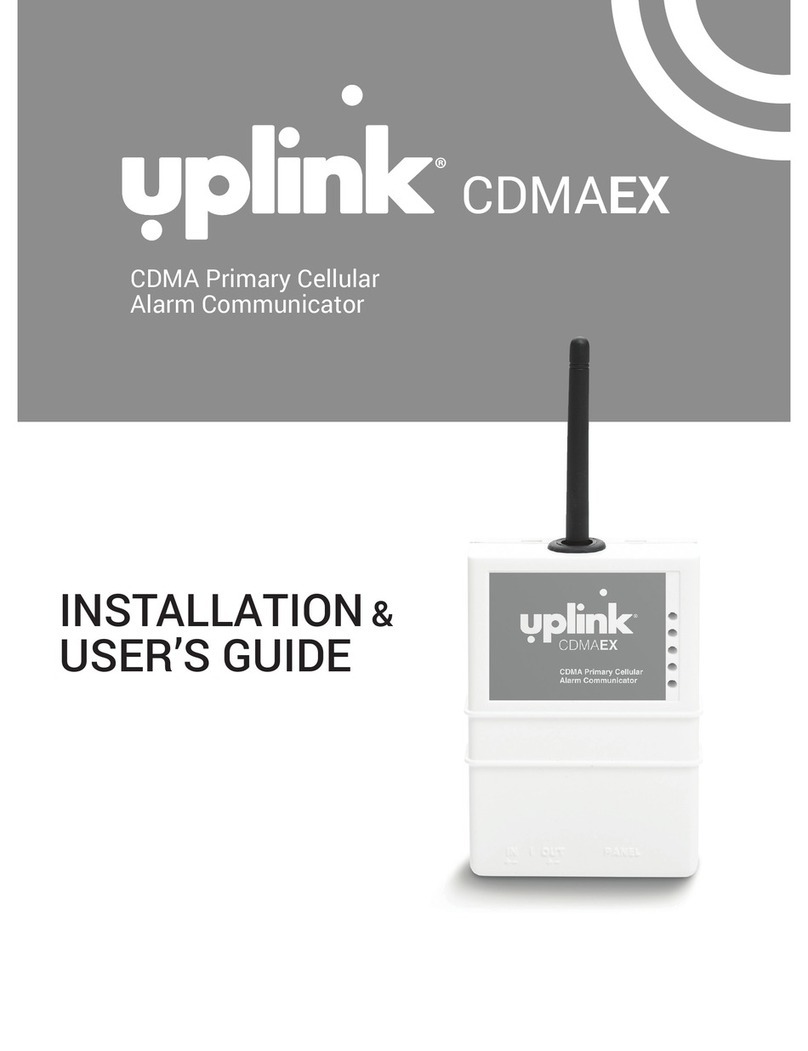
Uplink
Uplink CDMAEX Manual de operación

Uplink
Uplink 4530 Manual de operación

Uplink
Uplink 4530EX Manual de usuario

Uplink
Uplink 2530 Manual de operación

Uplink
Uplink 4550 Manual de operación

Uplink
Uplink 2500ez Manual de operación

Uplink
Uplink CDMAEZ Manual de operación

Uplink
Uplink 5200 Manual de operación

Uplink
Uplink 5530M Instrucciones de funcionamiento y mantenimiento


