Triplett IRTC400 Manual de usuario

User Manual
IRTC400
Thermal Imager

Introduction
Congratulations on your purchase of the Triplett IRTC400
Thermal Imaging Camera. This instrument is useful in many
applicaons such as preventave maintenance,
troubleshoong of electrical and HVAC systems, mechanical
breakdowns, water leaks and moisture buildup, heat loss from
missing insulaon and faulty windows/doors, automove
repair, and other places tond leaks and hot spots. With
proper care the instrument will last for many years of
accuracy and service.
Features
•2.4” (61mm) focus-free, color TFT display with 320 x 240 resoluon
•Center spot and high/low temperature tracking on image
•Audible and visual user programmable high/low temperature alarms
•4-buon easy-to-use menu
•Real me clock/calendar
•Image gallery
•Built-in LED worklight
•Auto power owith disable
•USB interface for transferring images (.bmp) and recharging
•Includes 3.7V rechargeable Lithium-Ion bery, USB cable, soware,
and 32G microSD card
Safety
Internaonal Safety Symbols This symbol, adjacent to another symbol or
terminal, indicates the user must refer to the manual for further
informaon. Cauons o Improper use can damage the meter. Please read
and understand all of the informaon provided in this User Guide and
other included documentaon before use. o Use extreme cauon when
the laser pointers are on. o Do not point the beam toward anyone's eye or
allow the beam to strike the eye from a reecve surface. o Do not use
the laser near explosive gases or in other potenally explosive areas. o
Refer to the CAUTION statement label (shown below) for crical safety
informaon.

Meter Description
1. Upper Housing
2. Interface Protecve Cover
3. Lower Housing
4. USB Type-C Interface Connector
5. SD Card Slot
6. Tripod Mount
7. Laser Emission Window
8. LED Light
9. Infrared Camera Lens
10. Trigger/Image Capture
11. LCD Display
12. OK Buon
13. Up Buon
14. Power/Back Buon
15. Down Buon

Display Indicators and Icons
•Display size: 2.4" (495mmx377mm)
•Display resoluon: 320 (vercal) x 240 (horizontal)
1. Center Point Temperature
2. CenterPoint
3. Low Temperature Point
4. Date and Time
5. Baery Status
6. Temperature Bar
7. High Temperature Point
Operation
Power On/Off
When the thermal imager is not turned on, long press the power buon
for 3s to power on. When the thermal imager is in the suspend state,
short press the power buon for 1 s to power on. When the thermal
imager is turned on, short press the power buon for 1s to enter the
suspend state. Long press the power buon for 8s,

Menu
Short press the OK button to enter the menu interface. Short press the
Back button to return to the upper menu. Short press the trigger to
directly return to the main interface of the thermal imager.
Image View
In the menu, select Image View, and then
short press the OK button to enter the
image viewing interface. Press the
Up/Down button to select an image.
Press the OK button twice to view the
Picture Info or Delete images.

Temperature Mark
In the menu, short press the Up/Down button to select Temper Mark, and
then short press the OK button to enter the temperature mark interface.
Center Point Hi/Lo Point Palette/Date & Time can be set in this interface.
For example, select Center Point, and then press the OK button to turn
on/off this function.
HI/LO Alert
In the menu, short press the Up/Down button to select HI/LO Alert, and
then short press the OK button to enter the alert setting interface.
Temper Alert, Buzzer, HI Alert and LO Alert can be set in this interface.

LED light
In the menu, short press the Up/Down button to select Hand Light, and
then short press the OK button to turn on/off the flashlight.
Palette
In the menu, short press the Up/Down button to select Palette,
and then short press the OK button to enter the palette selection
interface. Short press the Up/Down button to step through six
palettes: Rainbow, Iron, White Hot, Black Hot, Rainbow HC, Lava,
and short press the OK button to confirm the selected palette.

Language (English Only)
Temperature Unit
In the menu, short press the Up/Down button to select Setting,
and then short press the OK button to enter the submenu. In the
submenu, short press the Up/Down button to select Temper Unit,
and short press the OK button to switch between °C/°F.
Measured Parameters
In the menu, short press the Up/Down button to select setting,
and then short press the OK button to enter the submenu. In the
submenu, short press the UP/Down button to select Emissivity or
Temperature Compensation, and short press the OK button for
settings.

Laser
In the menu, short press the Up/Down button to select
Setting, and then short press the OK button to enter the
submenu. In the submenu, short press the Up/ Down button
to select Laser, and short press the OK button to turn on/off
the laser.
Time & Date
In the menu, short press the Up/Down button to select Setting,
and then short press the OK button to enter the submenu. In the
submenu, short press the Up/ Down button to select Time & Date,
and short press the OK button to enter the setting interface. The
Time Format can switch between 12H and 24H. Press the
Up/Down button to adjust the value of time and date, and short
press the OK button to confirm.

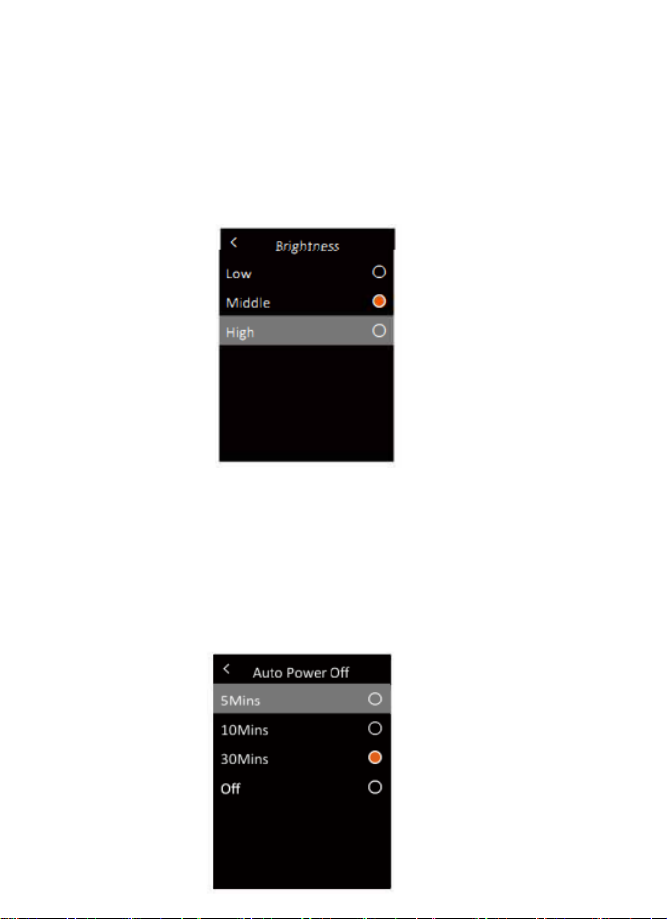
Brightness
In the menu, short press the Up/Down button to select Setting,
and then short press the OK button to enter the submenu. In the
submenu, short press the Up/ Down button to select Brightness,
and short press the OK button to enter the setting interface. The
brightness can be Low, Middle, or High
Auto Power Off
In the menu, short press the Up/Down button to select Setting,
and then short press the OK button to enter the submenu. In the
submenu, short press the Up/ Down button to select Auto Power
Off, and short press the OK button to enter the setting interface. In
this interface, users can set the auto power off time (5/ 10/30min)
or turn off the auto power off function.
Tabla de contenidos
Otros manuales de Cámara térmica de Triplett