TracMap TML-A Manual de usuario

Version
1.0
01/09/2021
USER MANUAL
TML-A

2
CONTENTS
CONTENTS.................................................................................................................... 2
TML-A Overview.......................................................................................................... 4
Parts and Cables.......................................................................................................... 5
Proles & Presets ........................................................................................................ 6
Logging in for the rst time���������������������������������������������������������������������������������������������6
Creating Multiple Proles�������������������������������������������������������������������������������������������������6
Switching Proles���������������������������������������������������������������������������������������������������������������7
Renaming a Prole�������������������������������������������������������������������������������������������������������������7
Creating a Preset ����������������������������������������������������������������������������������������������������������������7
Renaming a Preset �������������������������������������������������������������������������������������������������������������8
Deleting a Preset�����������������������������������������������������������������������������������������������������������������8
TML-A Settings............................................................................................................ 9
General Settings �����������������������������������������������������������������������������������������������������������������9
General - Display�����������������������������������������������������������������������������������������������������������������9
General - Map��������������������������������������������������������������������������������������������������������������������10
General – GPS Icon ����������������������������������������������������������������������������������������������������������10
General – Language & Units������������������������������������������������������������������������������������������11
Swath / Booms / Bucket Settings���������������������������������������������������������������������������������11
Guidance Settings.....................................................................................................12
Guidance Settings - General������������������������������������������������������������������������������������������12
Guidance Settings - Swath���������������������������������������������������������������������������������������������13
Guidance Settings – ABC Lines ������������������������������������������������������������������������������������13
Lightbar Settings.......................................................................................................14
Lightbar Settings - General��������������������������������������������������������������������������������������������14
Lightbar Settings - Lights�����������������������������������������������������������������������������������������������15
Lightbar Settings - Guidance�����������������������������������������������������������������������������������������15
Lightbar Settings - Data��������������������������������������������������������������������������������������������������15

3
Equipment Settings..................................................................................................16
Shortcut Settings......................................................................................................16
Shortcuts/ Hardware-Navigation..........................................................................17
Update Settings.........................................................................................................18
Support Settings .......................................................................................................18
Jobs...............................................................................................................................19
Starting a Job created in TracMap Online �����������������������������������������������������������������19
Starting a Job Created on the Device ������������������������������������������������������������������������20
Adding Extra Blocks to a Job�����������������������������������������������������������������������������������������21
Pausing & Completing a Job ������������������������������������������������������������������������������������������22
Editing Job Details������������������������������������������������������������������������������������������������������������22
USB Sticks...................................................................................................................23
Importing a Map / Job via USB��������������������������������������������������������������������������������������23
Attaching a Map to an Existing Job�����������������������������������������������������������������������������25
Exporting a Map / Job������������������������������������������������������������������������������������������������������25
Guidance .....................................................................................................................26
Set and Select Guidance Patterns �������������������������������������������������������������������������������26
Guidance Pattern Examples�������������������������������������������������������������������������������������������27
Autobooms .................................................................................................................29
Markers........................................................................................................................31
Marker types����������������������������������������������������������������������������������������������������������������������31
Edit a Marker����������������������������������������������������������������������������������������������������������������������31
Add a Hazard to a Map����������������������������������������������������������������������������������������������������32
Add Wires to a Map����������������������������������������������������������������������������������������������������������32
Adding Markers to a Current Job���������������������������������������������������������������������������������33
Renaming and Removing a Marker������������������������������������������������������������������������������33
Fly To ............................................................................................................................34
Setting Fly To���������������������������������������������������������������������������������������������������������������������34
Way Points��������������������������������������������������������������������������������������������������������������������������35
Troubleshooting........................................................................................................36

4
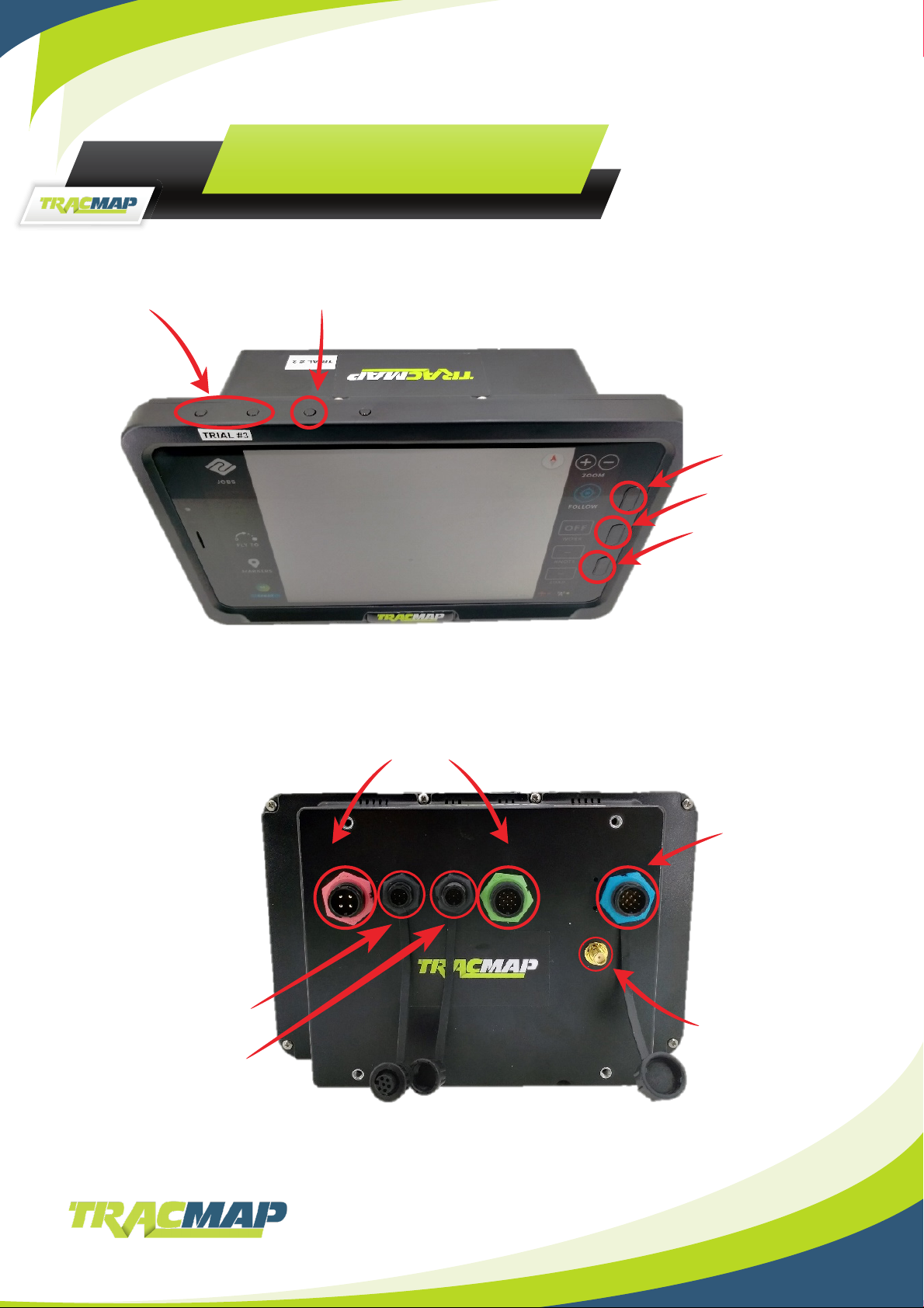
Power on/off
Volume Buttons
Back button
Home button
Button disabled
Connects to VL.34 with
TMW-1029 + TMW-1029
Connects to
lightbar with
TMW-1027
GPS Antenna
CAN attachment
USB attachment
TML-A OVERVIEW

5
PARTS AND CABLES
TMW-1027
TMW-1024
RAM-B-103-238U
Lightbar LB16
TMA- EXT-ANT
TMW-1029
VL34
TMA-EXT-ANT
Tablet Dimensions
Weight 980g
GPS Receiver F3 160g.
Max Current draw 12V 0.9A

6
PROFILES & PRESETS
Pilot Proles allow pilots to change and save their settings without affecting other pilots’ settings.
Proles automatically save your organisation and sync to all TML-A devices in your organisation so
you only need to create your prole once. Presets allow having different settings depending on the
type of work being done; for example, you could have different settings for spray or fertilizer jobs
and switch between them easily using presets.
Prole icons display the rst letter of the name allocated – example shown below.
To change prole settings, tap the settings icon in the bottom left of the TML-A screen.
Logging in for the rst time
Creating Multiple Proles
1. Enter prole name
1. Tap on the prole icon
3. Select “New Prole”
2. Click on “Switch Prole”
2. Click “Create Prole”
4. Enter prole name
5. Click “Create Prole”

7
Switching Proles
Creating a Preset
Renaming a Prole
1. Tap on the prole icon
1. Tap the three dots
1. Tap on the prole icon
Make sure you’re logged
into your prole before
renaming
2. Click on “Switch Prole”
2. Click on “Duplicate
Preset”
3. Once you have created
your duplicate Preset, set
up as required.
Create a new prole for
each pilot – each pilot can
have as many presets as
required
Tip: You can customise
colours in this menu too
2. Click on “Rename
Prole”
Type the new prole name
then click “Done”
3. Select the prole you wish to switch to

8
Renaming a Preset
Deleting a Preset
1. Tap the three dots
1. Make sure you’re in the
preset you wish to delete
2. Click on “Rename
Preset”
2. Tap the three dots
3. Type the new name and
click Done to save
3. Type the new name and
click Done to save

9
TML-A SETTINGS
To change settings, tap the settings icon on the left of the TML-A screen –
then use the following instructions.
General
• Display
• Map
• GPS Icon
• Language
Swath
Guidance
• General
• Swath / Bucket / Boom
• ABC Lines
Lightbar
• General
• Lights
• Guidance
• Data
Equipment
Shortcuts
Update
Support
General Settings
General - Display
Click on “General”
Select from:
• Display
• Map
• GPS Icon
• Language
Screen Brightness.
Slide Left or Right to
adjust.
Auto Brightness.
The device automatically adjusts
screen brightness based on the
amount of surrounding light it
detects.
Night Mode.
Uses darker colours which are better suited to preserving night vision in low light scenarios.

10
General - Map
General – GPS Icon
Enable Map.
Switch on to show
additional map options.
Map Type.
Select from:
• Satellite
• Terrain
• LINZ Topographical
Select a GPS icon to suit
the aircraft you operate:
• Dot
• Helicopter
• Plane
Tap on the icon you want
to apply
Make sure you’re in your
prole rst!
Satellite.
Image of the land area taken by
a satellite.
Terrain.
Shows land elevation markings.
LINZ Topographical.
Detailed record of land
area, showing positions and
elevations of both natural and
manmade features.
Only available in New Zealand.
Este manual sirve para los siguientes modelos
3
Tabla de contenidos