3.2 Saving Instruments
To save an Instrument, click on the Save button in the
Header section. User Instruments are added to the
Instrument library. The file ending contains „.fminst“.
A newly saved preset is appended to the end of the file
browse list. When launching F-em, the files are scanned
starting with your user's instruments folder, followed by the public
instruments folder (the one with the factory instruments). This results in
the order that your creations come first followed by the ones from the
factory sound bank.
3.3 The Macro Parameters in the Browser Page
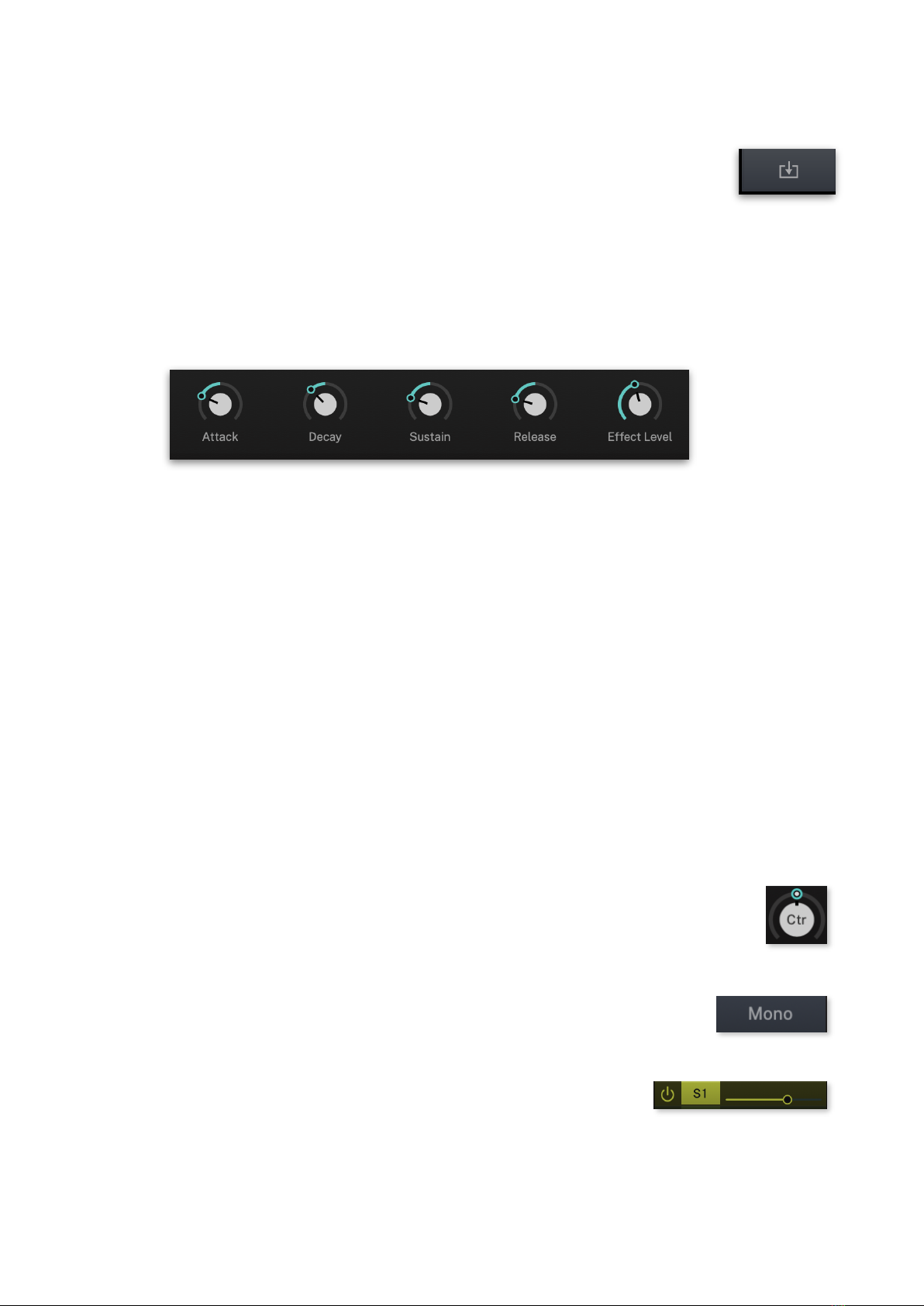
The Macro parameters can be found on two location: At the bottom of
the Browser page you will find additional parameters regarding the
overall Level envelopes and Effect levels. These macro parameters have
influence on the Level envelopes and Effect levels of all Layers.
Why are these parameters located on the Loading page? Because If you
load a sound and want to change some important settings directly, you
do not have to navigate to the corresponding sound edit pages.
Keep in mind, that the Macro parameters produce an offset to the
original settings. For example, if all Level envelopes are have an Attack
of 0, a negative setting of the Macro Attack dial won’t produce any
result.
Another Macro parameter location can be found in the Macros tab. Read
more on page 48.
3.4 Control Elements
Dials
To set a value, click on the dial, hold down the mouse button
and move the mouse up and down. A double click resets the
parameter value to its default.
Buttons
A simple click on a button activates or deactivates its
function. Buttons light up when they have been used.
Selection Field Button
A simple click on a selection field calls up the
corresponding display page. Selection field
buttons light up, when clicked.