
Total Control TRC-1080 Manual de usuario

Owner's Manual
TRC-1080
Wi-Fi Remote Control

500 Mamaroneck Avenue, Harrison, NY 10528
Phone: (914) 835-4484 Fax: (914) 835-4532
his remote control was Custom Programmed for you by:
For questions about your Custom Programming call:
Custom Programming of a complex home theater and/or a
multi-room system is one of the most challenging tasks within an
audio/video installation. It involves an intimate knowledge of how
the components interact and exact details on the proper
sequences of control.
Only a otal Control dealer has the requisite experience and
training to quickly and effectively customize a remote control for
true automated operation.
Congratulations on your choice!
RC-1080 Owner's Manual © 2013 -2014 Universal Remote
Control, Inc.
he information in this manual is copyright protected. No part of this manual may be
copied or reproduced in any form without prior written consent from Universal
Remote Control, Inc.
UNIVERSAL REMO E CON ROL, INC. SHALL NO BE LIABLE FOR OPERA IONAL,
ECHNICAL OR EDI ORIAL ERRORS/OMISSIONS MADE IN HIS MANUAL.
he information in this manual may be subject to change without prior notice.
URC - Control the Experience is a registered trademark of Universal Remote Control, Inc.
otal Control is a registered trademark of Universal Remote Control, Inc.
All other brand or product names are trademarks or registered trademarks of their
respective companies or organizations.

TRC-1080 TWO-WAY REMOTE
Congratulations! 1
Features and Benefits 1
Before Getting Started 2
Parts Guide 2
Connecting the Battery Pack 3
Using the Charging Base 3
Two-Way via Wi-Fi 3
Using the TRC-1080 4
Displaying the Settings Menu 5
Sleep Settings 6
Wireless Network Settings 6
Brightness 6
System 7
Button Light 7
Power 7
Date and Time 7
Sound 8
Pickup 8
Factory Default 8
Exit 8
Specifications 9
Limited Warranty Statement 10
End User Agreement 12
Precautions and Information Concerning Rechargeable
Lithium Polymer Batteries 13
Federal Communication Commission
Interference Statement 14
Declaration of Conformity 15

Page 1
TRC-1080 TWO-WAY REMOTE
Congratulations!
Thank you for purchasing the TRC-1080 Wi-Fi remote control
for your Total Control system. This remote offers two-way
control of your connected devices throughout the home or
small office space. With the integrated Rooms Menu,
controlling devices in other areas is simple using the TRC-1080’s
Wi-Fi communication.
Features and Benefits
● uick Connect Wi-Fi
When picked up, the TRC-1080 connect to Wi-Fi
within moments to control your Total Control system
and devices.
● Two-way meta-data feedback
Experience two-way feedback right on the remote's
screen when used with compatible devices like URC's
Music Streamer (SNP-1), iPod Dock (PSX-2), Thermostat
(THZ-100) or selection of IP Cameras. Enjoy the same
feedback when used in conjunction with an ever
expanding line of 3rd party products (speak with your
custom professional to learn more)
● Pick-up sensor
Lifting the remote immediately wakes it up, turns on the
backlight, the LCD screen, and quickly connects to the
local Wi-Fi for control of your Total Control system.
●Rechargeable Lithium Polymer Battery and charger base
Save money and the protect the environment by using
the included charging base and rechargeable lithium
polymer battery.

Page 2
Before Getting Started
● Only for use in a Total Control System
When used with an MRX Advanced Network System
Controller, the TRC-1080 can control your system
without being in line-of-sight of the equipment by
sending the commands over your home network.
● Programmable only by a URC certified professional
programmer onsite or offsite via the Internet
To fully automate your audio/video system, the
programmer must have detailed knowledge of each
component, LAN configuration, Wi-Fi optimization and
how the system is connected and operated. With the
ability to connect the TRC-1080 to an MRX Advanced
Network System Controller, your installer can program
the remote, with your permission, from a remote
location should the need arise. Only a trained and
certified professional audio/video installer can install a
TRC-1080 remote control in a timely and efficient manner.
Parts Guide
What’s included with the TRC-1080:
●TRC-1080 Wi-Fi Remote Control
●Rechargeable Battery
●Charging Cradle
●AC Power Adapter for Charging Cradle
●Owner’s Manual
TRC-1080 TWO-WAY REMOTE

Page 3
TRC-1080 TWO-WAY REMOTE
Connecting the Battery Pack
Press the spring lock down to unlock and remove the cover.
The battery is included in the box when shipped from the
factory. Place the battery into the battery compartment,
making sure to align the contacts on the battery to the
contacts on the TRC-1080. The battery will snap into place
when aligned properly. Replace the cover.
Using the Charging Base
Plug the 6V DC adapter into a power
outlet and into the rear of the charging
base. (Also plugs into the remote for direct
charging.) Gently place the TRC-1080 into
the cradle. The remote automatically aligns
itself to the contacts on the charging base.
The status light should immediately
illuminate.
●Red indicates that it is charging.
●Blue shows that it is fully charged.
There is no harm in leaving the TRC-1080
on its charging base when it is not in use.
Two-Way via Wi-Fi
To use the TRC-1080 with any two-way companion product,
it must be configured by your installer to be part of a LAN
(local area network) via a Wi-Fi b/g access point or router.
This is not user configurable. If you have any questions,
consult your custom installer.
Page 4
Using the TRC-1080
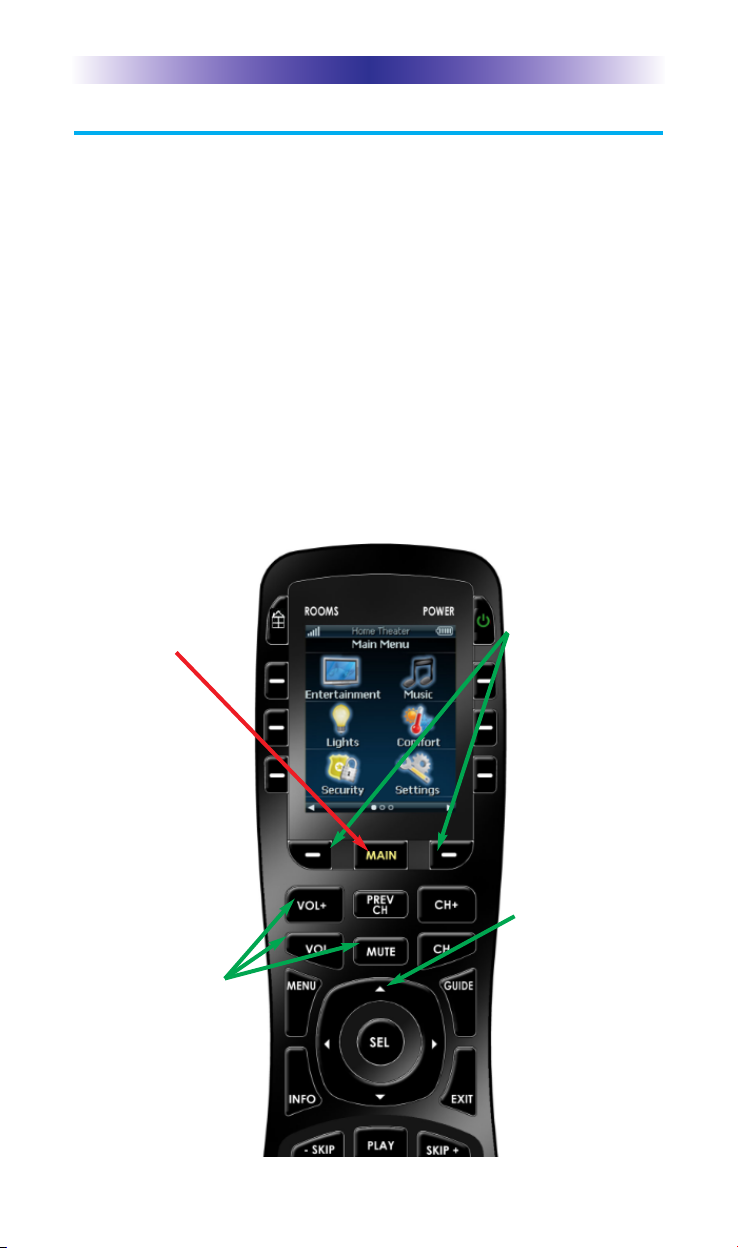
The TRC-1080’s Main Menu pages display the activities and
devices in your system. Press the Main page button to view
your activities and devices. Large systems may have more
than one page. Press either of the Page buttons to view
additional pages.
Once within a Device or Activity, the Page buttons may
reveal additional buttons. Press any button adjacent to the
screen, to select an activity or device.
Press the Main button to return to that page and select a new
device or activity.
TRC-1080 TWO-WAY REMOTE
The 5-way cursor
buttons are used to
navigate through a
device's menu
with ease.
The Main button
always displays the
Main menu
pages.
The Page buttons
display additional
pages of controls,
devices or activities.
The Volume and
Mute buttons are
always available
regardless of what
screen is displayed.

Page 5
Displaying the Settings Menu
You can enter the Settings menu by pressing and holding the
Main and Enter buttons for three seconds. When the Settings
menu appears, any further action must be completed within
60 seconds, at which point the remote will revert back to the
Main Menu screen.
Use the Page buttons to navigate between the two Settings
pages. To select a setting, press the button on the LCD screen.
To go back a step or to get out of the Settings menu, press
the Main button.
TRC-1080 TWO-WAY REMOTE
Page buttons reveal the
rest of the settings.
Page 2 of the Settings
Screen

Sleep Settings
You can adjust the amount of time the LCD
remains ON when the remote is not in use.
The time can be set independently based on
whether the remote is using battery power or
sitting on the cradle.
Once the Sleep Timers are adjusted, press the
Ok button. Pressing the Cancel button will revert to the
remotes last saved setting.
Wireless Network Settings
WARNING! Only use this button when
instructed to by Technical Support or your
Custom Professional. The screen displays
network information about your TRC-1080 and
the wireless network it is connected to. Do not
make any changes on this screen!
Brightness
Adjust the screen brightness by pressing the
adjacent hardbuttons to increase or decrease
the brightness level.
Once the brightness is adjusted, press the Ok
button. Pressing the Cancel button will revert
to the remotes last saved setting.
Note: he higher the brightness, the faster the batteries will deplete.
Page 6
TRC-1080 TWO-WAY REMOTE

Page 7
System
The System Information screen displays data
about your TRC-1080's Operating System,
Memory etc.
Press the More button to view further system
information. Pressing the Cancel button will
exit to the remote’s settings menu.
Button Light
You can adjust the brightness of the LEDs that
backlight the buttons of the TRC-1080. Press
the adjacent hardbuttons to increase or
decrease the button light level.
Once the button light is adjusted, press the Ok
button. Pressing the Cancel button will revert
to the remote’s last saved setting.
Power
You can display the remaining battery level by
selecting Power. You can also adjust when the
Low Battery warning screen will appear.
Once the power is adjusted, press the Ok
button. Pressing the Cancel button will revert
to the remote’s last saved setting.
Date and Time
The TRC-1080’s date and time has been
previously set. If you need to, you can adjust
the date and time by changing the settings on
this screen.
After adjusting the date and time, press the Ok
button. Pressing the Cancel button will revert
to the remote’s last saved setting.
TRC-1080 TWO-WAY REMOTE
Otros manuales para TRC-1080
1
Tabla de contenidos
Otros manuales de Mando a distancia de Total Control

Total Control
Total Control TRC-1080 Manual de usuario

Total Control
Total Control URC - 2082 Manual de usuario

Total Control
Total Control TRG-200 Manual de usuario

Total Control
Total Control TCTRC1080 Manual de usuario

Total Control
Total Control 708861 Manual de usuario

Total Control
Total Control TRG-100 Manual de usuario


