
TMAX Digital TM9S775 Manual de usuario

TM-9S775 Internet Tablet
Quick Start Guide
For the complete instruction manual, goto
www. tmaxdigital.com/tabletmanual

2
Important Safety Instructions and Notices
We would like you to have a safe and enjoyable
experience. Please read the following instructions
and notices before using your tablet.
• Avoidusingthetabletinextremelyhot,cold,
dusty,damporwetenvironments.
• Thetabletisnotmoisture/water-resistant.
Avoidusingthetabletaroundsourcesof
water.
• Avoiddroppingorforciblyplacingthetablet
ontoahardsurface.Thismaydamagethe
screen or internal electronic components.
• Donotusealcohol,thinnerorbenzeneto
clean the surface of the tablet.
Use only cleaning products designed for
computer tablet devices.
• Donotusethetabletwhilewalkingordriving.
• Excessiveuseofearphonesathighvolume
may lead to hearing impairment.
Limitearphoneusage,andadjustthevolume
to a moderate level when doing so.
• Theimagesinthismanualmayvaryslightly
from the actual product.
• Chargethetabletbatteryunderanyofthe
following circumstances:
1.Thebatteryleveliconindicateslowpower,
byshowingadrained,redbatteryicon.
2.Thetabletpowers-offautomatically,and
continues to do so even after restarting.
3.On-screenkeysdonotwork.
• Donotsuddenlydisconnectthetabletwhen
formatting,uploadingordownloadingdata.
Thiscanleadtoprogramerrors(e.g.,system
orscreen“freezing”.)
• Staticdischargeinthecable,whileitiscon-
nectedtoacomputer,maycorruptlesor
damage the memory of the tablet.
• Dismantlingthetabletwillvoidthemanu-
facturer’s warranty. If you are experiencing
problems,reviewtheTroubleshootingsection
of this manual.
• Thetabletfunctions,hardware,software,and
warranty information may be improved or
modiedbythemanufacturerortheirrespec-
tiveowners,andissubjecttochangewithout
notice.

3
Features/What’sIntheBox
• 9”1020X600Capacitivetouch-screen,withmulti-pointtouchfunction.
• Wi-FiandBluetoothconnectioncapability.
• Musicformats:SupportsMP3,WMA,AAC,OGGandWAV.
• Videoformats:AVI,WMV,MP4,MKV,RM,RMVB,TSandFLV.
• Pictureformats:PNG,JPG,BMP,JPEGandGIF.
• CanuseaTFcardfordatastorageandtransfer.
• Energy-saving,brightnesscontrolandsleepfunctions.
• Supportsmultiplelanguages.
• USB2.0high-speedtransfer.
• APKprograminstallationusingtheAppInstaller.
• OTG(“On-the-Go)functionality.CanplaylesonaUSBdeviceviatheOTGport,wherethecurrentis
lowerthan500mA.CanbeconnectedtoanyhardwarewithaUSBdevice.
• Supportsrmwareupgrades.
• G-Sensorfunction:Detectstheenvironment,orientationandpositionofthetablet,toprovideinput
forvariousapplications(i.e.,Accelerometer,LightSensor.)
• Camera:Front(facinguser)0.3MP;Rear2.0MP
What’s in the Box
• TheTMAXTM-9S7759”Tablet
• ACAdapter
• QuickStartGuide
• USBCable
• OTG(“On-the-Go”)Cable
4
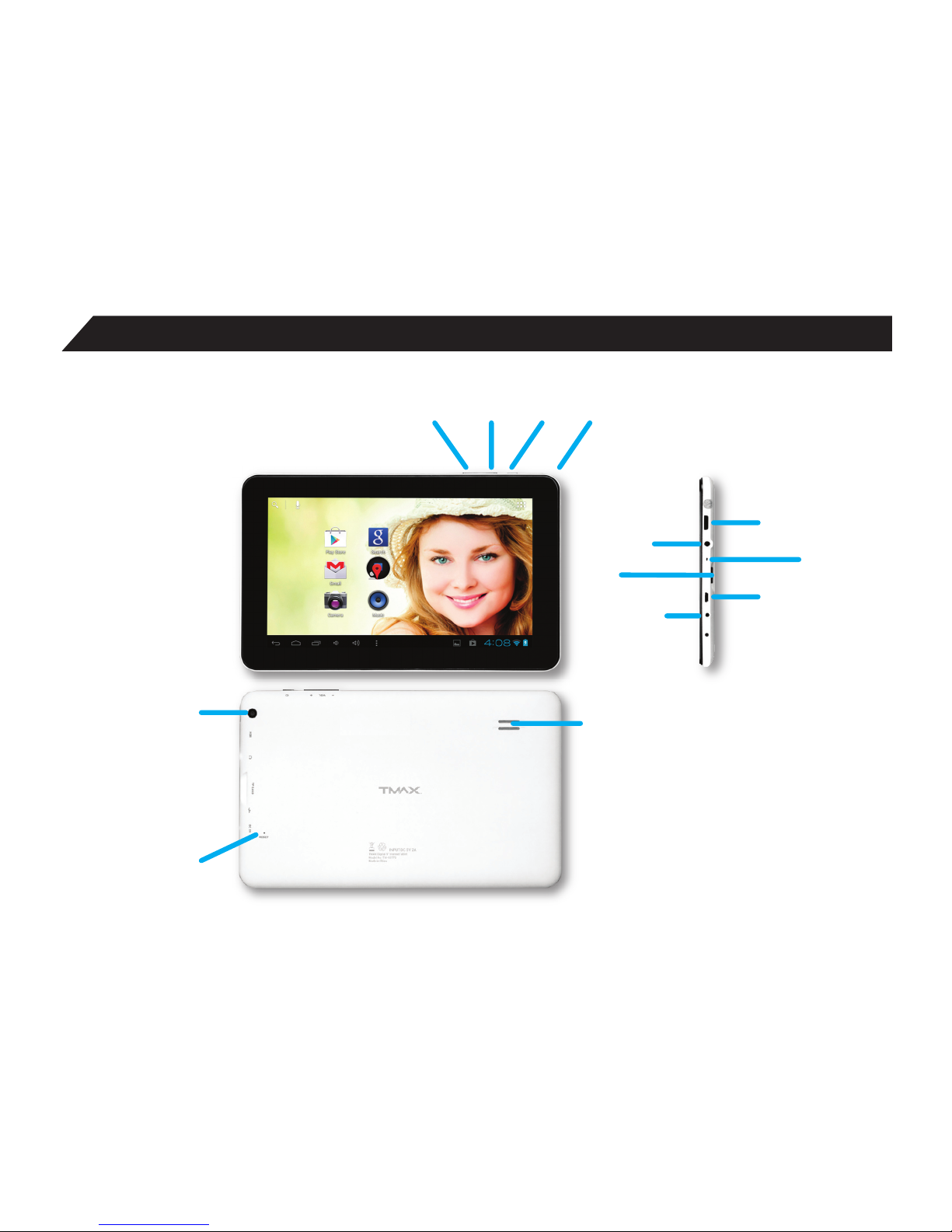
TheTMAXTM-9S775at-a-glance
1
5
6
97
11 13
12
10
8
234
5
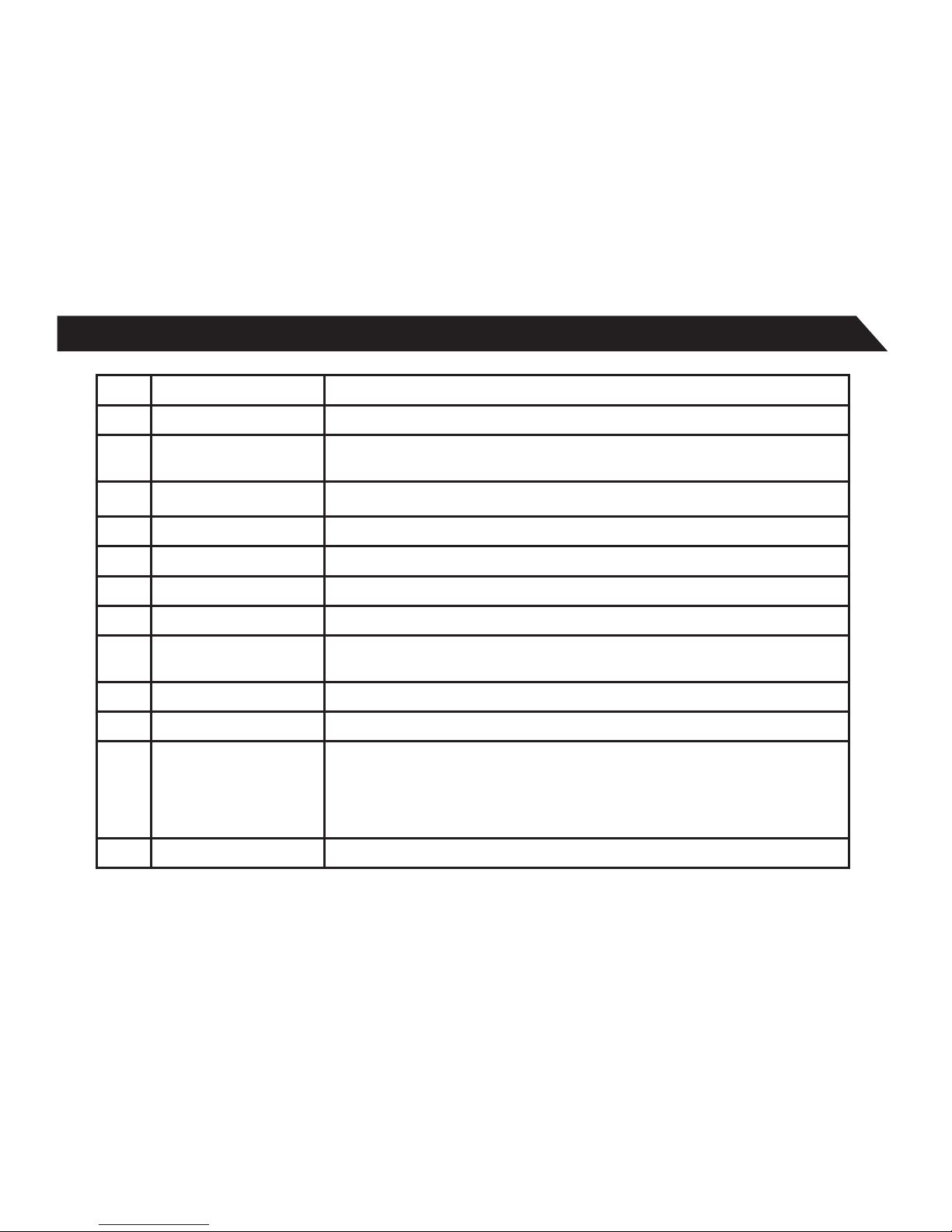
1Volume+Key Increases audio volume in either speakers or earphones.
2Volume-Key Decreasesaudiovolumeineitherspeakersorearphones.
3Power/LockKey PowersON/OFFthetabletwhenheldfor3seconds.Locksandunlocks
thetabletinStand-byMode.
4 Camera 0.3cameraonfrontoftablet(facingtheuser.)
5HDMI 1080PHDMIOutput.
6 EarphoneJack For use with a standard 3.5 mm stereo headphone jack.
7 MICKey Microphone.
8 TFCardSlot SlotforaTransFlashcard.
9 MicroUSBPort ConnecttoacomputerviamicroUSBcabletotransferdata(i.e.music,
video,photo,datales.)
10 PowerJack(DCInput) ConnectstoanACadapter.
11 Camera 2.0MPcameraonbackoftablet.
12 ResetButton(Atbot-
tomofaperture.)
Presstoresetthetablet.Theaperturerequiresapaper-cliporothersmall,
narrow-tippeditemtoinsertandtriggerthereset.(Becarefulnottoapply
unduepressuretothebuttonlocatedinsidetheaperture.Donotusea
knifeorotherbladedtool,asthismaydamagetheunit,andpotentially
causepersonalharm.)
13 Speaker
6
BasicOperations
Powering ON/OFF
TopowerON/OFFthetablet,pressandholdthe
Power button for 3 seconds. When turning the
tabletON,youwillgototheinitialStartupscreen
and have the option of unlocking it and going o
theHomescreen,ordirectlytotheCameraapp.
WhenturningOFFthetablet,awindowwillopen,
verifying your action.
Stand-by Mode
Ifyoudonotwanttopower-offthetablet,youcan
opttodeactivatejusttheLCDscreen.Thiswill
keepthetabletinStand-bymode.Todeactivate
thescreen,quicklypressandreleasethePower
button.Thescreenwillgoblack.Toreactivate,
simply press and release the Power button again.
(Youmayhavetounlockthetabletinordertouse
it,dependingonyoursecuritysettings.)
Touching and Typing
TheTM-9S775tabletscreenisdesignedforyou
totouchittomove,selectandmanipulate
information.
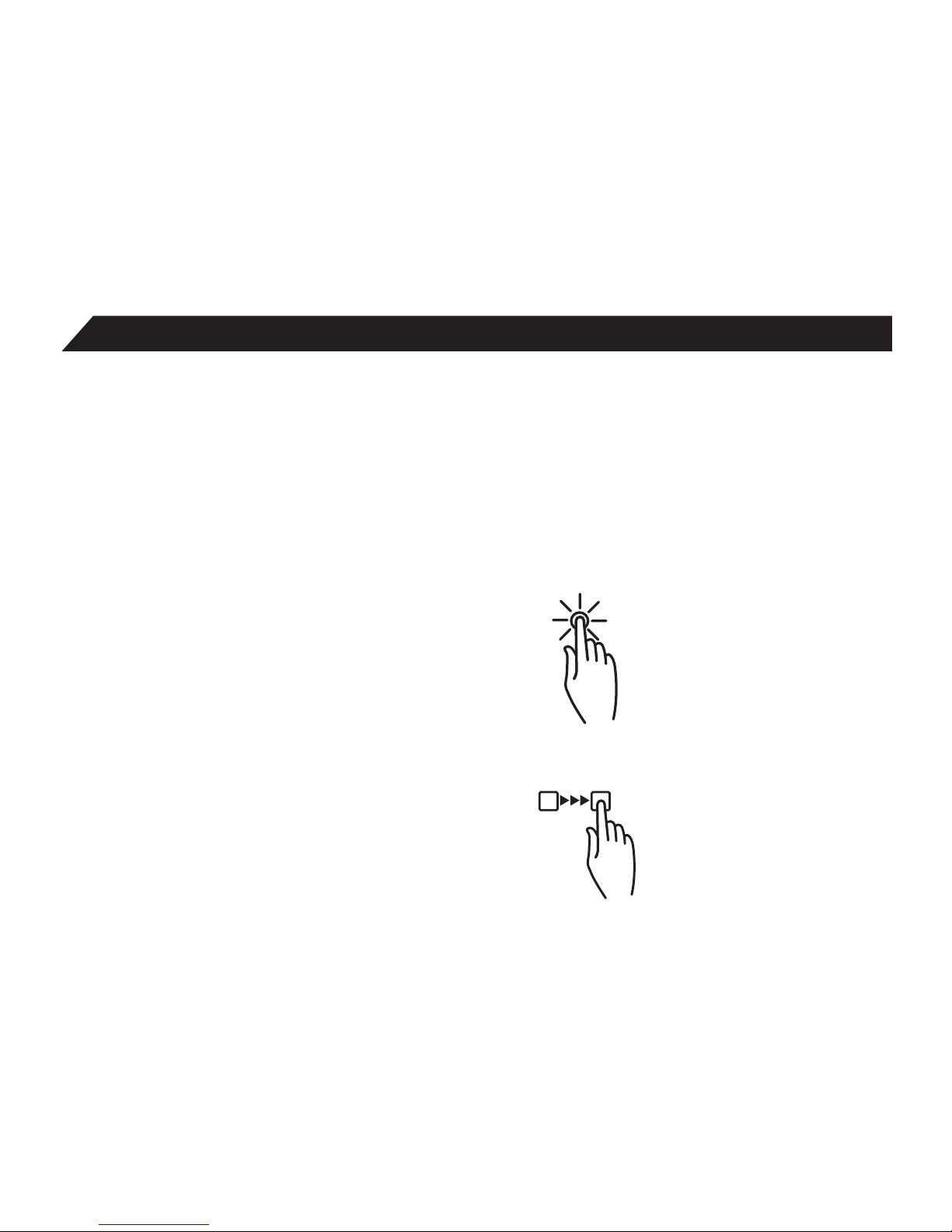
• Toselectanitemonthescreen,simplytapit
oncewithyourngertiporstylus.Someitems
mayrequireyouto“double-tap”.
• Totypeintoantexteld(i.e.,wheninputting
yourname,orawebaddress),tapthetext
eld.Theon-screenkeyboardwillappear,
and allow you to type the information you
wish to enter.
Other common finger gestures include:
• Touch and Hold:Touchingandkeepingyour
ngeronanon-screenitem,
until a light glow appears
aroundit,mayactivatea
separate menu or other
optionsforthatitem.Thisis
often used for deleting an
item from the tablet.
• Drag:Tomoveanobject,oractivate
functionality,TouchandHold
anitemuntilitglows,then
“drag”ittoanotherlocation
on the screen without lifting
yourngerorstylus.
7
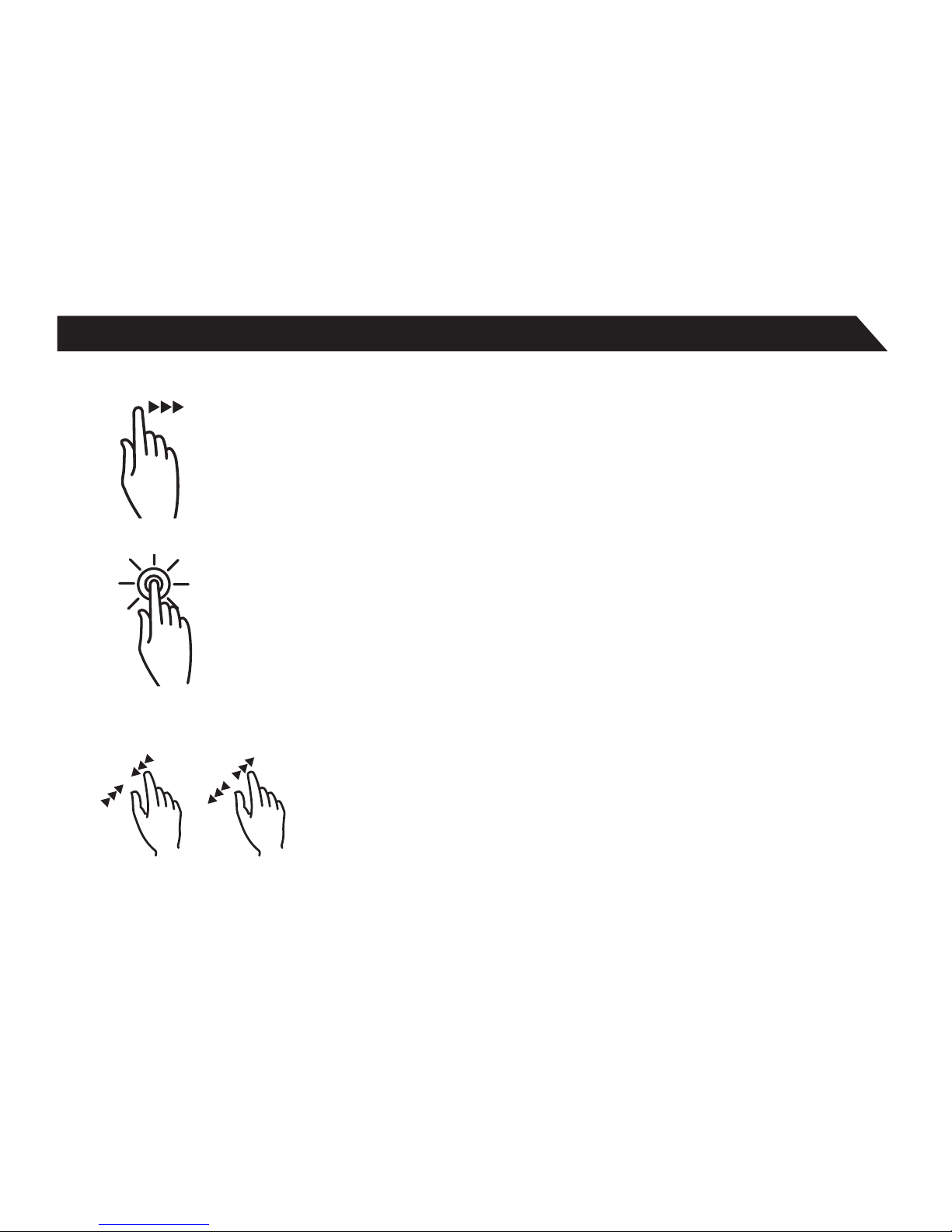
• Swipe/Slide:Amotionoftenusedtomove
throughmenus,picturesor
multipleoptions.Thisisdone
with a light tap or flick of the
nger/stylusintothedirection
youwanttheitem,menuor
screen to move toward.
• Double-Tap:Someitemswillrequiretwotaps
inordertoactivate,zoom-in,
zoom-out.
• Pinch:Insomeapps(suchasMaps,Browser,
andGallery),youcanzoominandoutby
placingtwongers
on the screen at
once,andpinching
them together
(tozoomout)or
spreading them
apart(tozoomin.)
Changing the screen orientation
First,makesurethe“Auto-rotatescreen”option
isselectedintheSettingsmenu(Settings>
Accessibility).Withthisoptionselected,thescreen
willautomaticallyrotatebasedonthevertical/
horizontalorientationitisbeingheldin.To“lock”
anorientation,simpledeselectthe“Auto-rotate
screen”option.
Resetting the Tablet
If the tablet is unresponsive to either touch input
orfunctionkeys,useapapercliporsimilarly-sized
pinandpresstheResetbuttonlocatedinthereset
aperture.Thisresetwillclearthememoryand
rebootthetablet.(Itisnotthesameasafactory
reset.)
Conserving Power
Toconservetabletbatterypower,setthe
brightness and sleep functions at reasonable
levels.Thesefunctionscanbefoundinthe
Settingsmenu(Settings>Display).
8
BasicOperations/TheHomeScreenataGlance
Charging the Tablet
It is best to charge the tablet before the battery
iconisblank,orwhenthetabletpop-upindicates
thatitneedscharging.Tochargethetablet,plug
intheACadaptertoaconvenientoutlet,then
plug-inthetablettotheACadapter.Ifthetablet
ison,thebatteryiconwillpulse,showingthatitis
being charged. It is fully charged when an icon
of a full battery is displayed on the screen.
Acompletebatterychargewilltake
approximately 5 hours. It is normal for the tablet
to be warm to the touch as it is being charged.
Connecting to a Computer for File Transfer
TheincludedUSBcablecanbeusedtoconnectthe
tablettoanyPCcomputer,forthepurposeoftransferring
music,pictureandotherdatalesbetweenthetwounits.
Upon pressing the Power
button for 3 seconds to start
thetablet,therewillbeaseries
ofscreens,andthenyouwill
seethislockedStart-upscreen:
Pressandholdyourngeronthelockicon,andtwo
optionswillappear.Dragittotheright,sothatthecircle
clicksontotheunlockicon.Thetabletwillbeunlocked,
andwillproceedtotheHomescreen.Dragittotheleft
togodirectlytotheCameraapp.Ifyoudonothing,the
tablet will return to Standby mode.
6
5

9
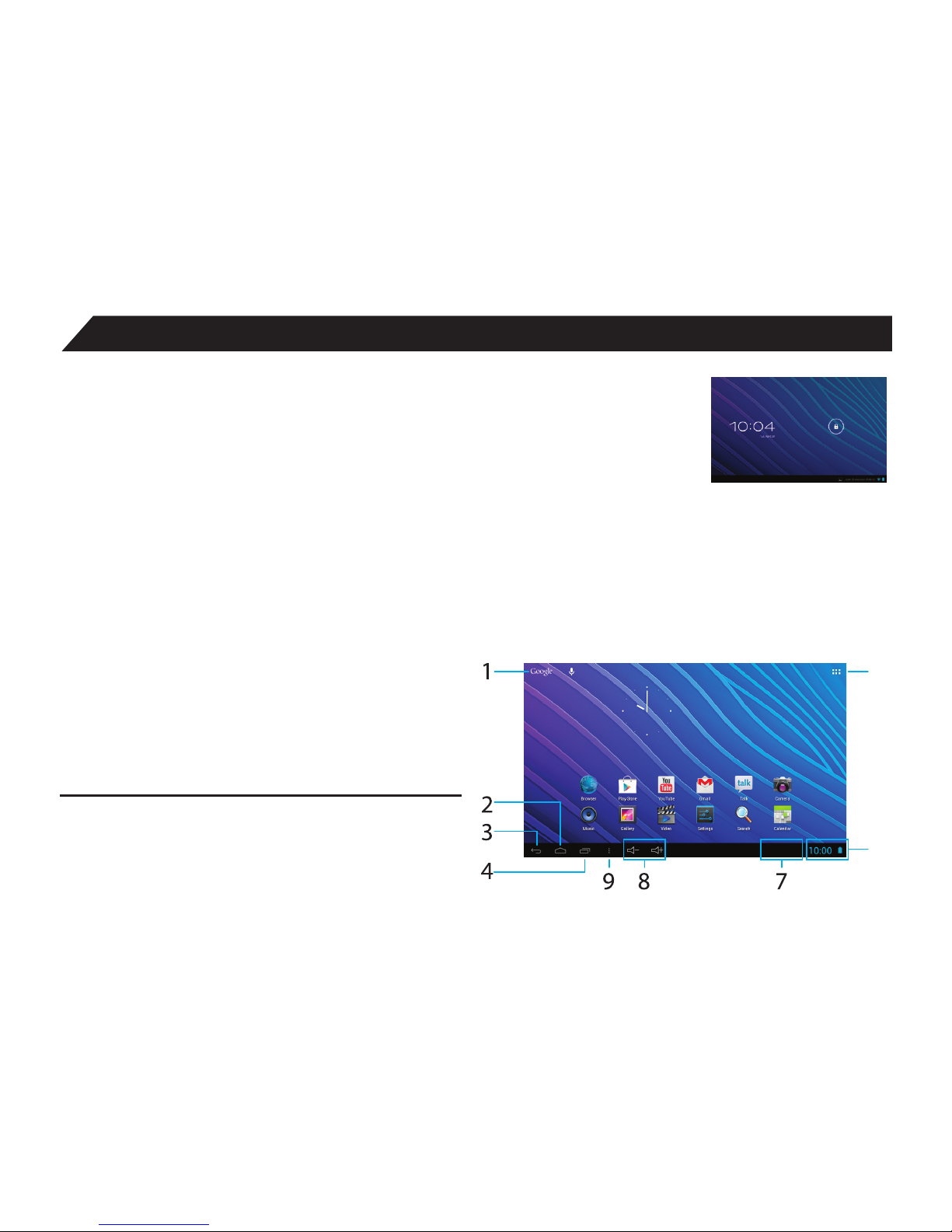
TheHomescreenisthestartingpointforallofthefeaturesofyourtablet.Herearedescriptionsofeachitemonthe
home screen.
1GoogleSearch OpenstotheGoogleSearchpage,whichallowsyoutoenteraninternetsearch
using the keyboard or voice control.
2 Home Icon Returnsyoutothecenter/mainHomescreen.
3BackIcon Opensthepreviousscreenvisited,whetherinanapplicationorusingtheinternet.
4 RecentApps Opensalistofapps(applications)recentlyused.Anyapplicationinthelistcanbe
selectedsimplybytouchingit,orremovedbyswipingitleftorright.SPECIALNOTE:
Ifanapplicationisnotusedafteracertainlengthoftime,itwillbegintoshrink,and
eventually fade from this menu.
5LauncherTab Opensalistofallappsandwidgetsinstalledonthetablet.See"Moreonthe
LauncherTab"below.
6 SystemNotications Opensastatuswindow,whichwillgiveyoudetailsonthestateofyourtablet,
incomingmessages,updates,Wi-FiandBluetoothconnectionsandothertablet
system related information.
7Status Icons Aquick-lookatthestatusofthetablet,includingnetworkconnections,batterylife,
volumeandtime.TappingontheStatusiconswillgiveyoutheSystemNotications
pop-upwindow.
8 VolumeUp/Down On-screenvolumeadjustup/down.
9 OpenMenu Opensthescreenmenu.(Variesbyscreen.)
TheHomescreenisactuallymadeof3separatespaces;themainscreen,andseparatescreensonthe
rightandleftside.Thesescreenscanbeseensimplybyswipingtoeitherside,andareavailableforthe
placement of widgets and apps.
10
TheHomeScreenataGlance
More on the Launcher Tab
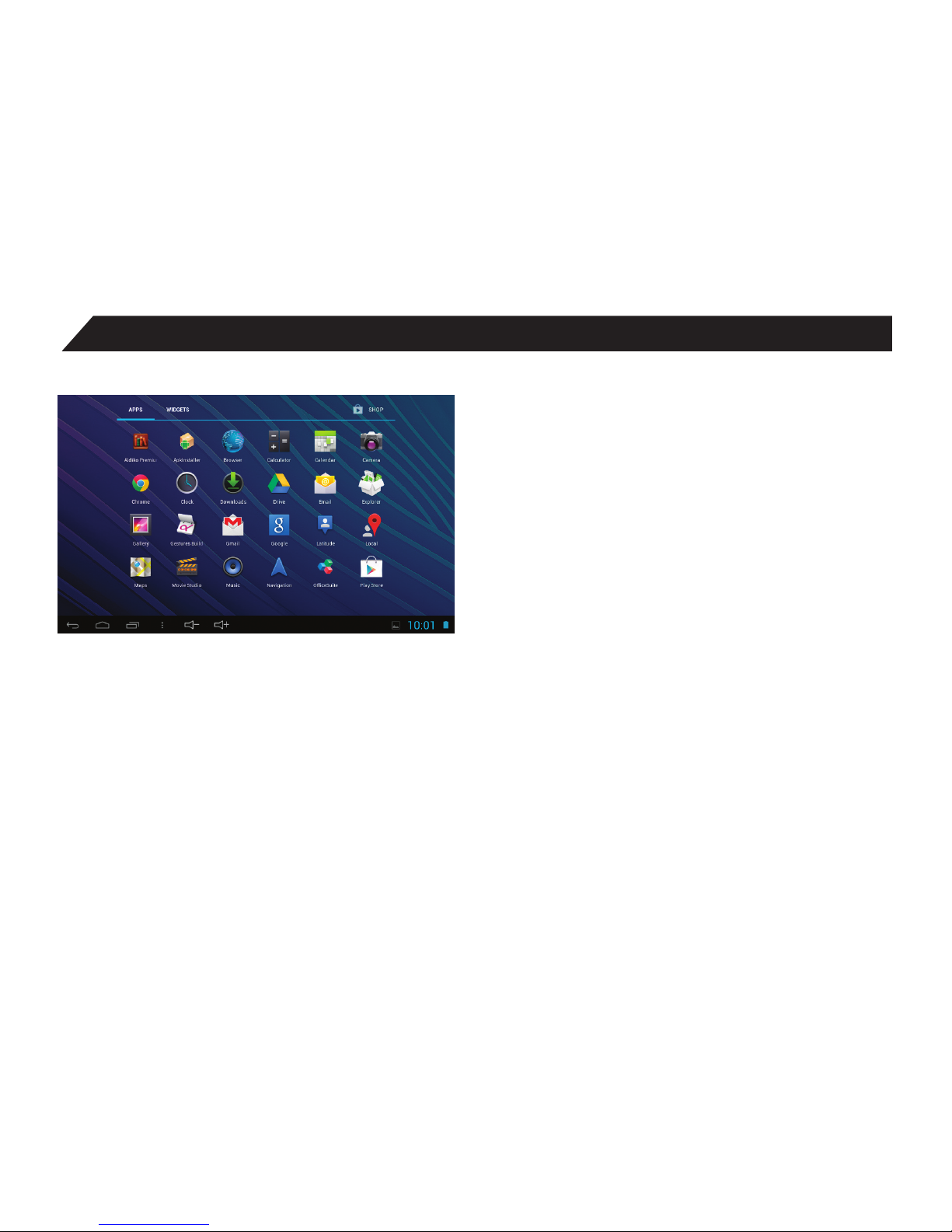
TheLauncherTabisaconvenientwaytoaccess
allofyourapplications(apps).Aftertappingthe
icon,thescreenwillopentotheLauncherTab
page.Atthetop,youwillndoptionstoseeall
apps(applications)orwidgets.
Apps
TappingonanyapplicationiconintheLauncher
screen will activate the application. If you would
liketoaddtheapplicationtotheHomescreen,
simplypressandholdtheappicon,andyou
will return to the Home screen with the selected
iconstillunder-nger.Youcanmovetheap-
plication to any available location on the main
screen.Releasetheapplicationicontoplace
itinthescreen,addittoanotherapplicationin
aseparatesub-window,orontothetopofthe
screenontothetext“Appinfo”,whereyouwillnd
detailed information on that application.
Widgets
Widgets are mini apps that run on your Home
screen.Yourtabletcomeswithseveralbydefault,
includingacalendarandaclock,andyoucan
download more.
Shop
ThisistheiconfortheGooglePlaystore,where
you will be able to purchase and download more
apps and widgets for use on your tablet.
Otros manuales para TM9S775
1
Tabla de contenidos
Otros manuales de Tableta de TMAX Digital


