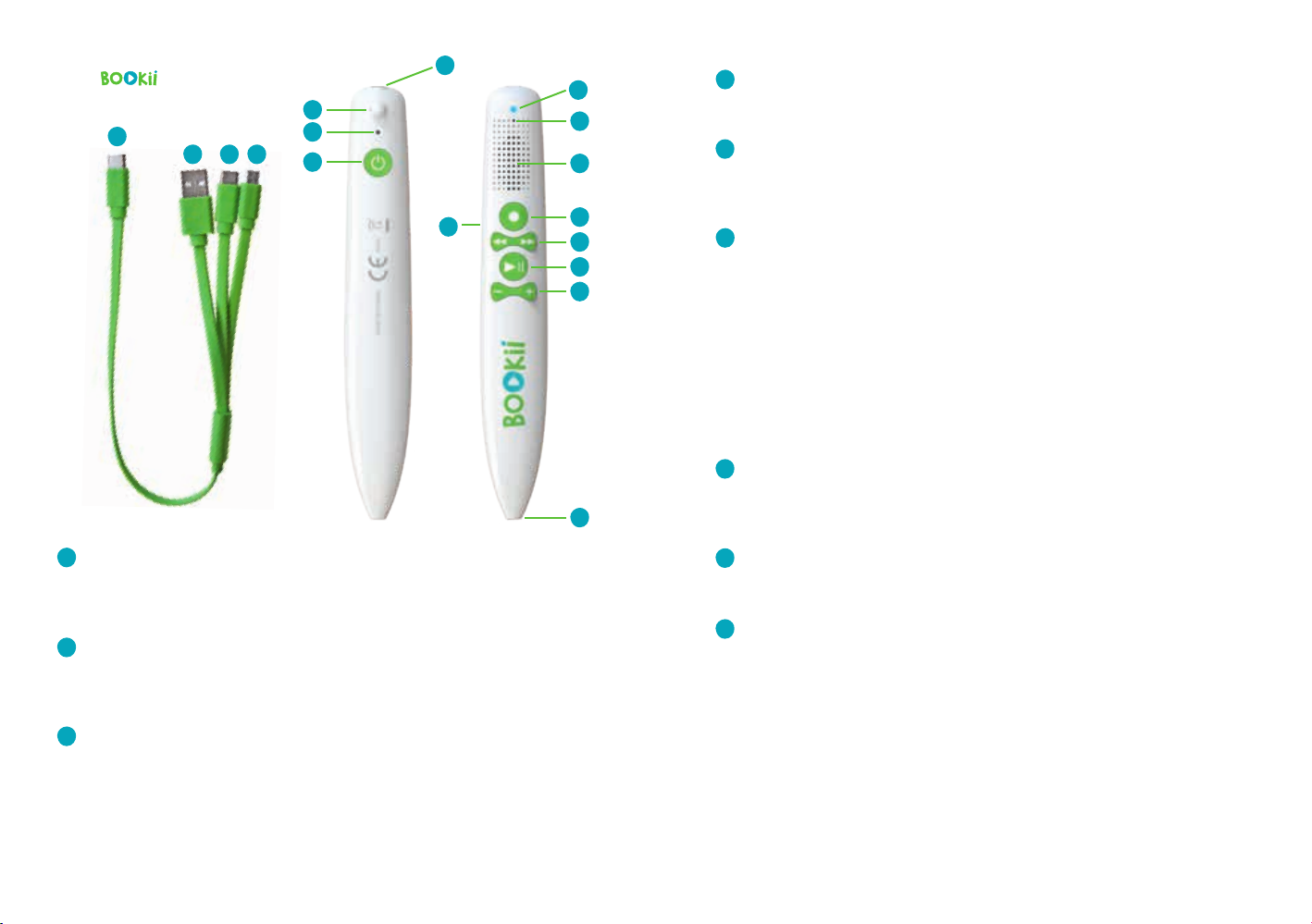
8 9
If you alternatively use the included cable to connect the pen to an Android
smartphone and start the BOOKii app, the missing track will automatically
be downloaded through the app via the Internet.
The BOOKii app for smartphones or tablets can be downloaded free of
charge via the App Store or Google Play.
The audio pen is equipped with an integrated rechargeable lithium-ion battery.
You don’t need any batteries!
The audio pen is supplied with a precharged battery. However, we recommend
that you fully charge the battery once before using the pen for the first time.
Please only use the supplied cable for this purpose. If you do not want to
recharge the pen via a computer, smartphone or tablet, please use a standard
3.7V charging adapter.
When battery power is low, the LED indicator (9) will flash red. If the pen is not
recharged in this case, it will automatically switch itself off.
A fully charged battery will last approximately six hours. Battery life will vary,
depending on the use of the pen, and might be reduced if you play many
games or you use Bluetooth extensively.
A completely discharged battery will take up to an hour to fully recharge. The
pen cannot execute any other functions (such as playing tones, recording)
during the charging process.
Warning!
The rechargeable battery of the BOOKii audio pen is firmly embedded within
the pen and is not intended for exchange. Under no circumstances should you
try to open the pen yourself!
If the pen is not used for more than five minutes, it switches itself off
automatically.
The pen has an integrated MP3 player. In order to save your own MP3 files on
the pen, connect the pen to a computer with the supplied cable. The pen is
displayed with two drives in Windows Explorer. Click the USB drive BOOKii.
Save your own MP3 files in the folder “mp3”.
To listen to the files on the pen, briefly press the PLAY/PAUSE button (5) twice
in succession. The MP3 player will start. Press the FORWARD/BACK button to
move to the previous (<<) or following (>>) sound document.
To delete files, simply delete them in the folder “mp3” while the pen is
connected to a computer. It is not possible to delete files directly on the pen.
Note:
The pen only plays WAV and MP3 files. Audio files recorded with the pen are
stored in WAV format.
The pen features Bluetooth, which allows you to connect the pen to a
smartphone or a tablet. Follow the instructions of the device to pair the pen.
The pen is displayed with the name BOOKii.
Bluetooth connection is necessary for playing videos with the BOOKii app
or for using weblinks. You can also use the app to manage your collection of
tracks (see section “Downloading the files”).
Note:
The BOOKii audio pen itself is not Web-enabled. In order to play videos or to
open hyperlinks, make sure that your smartphone or tablet is connected to the
Internet.
You can easily download and manage new tracks with the BOOKii file
manager. The software is installed on the pen. The BOOKii file manager starts
automatically when you connect the pen to a computer. The software
automatically downloads updates and activated tracks. Downloading may
take some time depending on the track and the volume of data.
Downloading progress will be displayed.
Note:
If the BOOKii file manager does not start automatically, please do the
following: The BOOKii audio pen is displayed on your computer as two drives
in the drive overview of Windows Explorer. Click the CD drive BOOKii and start
the BOOKii application with the BOOKii icon by double-clicking it.
The automatic launch of the software might be prevented by an installed
antivirus software or particular system settings on your computer.
Battery
Energy saving function
Integrated MP3 player
Bluetooth
BOOKii file manager