COMZ EDGE Medication Monitor Quick Start Guide
Rev 3
4. Tap on Set up new mission (Image #5)
5. Tap on General tab (Image #6)
6. Give your Module a name such as the name of your medication.
(Image #6)
7. Choose Reading interval (how often you want to read the
temperature) from every 15 seconds to every 255 minutes.
8. Tap on Alarms tab (Image #7) to enter temperature ranges to get
alerts when you check the temperature.
9. Setup temperature Low limit and High limit (Image #7)
(See the prescribing information provided with your medication
under the “Storage & Handling”section or ask your pharmacist or
the manufacturer of your medication).
10. Check the boxes to set low and high temperature limits (Image #7)
11. Enter temperatures using the arrows or tap to right of number to
bring up the keyboard (Image #7)
12. Check the boxes to set the time delays (Image #7)
13. Enter the time delay using the arrows or tap to the right of
numbers to bring up the Keyboard (Image #7).
By setting time delays, it delays any alert by the amount of time
you set to account for short temperature changes (i.e. due to
opening the refrigerator door). If delays are not set, it would alert
immediately upon exceeding the high or low limit.
14. Now hit Done. (Image #8)
Your EDGE Medication Monitor is Now Set Up to Monitor
the Temperature of Your Medication.
To Monitor Temperature
• Be sure the EDGE Medication Monitor is in the refrigerator next to the
medication that you want to monitor.
• If you are traveling with your medication, place the EDGE Medication Monitor
next to the medicine in the cooler.
• Open the EDGEVue App on your mobile device.
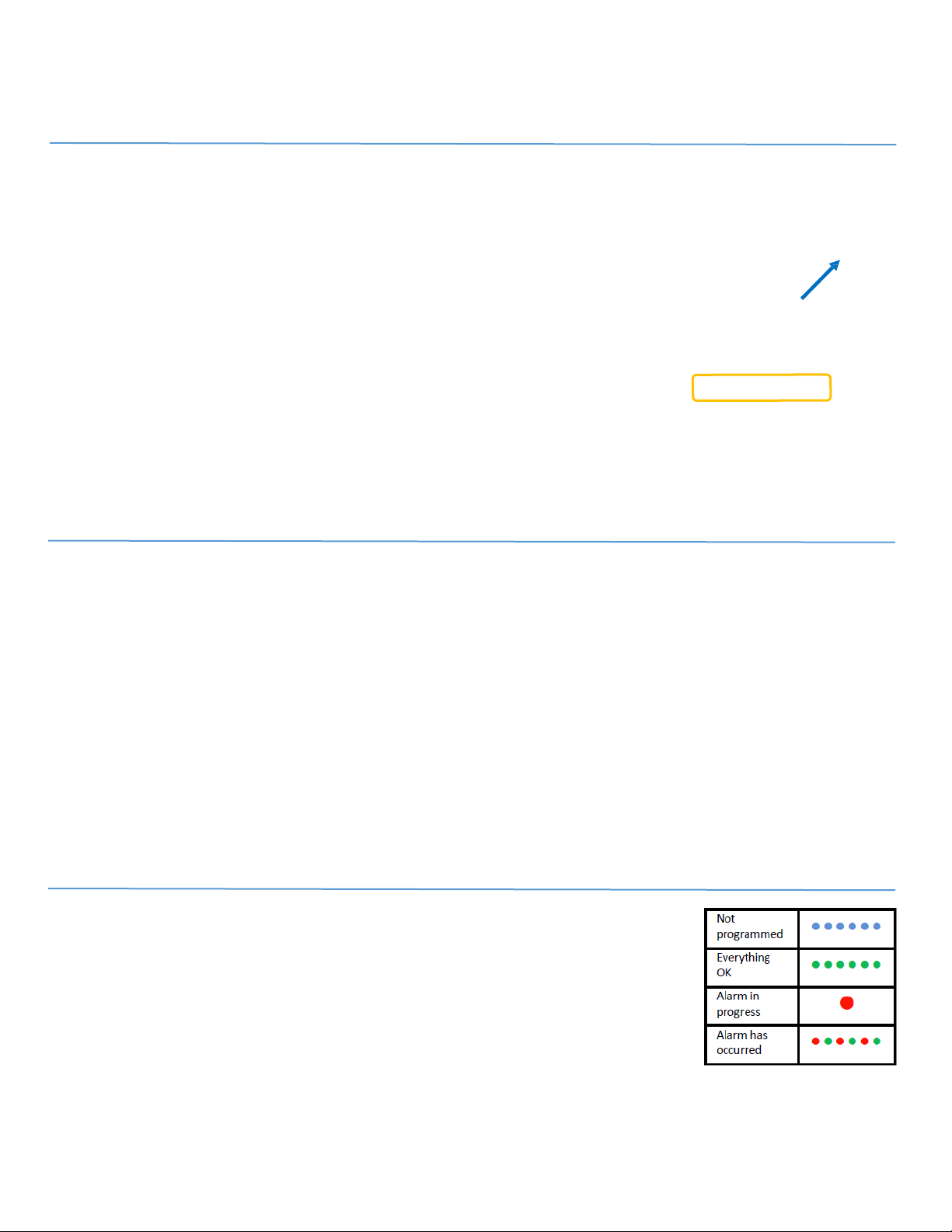
• Tap on Scan screen to see the temperature status. (Image 9) The color of the icon changes to
indicate the current status. (Image #10)
- Green indicates temperature is at a safe temperature according to the
temperature limits you set.
- Red indicates temperature has gone outside of temperature limits you set
for your medication.
-Grey indicates the EDGE Medication Monitor is not programmed
• Tap on the sensor name.
- For Current Temperature: Tap on the image of the sensor at the bottom or tap on Read
current temperature
- For Detailed graph and historical temperature data since your last configuration:
- Tap on Show Current Mission
- Always tap Show Current Mission to store data