TDK bluetooth usb adapter Manual de usuario

Bluetooth Connectivity Solutions

2
Contents
Introduction ..........................................................................................................................................................................................................................3
Box Content..................................................................................................................................................................................................................3
Getting Started......................................................................................................................................................................................................................4
Installing the Software .................................................................................................................................................................................................4
Installing the Hardware ................................................................................................................................................................................................5
Bluetooth Tray Application..................................................................................................................................................................................................6
Bluetooth Neighborhood ......................................................................................................................................................................................................8
Device Discovery .........................................................................................................................................................................................................9
Service Discovery ......................................................................................................................................................................................................10
Bluetooth Services (Profiles) .....................................................................................................................................................................................11
Pairing Guide......................................................................................................................................................................................................................13
Ericsson R520m .........................................................................................................................................................................................................14
Ericsson T39m............................................................................................................................................................................................................16
Nokia 6210 .................................................................................................................................................................................................................18
TDK USB adaptor & PC Card ...................................................................................................................................................................................19
Frequently Asked Questions ..............................................................................................................................................................................................21
Technical Support ..............................................................................................................................................................................................................21
Regulatory Information ......................................................................................................................................................................................................22
Safety Statements ...............................................................................................................................................................................................................23
Technical Information ........................................................................................................................................................................................................24
Warranty.............................................................................................................................................................................................................................25

3
Introduction
Bluetooth is a short range wireless communication technology. It is designed to replace the traditional cable connections currently used
to link compatible devices. These can be cable connections between computers and printers, computers and mobile phones and
between mobile phones and headsets. Bluetooth is designed to operate in the internationally recognised ISM (Industrial Scientific and
Medical) frequency band. Within the ISM band (2.4Ghz – 2.48Ghz) Bluetooth transmissions hop between 79 separate frequencies
1,600 times every second. Bluetooth is a low power radio designed for short range communication of about 10 metres and has an
impressive peak data throughput of 721KBps.
The potential applications for this new wireless technology are enormous – in time Bluetooth technology will touch all our lives in some
shape or form. In the short term, Bluetooth will make mobile computing much easier and far more convenient than it’s ever been. In the
longer term, Bluetooth will open up a whole new world of infinitely flexible personal connectivity.
Box Content
Bluetooth USB Adaptor
•USB Adaptor
•Installation CD-ROM
•USB Extension Cable
•Instruction Booklet
•Green Oval Housing (2)
Bluetooth PC Card
•PC Card
•Installation CD-ROM
•Instruction Booklet

4
Getting Started
Installing the Software
Note: Do not connect your Bluetooth USB Adaptor or insert your Bluetooth PC Card until you have completed the install
procedure detailed below.
1) Insert the CD into the CD/DVD drive on your PC. The CD should start automatically and present you with an installation menu.
If the CD fails to start automatically, click on the Start button, select Run and type D:\Setup.exe (assuming your CD/DVD drive is
D) then press Enter or click OK.
2) Choose Install Bluetooth Software.
3) The InstallShield Wizard will start.
Note: On some Windows 98/Me computers the Installation may need to automatically update the Microsoft Windows Installer. If
the Windows Installer is updated you will need to restart your computer before you can continue with the installation of the
Bluetooth software.
4) Click Next then Next.
5) Ensure the device name and type are set correctly then click Next.
Note: The device name should be unique. This will be visible to other people when they discover your Bluetooth device.
6) Choose to accept the default folder by clicking Next, or change the location by using the Change option.
7) Click Install.
8) When the install has completed click Finish.
9) Click Yes to restart Windows.

5
Installing the Hardware
Bluetooth USB Adaptor
1) Insert the Bluetooth USB Adaptor into the USB port.
2) Windows will inform you that new hardware has been
discovered and that it is being installed.
Bluetooth PC Card
1) Insert the Bluetooth PC Card into a free PC Card Slot.
2) Windows will inform you that new hardware has been
discovered and that it is being installed.

6
Bluetooth Tray Application
After successful installation of the software and hardware you
should have a new item on the Windows taskbar. If you move the
mouse onto the system tray (usually in the bottom right hand
corner of your desktop) Bluetooth icon you should see the
following
System Tray Icon
This is the Bluetooth System Tray icon. Double-click on it and you
will see the following screen.
Note: The computer name you see here is the same as your
computer name or the name you chose during the installation
process. The computer type is either “Desktop” or “Laptop”. This
is the device type other Bluetooth users will see when they search
for your computer.
Also on this screen is the security mode setting. You may set this
mode to high or medium. By default “medium” is selected.
Generally, this means that anyone can connect to you and use
your services without having to type in a password. You can
protect individual services with a password for increased security.
System Tray Application – Bluetooth Configuration

7
To check your hardware is working click on the Hardware tab.
If the Device Status is showing “na” then your USB Adaptor or PC Card has not been detected by the software. If the device is not
plugged in, insert it and select this hardware option again.
Note: There are more details about the Bluetooth Tray Application in the Bluetooth help guide. You can view this help by clicking on the
Help button, seen here in the bottom right hand corner.
System Tray Application – Hardware

8
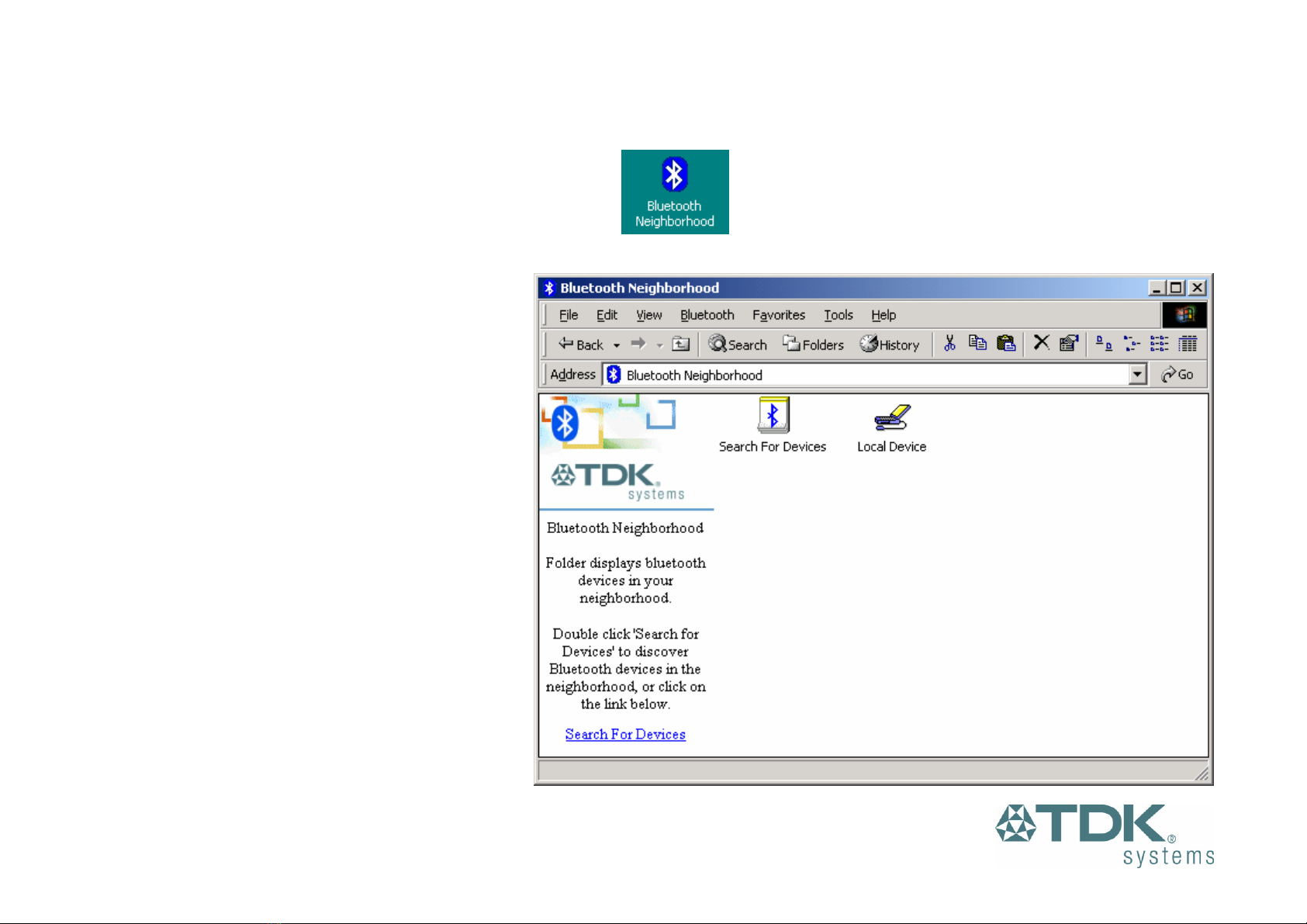
Bluetooth Neighborhood
Following installation of the Bluetooth software you
will have a new icon on your desktop. This is the
Bluetooth Neighborhood icon.
Bluetooth Neighborhood Desktop Icon
Double-click on this icon to bring up the Bluetooth
Neighborhood.
Bluetooth Neighborhood – Before Searching

9
Device Discovery
If your USB Adaptor or PC Card is correctly
installed in your computer the Bluetooth
Neighborhood will initially automatically try to
discover (search for) other Bluetooth devices
within radio range when it is opened. If any devices
are discovered they will be displayed in the
Bluetooth Neighborhood. Subsequent searches
can be initiated by double-clicking the Search For
Devices icon.
Note: The search may take a few minutes if there
are many discoverable Bluetooth devices within
range.
If you have not configured any other Bluetooth
devices yet, set them up now then click on the
Search For Devices icon to re-discover your other
Bluetooth devices. There is a section later in this
guide to help set up Bluetooth connections with the
most popular Bluetooth mobile phones.
Bluetooth Neighborhood – Searching Complete

10
Service Discovery
Each device in the Bluetooth Neighborhood you have discovered will have services you can access. To find out which services a device
supports double click on that device. You will then see all the services listed, providing the services are compatible and the device has
not gone out of range or been switched off.
Bluetooth Neighborhood – Service Discovery
Este manual sirve para los siguientes modelos
1
Tabla de contenidos
Otros manuales de Adaptador de TDK