
Taser AXON FLEX Manual de usuario

IMPORTANT SAFETY INSTRUCTIONS.
Read all warnings and instructions. Save these instructions.
MMU0040 Rev: C
TASER®
AXON Flex™System
User Manual

2
Contents
4 Chapter 1: Introduction
4What Is the AXON Flex System?
5 Chapter 2: Hardware
5AXON Flex Features
5AXON Flex Camera
6AXON Flex Controller
7ETM System Components
7AXON Flex ETM
7ETM Pucks
8Equipment Mount Options
8Hybrid Holster
9Oakley Eyewear Mount
9Low Rider Headband
10 Hat Mount
10 Collar Mount
12 Epaulette Mount
13 Adhesive Mount
13 Equipment Connection Options
14 AXON Flex Cables and Connectors
15 USB Cable
16 Chapter 3: Account Setup for EVIDENCE.com
16 EVIDENCE.com Registration
16 Installing the EVIDENCE Sync Software onto your Computer
17 Assigning Your AXON Flex Equipment
18 Chapter 4: Setting up AXON Flex for the Oine Mode
18 Allowing an Agency’s Flex Cameras to Be Set to Oine Mode
18 Setting AXON Flex Cameras to Oine
19 Setting EVIDENCE Sync to Oine
20 Chapter 5: Hardware Details
20 Preparing the AXON Flex Camera
21 Preparing the Magnetic Clip Assembly
22 Mounting the Flex Camera to Your Shirt Collar

Contents
3
24 Chapter 6: Basic Operations
24 Operating Modes
24 BUFFERING Mode
24 EVENT Mode
25 Battery Status
25 Adjusting the Volume
26 Turning o the Controller LEDs
27 Chapter 7: AXON Mobile
27 Installing AXON Mobile Software on Your Android Smart Device
28 Pairing AXON Flex Hardware with Your Smart Device
32 Signing in to Your EVIDENCE.com Account within the AXON Mobile
Application
34 Adjusting Application Settings
36 Checking AXON Flex Camera Status on Your Smart Device
37 Playing Recorded Video on Your Smart Device
39 Viewing Live Video from the AXON Flex Camera on Your Smart Device
40 Adding Video Descriptions
43 Chapter 8: Uploading Data and Recharging AXON Flex Devices (Online)
43 Using the ETM
45 Advanced Checkout for Shared Cameras
45 Using Your Computer to Upload Videos
46 Using EVIDENCE Sync to Upload the AXON Flex Camera to EVIDENCE.com
without an ETM
46 Recharging the AXON Flex Controller without an ETM
47 Chapter 9: Downloading Data in the Oine Mode
47 Downloading Videos to Your Computer with EVIDENCE Sync (Oine)
Software
47 Recharging the AXON Flex Controller
48 Chapter 10: Care and Maintenance
48 Cleaning the AXON Flex System Components
48 Charging the Flex Controller Battery
49 Chapter 11: Troubleshooting
49 Customer Service
49 Warranty Policy
49 Warnings
49 Radio Waves
51 Chapter 12: Audio Prompts

4
What Is the AXON Flex System?
The AXON Flex system is a wearable camera system incorporating an audio and video recording device to be
worn by you while performing your job duties. Multiple mounting options are available to tailor the system
to your needs. The components are designed for use in tough environmental conditions encountered in law
enforcement, corrections, military, and security activities. The Flex system is designed to record events in real-
time for secure storage, retrieval, and analysis via the EVIDENCE.com website or in an Oine conguration
to your local computer. The recorded events are transferred to your storage solution via the secure Evidence
Transfer Manager (ETM) or by using EVIDENCE Sync software installed on a Windows computer.
The Flex system has two operating modes designed to accommodate the needs of law enforcement, corrections,
security, and the military. The default mode, or BUFFERING mode, provides pre-event buering to capture
activities that occur prior to the user activating the EVENT mode. In addition, the AXON™ Mobile application
enables playback of footage on a smart phone for review prior to storing the data.
Instructional videos for using your AXON Flex system are available at www.TASER.com under Training Videos.
Introduction 1
5
AXON Flex Features
The primary AXON Flex components are the controller and camera. They will work with a variety of mounting
options.
AXON Flex Camera
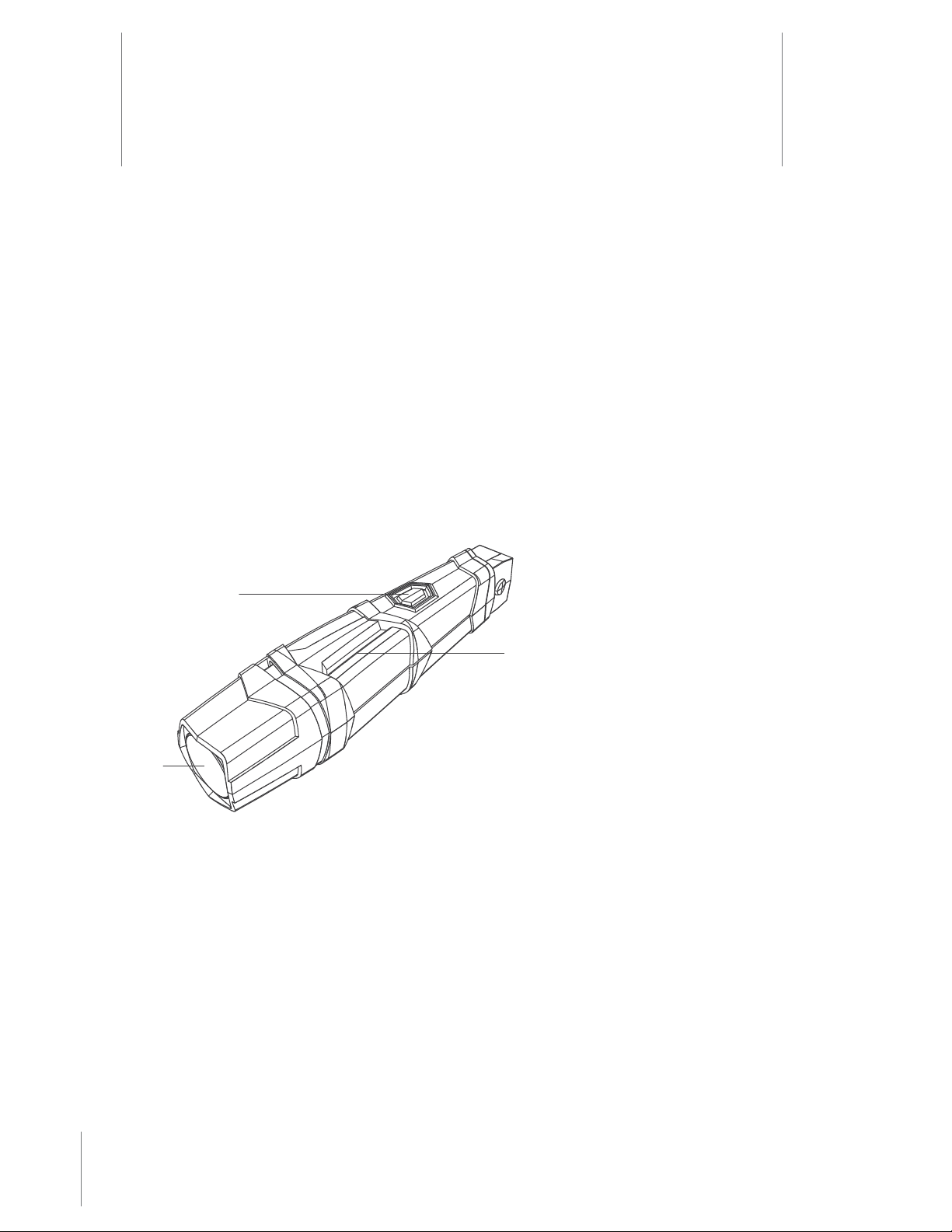
The camera is a digital video recorder (DVR) that oers high quality video and low-light gathering capabilities.
The recorder is designed to store at least 4 hours of video (and up to 13 hours based on the video setting). If the
camera is full (has reached its storage limit), the camera will not record over previous video but instead stops
recording.
Volume/Pairing Button
Imager
Bracket Clip
1 Volume/Pairing Button – This button is used to adjust the volume of audio prompts coming from the
camera. It also is used to pair the AXON Flex system with a smart phone; see Pairing AXON Flex Hardware
with Your Smart Device. This button does not control the volume of recorded audio.
2 Bracket Clip – A clamp attaches to this part of the camera, and the clamp can be attached to a variety of
mounting tools.
3 Imager – This is the camera lens. Avoid touching the lens. For cleaning information, see Chapter 10: Care
and Maintenance.
Hardware 2

6
Chapter 2 Hardware
AXON Flex Controller
The controller enables you to turn the unit on, begin recording of an event, stop recording, and turn the unit o.
The controller features LEDs to indicate the operating mode and battery capacity.
NOTE: You can turn o the controller LEDs, if necessary. See Turning o the Controller LEDs for instructions.
Top View
Front View
Operation LED
On/O Indicator
EVENT Button
Battery LED
Battery Button
On/O Switch
1 Operation LED – Shows the controller’s current operating mode:
Operation LED Operating Mode
Blinking Red Recording
Blinking Green Buering
Solid Red Booting Up
Blinking Yellow The Cable is Disconnected
NOTE: For the battery status, see the Battery LED, described below.
2 On/O Switch – Turns the controller on or o.
3 On/O Indicator – When the controller is turned on, the red portion of the controller is exposed. When the
controller is turned o, the red portion is covered from view.
4 EVENT Button – A double-press (quickly press twice) on the EVENT button takes the Flex system into
EVENT mode and begins recording video and audio (the Flex system can be congured without the audio
recording capability for locations where audio recording is restricted).
A 3-second press of the EVENT button takes the Flex system out of EVENT mode. The controller might take
several additional seconds to close out of the event video when it is taken out of EVENT mode.

7Chapter 2 Hardware
5 Battery LED – When pressed, momentarily indicates the remaining battery capacity only (it does not
indicate the operating mode).
Battery LED Controller Status
Green The Battery is Fully Charged.
Yellow The Battery Capacity is 20–40 Percent.
Red The Battery Capacity is LessThan 20 Percent.
When you turn the controller on, all LED lights turn solid red until the system is ready to use. Then the
Operation LED blinks green (BUFFERING mode) and the Battery LED goes out.
6 Battery Button – When pressed, momentarily indicates the remaining battery capacity only (it does not
indicate the operating mode).
Pressing buttons causes the AXON Flex system to emit audio alerts (beeps) to indicate system actions. See
Chapter 12: Audio Prompts for more information.
ETM System Components
AXON Flex ETM
The ETM can be placed on a table or mounted on a wall. It is designed to upload data from the camera to the
EVIDENCE.com website and recharge the controller.
ETM System Components
ETM Pucks
An ETM has 12 bays; each bay accepts a xture called a puck. There are two dierent puck designs; one for the
camera and another for the controller. An ETM is shipped with 6 camera pucks and 6 controller pucks installed

8
Chapter 2 Hardware
in the ETM. If desired, the pucks can be labeled with a user’s name to quickly identify user-specic controllers
and cameras.
Controller Puck
Camera Puck
Because the pucks are removable, you can customize your ETM to accept a dierent combination of components.
This can be useful for using the ETM to upload 12 cameras while using wall power sockets to recharge your
controllers. The drawing below shows an ETM with all pucks removed and ready for customization.
Equipment Mount Options
The AXON Flex system provides you with multiple ways to wear your camera and carry your controller. See
Chapter 5: Hardware Details for information on assembling the camera mounting systems.
Hybrid Holster
The controller can be carried in a holster that clips to your clothing or gear. Several clips are available for you to
place the controller in a way that best meets your needs.

9Chapter 2 Hardware
Oakley Eyewear Mount
The AXON Flex camera can be attached to Oakley Flak Jacket® glasses. With this system, the camera is designed
to directly capture your point of view because it is mounted at eye level.
Low Rider Headband
Designed for use with the Flex system, the Low Rider headband provides a comfortable frame to wear the
camera on your head. As with the Oakley eyewear mount, the Low Rider headband places the camera at your
eye level, and is designed to capture your perspective of the incident.

10
Chapter 2 Hardware
Hat Mount
The camera can be worn with headgear, including baseball caps. One magnetic clip is placed on the inside of the
baseball cap, while the rest of the assembly goes on the outside, held in place by magnetic attraction.
Collar Mount
The universal magnetic clip is compatible with most uniform shirt collars.
Otros manuales para AXON FLEX
2
Tabla de contenidos
Otros manuales de Accesorios para cámaras de Taser


