
SVT SVT-4 Manual de usuario

SVT-4 Cloud Server
User Manual
Please read this user manual prior to installing the system, and keep it well for future use.

CONTENTS
1. Introduction.......................................................................................................... 1
2. System diagram .................................................................................................. 1
3. Wiring diagram ................................................................................................... 2
4. Specifications ...................................................................................................... 2
5. Technical parameters ......................................................................................... 3
6. Set up .................................................................................................................. 3
6.1 Android system............................................................................................... 3-7
6.2 IOS system .................................................................................................... 8-13
6.1.1 Downloading the App ............................................................................. 3
6.1.2 Installing the App ................................................................................... 3
6.1.3 App - User instructions .......................................................................... 4-7
6.1.1 Downloading the App ............................................................................. 8
6.1.2 Installing the App ................................................................................... 8
6.1.3 App - User instructions .......................................................................... 9-13

-1-
1. Introduction
The SVT-4 Cloud Server transfers call signals from the SVT-4 Outdoor
Stations to a smart phone. This allows a live view of your front door, two-way
communication with your guest, and unlocking the door remotely. When the
call button of the outdoor station is pressed, the indoor monitor rings and
shows a live video, and instantly sends the call signal to any registered
smart phone.
2. System Diagram
4C
4C
4C
4C
Internet
WIFI
Smart phone Router
Ethernet RJ45 cable
SVT-4 Cloud Server
Outdoor
station 1
Outdoor
station 2 Indoor monitor 1 Indoor monitor 4
Power
supply
3G/4G

-2-
3. Wiring Diagram
Power
WAN
Door1 Door
2
14.5V DC
Network port
(RJ45)
power indicator light
black
red
white
yellow
blue
red
Power 14.5V
indoor monitor
connection for
door 2
outdoor station1
outdoor station2
white
yellow
blue
red
white
yellow
blue
red
white
yellow
blue
red
indoor monitor
connection for
door 1
·Supports Android and IOS systems
· Built-in 32G storage
· Automatically records a 20-second video (stored on
cloud server and accessible on any registered smart
phone)
· Snap pictures (stored on smart phone)
· Supports multiple users
· Two way communication
· Call duration: 120 seconds
· Answer and unlock the door from a smart phone
· Ethernet RJ45 connection (cable not included)
· Operation Voltage: DC 14.5V
· Working temperature -4°F to 140°F / -20°C to 60°C
· Dimensions: 38(H)x200(W)x152(D)mm
4. Specifications

-3-
Technical parameters
Operating Voltage: DC 14.5V
Standby Current: 230mA
Operating Current:: 250mA
Standby power consumption : 2.8 4.5W
5.Technical parameters
6.1.2 Installing the application
Select the GOOGLE Store icon (picture 1-1). Search for COMViewer as
shown on picture 1-2 and select the install button to download and install
the application.
Download the application from GOOGLE PLAY into your smart phone.
Note: GOOGLE ID is required when downloading application from the
GOOGLE PLAY.
6.1 Android System
6.1.1 Downloading the application
picture 1-1
picture 1-2 picture 1-3
Play Store
6.Setup

-4-
picture 1-4
COMViewer
After the installation of the application, the COMViewer icon (Picture 1-4)
will be on the smart phone application list. Select the icon to enter into
the login interface (Picture 1-5).
6.1.3 Application - User instructions
Register and login
When the SVT-4 Cloud Server is used in the first time, account name and
password is required. Select CREATE ACCOUNT. Enter the user
registration information and complete the registration. Then the system
return to the account page. Enter the account name and password . A new
screen opens (Picture 1-6)
Camera List
Add Camera
Setting Logout
Login Create Account
Remember me
Sign me in automatically
Or sign in with:
picture1-5 picture1-6

-5-
Camera Camera LisListt
SettinSettingg LogoutLogout
Add CAdd Cameraamera
MAC MAC AddressAddress
Activate Activate CodeCode
ApplyApply
BackBack to to camera camera list list
picture picture
Add Camera
Connect IP Camera
Cancel Next
Please complete registration in 60 minutes after boot
up your camera, or you need to re-power the camera
and completing registration process again.
Add Camera
Bind IP Camera
Scan QR code
Manual input
Cancel Next
picture picture
or
Add Camera
Select 'Add Camera' (Picture 1-6). Select 'NEXT' (Picture 1-7) to enter the
MAC address and Act. Code setting interface as shown on picture 1-8. User
can choose between SCAN QR CODE or MANUAL INPUT. For manual
input, please refer to picture 1-9.
Volume Snapshot Microphone
LiveEvent
picture picture
LiveEvent
Enable Google Backup
Monitor via the SVT-4 outdoor station
After connecting with the SVT-4 outdoor station, the camera will be listed in the
'Camera List screen' (Picture 1-10). Select the camera icon and the SVT-4
Cloud Server connects to the SVT-4 outdoor station. .When a visitor presses
the CALL button of the SVT-4 outdoor station, the user can monitor and talk to
the visitor, take a snap shot and unlock the door as shown on picture 1-11.

-6-
Check the video recordings
Select 'EVENT' to review all the video recordings from the SVT-4 outdoor
station (Picture 1-12).
Unlock button: Select to unlock the door.
Microphone: Select the mic. icon and hold to talk. Release the mic.
icon to send the recording to the SVT-4 outdoor station.
Note: There is no need to select this icon when visitor is talking.
Snap shot: Select to take a picture of the guest. The picture will be
stored in the smart phone memory.
Volume: Select to adjust the volume.
Setting
Account Setting
Google Drive Account Setting
Notification Setting
Version Info
Contact Us
Support
Account Setting
Use the form below to change the
password for your account.
Competition
Password
Confirm Password
Apply
Apply
picture picture
NOTE:
Application settings
The system automatically records a 20-second video once a
gues presses the call button. When the memory of the SVT-4
Cloud Server is full, the system will delete the oldest video
automatically.
Select 'SETTING'. The setting available are the following: Account
Settings, Google Drive Account Setting, Notification Setting, Version Info,
Contact Us and Support as shown on picture 1-13.
-7-
Notice
Have an event from[0022F482006]
September 10,2013
Notifications Toggles
picture picture
Notification Setting
Enable Notification
Apply
(1). Account setting
Select the account setting, enter the new password and confirm the
change as shown on picture 1-14.
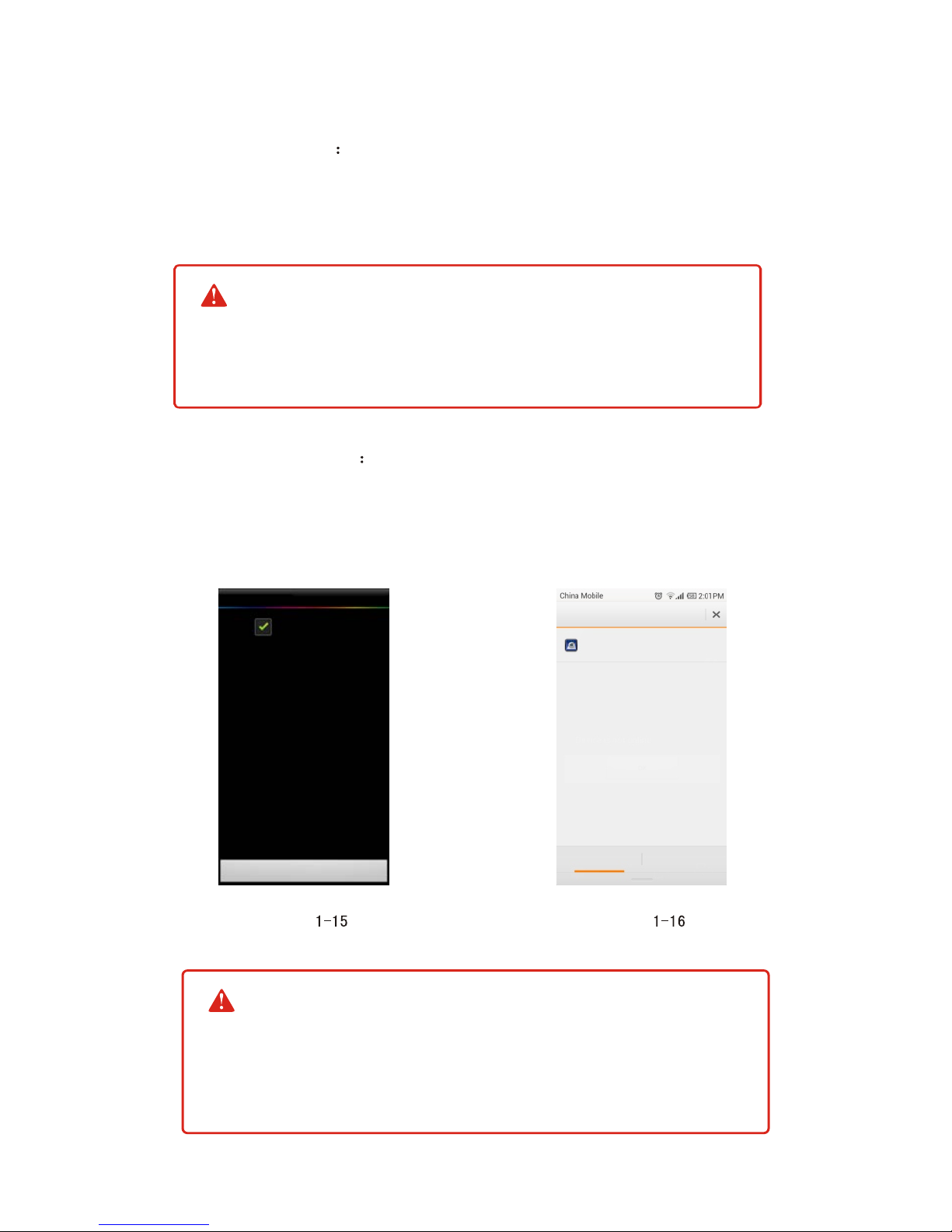
(2).Notification setting
Select 'NOTIFICATION SETTING' as shown on picture 1-15 to configure
the notifications when outdoor station is called in (Picture 1-16).
If user forgets the password, you may recover it on:
http://www.competition-viewer.com/
NOTE:
To test the smart phone notification function, press the call
button of the SVT-4 outdoor station two minutes lafter the last
call.
NOTE :

-8-
Download the application from APP STORE into the smart phone.
(Note: APPLE ID is required when downloading the application from the
APP STORE.
6.2 iOS System
6.2.1Downloading the application
6.2.2 Installing the application
Select the APP STORE icon (picture 2-1). Search for COMViewer as
shown on picture 2-2 and select the install button to download and
install the application.
App Store
picture 2-1
Featured Top Charts Near me Search Updates Featured Top Charts Near me Search Updates
10:05 AM10:05 AM
OPEN
picture 2-2 picture 2-3
Otros manuales para SVT-4
1
Tabla de contenidos


