Supernote Supernote A5 X Manual de usuario

Supernote X
User Manual V 2.7
Don't panic

Table of Contents
Applicable Models .................................................................................................................8
Chapter 1 Quick start .............................................................................................................9
1.1 Power on and the initial settings................................................................................9
1.2 Connect to Wi-Fi ......................................................................................................10
1.3 Sign up and log in .....................................................................................................10
Chapter 2 Gestures and toolbar...........................................................................................14
2.1 Gestures...................................................................................................................14
2.2 Top menu bar ...........................................................................................................18
2.3 Toolbar.....................................................................................................................20
2.3.1 Introduce the toolbar ......................................................................................20
2.3.2 Using the toolbar.............................................................................................23
2.4 Page number bar......................................................................................................27
2.5 Eraser Gesture..........................................................................................................28
Chapter 3 Basic settings.......................................................................................................31
3.1 Language, date & time .............................................................................................31
3.2 Stylus........................................................................................................................35
3.3 Preferred..................................................................................................................38
3.4 Keyboard..................................................................................................................39
3.5 Screensaver..............................................................................................................41
3.6 Low power consumption..........................................................................................44
3.7 Synchronization........................................................................................................46
3.8 Third party application .............................................................................................51
3.9 Custom the sidebar menu ........................................................................................52

3.10 Bluetooth ...............................................................................................................53
Chapter 4 Handwriting and Drawing....................................................................................54
4.1 Create a new notebook ............................................................................................54
4.2 Rename a notebook .................................................................................................55
4.3 Set a notebook cover................................................................................................56
4.4 Change templates ....................................................................................................58
4.5 Using layers..............................................................................................................59
4.6 Setting titles .............................................................................................................61
4.7 Setting keywords......................................................................................................63
4.8 Organize handwriting ...............................................................................................64
4.8.1 Copy/cut/paste handwriting............................................................................64
4.8.2 Move handwriting...........................................................................................67
4.8.3 Zoom in/zoom out handwriting.......................................................................67
4.8.4 Rotate handwriting..........................................................................................68
4.9 Organize pages.........................................................................................................68
4.9.1 Delete/insert note pages.................................................................................68
4.9.2 Copy/move note pages....................................................................................69
4.9.3 Cut/copy current note page.............................................................................70
4.10 Using links ..............................................................................................................71
4.11 Using real-time recognition notes ..........................................................................73
4.12 Return to page before jumping...............................................................................76
4.13 Export and share ....................................................................................................77
Chapter 5 Read, Digest & Annotation...................................................................................78
5.1 Import documents ...................................................................................................78

5.2 Change the fonts......................................................................................................80
5.3 Adjust screen contrast..............................................................................................81
5.4 PDF gesture zoom ....................................................................................................82
5.5 PDF trimming ...........................................................................................................83
5.6 PDF export ...............................................................................................................84
5.7 PDF landscape mode................................................................................................85
5.8 PDF half page view...................................................................................................86
5.9 Bookmarks and Table of Contents ............................................................................87
5.10 Annotation .............................................................................................................89
5.11 Digest and annotation............................................................................................90
Chapter 6 TXT ......................................................................................................................92
Chapter 7 Word....................................................................................................................93
7.1 New Word file ..........................................................................................................93
7.2 Browse Mode...........................................................................................................94
7.3 Pinch to zoom...........................................................................................................95
7.4 Repage view.............................................................................................................95
7.5 Editing......................................................................................................................96
7.6 Proofreader's marks.................................................................................................97
7.6.1 Delete..............................................................................................................98
7.6.2 Line break........................................................................................................98
7.6.3 Transpose ........................................................................................................99
7.6.4 Handwritten Insert ..........................................................................................99
7.6.5 Insert space ...................................................................................................101
Chapter 8 Convenient Features..........................................................................................102

8.1 Organize files..........................................................................................................102
8.2 Protect files............................................................................................................106
8.3 Star tag...................................................................................................................106
8.4 Browse & Access ....................................................................................................107
8.5 Screen mirroring.....................................................................................................108
8.6 Search ....................................................................................................................109
8.7 Quick access...........................................................................................................111
8.8 Recent access.........................................................................................................113
Chapter 9 Mailbox Function...............................................................................................114
9.1 Log in......................................................................................................................114
9.2 Settings ..................................................................................................................117
9.3 Compose................................................................................................................120
9.4 Inbox ......................................................................................................................121
9.5 Delete Local emails.................................................................................................123
9.6 Mark as read ..........................................................................................................123
Chapter 10 Calendar function ............................................................................................124
10.1 Manage account...................................................................................................124
10.2 Settings ................................................................................................................126
10.3 Switch view ..........................................................................................................126
10.4 Select the date .....................................................................................................127
10.5 Using events.........................................................................................................127
10.6 View notes ...........................................................................................................132
10.7 Recognize titles for event .....................................................................................132
Chapter 11 Basic functions.................................................................................................133

11.1 USB connection....................................................................................................133
11.2 USB OTG...............................................................................................................134
11.3 Wake up from sleep mode ...................................................................................135
11.4 Reboot/update.....................................................................................................136
11.5 Reset ....................................................................................................................137
11.6 Power off/Shutdown ............................................................................................138
Chapter 12 Privacy and security.........................................................................................139
12.1 Privacy..................................................................................................................139
12.1.1 User Experience Project ON/ Off .................................................................139
12.2 Security ................................................................................................................139
12.2.1 Screen-lock password..................................................................................139
12.2.2 File password...............................................................................................142
Chapter 13 Cloud & Partner APP........................................................................................146
13.1 Supernote Cloud ..................................................................................................146
13.1.1 Register and log in .......................................................................................146
13.1.2 Cloud service...............................................................................................148
13.2 Supernote Partner App.........................................................................................149
13.2.1 Direct Transfer.............................................................................................149
13.2.2 Quick log in on Mobile APP..........................................................................152
13.2.3 APP main functions .....................................................................................155
Chapter 14 Safety...............................................................................................................157
Chapter 15 FAQ and Troubleshooting.................................................................................158
Q:How to make a custom PNG template? ...................................................................158
Q:How to import document customized fonts ............................................................160

Q:How to get Supernote Partner APP?........................................................................160
Q:What should I do when the device freezes or fails to boot? ....................................161
Q:How to eliminate afterimages on note pages or display screen? .............................162
Copyright ...........................................................................................................................162

Applicable Models
This manual will guide you to use Supernote, and the applicable model is
Supernote A5 X and Supernote A6 X
➢Specifications
⚫Supernote A5 X
Resolution:1872*1404(226DPI)
Storage:32GB
RAM:2GB
Battery:3800mAh
⚫Supernote A6 X
Resolution:1872*1404(300DPI)
Storage:32GB
RAM:2GB
Battery:2900mAh
➢Structures
1. Power on/off
2. Guide Rail
3. Battery charge indicator
4. E Ink Display
5. Sidebar
6. USB port (type-C)

Chapter 1 Quick start
1.1 Power on and the initial settings
1、Hold the power button on the top
right corner of device, until the
Supernote logo appears
If cannot turned on, the device might need
to be charged (Please refer to FAQ: Unable
to power on or freezing problem for help).
2、After first power on, please follow the instructions to complete initial settings:
⚫System languages: English, Japanese, Simplified Chinese and Complex Chinese
(Please refer to the chapter Language
,
date& time for more help)
⚫Select DMS (Device Management Server) location
⚫Connect to Wi-Fi(Please refer to Connect to Wi-Fi)
⚫Set date & time(Please refer to the chapter Language
,
date& time for more help)
⚫User experience project(Please refer to User experience project on/off)
⚫Set hand dominance(Please refer to Preferred
,
all Illustrations in this user manual
take the right-hand mode as an example.)
⚫Create your first notebook(Please refer to Create a new notebook)

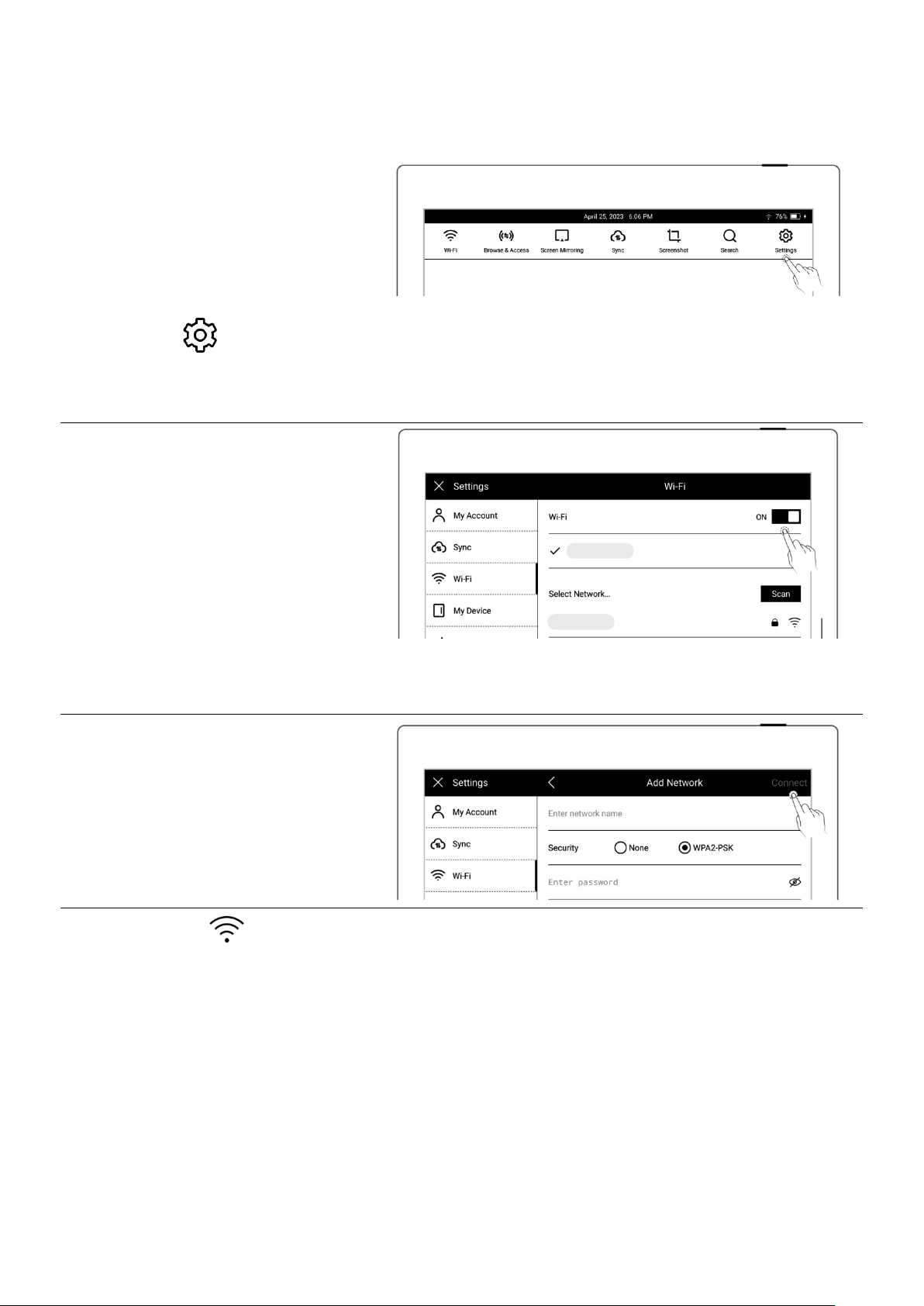
1.2 Connect to Wi-Fi
1、Swipe down from the top of
the screen to open the top
menu bar
⚫Tap “ Settings”
⚫Tap “Wi-Fi”
2、Wi-Fi
⚫Tap “Wi-Fi ” and turn
"ON"
⚫Select a SSID to connect
(enter password if
needed)
⚫Tap “Add network” to
join a hidden network
(enter SSID, security and
password)
*Note:If the “ ” icon on the top menu bar turns black, it indicates your Supernote
device has been successfully connected to a Wi-Fi network.
1.3 Sign up and log in
➢Sign up
Este manual sirve para los siguientes modelos
1
Tabla de contenidos
Otros manuales de Tableta de Supernote