
Storex HMS-362TV Manual de usuario

Quick installation guide - HMS-362TV - Version 1 - © STOREX 2009 Page 1 of 24
HMS-362TV

Quick installation guide - HMS-362TV - Version 1 - © STOREX 2009 Page 2 of 24
HOW TO USE HMS MULTIMEDIA CARTRIDGE?
If you have got a first HMS multimedia cartridge with your HMS-362TV, you should attach the cartridge
to the main unit, before switching the unit on, according to below procedure:
1. Remove the fake cartridge by pressing (1) and moving the fake cartridge away in direction (2)
2. When the cartridge rail is disengaged from main unit sliding rail, move up then remove the
fake cartridge.
3. Position your HMS cartridge on top of the (3) cavity. Move gently in either direction 4 or
direction 5 until the cartridge falls in the rail.
4. Then push in (5) direction until you hear a light “click”.
To remove the cartridge, first switch off the main unit; repeat the same procedure: push (6) then slide
in direction (7) and move it up to eject and store away the HMS cartridge.

Quick installation guide - HMS-362TV - Version 1 - © STOREX 2009 Page 3 of 24
STEP 1 – CONNECTION TO A TV SET
HDMI A/V (Composite video and 2CH AUDIO)
Video component and 2CH AUDIO (YUV + Stereo RCA) Antenna cable
1. Switch on your TV set and select the correct Audio-Video input (AV) to which your HMS-
362TV is connected (HDMI, Composite, Component)
2. Connect the supplied mains adapter to your HMS-362TV
3. Switch on the toggle switch located on the rear panel.
4. Press the Power button from the front panel or from the supplied remote control (make sure
that the batteries are installed).
5. Wait for your HMS-362TV to complete the initialization (about 10-15 seconds, during which a
black screen will appear then disappear)
Switch
W
all plug

Quick installation guide - HMS-362TV - Version 1 - © STOREX 2009 Page 4 of 24
STEP 2 – INITIALIZING THE MULTIMEDIA
CARTRIDGE
NOTE: HMS multimedia cartridges are shipped already initialized. This step is not necessary except if
you have a non-initialized HMS multimedia cartridge or when prompted by HMS-362 to do so. This
procedure will erase all records and data of the HMS cartridge!
When you switch on your HMS-362TV, the following dialog box will be displayed.
Select OK to begin the step of formatting, you will thus choose the size of your partitions.
NOTE
• By performing a formatting, this will erase the whole content and the data from the hard
disk. Please format the hard disk after saving the content and the important data.
• The above dialog box cannot be displayed on your computer if it is connected with an HDMI cable.
In this case, please try again by connecting the TV set with a RCA cable.
TIMESHIFT buffer disk capacity
1. Press ▲, ▼ to set the buffer time of the DELAYED RECORDING from 1 to 4 hours.
2. Press the ►button and select Next by pressing the ENTER button or the OK button on the
front panel.
NOTE : The hard disk space selected for the DELAYED RECORDING buffer can only be used for the
DELAYED RECORDING.

Quick installation guide - HMS-362TV - Version 1 - © STOREX 2009 Page 5 of 24
Partition multimedia Cartridge space
1. Press ▲, ▼ to select the capacity in a multimedia cartridge.
2. Press the ► button and select Next by pressing the ENTER button.
NOTE : Please refer to the explanation of the file system before starting this section.
Performing the formatting
1. Press the ► button and select Format by pressing the ENTER button or the OK button on the
front panel and the formatting will start.
2. Select OK by pressing the ENTER button. Formatting is complete.
NOTE: Please do not format your computer again. HMS-362TV will consider it as a new HARD DISK if
it is connected.

Quick installation guide - HMS-362TV - Version 1 - © STOREX 2009 Page 6 of 24
STEP 3 – Initial configuration
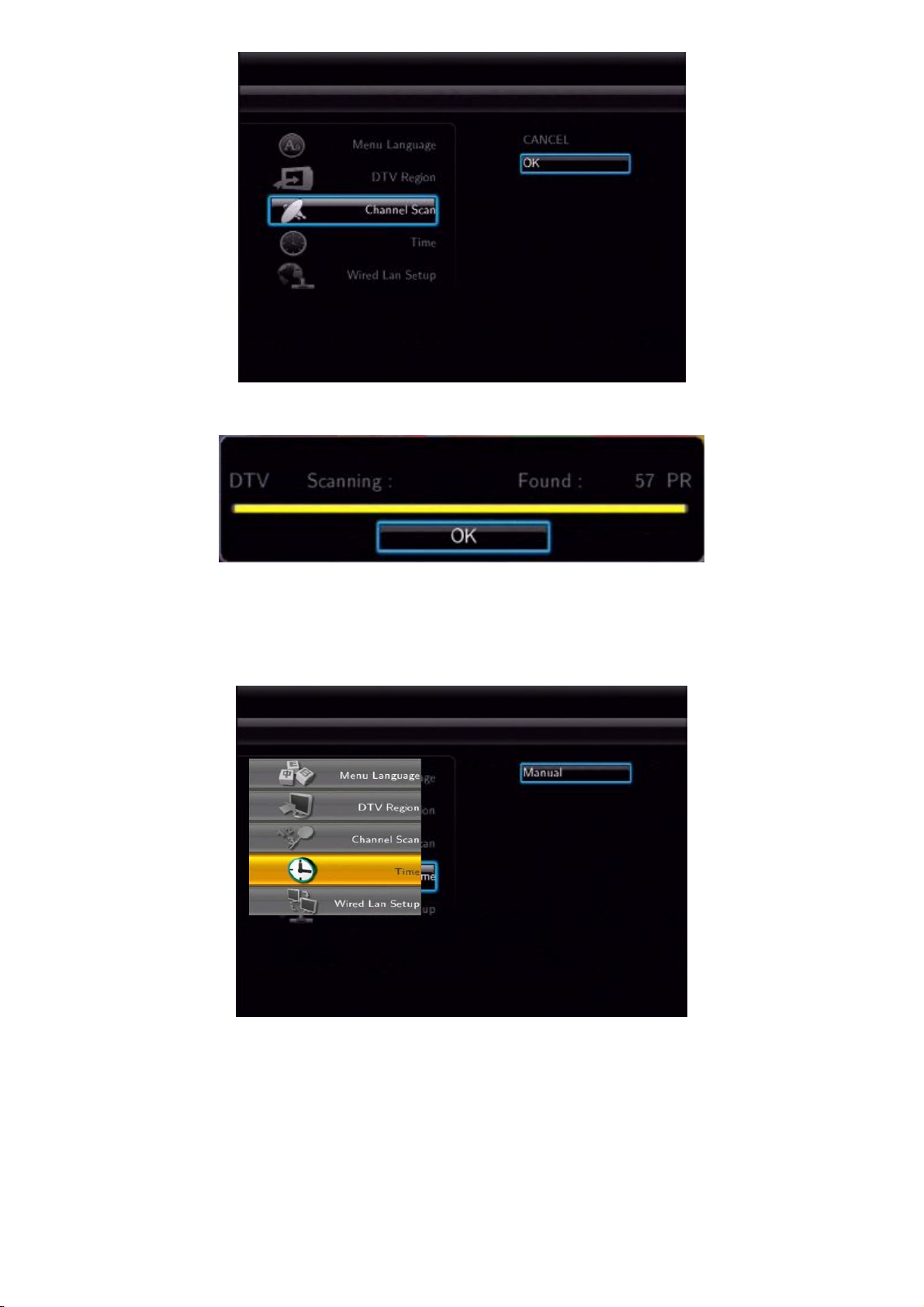
When you have initialized the HMS multimedia cartridge, you can set the language, the time or LAN.
The following dialog box of the initial configuration will be displayed.
1. Select your language by pressing the ▲, ▼ and ENTER buttons to confirm.
2. Select your area with the buttons ▲, ▼ and «ENTER» to validate.
Quick installation guide - HMS-362TV - Version 1 - © STOREX 2009 Page 7 of 24
3. To begin the auto scan of the channels, select OK and press « ENTER ».
This progress display will be displayed.
4. Select OK and press, «ENTER». Select cancel and press «ENTER» if you want to delete the
settings.
5. Set date and time by pressing the numerical buttons and the ▲, ▼ buttons then press ENTER
to confirm.
Quick installation guide - HMS-362TV - Version 1 - © STOREX 2009 Page 8 of 24
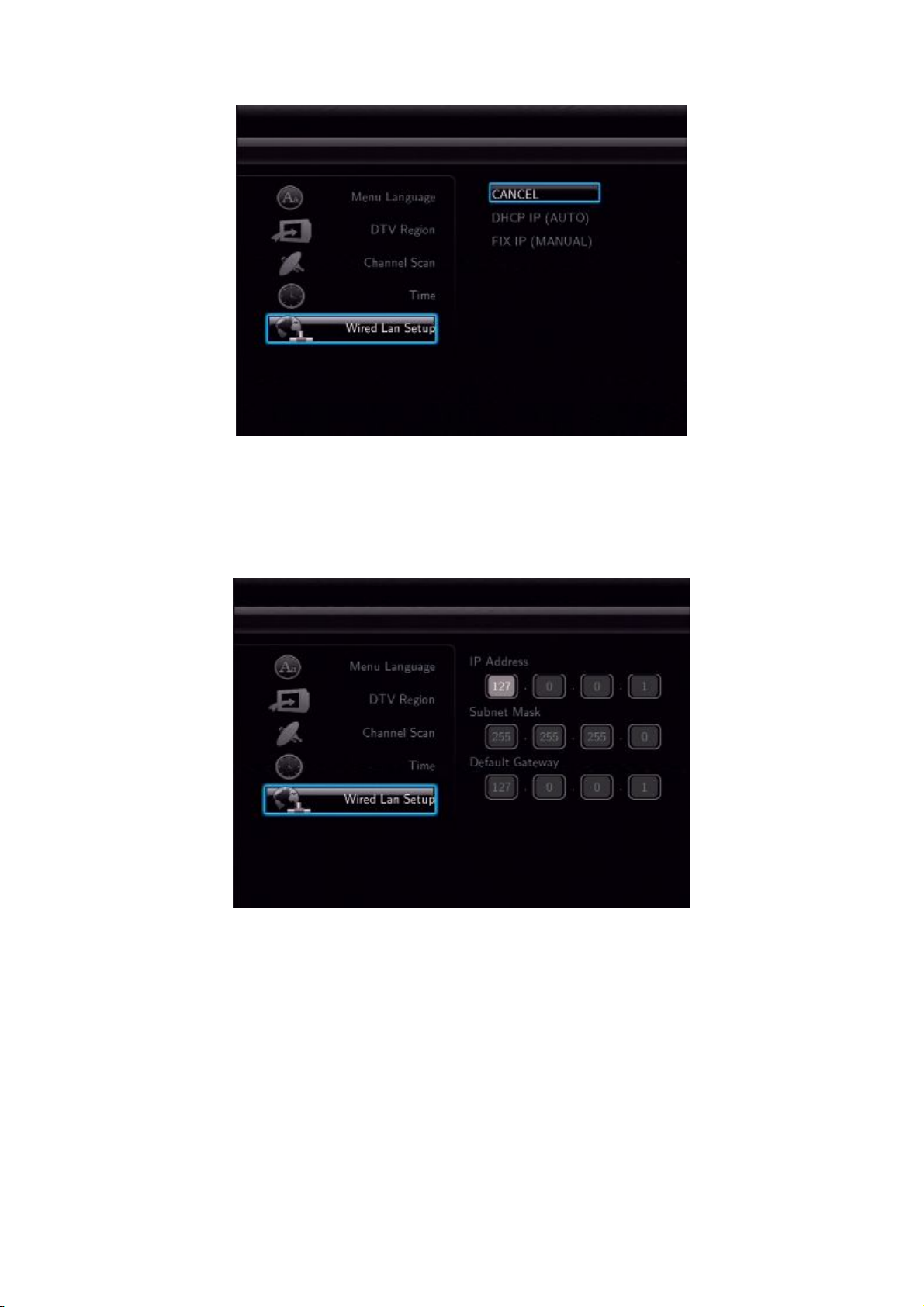
6. Select DHCP IP (Auto) or Fix IP (Manual) according to the IP status by pressing the ▲, ▼ and
press ENTER to confirm.
oIf you select DHCP IP (Auto) the IP address will be set according to your network DHCP
Select Cancel if you do not want any available network or if you do not want to set it up now.
oSelect Fix IP (Manual), set LAN manually according to your network by pressing the numerical
keys or the ▲, ▼ buttons then press ENTER to confirm.
7. Select OK and press ENTER when you are prompted to do so. Select Cancel and press
ENTER if you want to cancel the settings.
NOTE: Please refer to the network settings explanation of the complete manual to get more
information. The above dialog box cannot be displayed on your TV set if it is connected with an HDMI
cable. In this case, please try again by connecting the TV set with a RCA cable.

Quick installation guide - HMS-362TV - Version 1 - © STOREX 2009 Page 9 of 24
STEP 4 – WATCHING CHANNELS
Once the first time installation is completed, user can now watch all the receive channels form the
HMS-362TV.
Use numeric keypad 0-9,amessage box will appear on the upper right screen with the selected
channel then press OK to change channel.
You can also use UP/DOWN to change channels.

Quick installation guide - HMS-362TV - Version 1 - © STOREX 2009 Page 10 of 24
STEP 5 – HOW TO RECORD
NOTE: You must have a multimedia cartridge to be able to use this function
Before recording, user may select firstly work directory in device list.
Select Setup in the main page then select Record tab.Select record device and press « ENTER ».
Choose in the device list the recording directory (HDD or USB).
CARTRIDGE: to stock the records in the multimedia HMS cartridge.
USB : to stock the records in the USB device connected to the HMS-362TV.
1. Press “REC” button to start recording when program is playing, “REC” icon is displayed on
screen, left side up, at the start of the recording.
2. To stop recording press Stop button on the remote control.
Tabla de contenidos
Otros manuales de Reproductor multimedia de Storex


