
Startright Trilingual Laptop Plus Manual de usuario


Introduction 1
Overview 1
Notice To Parents 2
Battery Installation 2
Battery Precautions 2
Care and Maintenance 3
Getting Started 3
General Operation 3
On/Mode Key 3
Auto Power Off 3
Keyboard Layout 4
Scoring 6
Description of Activities 6
Activity 1: Type Message 6
Activity 2: Alphabet Song Game 7
Activity 3: Organ 7
Activity 4: Karaoke 7
Activity 5: Category Recognition 8
Activity 6: Addition 8
Activity 7: Subtraction 8
Activity 8: More or Less 9
Activity 9: Multiplication 9
Activity 10: Missing Letter Game 10
Activity 11: Advanced Missing Letters 11
Activity 12: Extra Letter 11
Activity 13: Scrambled Word Game 12
Activity 14: Scrambled Word Maker 12
Activity 15: Guess The Word Game 13
Activity 16: Guess The Word Maker 14
Activity 17: Split Word 15
CONTENTS
Activity 18: Antonym 15
Activity 19: Translation 16
Activity 20: Computer Drawing 16
Activity 21: Letter Typing Game 17
Activity 22: Series Logic Game 17
Activity 23: Shape Puzzle 18
Activity 24: Pairs 19
Activity 25: Follow Me 19
Activity 26: Tic-Tac-Toc 19
Activity 27: Ball Rolling 20
Activity 28: Punch Game 21
Activity 29: Grand Prix 21
Activity 30: Catch The Last Dot 21
Specifi cations 23

1
Thank you for selecting this Trilingual Laptop Plus™ unit.
This box contains one (1) Trilingual Laptop Plus™ unit and a
user instruction guide.
Please read the Notice to Parents carefully before you allow your
child to use this unit. Reading through this User Instruction Guide
with your child can be a valuable learning experience.
Please discard of any packing materials such as plastic sheets,
wire ties, tags etc for your child’s safety.
Introduction
Overview
LCD Screen
Direct Function
Keys
One-Touch
Button Mouse
QWERTY
Keyboard
Speaker
2
Battery Installation
Note: Do not allow children to install batteries.
• This unit requires four (4) AA batteries.
We recommend alkaline batteries.
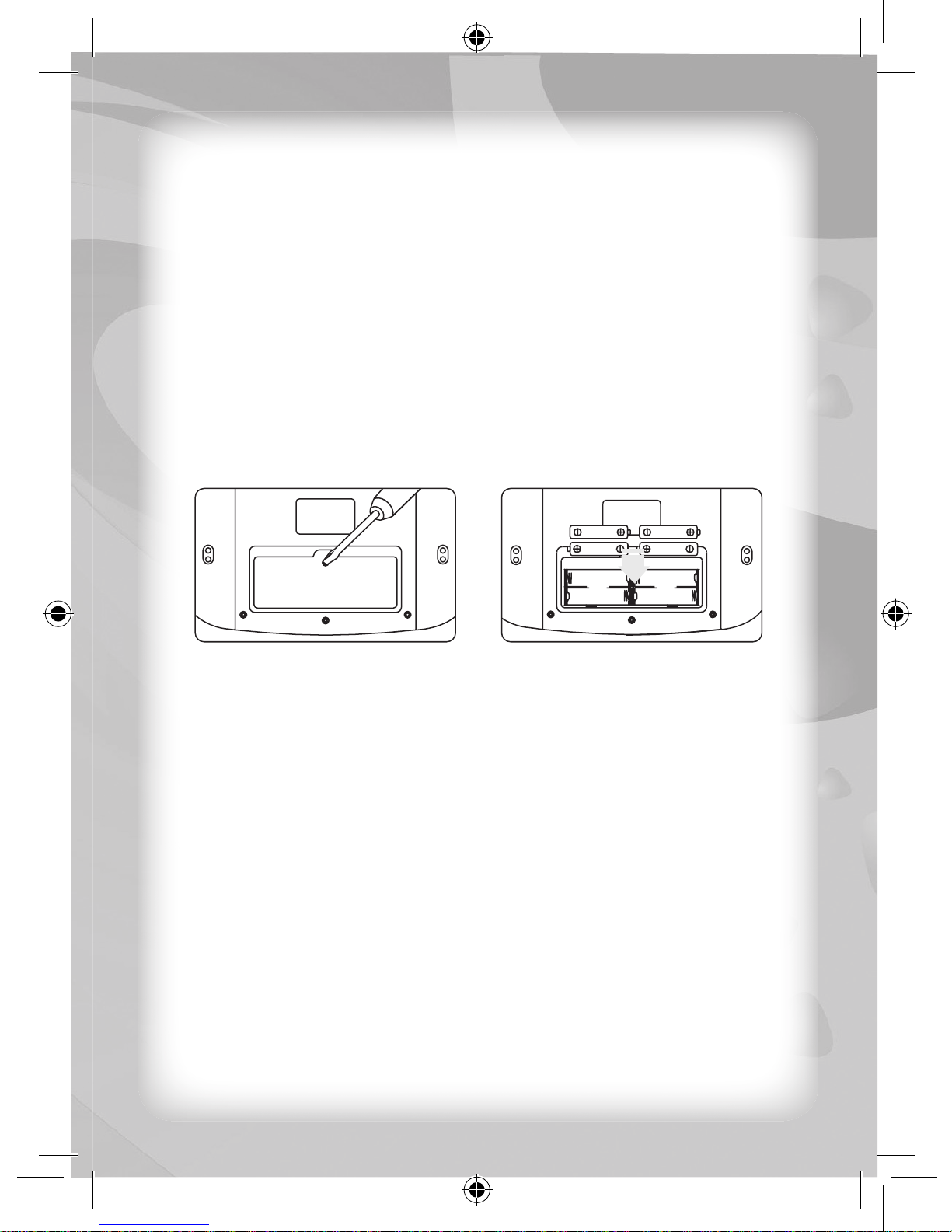
• Open the battery compartment found on the back of the unit.
(See Fig. 1)
• Insert the batteries correctly, as indicated by the polarity
symbols (+) and (-) marked inside the battery compartment.
(See Fig. 2)
• Make sure to correctly replace the battery compartment door
and screw it fi rmly back in place.
Battery Precautions
• Install batteries for your child.
• Do not use rechargeable batteries.
• Do not recharge non-rechargeable batteries.
• Do not mix old and new batteries.
• Do not mix alkaline, standard (Carbon-Zinc), or rechargeable
(Nickel-Cadmium) batteries.
• Do not short circuit the supply terminals.
• Only use batteries of the same type or equivalent as
recommended.
• For best operation, always use new alkaline batteries.
• Insert batteries following the correct polarity.
• Replace the batteries if the sound weakens or the display dims.
• Remove exhausted or weak batteries from the unit.
• Remove batteries if you are not going to use the unit for more
than one week.
Notice To Parents
Fig. 1 Fig. 2

3
Getting Started
ON/MODE Key
Press this key to turn ON the unit.
Once the unit is ON, you will be prompted to “Select an activity”.
There are 30 activity modes (M1 to M30). Select an activity by using
the number keys on the keyboard and by pressing the “ENTER” key
to confi rm the selection.
Auto Power Off
If this unit is inactive for a period of four (4) minutes, it will automatically
turn itself OFF.
• This unit is not to be connected to more than the recommended
number of power supplies.
Care and Maintenance
• Clean this unit with a slightly damp cloth.
• Do not use any chemical solvents or abrasives on this unit.
• Do not spill any liquids on this unit.
• Avoid dropping this unit on hard surfaces.
• Do not expose this unit to moisture or immerse it in water.
• Do not try to dismantle this unit.
• It is best to switch off this unit when your child is not playing with it.
Please remind your child to do so.
• Use only a soft cloth for cleaning the LCD. Never use solvents,
abrasives or a moist cloth.
General Operation

4
Keyboard Layout
Answer key
Press this key to view the answer of a question within an activity.
Zero points will be awarded when this key is used.
Record key
When this key is used in Activity 1 (“M1”) you can record your text
message, in Activity 3 (“M3”) you can record your melody, and in
Activity 20 (“M20”) you can record a drawing.
Caps Lock key
Press this key once to type in upper case letters. Press the same
key once again to return to lower case letters.
Shift key
Hold down this key to type in upper case letters. Release this key to
return to lower case letters.
Repeat key
Press this key within most activities before the unit returns to the
“Select an Activity” display to play the same activity again.
All Clear key
Press this key to delete all the typed text displayed on-screen.
Delete key
Press this key to delete one letter at a time of any typed text.
5
Play key
Press this key in Activity 3 – “Organ” to play a recorded tune.
Language Selection key
Press this key once to select one (1) of three (3) built-in languages.
Press it again to select the second language and again to select the
third language.
Accent key
Press this key to type in any special accent character while in a
specifi c language mode.
Draw/Erase/Move keys
Press these keys when in Activity 20 - “Computer Drawing” while
using the arrow keys to draw, erase, or move a line.
Help key
Press this key to receive hints for an activity. Fewer points will be
awarded when this key is used.
Missing Letter Game Direction Key
Press this key to enter Activity 10 Missing Letter Game.
For details, please refer to Description of Activities.
More or Less Direoction Key
Press this key to enter Activity 8 More or Less.
For details, please refer to Description of Activities.
Computer Drawing Direction Key
Press this key to enter Activity 20 Computer Drawing.
For details, please refer to Description of Activities.
Type Message Direction Key
Press this key to enter Activity 1 Type Message.
For details, please refer to Description of Activities.
Organ Direction Key
Press this key to enter Activity 3 Organ.
For details, please refer to Description of Activities.

6
Translation Direction Key
Press this key to enter Activity 19 Translation.
For details, please refer to Description of Activities.
Scoring
There are 10 questions in most of the activities.
Each time you answer a question correctly, the Trilingual Laptop
Plus™ will say, “Good”.
If the answer is incorrect, the unit will say, “Try Again” and then give
you another chance to answer correctly. If your second answer is
also incorrect, the unit will then display the correct answer.
Once the game is fi nished, the unit will display your score and remark
about your performance.
The Trilingual Laptop Plus™ will say:
“Excellent!” and display “Perfect” if there were no mistakes;
“Good” and display “Good” if there were just a few mistakes; and
“Try Again” and display “Fair” if there were many mistakes.
Description of Activities
To change modes during any activity, pressing the “ON/MODE” key
will prompt the Trilingual Laptop Plus™ to ask you to select a new activity.
After selecting an activity mode, the activity mode title will be displayed
on-screen for a short period of time. To skip this message, you may
press the “ENTER” key once.
Activity 1: Type Message
When the cursor appears, you can type in any message on-screen.
The user may press any of the arrow keys (“DRAW” or “MOVE”) to
move the cursor or to change a character (edit).
Hold down the “SHIFT” key to change the whole keyboard to upper
case letters and release to return to lower case. Alternatively, press
the “CAP/ANSWER” key once. An arrow mark will appear on the upper
line to denote the change.
Press “ALL CLEAR” to erase the whole message.
7
Press “REPEAT” to scroll through everything that has been typed.
The user may press “RECORD” to store a message. An “M” mark
will appear on the upper line to denote that the message has been
stored in the unit’s memory.
If you have stored a message, the words “MESSAGES FOR YOU”
will appear with four (4) high pitched tones followed by the message
“Select an Activity” when you next turn on the Trilingual Laptop Plus™.
If you wish to retrieve the message, the “M1” mode should be selected.
The message will then appear on-screen.
To delete a stored message, press “ALL CLEAR” after the message
has been retrieved.
Activity 2: Alphabet Song Game
The Trilingual Laptop Plus™ will demonstrate all the alphabet from
A to Z, as it plays a tune.
When the song stops you should type the letters of the alphabet
from A to Z. You will hear corresponding tones while typing.
You may press “REPEAT” to start the ABC song again at the end of
the activity.
Once done, you will hear a song and the Trilingual Laptop Plus™
will then announce your score.
Activity 3: Organ
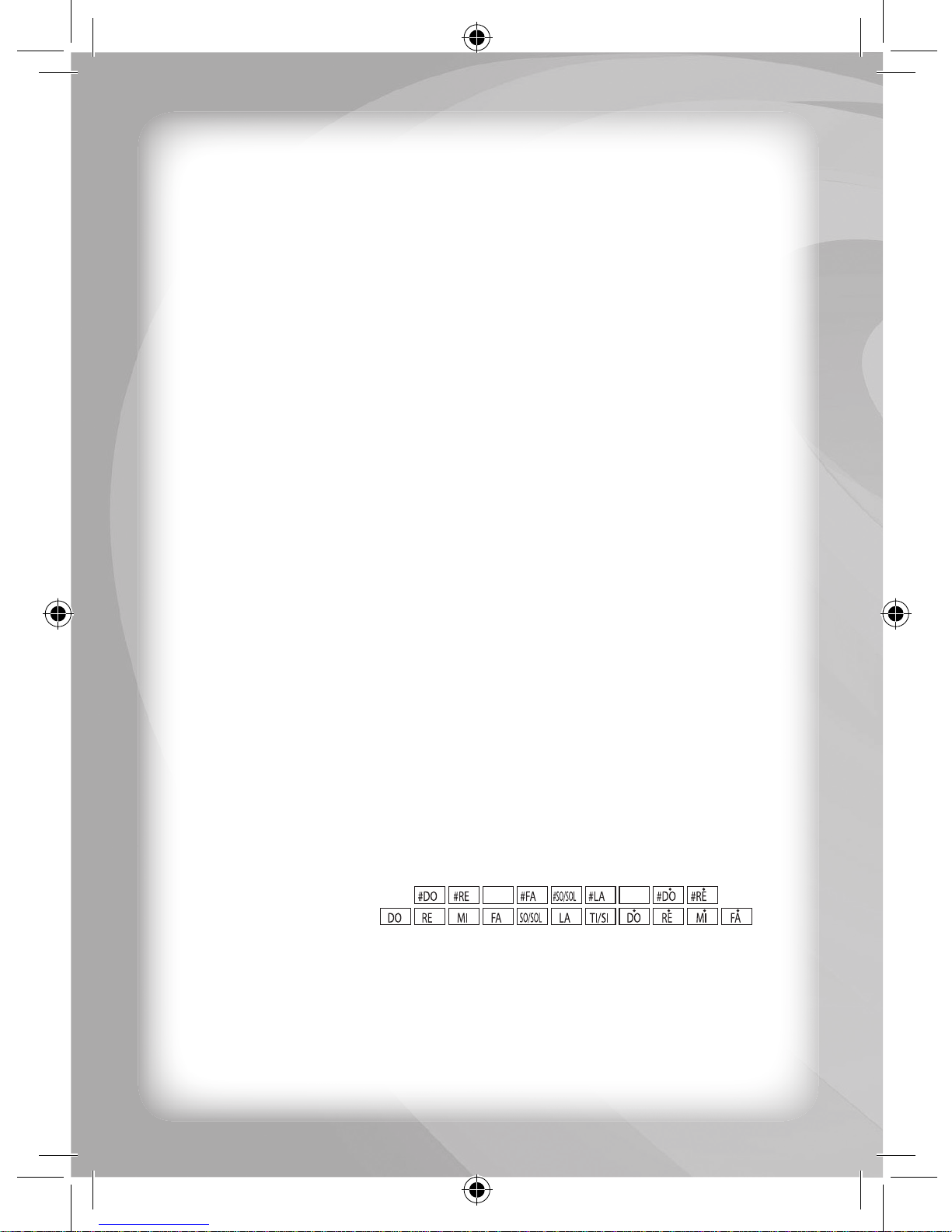
When a piano appears you can press the note keys to play your
own tunes.
The musical keys are:
Activity 4: Karaoke
When a penguin appears you can press any of the alphabet keys to
play pre-programmed songs.
The player can sing-a-long to the songs as they are being played.
Tabla de contenidos
Otros manuales de Juguete de Startright

Startright
Startright Puppet Laptop Manual de usuario

Startright
Startright Bilingual Super Notebook Manual de usuario

Startright
Startright Bilingual Super Notebook Manual de usuario

Startright
Startright Smart Creata Pen My Link ? Learn Globe Manual de usuario

Startright
Startright Color Advance Notebook Manual de usuario

Startright
Startright Barney Manual de usuario

Startright
Startright Bilingual Magic Notebook Manual de usuario

Startright
Startright Toddler-Talk Computer Manual de usuario

Startright
Startright Color Bilingual Laptop Plus Manual de usuario

Startright
Startright Learning Smart Bilingual Laptop Manual de usuario


