
StarTech.com USB32HDES Manual de usuario

Manual Revision: 04/07/2015
For the most up-to-date information, please visit: www.startech.com
DE: Bedienungsanleitung - de.startech.com
FR: Guide de l'utilisateur - fr.startech.com
ES: Guía del usuario - es.startech.com
IT: Guida per l'uso - it.startech.com
NL: Gebruiksaanwijzing - nl.startech.com
PT: Guia do usuário - pt.startech.com
*actual product may vary from photos
Slim USB 3.0 to HDMI® External Video Card
Slim USB 3.0 to VGA External Video Card
Please ensure that the latest
drivers from the StarTech.com
website are installed before
plugging in the USB 3.0 Video
Adapter
USB32HDES
USB32VGAES

Instruction Manual
FCC Compliance Statement
This equipment has been tested and found to comply with the limits for a Class B digital
device, pursuant to part 15 of the FCC Rules. These limits are designed to provide reasonable
protection against harmful interference in a residential installation. This equipment generates,
uses and can radiate radio frequency energy and, if not installed and used in accordance with
the instructions, may cause harmful interference to radio communications. However, there
is no guarantee that interference will not occur in a particular installation. If this equipment
does cause harmful interference to radio or television reception, which can be determined by
turning the equipment o and on, the user is encouraged to try to correct the interference by
one or more of the following measures:
• Reorient or relocate the receiving antenna.
• Increase the separation between the equipment and receiver.
• Connect the equipment into an outlet on a circuit dierent from that to which the receiver
is connected.
• Consult the dealer or an experienced radio/TV technician for help.
Use of Trademarks, Registered Trademarks, and other Protected Names and
Symbols
This manual may make reference to trademarks, registered trademarks, and other
protected names and/or symbols of third-party companies not related in any way to
StarTech.com. Where they occur these references are for illustrative purposes only and do not
represent an endorsement of a product or service by StarTech.com, or an endorsement of the
product(s) to which this manual applies by the third-party company in question. Regardless
of any direct acknowledgement elsewhere in the body of this document, StarTech.com hereby
acknowledges that all trademarks, registered trademarks, service marks, and other protected
names and/or symbols contained in this manual and related documents are the property of
their respective holders.

Instruction Manual
i
Table of Contents
Introduction............................................................................................1
Packaging Contents ................................................................................................................................. 1
System Requirements.............................................................................................................................. 1
Installation ..............................................................................................2
Driver Installation Windows .................................................................................................................. 2
Multiple USB Video Adapter Installation .......................................................................................... 3
Verifying Installation................................................................................................................................ 3
Supported Resolutions .........................................................................4
Conguring the USB Video Adapter....................................................5
Windows....................................................................................................................................................... 5
Identify Monitors....................................................................................................................................... 5
Multi-Display Control Panel................................................................................................................... 6
Display Settings ......................................................................................................................................... 6
Specications..........................................................................................7
Technical Support ..................................................................................9
Warranty Information............................................................................9

Instruction Manual
1
Introduction
Packaging Contents
• 1 x Slim USB 3.0 Video Adapter
• 1 x Driver CD
• 1 x Instruction Manual
System Requirements
• (USB32HDES) HDMI enabled display device (e.g. monitor, projector, HTDV, etc)
Or
(USB32VGAES) VGA enabled display device (e.g. monitor, projector, HTDV, etc)
• (USB32HDES) HDMI male to male video cable
Or
(USB32VGAES) VGA male to male video cable
• USB enabled computer system with:
Microsoft Windows® 8/8.1 (32/64-bit) 7 (32/64-bit) Vista (32/64 bit)
Operating systems are subject to change. For the latest requirements, please
visit: www.startech.com/USB32VGAES
www.startech.com/USB332HDES
Available USB port (USB 3.0 recommended)
Recommend Specications for 1~2 Video Adapters:
CPU: Intel® Core™ i3 2.8 GHz or equivalent (i5 recommended for HD video)
RAM: 2 GB or more (4 GB recommended for HD video)
Recommend Specications for 3~4 Video Adapters:
CPU: Intel® Core™ i5 Quad Core 2.8 GHz or equivalent
RAM: 4 GB or more
Recommend Specications for 5 Video Adapters:
CPU: Intel® Core™ i7 Quad Core 3.0 GHz or equivalent
RAM: 8 GB or more

Instruction Manual
2
Installation
Please ensure that the driver installation is complete prior to the physical
installation (plugging in) of the USB 3.0 Video Adapter
Driver Installation Windows
1. Download the latest drivers from the StarTech.com website (recommended), or
insert the included Driver CD into your CD/DVD-ROM drive.
2. Locate the Setup.exe application. This le will be located in the root directory of the
Driver CD (e.g. D:\) or downloaded le.
3. Executing the Setup.exe
application will launch the
following screen. Please click
on Next:
*Ensure that the USB Video
Adapter is not connected to
the host computer.
4. Once the Windows has nished the driver installation, it will prompt you to restart
the computer. Select “Yes, I want to restart my computer now”, and click the “Finish”
button.
5. While the computer is restarting, connect the video cable from the secondary
monitor/display to the adapter, and turn the monitor/display on.
6. Once Windows has fully loaded, plug the USB Video Adapter into an available USB
3.0 port of your PC or Notebook.
7. Windows will automatically install the drivers. Once installation is completed your
USB display will activate.
Instruction Manual
3
Multiple USB Video Adapter Installation
Ensure you have the latest version of the drivers installed, otherwise, please download
them from the StarTech.com website (www.startech.com).
1. Complete the standard driver installation steps, up to when you plug in the rst USB
Video Adapter.
2. Connect another monitor/display to the second USB Video Adapter, then turn on
the display.
3. Connect the USB type A connector on the second USB Video Adapter to an available
USB 3.0 port on the host computer. The driver installation will begin automatically.
Repeat these steps for each additional USB Video Adapter you wish to install. Once all
USB Video Adapters are installed, reboot the computer. After rebooting, you may be
prompted to reboot one nal time; please do so.
Verifying Installation
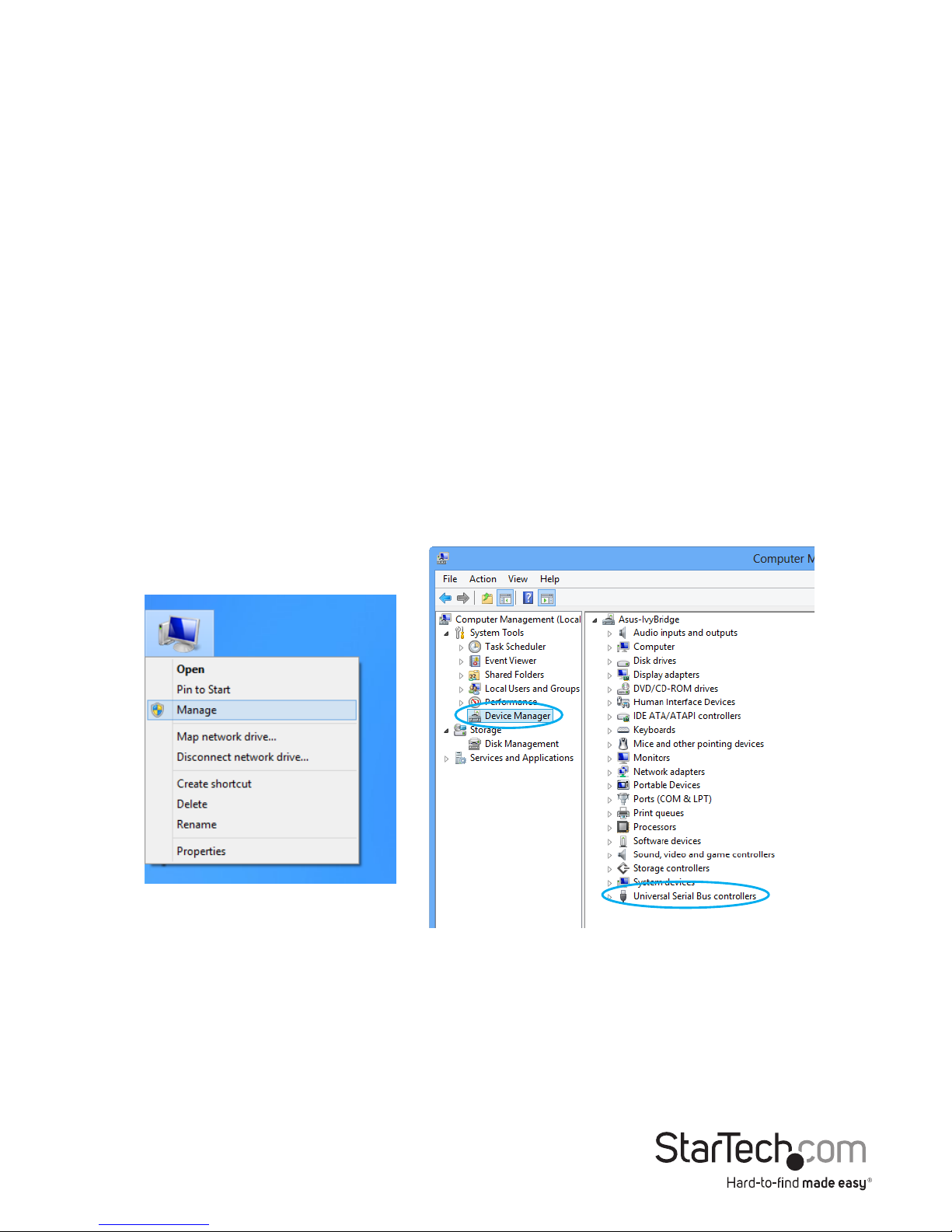
From the main desktop, right click on “computer” or “My Computer”, then select
Manage. In the new Computer Management window, select Device Manager from the
left window panel.
Double-click the Universal Serial Bus Controllers category and the USB adapter should
be visible.

Instruction Manual
4
USB32HDES: An audio device will also be listed under the“Sound, video and game
controllers” category in Device Manager. As Windows will only support one audio
output at a time, this will override the default sound card on the computer (if any),
resulting in no audio from the computer speakers. Audio will only output over HDMI.
If you wish audio to output from the computer speakers instead of HDMI, then you
must manually change the default audio device from the“Hardware and Sound”
settings in the Control Panel.
Supported Resolutions
Resolution Color Depth
1920 x 1200 @ 60Hz 16, 32 bit
1920 x 1080 @ 60Hz 16, 32 bit
1680 x 1050 @ 60Hz 16, 32 bit
1600 x 900 @ 60Hz 16, 32 bit
1440 x 900 @ 60Hz 16, 32 bit
1360 x 768 @ 60Hz 16, 32 bit
1280 x 800 @ 60Hz 16, 32 bit
1280 x 768 @ 60Hz 16, 32 bit
1280 x 720 @ 60Hz 16, 32 bit
Resolution Color Depth
1600 x 1200 @ 60Hz 16, 32 bit
1400 x 1050 @ 60Hz 16, 32 bit
1280 x 1024 @ 60Hz 16, 32 bit
1280 x 960 @ 60Hz 16, 32 bit
1152 x 864 @ 60Hz 16, 32 bit
1024 x 768 @ 60Hz 16, 32 bit
800 x 600 @ 60Hz 16, 32 bit

Instruction Manual
5
Conguring the USB Video Adapter
Look for the USB Video Adapter icon ( ) on your Windows System Tray (next to
clock). Right-click this icon to access the variety of functions associated to the adapter.
Windows
The USB Video Adapter drivers allow for all adjustments through the built-in Display
Settings window. These settings can be accessed by right-clicking on the Windows
Desktop and selecting “Screen Resolution”or by right-clicking on the USB Video
Adapter icon in the system tray and selecting “Display Settings”.
Select the physical display you wish to change the settings on, from the “Display” drop
down menu. Display Modes, resolution and rotation can be changed from this screen.
Identify Monitors
Easy display identication via an overlay will be shown on all attached display devices.

Instruction Manual
6
Multi-Display Control Panel
A unique feature to allow quicker and simpler management of a multi-display
environment. A series of hotkeys to quickly move the active program window to the
desired display (either on-board or each USB Video Adapter).
The default setting of the hotkeys can be found in the Hotkey List of “Multi-Display
Control Panel”.
For example: Ctrl + 2 means: to move the window to Display 2
Display Settings
Quick access to the Windows “Display Settings” window.

Instruction Manual
7
Specications
USB32HDE USB32VGAE
Video Signal HDMI 1.2 VGA (RGBHV)
Host Interface USB 3.0
Connectors
1 x HDMI female
1 x USB 3.0 type A
male
1 x DE-15 VGA
female
1 x USB 3.0 type A
male
Audio Support 2-channel LPCM
(48KHz) No
Maximum Video Resolution 1920 x 1200 2048 x 1152
Onboard Memory 16MB
Maximum Number of Adapters 5
Operating Temperature 0°C ~ 55°C (32°F ~ 131°F)
Storage Temperature -10°C ~ 75°C (14°F ~ 167°F)
Humidity < 85% RH (non-condensing)
Enclosure Material Plastic
Built-in Cable Length 160.0mm
Dimensions (LxWxH) 78.0mm x 43.5mm x 15.5mm
Weight 300g
Compatible Operating Systems Windows 8 / 8.1 (32 & 64) / 7 (32 & 64) / Vista
(32 & 64)
Este manual sirve para los siguientes modelos
1
Tabla de contenidos
Otros manuales de Tarjeta de video de StarTech.com


Manuales populares de Tarjeta de video de otras marcas

Gainward
Gainward GeForce GTX 690 4GB Manual de usuario

ATI Technologies
ATI Technologies RADEON 137-40225-20 Manual de usuario

MSI
MSI N220GT series Manual de usuario

ATI Technologies
ATI Technologies RADEON 7000 MAC EDITION Manual de usuario

SIIG
SIIG aurora Manual de usuario

ClearSpeed
ClearSpeed ClearSpeed Advance e720 Manual de usuario


