StarTech.com TB31PCIEX16 Manual de usuario

Manual Revision: 08/04/2017
For the latest information, technical specications, and support for
this product, please visit www.StarTech.com/TB31PCIEX16.
FR: Guide de l’utilisateur - fr.startech.com
DE: Bedienungsanleitung - de.startech.com
ES: Guía del usuario - es.startech.com
NL: Gebruiksaanwijzing - nl.startech.com
PT: Guia do usuário - pt.startech.com
IT: Guida per l’uso - it.startech.com
TB31PCIEX16
Thunderbolt 3 PCIe x16 Expansion
Chassis with DisplayPort
*actual product may vary from photos

Instruction manual
FCC Compliance Statement
This equipment has been tested and found to comply with the limits for a Class B digital
device, pursuant to part 15 of the FCC Rules. These limits are designed to provide reasonable
protection against harmful interference in a residential installation. This equipment
generates, uses and can radiate radio frequency energy and, if not installed and used in
accordance with the instructions, may cause harmful interference to radio communications.
However, there is no guarantee that interference will not occur in a particular installation. If
this equipment does cause harmful interference to radio or television reception, which can
be determined by turning the equipment o and on, the user is encouraged to try to correct
the interference by one or more of the following measures:
• Reorient or relocate the receiving antenna.
• Increase the separation between the equipment and receiver.
• Connect the equipment into an outlet on a circuit dierent from that to which the
receiver is connected.
• Consult the dealer or an experienced radio/TV technician for help
This device complies with part 15 of the FCC Rules. Operation is subject to the following
two conditions: (1) This device may not cause harmful interference, and (2) this device must
accept any interference received, including interference that may cause undesired operation.
Changes or modications not expressly approved by StarTech.com could void the user’s
authority to operate the equipment.
Industry Canada Statement
This Class B digital apparatus complies with Canadian ICES-003.
Cet appareil numérique de la classe [B] est conforme à la norme NMB-003 du Canada.
CAN ICES-3 (B)/NMB-3(B)
Use of Trademarks, Registered Trademarks, and other Protected Names and Symbols
PHILLIPS® is a registered trademark of Phillips Screw Company in the United States or other
countries.
This manual may make reference to trademarks, registered trademarks, and other
protected names and/or symbols of third-party companies not related in any way to
StarTech.com. Where they occur these references are for illustrative purposes only and do not
represent an endorsement of a product or service by StarTech.com, or an endorsement of the
product(s) to which this manual applies by the third-party company in question. Regardless
of any direct acknowledgement elsewhere in the body of this document, StarTech.com hereby
acknowledges that all trademarks, registered trademarks, service marks, and other protected
names and/or symbols contained in this manual and related documents are the property of
their respective holders.

Instruction manual
i
Table of Contents
Product diagram ....................................................................................1
Back view...................................................................................................................................................... 1
Back view...................................................................................................................................................... 2
Package contents ...................................................................................2
Requirements .........................................................................................3
About Thunderbolt 3 .............................................................................4
Updates......................................................................................................................................................... 4
Connect multiple Thunderbolt 3 devices in a daisy chain......................................................... 4
DP at mode (DisplayPort alternative mode).................................................................................... 4
Install a PCIe card...................................................................................5
Connect the PCIe expansion box.........................................................5
Connect a display to the DisplayPort port....................................................................................... 6
Connect a display to the Thunderbolt 3 USB-C port.................................................................... 6
Bandwidth allocation ............................................................................7
Troubleshooting.....................................................................................8
Technical support...................................................................................10
Warranty information............................................................................10

Instruction manual
1
Product diagram
Back view
Thumbscrew
Thumbscrew
Power adapter port
DisplayPort port
Thunderbolt 3 USB-C ports

Instruction manual
2
Package contents
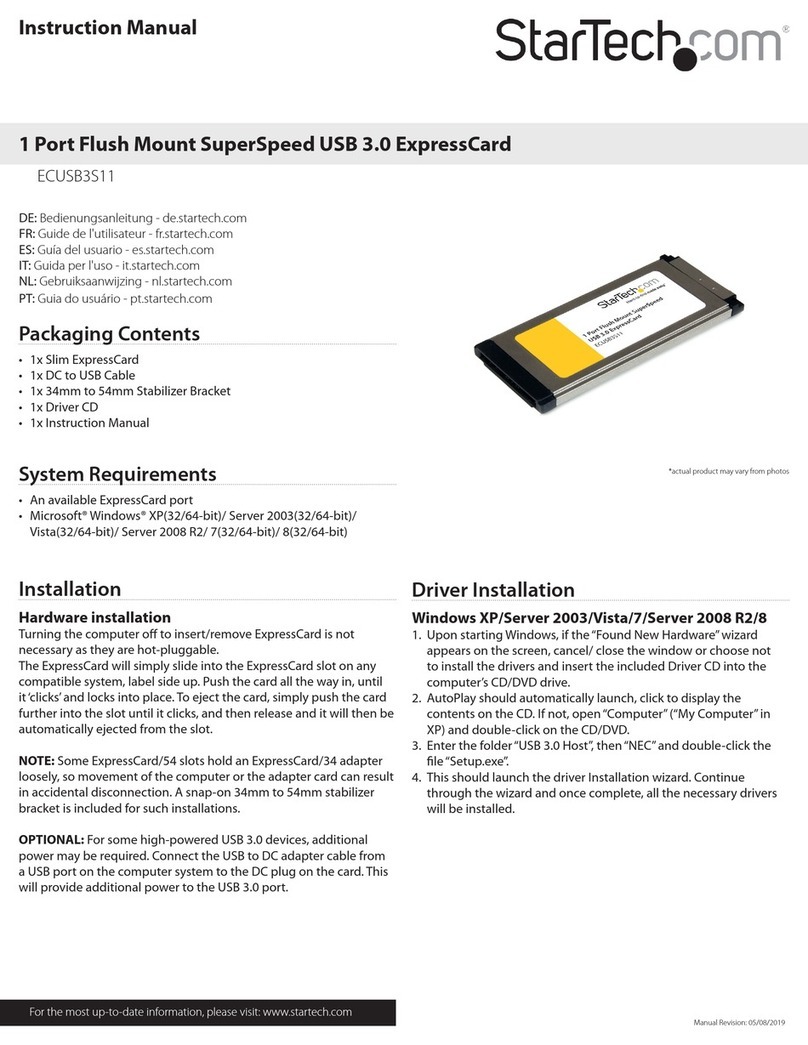
• 1 x Thunderbolt™ 3 PCIe expansion box
• 1 x Thunderbolt 3 cable
• 4 x rubber feet
• 1 x universal power adapter (NA/JP, UK, EU, ANZ)
• 1 x quick-start guide
Back view
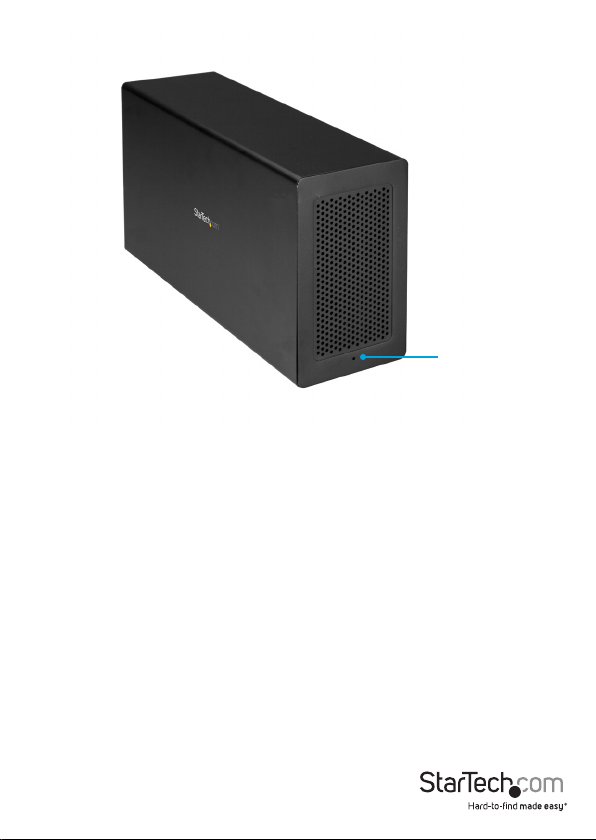
LED indicator

Instruction manual
3
Requirements
• Host computer with a Thunderbolt 3 port
• PCIe card
• PCIe cards up to x16 in size are supported but only x4 lanes are used
• Half-length PCIe card standards are supported
• Graphic cards aren’t supported
• Any of the following operating systems:
• Windows® 10 (32-bit or 64-bit)
• Windows 8 (32-bit or 64-bit)
• Windows 7 (32-bit or 64-bit)
• macOS 10.12
• AC electrical outlet
• Phillips type screwdriver
• Display or displays equipped with DisplayPort and the necessary cables (for
additional external display)
• Display or displays equipped with Thunderbolt 3 and the necessary cables (for
additional external display)
Note: To connect a second display, you must use one of the Thunderbolt 3 USB-C ports
on the expansion box. To use the expansion box with HDMI, DVI, or VGA displays, you
may need to purchase additional adapters.
Video output capabilities are dependent on the video card and hardware specications
of your connected host laptop.
Requirements are subject to change. For the latest requirements, please visit
www.StarTech.com/TB31PCIEX16.

Instruction manual
4
About Thunderbolt 3
Thunderbolt 3 technology uses the USB-C connector and oers bandwidth speeds up
to 40Gbps. It supports USB 3.1, DisplayPort 1.2, and PCI Express 3.0.
Thunderbolt technology supports both video and data throughput, but prioritizes
video bandwidth to help ensure seamless display performance. The performance
quality of the remaining expansion box functions depends entirely on the display
conguration.
You must use Thunderbolt 3 cables with any Thunderbolt 3 product.
Updates
The Thunderbolt 3 ports on your laptop might not function properly until you update
one or more of the following on your laptop:
• BIOS
• Thunderbolt rmware
• Thunderbolt 3 controller drivers
• Thunderbolt 3 software
The required updates will vary depending on your laptop. For an up-to-date list of
aected computers and instructions, visit www.thunderbolttechnology.net/updates. If
your manufacturer isn’t listed on the Thunderbolt website, contact your manufacturer.
Connect multiple Thunderbolt 3 devices in a daisy chain
You can connect multiple Thunderbolt 3 devices, including displays, in a daisy-chain
formation.
For example, you can connect a Thunderbolt 3 display to the Thunderbolt 3 USB-C
port on the PCIe expansion box. You can then connect another Thunderbolt 3 device
through the Thunderbolt 3 display that you connected to the PCIe expansion box.
DP Alt Mode (DisplayPort alternative mode)
DP Alt Mode is a specication that allows a DisplayPort video signal to be transferred
over USB-C. It enables the use of the USB-C interface for DisplayPort signals.
Thunderbolt 3 supports the full USB-C standard, including support for DP Alt Mode.
Because the PCIe expansion box supports DP Alt Mode, you can connect Thunderbolt
3 or USB-C based video devices, cables, or adapters to the secondary Thunderbolt 3
port on the rear of the docking station.

Instruction manual
5
Install a PCIe card
Warning! PC components can be severely damaged by static electricity. If an anti-
static strap isn’t available, discharge any built-up static electricity by touching a large,
grounded metal surface for several seconds.
1. Place the PCIe expansion box on its end with the thumbscrews pointing upwards.
2. Turn the thumbscrews clockwise and lift the end of the PCIe expansion box.
Note: If the thumbscrews are loosened suciently, the drawer will slide out of
the chassis as you lift it. If the drawer doesn’t slide out, continue to loosen the
thumbscrews.
3. Use a Phillips type screwdriver and remove the screw from one or both of the plates.
4. Align the PCIe card with the PCIe slot on the PCBA and carefully slide the PCIe card
into place.
5. Line up the PCIe card bracket with the mounting hole(s) on the expansion box and
insert the screw(s) that you removed in step 3.
6. Use a Phillips type screwdriver to tighten the screw(s).
7. Slide the drawer back into the PCI expansion box.
8. Turn the thumbscrews counterclockwise.
Connect the PCIe expansion box
1. Connect the universal power adapter to a power source and to the Power adapter
port on the PCIe expansion box.
2. Connect the Thunderbolt 3 cable to a Thunderbolt 3 USB-C port on the PCIe
expansion box and to a Thunderbolt 3 port on your computer.
Note: You don’t need to install drivers to use the PCIe expansion box, but the PCIe
card that you installed might require drivers. For more information about whether the
installed card requires drivers or additional installation steps, see the documentation
that came with the PCIe card or contact the manufacturer of the card.
3. In the New Thunderbolt devices pop-up message, click OK.
4. Next to the PCIe box, select Always Connect in the drop-down list, and click OK.
5. If necessary, connect peripheral devices to the DisplayPort port or Thunderbolt 3
USB-C port on the PCIe expansion box.

Instruction Manual
6
Connect a display to the DisplayPort port
The PCIe expansion box supports Display Port 1.2.
For more information about the adapters required to use dierent types of displays,
consult the table below.
Type of display Required adapter (sold separately)
DisplayPort None
HDMI Active converter
DVI Active converter
VGA Active converter
To view the active converters StarTech.com oers, complete the following:
1. In a web browser, navigate to www.StarTech.com.
2. On the left side of the screen, click Audio-Video Products.
3. Click DisplayPort converters.
4. Under Converter Type, click Active.
Connect a display to the Thunderbolt 3 USB-C port
You can connect a Thunderbolt display directly to the PCIe expansion box. To connect
other types of displays, you need to use an adapter.
Type of display Required adapter (sold separately)
Thunderbolt 3 None
DisplayPort USB-C to DisplayPort Adapter Cable (CDP2DPMM1MB)
HDMI Active converter
DVI Active converter
VGA Active converter

Instruction manual
7
To view the full range of USB-C video adapters and cables that StarTech.com oers,
navigate to www.StarTech.com/AV/usb-c-video-adapters/.
Note: Video adapters can limit the maximum available resolution. To determine the
maximum resolution your video adapter supports, consult the documentation that
came with the video adapter.
Bandwidth allocation
Thunderbolt technology carries video and data bandwidth, and it prioritizes video
bandwidth to help ensure seamless display performance. The performance of the
remaining ports (for example, the USB 3.0 ports) depends entirely on the display and
I/O (input and output) conguration that you are using.
When you connect multiple high-resolution displays, the PCIe expansion box needs to
allocate additional bandwidth to the displays and the extra bandwidth is reallocated
from the other I/O ports on the expansion box. In this situation there is less bandwidth
available for the remaining ports (for example, the USB 3.0 ports).
Video and I/O
conguration
DisplayPort
resolution
Thunderbolt 3
USB-C resolution
I/O bandwidth
remaining
Data only
(no displays) N/A N/A Download: 22Gbps
Upload: 22Gbps
DisplayPort
(single display
- 4K)
4096 x 2160p
(4K) N/A Download: 22Gbps
Upload: 22Gbps
Thunderbolt 3
USB-C
(single display
- 4K)
N/A 4096 x 2160p
(4K - 60Hz)
Download: 22Gbps
Upload: 22Gbps
DisplayPort and
Thunderbolt 3
USB-C
(two displays -
Dual-4K )
4096 x 2160p
(4K)
4096 x 2160p
(4K)
Download: 8Gbps
Upload: 22Gbps
Tabla de contenidos
Otros manuales de Unidad de distribución de energía de StarTech.com

StarTech.com
StarTech.com 065030868297 Manual de usuario

StarTech.com
StarTech.com PDU08C13EU Manual de usuario

StarTech.com
StarTech.com USB2001EXT2PNA Manual de usuario

StarTech.com
StarTech.com RKPW081915 Manual de usuario

StarTech.com
StarTech.com PDU02IP Manual de usuario

StarTech.com
StarTech.com RKPW161915 Manual del sistema

StarTech.com
StarTech.com SATABAY5BK Manual de usuario

StarTech.com
StarTech.com ECUSB3S11 Manual de usuario

StarTech.com
StarTech.com PDU02IP Manual de usuario

StarTech.com
StarTech.com US1GA30SXSC Manual de usuario