
SMART ST9 Manual de usuario

ST9
STEP COUNT CALORIES MESSAGE
ALARM CLOCK
01-08
·············
English
09-16
·············
Spanish
17-24
·············
German
25-32
·············
French
33-40
·············
Italian

1
EN
APP download
①
②
Search “Da Fit” in the APP store
(Apple store/Google store).
Scan QR code to download.
Long press 5 seconds turn
on/off, Short press back.
Function
Charging and Active
Use the ST9 charging cable, then insert the USB to your laptop
or any USB port with 5V 1A to charge the Watch before use to
ensure that the Watch is fully charged. The charging time is
about 2 hours. Make ensure the charging connect.
NOTE: If the watch battery runs out,It may enter a silent
protection state,The watch needs to be charged for 5-10
minutes to activate . If the device is not used for a long time,
please be sure to replenish it every one month.
2
EN
Pairing
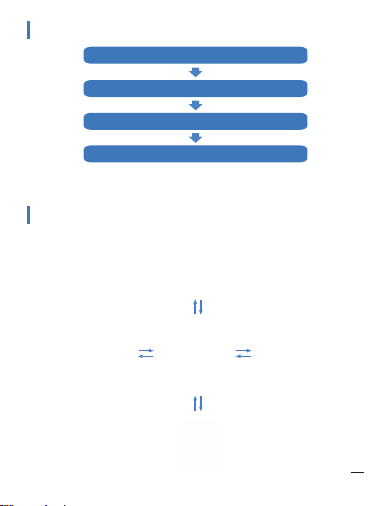
Use the Touch Screen
Control Center
Swipe
Down Swipe
Up
Swipe
Left Swipe
Left
Swipe
Right
Swipe
Down Swipe
Up
Messages
Quick Menu Function
Swipe
Right
The MAC address on the “Setting”-”About” page could help
you identify your device on the scanning list.
Open the APP and set up your profile
Go to the [Device], Click [APP a Device]
Choose your device on the scanning list
Finish

3
EN
***This bracelet must be connected to the phone twice***
During this connection process, there will be a prompt to
ask whether to open the notification and open permission
request confirmation. Please make sure to confirm the open
notification reminder and allow all permissions. (If not
authorized, it will affect the information reminder and
address book and other functions)
Step 1: Open “Da Fit ”APP--“OK,
Allow”--“Add A DEVICE”--Find ST9
and choose---“Pair”-- “Allow”--Done
ADD A DEVECE
Notifications
Alarms
Shutter
Others
Upgrade
ST9
Scan code to view
operation video

4
EN
Can be closed
manually
Call icon is gray
2. If you answer or make a call on the mobile phone, if you
need to return to the bracelet, you must manually switch to
the bracelet on the mobile phone
As shown in the picture below right.
1. If you don't want to connect through call audio bluetooth
due to environment or power saving, please pull down the
main page - - turn off call audio,as shown in the picture.
(This switch only turns off Bluetooth call and Bluetooth
playback)
speaker
Switch back to
Audio_ST9 on
the bracelet
ST9

5
EN
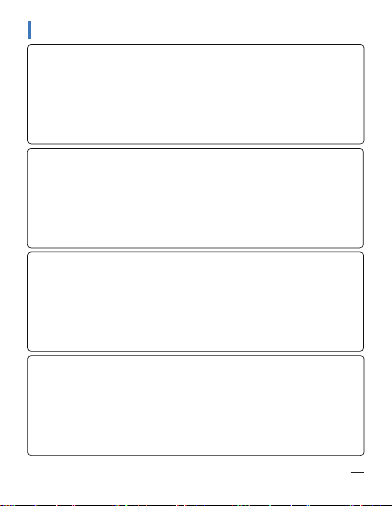
XIAOMI
Setting-apps-permissions-Autostart-open the Da Fit
HUAWEI
Setting-apps&services-app launch-open the Da Fit
SAMSUNG
"Smart Manager "- find the "Auto-Run Application" option,
--enter the "Auto-Start Application" setting interface - open the
auto-start setting program.
Since Android mobile phone background will automatically
clean up the App which not commonly used, it will cause the
watch connection to drop and no longer push the message.
1.Make sure turn on message push in Dafit setting.
2.Make sure the message can be displayed in mobile
phone’ s notification bar,message notification is pushed by
reading the phone notification bar,the watch can’ t get notifica-
tion if the message push closed in mobile phone setting .
Please make sure that the mobile phone Bluetooth is turned
on, the DAFIT APP is turned on, and the bracelet is always
connecting to the mobile phone Bluetooth !
NOTE:
If the phone is not locking or the software (whatapp, SMS,
facebook...) is logging in the computer, the smart watch
will not push messages for reduce power consumption
and disturbing. Please allow all the notification permis-
sion(WhatsApp, Facebook, Twitter, Phone, SMS.) at the
DAFIT APP
**If the notification still cannot be displayed, please
try to reset the watch, or reinstall the APP.
Why the watch can’ t receive the message notification?
6
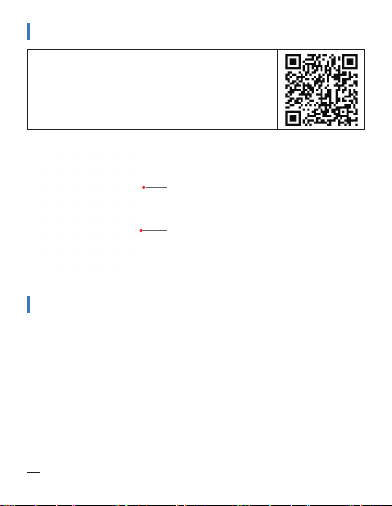
Smart Wtch Features
EN
Sleep
If you keep wearing Smart Watch in your
sleep, it can provide the hours slept and
quality of sleep stats on both the screen
and the APP.
Note:Sleep stats reset to zero at 8:00pm.
Steps
Smart Watch automatically tracks Steps
taken on the screen.
Note:Your movement stats reset to zero at
midnight.
Training
Tap the training icon on the menu to start a
new training measure recording, there are
7 sport modes to be chosen.
The last training recording will be shown
on the training page.
Heart Rate Test
The Smart Watch could record your heart
rate all day.
You also could tap on the page to start
measuring heart rate.

7
EN
Messages Reminder
The device can sync incoming notifica-
tions from Twitter, Facebook, Whatsapp,
Instagram etc.
Recently 5 messages can be stored.
Note:you can switch on/off the incoming
notification in the APP.
Remote Shutter
After connecting the device, you can
remote control the camera on your phone.
Note: some phones need to be turned on
DAFIT APP realizes this function.
Player Shutter
After connecting the device, you can
remote contral the music player on your
phone.
Other Features
Other features include stopwatch, alarm,
timer, brightness, mute on/off, theater
mode, factory reset, power off and about.

8
EN
Weather
It could show the weather info of current
and tomorrow on the weather page.
Weather info is synced after connecting
with the APP, it will not be updated after a
long disconneted.
Stop Watch
Tap the start button on stopwatch page to
start timing, and tap the stop button to
stop timing.
Silent Alarms
Set up the alarm on the app, the device
will vibrate to remind on time.
This alarm switch requires
Set to open in DAFIT.
9
ES
Descargar la aplicación
Carga y activación del reloj
①
②
Busque "Da Fit" en la tienda de aplicaciones
(Tienda de Apple / tienda de Google).
Mantenga presionado durante
5 segundos para encender / apagar,
Presione brevemente para regresar.
Función
Escanee el código QR para descargar.
Use el cable de carga ST9, luego inserte el USB en su computa-
dora portátil o cualquier puerto USB con 5V 1A para cargar el re-
loj antes de usarlo para asegurarse de que esté completamente
cargado. El tiempo de carga es de unas 2 horas. Asegúrese de
que la carga se conecte.
NOTA: Si la batería del reloj se agota, puede entrar en un estado
de protección silenciosa. El reloj debe cargarse durante 5 a 10
minutos para activarse. Si el dispositivo no se utiliza durante
mucho tiempo, asegúrese de reponerlo cada mes.
Tabla de contenidos
Idiomas:
Otros manuales de Mirar de SMART


