Sling Media CATCHER Manual de usuario

SLINGCATCHER USER GUIDE

Copyright © 2007 Sling Media, Inc. Sling Media, Slingbox, SlingCatcher, SlingLink, SlingPlayer, SlingPlayer Mobile, SlingProjector, and SlingStream
are the registered or unregistered Trademarks of Sling Media, Inc. Other products and companies mentioned are the Trademarks of their respec-
tive owners and not Sling Media, Inc. Windows is a registered trademark of Microsoft Corporation in the United States and/or other countries.
HDMI and High Definition Multimedia Interface are trademarks or registered trademarks of HDMI Licensing, LLC. Apple, Mac and Macintosh are
registered trademarks of Apple Inc. All other products and services, screen images, logos, and trademarks are the property of their respective
owners. All names used are fictitious and the similarity to any person living or dead is strictly coincidental. All video images are simulated. We
have made every effort to ensure that the information in this User Guide is accurate. Sling Media, Inc. is not responsible for clerical or printing
errors. 082-10011

WHAT’S IN THE BOX:
SlingCatcher
Composite Video &
Analog Audio Cables
Ethernet Cable Power Adapter
Remote Control &
2 AAA Batteries
WELCOME!
Thank you for purchasing SlingCatcher. With the included remote control, you
can sit back on your couch and watch video from your Slingbox, or movies and
Internet video from your PC.
We’ve designed this setup procedure to cover most situations. If you have
a more complex home theater system, see the manuals that came with your
equipment for setup information. If you don’t have your manual, many of them
are available on the manufacturer’s web sites.
1
BEFORE YOU BEGIN

TV Router
Slingbox Windows PC
WHAT YOU NEED TO SETUP SLINGCATCHER:
AND ONE OR BOTH OF THESE:
YOU NEED THESE:
2
TIP:You may want to use
a flashlight to help you see
behind your TV.
You need these:
t"57XJUIDPNQPTJUFWJEFP47JEFPDPNQPOFOUWJEFPPS)%.*JOQVUT
t"CSPBECBOE*OUFSOFUDPOOFDUJPODBCMFPS%4-NPEFNDPOOFDUFEUPBIPNF
OFUXPSLXJSFEPSXJSFMFTT
Note: For optimal performance, Sling Media recommends that you use wired Ethernet or
SlingLinkTM
TURBO to connect SlingCatcher to your home network. SlingLink TURBO
is sold separately. Visit http://www.slingmedia.com for more information.
And one or both of these:
t"4MJOHCPYPOZPVSIPNFOFUXPSL-"/PSPOUIF*OUFSOFU8"/JGZPVXBOU
to watch video from your Slingbox on another TV.
t"8JOEPXT1$UPSVOUIF4MJOH1SPKFDUPSTPGUXBSFJGZPVXBOUUPTUSFBN
video from your PC to the SlingCatcher and watch it on the TV.
Digital audio,
HDMI, S-Video and
component cables
TPMETFQBSBUFMZNBZ
be needed, depending
on how you choose to
connect SlingCatcher.

3
SLING LOGO
Press down here.
STEP 1:INSERT BATTERIES IN THE REMOTE
Remove the battery door from the remote control by firmly pressing down on
the Sling logo, located on the top side of the battery door cover, with your thumb
as illustrated below. Hold the main body of the remote with your left hand firm
while pulling the battery door with your right hand.
Once you’ve removed the battery door, place the batteries in the remote control.
Use the diagram inside the battery compartment to make sure you insert
the batteries correctly. Replace the battery door when finished. Once you’ve
JOTUBMMFEUIFCBUUFSJFTQSPQFSMZBSFEMJHIUXJMMBQQFBSCFOFBUIUIF4-*/(
button when you press any key.
SETTING UP SLINGCATCHER
STEP 2:PLACE SLINGCATCHER NEAR YOUR TV
Remove SlingCatcher from the packaging and place it near your TV. For the
remote control to work properly, the entire front of the SlingCatcher should be
visible from where you watch TV.
Do not place your SlingCatcher on or near anything that gets hot, such as a stereo amplifier,
transformer, or radiator, etc. Also, don’t place anything on top of your SlingCatcher.
IMPORTANT: Before you plug SlingCatcher into an electrical outlet, read the
safety information at the end of this User Guide.

4
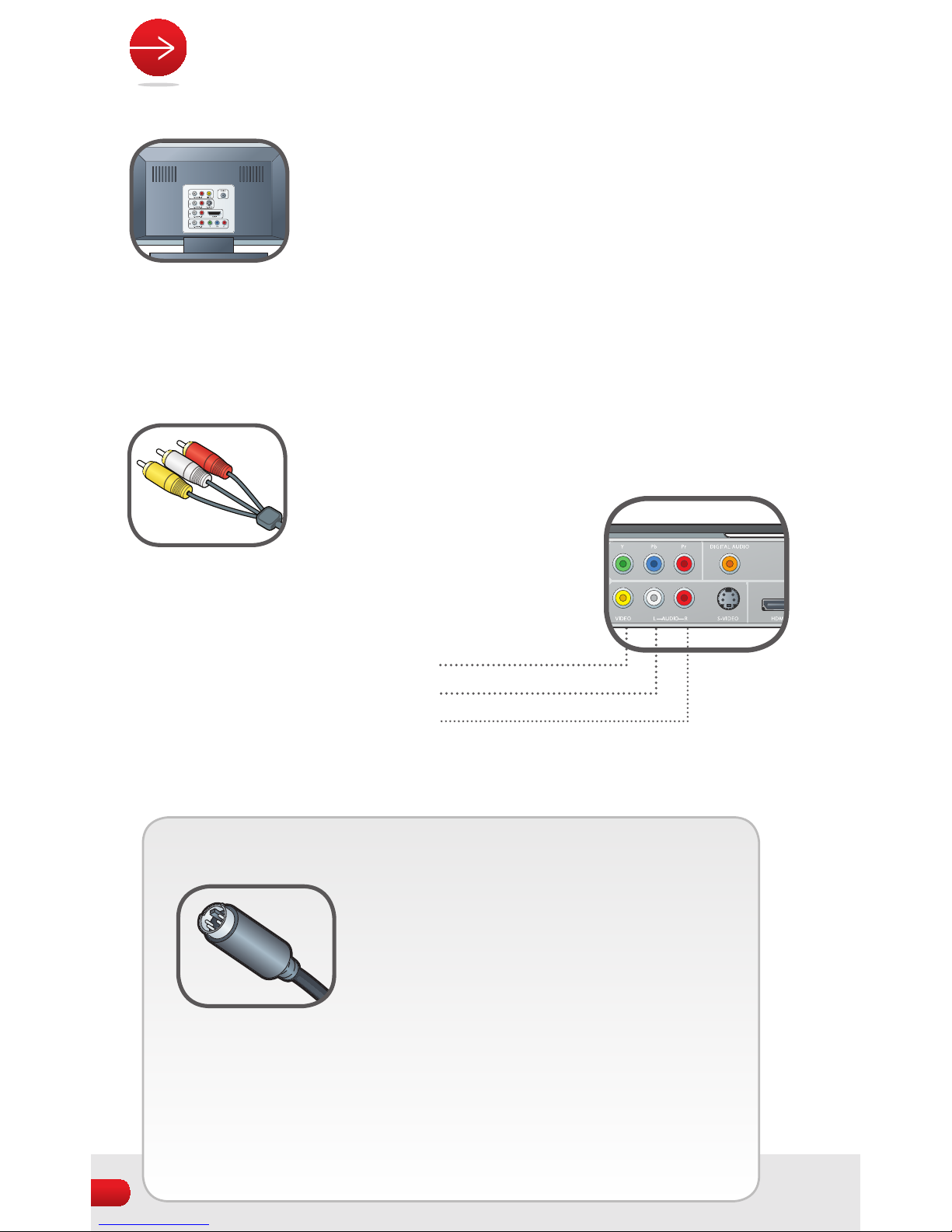
TIP:If your TV has a S-Video connection, you can use it instead
of the yellow composite connection to
get higher video quality. S-Video cables
are typically black with multiple pins. If
you choose S-Video, connect your S-Video
cable to the appropriate connector on
SlingCatcher and your TV. For audio, use
the included red and white audio connections to your TV or
FYUFSOBMBVEJPSFDFJWFSJGZPVBSFVTJOHPOF*GZPVVTF41%*'
digital audio, see instructions on the next page for connecting
DIGITAL AUDIO.
STEP 3:CONNECT THE AUDIO/VIDEO CABLES
Check the available video inputs on your TV. There are four types of video
connections: composite, S-Video, component and HDMI.
The video quality of a composite video connection is good,
S-Video is better, and component or HDMI are best.
Once you select which connection is right for you,
connect the appropriate cables as mentioned below. The
SlingCatcher includes one set of composite video and audio cables. All other
cables are sold separately.
COMPOSITE:Composite connections include a yellow connection for video
along with a red and white connection for audio. Connect
one end of the yellow cable to the yellow connector on
the back of SlingCatcher, and the other end to the yellow
connector on your TV. Then,
attach the red and white audio
connections to your TV or external
BVEJPSFDFJWFSJGZPVBSFVTJOHPOF
Left Audio
Right Audio
Composite Video

5
COMPONENT:Component connections are usually a set of green, blue and
red connectors. If you choose component video and
you see a set of available connections, connect your
component cable to SlingCatcher and then to your TV.
For analog audio, use the included red and white audio
cables to connect to your TV or external audio receiver
JGZPVBSFVTJOHPOF*GZPVVTF41%*'EJHJUBMBVEJP
see instructions below for connecting DIGITAL AUDIO.
HDMI (High Definition Multimedia Interface):If your TV or A/V receiver
has an HDMI connection available, connect your HDMI
cable to SlingCatcher and then to your TV. If you want to
send the audio to an additional device besides your TV,
use either analog audio cables or a S/PDIF digital audio
connection as described below for DIGITAL AUDIO.
TIP:To connect DIGITAL AUDIO, you can use
SlingCatcher’s digital audio output to connect
to an external audio receiver that can receive
digital audio input. Digital audio connections
are usually orange. These connections are also
DBMMFE41%*'4POZ1IJMJQT%JHJUBM*OUFSGBDF*G
the audio device that you’ve chosen has digital audio input, connect
your digital audio cable to the digital audio connector on SlingCatcher
and then to the corresponding input connector on your audio device.

6
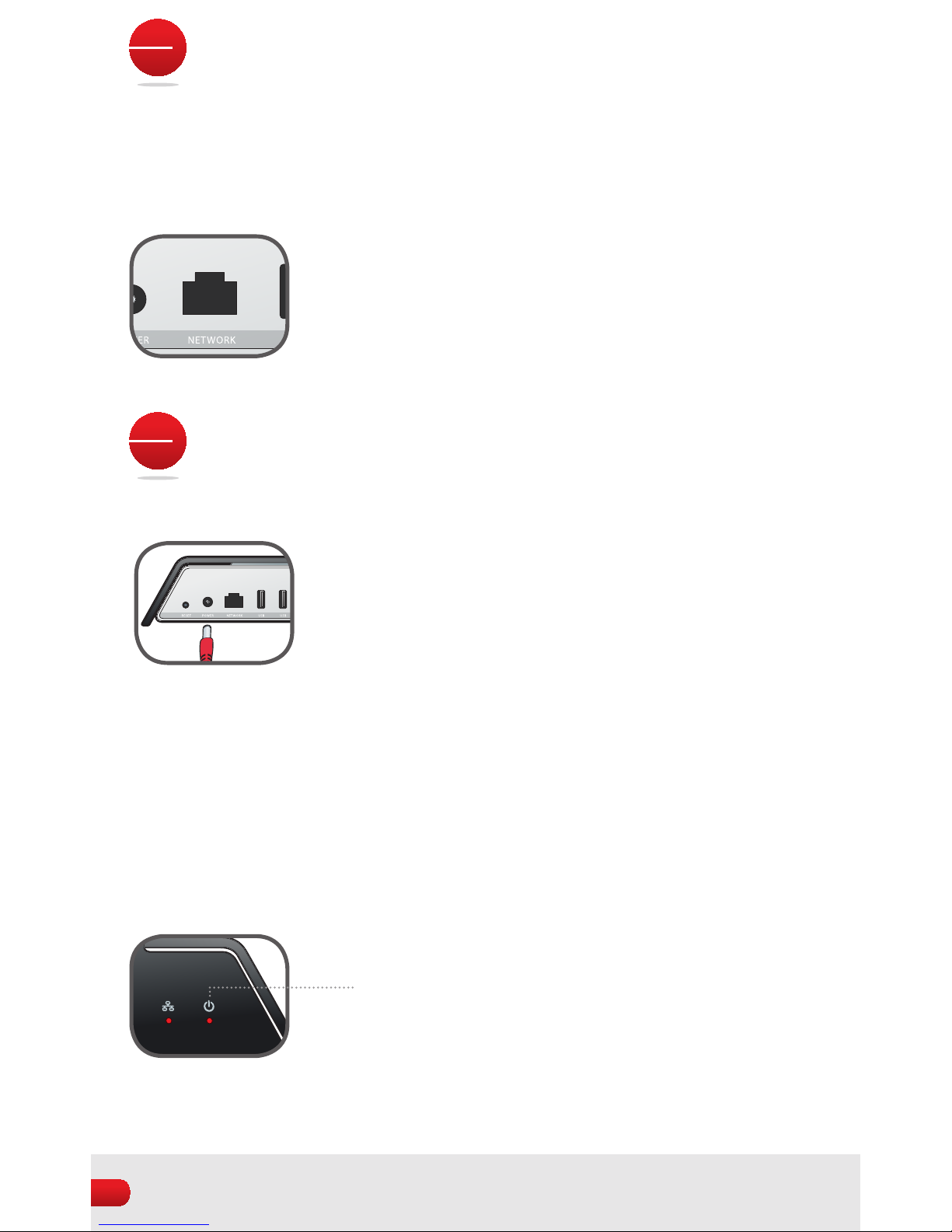
STEP 4:CONNECT SLINGCATCHER TO YOUR
NETWORK
If you plan to connect your SlingCatcher via Ethernet to your home network,
connect one end of the Ethernet cable to the Ethernet jack on the back of
SlingCatcher. Plug the other end into an unused Ethernet port on your router.
If your SlingCatcher is not near your router, you can
VTF4MJOH-JOLOPUJODMVEFEUPCSJEHFBXJSFE&UIFSOFU
connection between SlingCatcher and your router. Visit
http://www.slingmedia.com for more information.
STEP 5:POWER UP SLINGCATCHER
1. Connect the power plug to SlingCatcher.
WARNING:The SlingCatcher power adapter is only for use with SlingCatcher or Slingbox
SOLO or PRO-HD. Do not plug the SlingCatcher power adapter into any other Sling Media
family of products.
2. Plug the power adapter into a power outlet.
3. The Power LED should light up indicating the SlingCatcher is powered on.
Power

7
STEP 6:TURN ON YOUR TV
Wait approximately one minute for SlingCatcher and your TV to warm up.
If necessary, change your TV video input source setting to match the input
that you’ve connected SlingCatcher to. For example, if your SlingCatcher is
connected to A/V Device 1 on your TV, set your TV to display A/V Device 1.
It may not be obvious how to change the input source setting on your TV. Again,
you may need to refer to the manual for your TV for information. If you don’t have
the manual, many manufacturers also have these manuals on their website.
After you choose the correct input source setting, a Welcome screen appears.
On-screen instructions will lead you through the step-by-step process for
configuring your SlingCatcher.
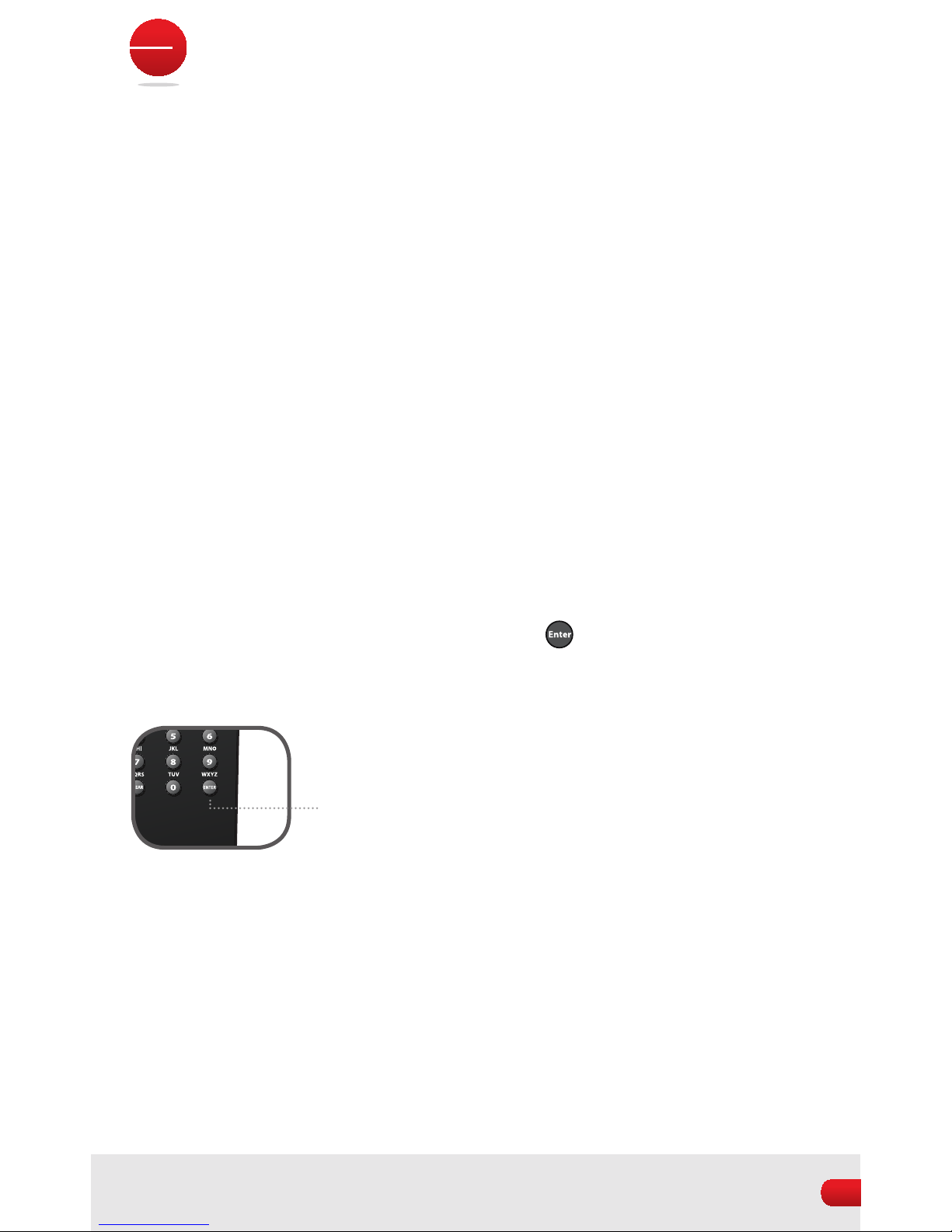
IFYOU DO NOT SEETHE WELCOME SCREEN AT THIS POINT:
First, wait at least an additional 30 seconds to make sure that both SlingCatcher
and your TV are warmed up. Double-check the TV input source setting. If your
TV and SlingCatcher are warmed up and you’ve selected the correct Input
source setting, it’s possible that your TV is not set to accept the video format
CFJOHPVUQVUCZ4MJOH$BUDIFS1SFTTUIF&/5&3CVUUPOPOUIF4MJOH$BUDIFS
remote control every 5 seconds to change the video format being output by
SlingCatcher until you see the SlingCatcher Welcome screen clearly on your TV.
If this does not work, see page 10 of this manual for more troubleshooting tips.
&/5&3CVUUPO

8
USING THE REMOTE CONTROL
You can use the SlingCatcher remote control to control both SlingCatcher, as well
as any Slingbox that you have access to. When you’re watching video from a
Slingbox, most of the buttons on the SlingCatcher remote will control your cable/
satellite set-top box, DVD player, or Slingbox TV tuner. This diagram summarizes
what the buttons on the remote do:
USING SLINGCATCHER
TRANSPORT BUTTONS
Pause / Rewind / Fast Forward /
Play / Skip Back / Skip Forward
video from your Slingbox, PC, or
the Internet
GUIDE
Accesses electronic program
guide on your cable/satellite
set-top box
BACK
Sends Back/Close/Cancel/Last
command to your cable/satellite
set-top box or DVD player, or
goes back to previous screen.
UP/DOWN/LEFT/RIGHT/OK
Use these buttons to navigate
within the SlingCatcher menus
or your cable/satellite set-top
box menus
PAG E
Page up and down within
SlingCatcher menus or cable/
satellite set-top box screens
SLINGCATCHER POWER
SLING BUTTON
Returns to SlingCatcher Main
Menu
MENU AND INFO
Sends Menu/Info commands to
your cable/satellite set-top box
OPT
Opens the SlingCatcher
Options menu where you
can access more features or
information
PROGRAMMABLE BUTTONS
You can program these buttons
for any set-top box functions
that are missing from the
SlingCatcher remote control.
JUMP
Sends Jump or Previous
Channel command to your
cable/satellite set-top box
MODE
Changes Video Zoom settings
on SlingCatcher while watching
full screen video. Changes
views while navigating
SlingCatcher screens.
Este manual sirve para los siguientes modelos
1
Tabla de contenidos
Otros manuales de Reproductor multimedia de Sling Media

Sling Media
Sling Media SB260-100 Manual de usuario

Sling Media
Sling Media Slingbox Solo Manual de usuario

Sling Media
Sling Media Sling Slingbox PRO-HD SB300-100 Manual de usuario

Sling Media
Sling Media Slingbox PRO Manual de usuario

Sling Media
Sling Media SlingCatcher Manual de usuario

Sling Media
Sling Media Slingbox 500 Manual de usuario

Sling Media
Sling Media Slingbox PRO-HD SBPB3051 Manual de usuario