
Sinocan P06-S Manual de usuario

Sinocan P06-S/U/L
User’s Manual
THERMAL RECEIPT PRINTER
Sinocan International Tech.
www.lcdpc.com.cn
WARNING:
All rights reserved. No part of this publication may be reproduced,
stored in a retrieval, or transmitted in any form or by any means,
electronic, mechanical, photocopying, recording, or otherwise, without
the prior written permission of Sinocan International Tech.The company
reverses the rights of modifications of manufacture technology,
assembly, software and hardware without notice. Contact your
franchiser if you need further information about the product.
Sinocan International Technologies Co., Ltd.
www.lcdpc.com.cn
V2.0 2010.05

Contents
1.1) Main Features .......................................................................2
1.2) Function List ..............................................3P06-U/S/L Series
2. Quick Start
2.1) Unpacking & Parts Identification ..........................................4
2.2) Loading the Paper Roll ........................................................5
3. Printer Interface and Connection
3.1) Connecting the Interface Cable.................................................8
3.2) Connecting to a Cash Drawer ..................................................8
3.3) Connecting the AC Adapter ......................................................9
4. Configuration
4.1) Panel LED Indicators ...............................................................10
4.2) DIP Switch Settings ..................................................................11
4.3) Printer Self Test ........................................................................12
4.4) Driver Installation ......................................................................13
5. Safety and Maintenance
5.1) Safety Information ................................................................16
5.2) Periodical Cleaning ..............................................................16
5.3) Preventing Paper Jams ........................................................16
5.4) Fixing Paper Jam ..................................................................17
6. Appendix
- Products Specifications ..............................................................18
- Configuration ..............................................................................21
7. General Printer Commands
...................................................26
1. General Information
-1-

1. General Information
1.1) Main Features
1. High speed printing:
230mm/s maximum print speed.
Low-noise thermal printing.
High reliability due to a stable mechanism.
2.Application Software:
Command protocol is based on ESC/POS standard.
Various Layouts are possible by using page mode.
Characters can be scaled up to 64 times as large as the standard size.
Smoothing is also possible.
Repeated operation and copy printing are possible by using macro
definitions.
Character font size (12x24 font or 9x17 font) can be selected using a
command.
-2-
3. Printer Handling:
Easy paper-roll installation.
Equipped with an auto cutter.
The printer allows easy maintenance for tasks such as head cleaning.
Two different print densities can be selected by DIP switches.
The built-in interface provides control capability for one cash drawer.
1.2) Function List
1. Maximum printing speed 230mm/sec
2. Fully-compatible with EPSON ESC/POS command ( see
command sets for programming reference)
3. Characters can be scaled up to 8 times larger than standard size(*)
4. Support print data in page mode
6. Support Font A (12*24) and Font B (9*17) characters(*)
7. Support NV Image download
8. Three indicator LEDs (POWER,ERROR, and Paper roll out) and One panel
button (FEED)
9. Support warning beep sound
10. Support DIP switch to select Chinese/ASCII mode
11. Support printer server printing
12. Support 9600,19200,38400,115200bps baud rate
13. Support print with 90 rotation(*)
Note:
(*) items are functions that will affect printing speed
-3-
S789008
S 8 9 0 0 80
High-speed Printing Printer Identification
Multiple Connection Printing OPOS Driver Various Character Sets
OPOS
Barcode

2. Quick Start
2.1) Unpacking & Parts Identification
a. Unpacking:
b. Parts Identification:
-4-
2.2) Loading the Paper Roll
a. Make sure that the paper roll matches the printer specification. Do not use paper
rolls that have the paper glued to the core because the printer cannot detect the
paper end correctly.
Important: The printing quality and lifespan of the thermal head cannot be guaranteed if
any paper other than that recommended is used. Thus, the warranty will be
void automatically if any fault occurs due to the use of wrong paper rolls.
Recommended Paper Rolls
b. Open the paper roll cover pressing the cover-open button
Important: Donot pull the cover open lever and open the printer cover during printing
is in process.
-5-
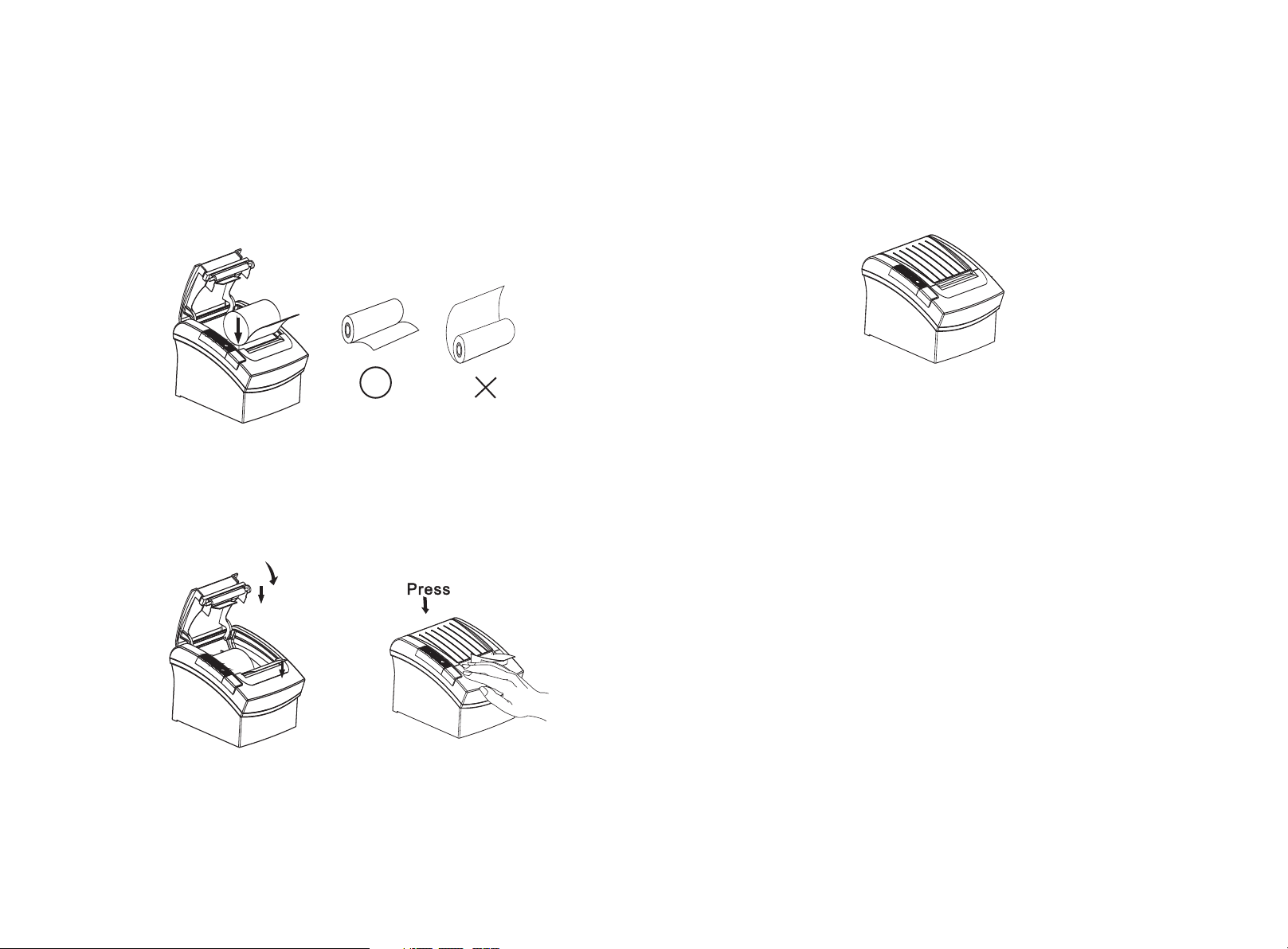
c. While oberserving the direction of the roll, set the paper roll into the hollow, and pull
on the leading edge of the paper toward you as shown:
d. Close the cover. When closing the cover, press the center of the printer cover
firmly to prevent paper miss-loading
-6-
e. Tear off the paper outside the cover as shown
-7-

3. Printer Interface and Connection
3.1) Connecting the Interface Cable
a. Before connecting/disconnecting the interface cable, make sure that power to the
printer and all the devices connected to the printer is turned on
b. Connect the interface cable to the connector on the rear panel of the printer
c. In the case of a serial interface, tighten the connector screws. In the case of a parallel
interface, fasten the connector clasps
3.2) Connecting to a Cash Drawer
Important:
Make sure that the printer is turned off and unplugged from the AC outlet and
that the computer is turned off before making connections.
Do not connect a telephone line into the peripheral drive connectors. Failure to
observe this may result in damage to the printer.
-8-
3.3) Connecting the AC Adapter
a. Connect the AC power cord to the inlet of AC adapter, and then connect the power
cord plug to a suitable electrical outlet
b. Connect the adapter cable to power connector of printer, make sure the printer
power switch is OFF before making any connections
c. Set the power switch as shown. The POWER lamp on the control panle will light
up.
-9-

4. Configuration
Printer Control Panel & Status Indicator
4.1) Panel LED Indicators
1. Power ( POWER) LED: Green
On: Power is stable
Off: Power is not stable
2. Error( ERROR) LED: Red
On: Off line (except during paper
feeding using the FEED button and
test printing, and the error state.)
Off: Normal condition
3. Paper roll end (PAPER OUT) LED: Red
On: The paper roll near end is detected.
Off: Paper is loaded (Normal condition).
-10-
4.2) DIP Switch Settings
The DIP switch panel is locating at bottom of the printer as shown:
DIP Switch Functions:
Note: Before configure the DIP switch settings, please first turn the printer
power off and remove the paper roll.
(*) Baud Rate is only available for serial interface models.
POW ER
OUT
ERROR
FEED
PAPER

4.3) Printer Self Test
This is to test whether the printer is working properly or not and also checks the printing
quality, firmware version, and DIP switch settings.
1. Hold the FEED button first and then turn on the power at the same time, release the
button after around 1 second.
2. If the printer is working properly, it should then automatically print the self-testing
result that indicating the firmware version number, printer connection type, English
alphanumeric characters, and so on.
3. The test print will be ended with following message:
Note: Above procedure does not test parallel or serial ports. Please use communication
utility to test the printer connection.
-13-
4.4) Driver Installation

-14- -15-

5. Safety and Maintenance
5.1) Safety Information
1. Do not touch the HEAD of printer with anything.
2. Do not touch the cutter blade.
3. Only use the power supply that is come along with the printer.
4. Do not bend the power cord excessively or place any heavy objects onto it.
5. When connecting or disconnecting the plug, always hold the plug-not the cord.
6. Keep the desiccant out of children s reach.
7. Use only approved accessories and do not try to disassemble, repair or
remodel it for yourself.
8. Do not let water or other foreigh objects in the printer.
9. Install the printer on the stable surface, choose a firm.level surface where
the printer will not be exposed to vibration.
10. Do not use the printer when it is out of order. This can cause a fire or an
electrocution.
11. Do not connect a telephone line into the peripheral drive connector.
12. We recommend that you uplug the printer from the power outlet whenever
you do not plan to use it for long periods.
5.2) Periodical Cleaning
Printed characters may become partially unclear due to accumulated paper dust
and dirt. To prevent such a problem, paper dust collected in the paper holder and
paper transport section and on the surface of the thermal head must be removed
periodically. Such cleaning is recommended to be carried out once six month or
one million lines.
a. Cleaning the Thermal Head
To remove blackish dust collected on the surface of the thermal head, wipe it with
Isopropyl alcohol(IPA)
Note: The thermal head is easy to damage, so clean it gently with a soft cloth.
Take sufficient care not to scratch it when cleaning it.
b. Cleaning the Paper Holder
Use a soft cloth to remove paper dust from the paper holder and paper transport
section.
5.3) Preventing Paper Jams
The paper should not be touched during printing. Shift the paper during paper ejection
may cause a feed failure or paper jam.
5.4) Fixing Paper Jam
The Status LED(Red) on the printer control panel will flash with beeps if paper is jammed.
Please follow below instruction to remove paper jam.
a. Switch the printer power off.
b. Open the printer cover by pushing the Cover-
open button.
c. If the printer cover opens, remove the jammed
paper gently (take care not to touch the printer
head.) And reinstall the paper roll.
d. If the printer cover will not open, please restart the printer by switching power
off/on, and try again, if the cover is still unable to open please follow the below
instruction.
1. Set the printer power OFF
2. Slide off the side lid to reveal
the auto cutter.
3. Roll the little gear as shown until
the warning beeps is stopped.
CAUTION:
Since working on the cutter may be dangerous, be sure to turn off the printer first.
Note:
Do not apply extreme force to open the front cover to prevent damage to the cutter.
If the front cover will not open properly, please contact your dealer.
e. Return the cutter to its home-position and release or clean our the jammed
paper in inside the front cover. Open the top cover, and then reinstall paper
roll.
(Reinstall Paper Roll) (Tear off the paper as shown)
-16- -17-
Este manual sirve para los siguientes modelos
2
Tabla de contenidos
Otros manuales de Impresora de Sinocan


