Sicunet SNC Series Manual de usuario

0
IP Camera SNC Series
S/W User Manual
Sicunet Inc.
3001 Red Hill Ave. Suite 2-205
Costa Mesa, CA 92626
www.sicunet.com

IP Camera User’s Manual
1
Preface
Thank you for purchasing our product. If there is any question or request, please do not hesitate
to contact dealer.
This manual is applicable to IP Camera. This series of products are all-in-one IP Cameras
designed for network video surveillance, including Network Box Camera, Network Dome Camera,
Network IR Camera, Network Speed Dome, etc. The products adopt standard H.264 BaseLine
Profile@ Level 4.0 compression algorithm to effectively save network transmission bandwidth and HD
storage space; support dynamic configuration for stream parameters; support a large number of
protocols, such as PPPoE, DHCP, UDP, TCP/IP, RTSP, NTP, ONVIF, etc; with built-in Web server,
allow users to easily perform real-time monitoring and remote control via IE browser; support
three-stream (main stream, sub stream and mobile stream selectable) for transmission and record;
support local and remote alarm linkage; provide multi-zone motion detection with different sensitivity
levels; adopt high-speed embedded 3A (AWB, AF, AE) to make the image clearer, smoother and more
realistic.
This series of IP Cameras which feature easy installation and operation are suitable for
medium-sized and small enterprises, families, and other occasions that require remote network video
transmission and monitoring.
Statement:
This manual may contain several technical inaccuracies or typographical errors, or places that do
not match the product. If you have any unsolved problems in the process of using product
according to this manual, please contact our technical support department.
The content of this manual may be updated at irregular intervals without prior notice.
This manual is for reference only. IP Camera’s functions and operations with different models
may be different, please regard the actual product as the truth.
Audience:
This manual applies to the following persons:
System planning person
Technical support and maintenance person
Administrator
User

IP Camera User’s Manual
2
Convention
Conventions are as follows in this manual:
“IP Camera” mentioned in this manual refers to network Camera, including Network Box Camera,
Network Dome Camera, Network IR Camera, Network Speed Dome, etc.
Click: Press the left mouse button once.
Double-click: Press the left mouse button twice.
“[ ]”: Option name, Window name, menu name and datasheet.
Caution
This device should be operated only from the type of power source indicated on the marking label.
The voltage of the power must be verified before using. Kindly remove the cables from the power
source if the device is not to be used for a long period of time.
Do not let this product fall to the ground or against the strong percussion.
Do not directly touch the optical components of image sensor. If necessary, place a clean cloth
with alcohol slightly moist and gently wipe the dust. If the device is not to be used, please cover it
with dust cover to protect the image sensor.
Avoid aligning strong light (such as lighting, sunlight, etc.) focus, otherwise it will easily lead to
image too bright or pulling light (this is not a Camera malfunction), and it will affect the service life
of image sensor.
Do not expose the machine in moist, dusty, extremely hot, extremely cold and strong
electromagnetic radiation environment. (Normal work temperature: -10 ℃~ +55 ℃)
Avoid water or other liquid flowing into the Camera in use. In case any solid or liquid get inside the
machine, user must cut off the power supply immediately, and get it checked by a qualified
technician.

IP Camera User’s Manual
3
Table of Contents
Chapter 1 Download and Install ActiveX...............................................................................................1
Chapter 2 User Login ...........................................................................................................................2
Chapter 3 Live Video ............................................................................................................................3
Chapter 4 Playback ..............................................................................................................................5
Chapter 5 Configure .............................................................................................................................7
5.1 Stream Configure ....................................................................................................................7
5.2 Network Configure...................................................................................................................8
5.3 Time Parameters .....................................................................................................................9
5.4 OSD ......................................................................................................................................10
5.5 Privacy Regional ................................................................................................................... 11
5.6 SD Card.................................................................................................................................11
5.7 PTZ Configure .......................................................................................................................13
5.8 Record Configure ..................................................................................................................13
5.9 Alarm Configure.....................................................................................................................15
5.9.1 Motion Detection .........................................................................................................15
5.9.2 I/O ...............................................................................................................................16
5.9.2 PIR ..............................................................................................................................17
5.10 Advanced Configure ............................................................................................................18
5.10.1 Capture Configure.....................................................................................................18
5.10.2 Audio Configure.........................................................................................................19
5.10.3 WiFi Configure ..........................................................................................................20
5.10.4 PPPoE Configure ......................................................................................................22
5.10.5 DDNS Configure........................................................................................................23
5.10.6 E-mail Configure........................................................................................................24
5.10.7 FTP Configure ...........................................................................................................25
5.10.8 User Management.....................................................................................................25
5.10.9 Day/Night Configure ..................................................................................................26
5.10.10 ISP Configure ..........................................................................................................27
5.11 Device Maintenance ............................................................................................................29
5.11.1 Device Information.....................................................................................................29
5.11.2 Default Setting ...........................................................................................................29
5.11.3 Restart Device ...........................................................................................................30
5.11.4 Upgrade Device.........................................................................................................30
5.11.5 Running State ............................................................................................................31
5.11.6 Version ......................................................................................................................31
5.12 Local Configure ...................................................................................................................32
Chapter 6 Log.....................................................................................................................................33
Chapter 7 Mobile Connectivity............................................................................................................35
For Android..................................................................................................................................35
7.1 Main Functions ......................................................................................................................35
7.2 Installation .............................................................................................................................36
7.3 Application Running...............................................................................................................36
7.3.1 Interface Description ...................................................................................................36
7.3.2 Live Preview................................................................................................................37
7.3.3 Add Device ..................................................................................................................38
7.3.4 Switch Channel ...........................................................................................................40
7.3.5 PTZ Control.................................................................................................................41
7.3.6 Local Video .................................................................................................................41
7.3.7 Saved Photos..............................................................................................................42
7.3.8 Switch Language.........................................................................................................42
7.3.9 Video Remote..............................................................................................................42
7.3.10 Real-Time Alarm........................................................................................................42
7.5 Installation .............................................................................................................................43
7.6 Application Running...............................................................................................................44
7.6.1 Interface Description ...................................................................................................44
7.6.2 Live Preview................................................................................................................45
7.6.3 Add Device ..................................................................................................................46


IP Camera User’s Manual
4
7.6.4 Switch Channel ...........................................................................................................47
7.6.5 PTZ Control.................................................................................................................48
7.6.6 Local Video .................................................................................................................48
7.6.7 Saved Photos..............................................................................................................49
7.6.8 Switch Language.........................................................................................................49
7.6.9 Video Remote..............................................................................................................49
7.6.10 Real-Time Alarm........................................................................................................49
Appendix 1 Network Port of IP Camera..............................................................................................51
Appendix 2 Default Network Parameters............................................................................................51
Appendix 3 Search Tool User's Guide................................................................................................51
Appendix 4 Configure the Wireless Router.........................................................................................53
Appendix 5 Apply for DDNS Service ..................................................................................................55
Appendix 6 Visit IP Camera under Different Network Environments ..................................................57
Appendix 7 Port Mapping ...................................................................................................................61
Appendix 8 Network Cable Connection ..............................................................................................63
Appendix 9 FAQ .................................................................................................................................63

IP Camera User’s Manual
1
Chapter 1 Download and Install ActiveX
You need to install ActiveX when you access IP Camera for the first time through IE browser.
Installation Method:
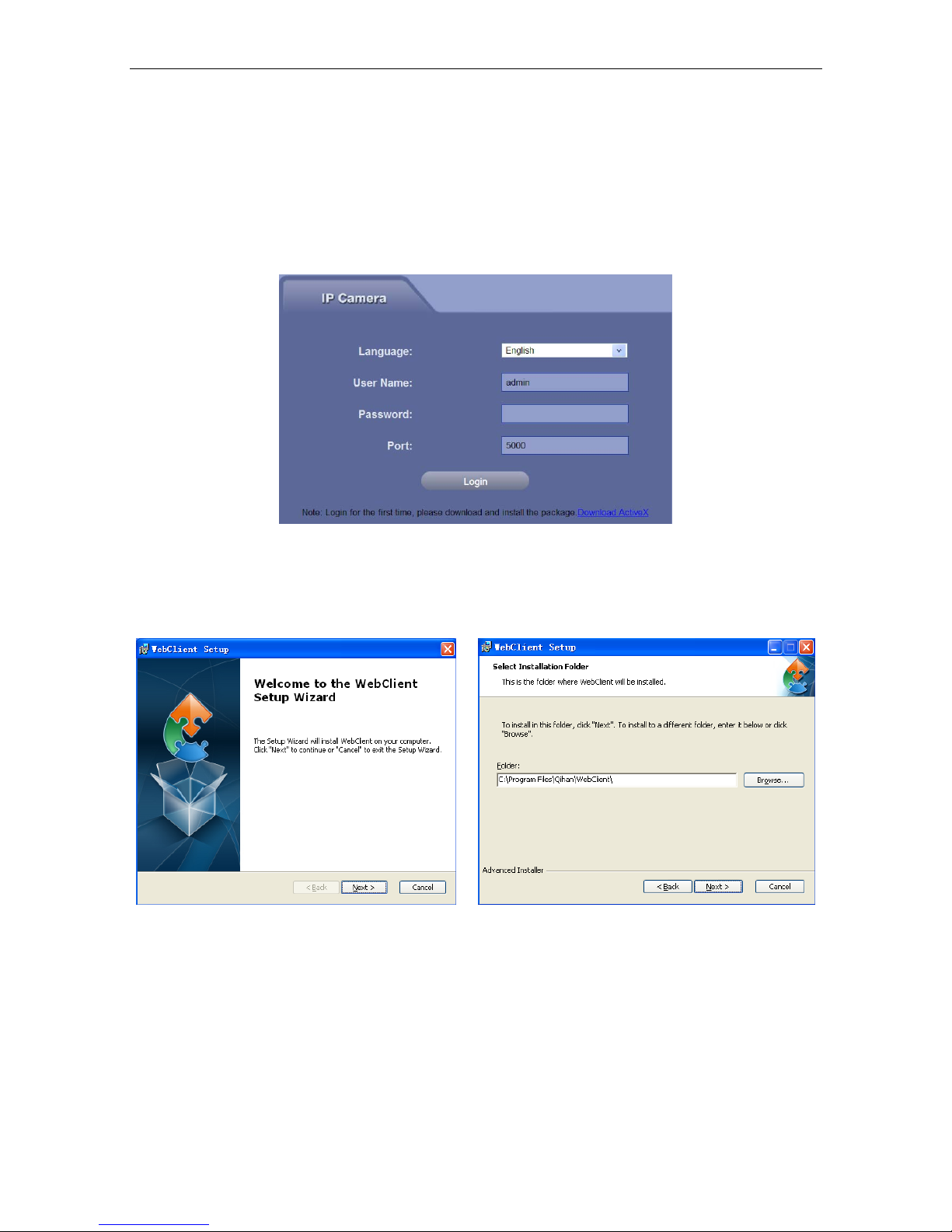
1) Input the IP address of IP Camera in browser address bar (for example: 192.168.1.10) to enter
into login page, as shown in Fig 1-1:
2) Click [Download ActiveX];
Fig 1-1
3) File download dialogue box pops up, click [Run] or [Save] to download ActiveX;
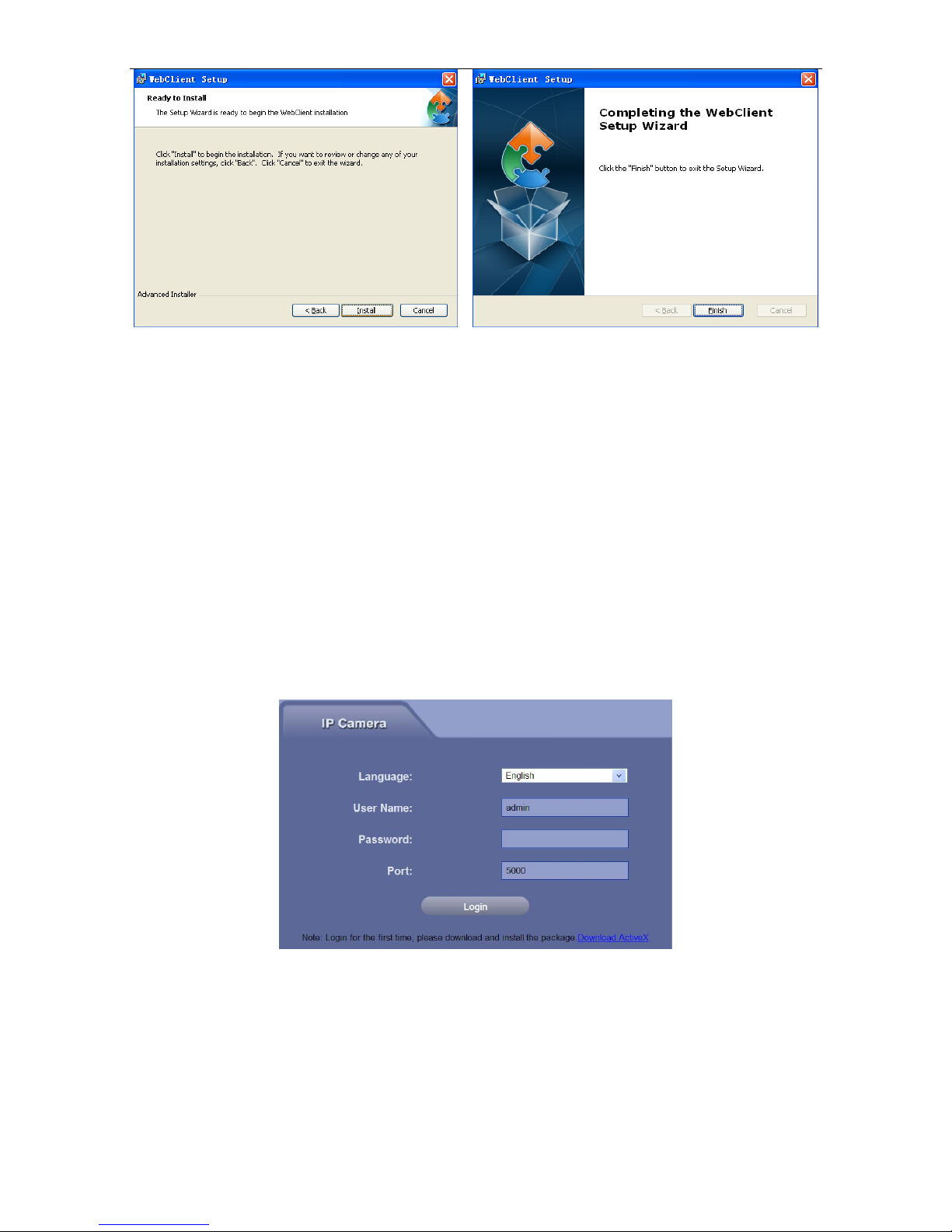
4) After the download is complete, double-click the downloaded file “WebClient” to install it, click
[Next] button to select installation path, as shown in Fig 1-2:
Fig 1-2
5) Click [Next] button, then click [Install] button to install “WebClient”;
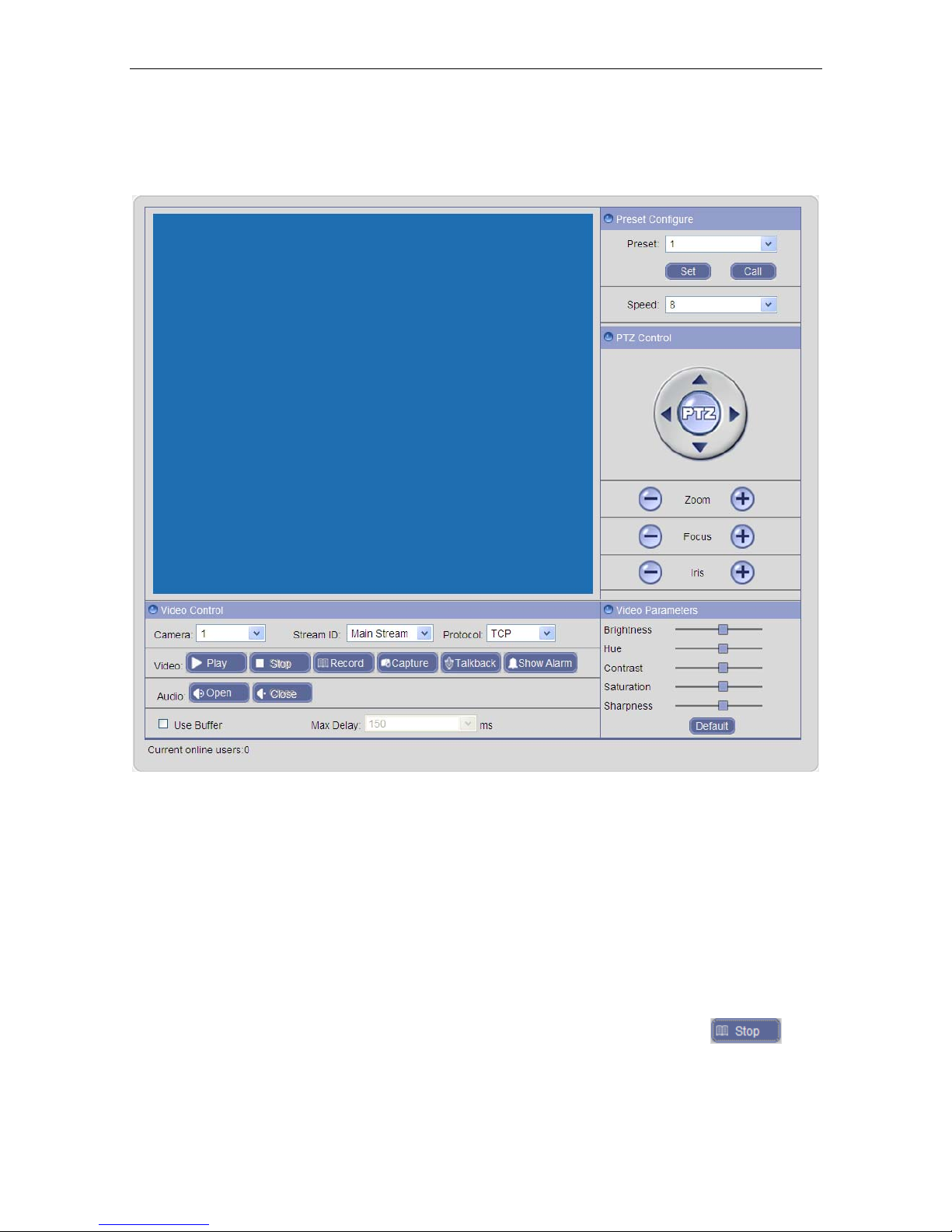
6) After installation is complete, click [Finish] button to exit, as shown in Fig 1-3:

IP Camera User’s Manual
2
Fig 1-3
Chapter 2 User Login
Reopen IE browser after ActiveX installation completes, input the IP address of IP Camera
(192.168.1.10 by default) to enter into login page, as shown in Fig 2-1:
Language: Select the system language, including Simplified Chinese and English.
User Name: Input the user name; the default user name is “admin”.
Password: Input the password; the default password is blank.
Port: Input the port number; the default port is 5000.
Input user name, password and port number, then click [Login] button to enter the main interface.
Fig 2-1

IP Camera User’s Manual
3
Chapter 3 Live Video
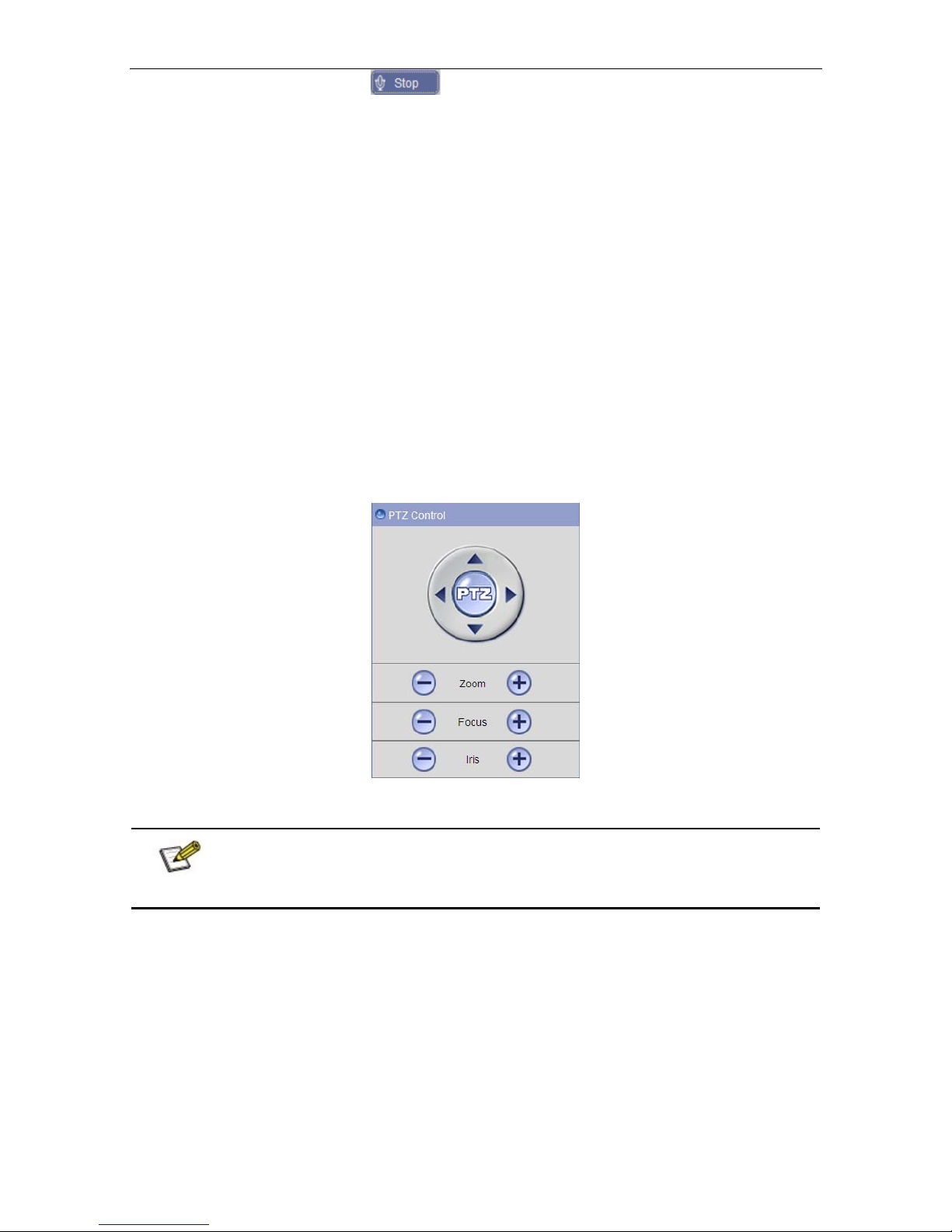
After user have logged in, it will enter into the live video page, or click [Live Video] button in menu
bar to enter this interface, as shown in Fig 3-1:
Fig 3-1
User can do many operations like play, stop, record, capture, talkback, show alarm, audio monitor,
buffer, preset configure, video parameters configure, full-screen view, PTZ control, etc.
[Stream ID]: Select the stream according to the network environment: main stream is HD channel,
sub stream is SD channel, and mobile stream is throttle channel.
[Protocol]: Support TCP, UDP network protocol.
[Play]: Click this button to open the current video screen.
[Stop]: Click this button to close the current video screen.
[Record]: Manual recording switch. Click this button to record current video, and save them in AVI
format to “Local recording files path” of local configure; the state is changed to after
enable recording, click this button to stop recording.
[Capture]: Click this button to snap current image, and save it in JPG format to “Local capture files
path” of local configure.
[Talkback]: Audio talkback switch. Click this button to perform the talkback between PC and IP

IP Camera User’s Manual
4
Camera; the state is changed to after enable audio talkback, click this button to stop
talkback.
[Show Alarm]: Click this button to pop up alarm information list, it shows the alarm IP, alarm time and
alarm description.
[Audio]: Open or close the sound of live video.
[Use Buffer]: In order to avoid the stagnation caused by network congestion during video playback,
using buffer function can save a certain amount of data (150/800/1500/3000ms) before playing video.
The longer buffer time you set, the longer delay video plays.
[Full Screen]: Double-click the video screen to display video in full-screen, double-click again or
press Esc key to exit full screen mode.
[Preset Configure]: Set and call any preset point with a maximum of 128; set PTZ speed grade: 1~8,
“1” is slowest, “8” is fastest, and “5” is moderate;
[Video Parameters]: Adjust the brightness, hue, contrast, saturation and sharpness of video, click
[Default] button to restore default values.
[PTZ Control]: Control PTZ rotation (up, down, left, right); zoom, focus and lris are adjustable, as
shown in Fig 3-2:
Fig 3-2
Note: Support 10 users online at the same time.

IP Camera User’s Manual
5
Chapter 4 Playback
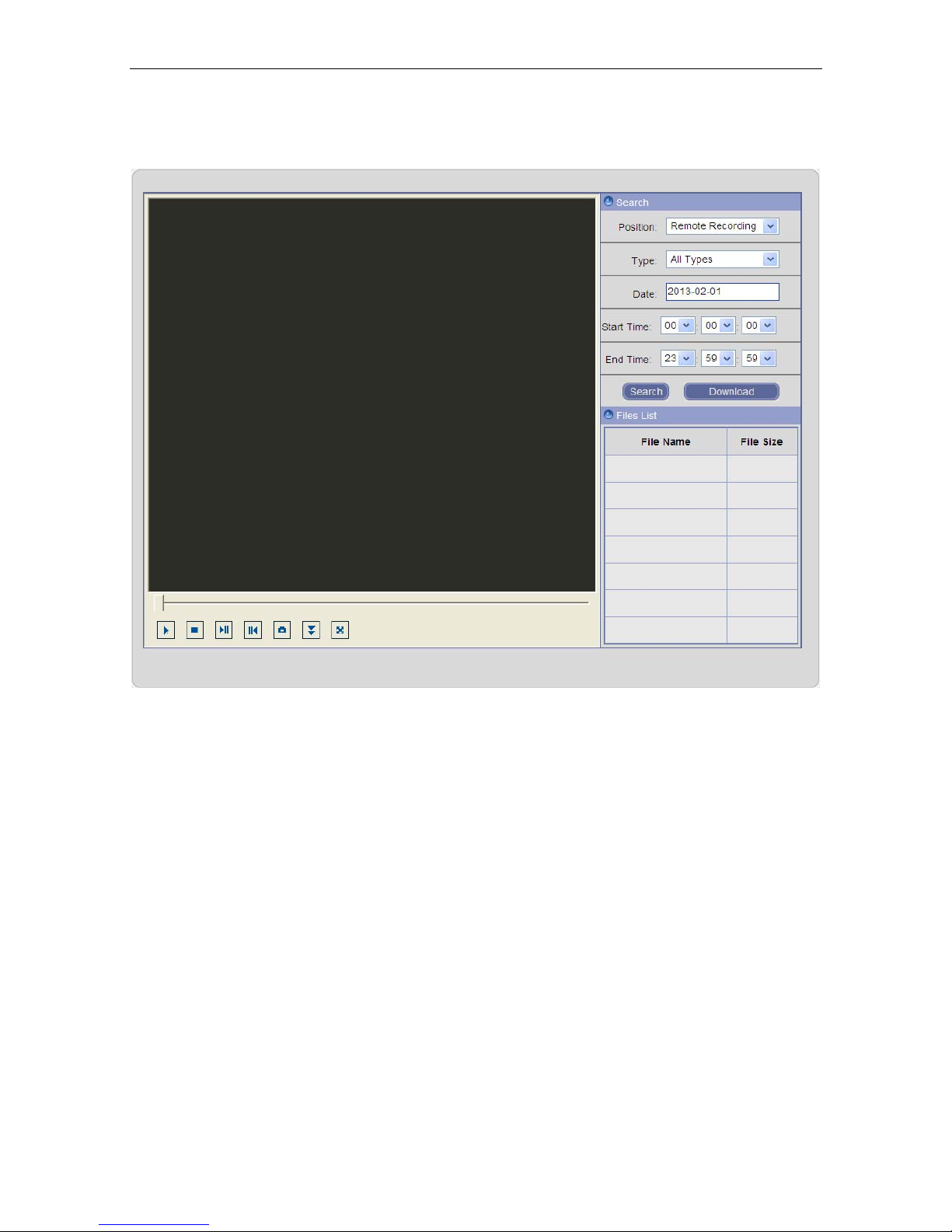
Click [Playback] button in menu bar to enter the video playback page, as shown in Fig 4-1:
Fig 4-1
User can search for recording files or capture images in local PC or storage device on the IP
Camera according to search criteria.
[Position]: Select remote recording files, remote capture images, local recording files or local
capture images.
[Type]: Select the file type; remote recording files can be searched by motion alarm recording, I/O
alarm recording and time recording, local recording files can be searched by local files and download
files.
[Date]: Click date box to pop up a calendar, and select a certain date, as shown in Fig 4-2:
Tabla de contenidos