
Shaw Gateway HDPVR Manual de usuario

Shaw Whole Home HDPVR
User Manual
Visit shaw.ca/gateway
One awesome HDPVR. One happy home.

2

3
Welcome
Get ready to start your Shaw Whole Home HDPVR experience.
Visit shaw.ca/gateway for more information and user videos.

4
Contents
Main menu .....................................................................5
Using your remote................................................ 6
Shortcut buttons............................................... 6
Menu navigation................................................ 6
Full screen TV
The buffer (temporary memory) ............. 7
Using the buffer........................................................ 7
Channel Grid Guide – layout........................ 8
Channels
Channels – layout....................................................9
Preview panel ......................................................... 10
Preview panel – layout .....................................11
Using your PVR
Gateway Portal controls ............................... 12
Recording icons ......................................................13
Intro to My PVR Recordings....................... 14
My PVR Recordings – layout ......................15
My PVR Recordings – actions................... 16
Search
Intro to search..........................................................17
Search options........................................................ 18
Search By Title........................................................ 19
Search By Keyword...........................................20
Search By Category........................................... 21
Favourites
Intro to favourites............................................... 22
Shaw On Demand
Intro to Shaw On Demand..........................23
How to order Shaw On Demand ......... 24
Shaw Pay Per View
Intro to Shaw Pay Per View....................... 25
Messages
Intro to messages............................................... 26
Parental Controls
Intro to Parental Controls ............................27
Parental Controls – layout.......................... 28
Working with your PIN................................... 29
Locking and unlocking programs .......... 30

5
Main menu
To start using your Shaw Whole Home HDPVR, press the MENU button on your remote.
The top level of the Main Menu will appear in the middle of the screen. From there, you’ll
have access to all your menu options.
At any point in your Shaw Whole Home HDPVR experience, press the MENU button
to go back to the Main Menu.
Channels
This menu lists all
available channels.
My PVR Recordings
Access all the
programs
you’ve recorded.
HDTV
Display all your
high‑definition
content.
Search
Integrated search
to find listings,
recordings, and access
Shaw On Demand.
Kids
Access kid‑friendly
movie and TV titles.
News
News channels and
current news
programming.
SuperTicker®
SuperTicker® to
access news, weather
and sports while
watching TV.
Messages
A place to read
messages about Shaw
services and updates.
Music
Access 60 channels
of commercial‑free
music.
Favourites
Create up to five
custom favourite lists
to quickly find movies
and shows.
Movies
Display all movies,
including recordings.
Sports
See a list of current
sports events.
Settings
Personalize your Shaw
Whole Home HDPVR.
Shaw On Demand
Access Shaw On
Demand movies and
TV shows.
Shaw Pay Per View
Find Pay Per View
listings of live events.
Games
Play classic arcade
games like Blackjack
and Slot Machine
on‑screen.

6
Using your remote
Shortcut buttons
Menu navigation
A
BC
C
D
D
5
3 8
6
4 9
7
1
2
1ARROWS
Moves backward or forward
one item. Hold down to speed
up your browsing speed.
2OK
Begin playing a program or
select an option in a menu.
3BACK
View TV programming from the
previous half hour. Also pages
back in menus.
4NEXT
View TV programming for the
next half hour. Also pages
forward in menus.
5INFO
Bring up a menu of options or
information. Also view your
individual recording settings.
6ZOOM
Alternate between full screen
viewing and the last menu
screen you were in.
7NUMBER KEYS
Enter a channel number to go
directly to the channel.
8CLEAR
Deletes highlighted content
within My PVR Recordings.
Also clears search box.
9ENTER
Selects an option in a menu.
A
PVR
View
My PVR
Recordings.
B
VOD
Access the
Shaw On
Demand
menu.
C
GUIDE
Activate the
Channel Grid
Guide view
of TV
programming.
D
LIVE
Jumps to
full‑screen,
live TV.
PVR
VOD
LIVE
GUIDE

7
The buffer (temporary memory)
Whenever you start watching a show, your Whole Home HDPVR starts storing it in a
temporary memory called a buffer. It always saves at least 30 minutes of standard
definition or 10 minutes of high definition. Press REC to save the buffer, and REWIND or
REPLAY to go back to the stored memory. The buffer can be shared between one or all of
your Gateway Portals.
Using
the buffer
Press PAUSE to pause and resume playing.
Press REWIND up to three times (for three speeds) to rewind.
Press FORWARD up to three times (for three speeds) to fast‑forward.
Press PLAY to resume playing.
Press LIVE TV to jump to the last live TV channel you watched.
Press REPLAY to watch the previous 7 seconds.
Press SKIP to skip forward 30 seconds. You can change the number of seconds to skip in
the Settings menu.
Press PAUSE and then FORWARD once to watch in slow motion.
Press RECORD to begin recording the show you’re watching or quickly set a recording
for a show using your guide.
Press PAUSE and then SKIP to advance forward one frame.
Full screen TV
A
BC
C
D
D
PVR
VOD
LIVE
GUIDE

8
Channel
Grid Guide – layout
To view the Channel Grid Guide, press the GUIDE button.
ARROW buttons navigate the guide.
INFO manages recording settings and shows a list of available options.
SKIP will move the guide forward 24 hours; REPLAY will move it back 24 hours.
BACK and NEXT will move through the guide in 30 minute increments.
ZOOM will alternate between the guide and full screen TV.
MENU will return you to the Main Menu.
Blue shows indicate programs currently airing.
Grey shows programs airing in the future.
OK takes you to a show if it’s currently airing. If it’s in the future, it’ll bring up
an Action Menu.
Press the REC button to set up a recording.
9
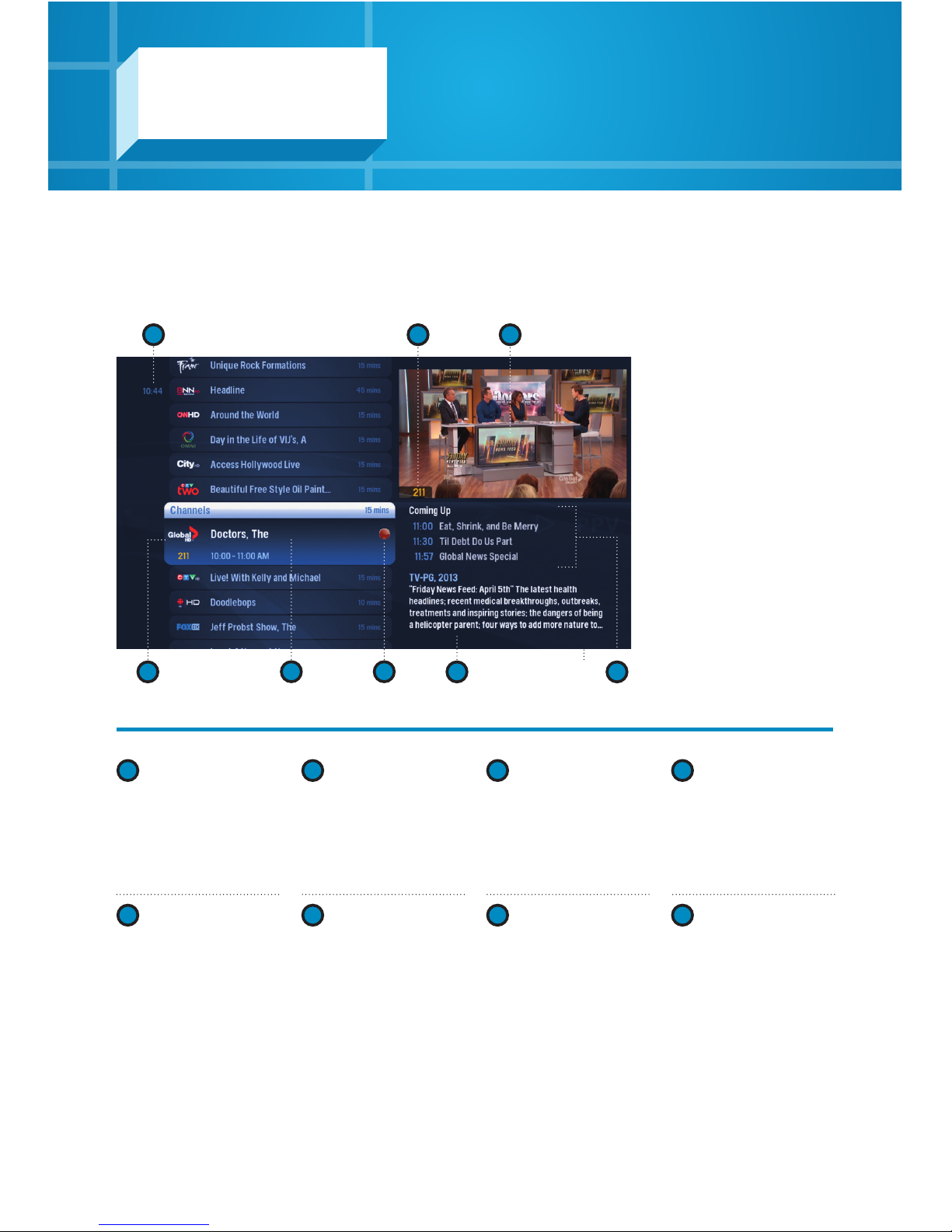
Channels – layout
1TIME
Displays the current
time.
2
CURRENT
CHANNEL
Displays the channel
playing in the Preview
Window.
3
PREVIEW
WINDOW
Keep an eye on the
show you’re watching
while you’re channel
surfing.
4
HIGHLIGHTED
PROGRAM
Press INFO to bring up
a menu.
1
4 7 8
5 6
32
5
CHANNEL LIST
Displays all the
currently airing
programs you have
access to.
6
RECORDING
ICON
Displays an icon next
to a show if it’s being
recorded or is
scheduled to be
recorded.
7
INFORMATION
PANEL
Displays details about
a highlighted program.
8
UPCOMING
PROGRAMS
Displays the next three
shows airing on the
highlighted channel.
Channels The Channels category makes it easy
to find what you want to watch.

10
Preview Panel
The Preview Panel displays an expanded view of any channel’s upcoming programs.
Use the UP and DOWN ARROW to view programming for that channel. If you see a show
you want to record, press REC or INFO and follow the on‑screen prompts.
Press the RIGHT ARROW to jump to the Preview Panel.
Otros manuales para Gateway HDPVR
3
Tabla de contenidos


