
SeNd Technology AVIOR Manual de usuario

Avior Quick Start Guide SeNd Tech Ltd
SeNd Technology 2020 –www.sendtech.co.uk - Call 01488 762 763 for support
Page 1
SeNd Technology Ltd
Quick Start Guide
AVIOR WiFi, 2G & 4G IoT Telemetry
Quick Check List (local configuration)
Avior Unit!
Antenna is connected
Active SIM card is inserted in base
External power connected
USB to serial programming cable connected
Download AviorSuite software at https://www.sendtech.info/avior
On-line guides available at
www.sendtech.info/avior

Avior Quick Start Guide SeNd Tech Ltd
SeNd Technology 2020 –www.sendtech.co.uk - Call 01488 762 763 for support
Page 2
Local Configuration:
Download the latest AviorSuite software from https://www.sendtech.info/avior
Unzip the folder and click on the AviorSuite.exe application.
If you have a 2 or 4G unit insert a SIM card into the base of the Avior and connect an antenna, power and the
USB programming cable to your PC.
The AviorSuite software should recognise the attached Avior and
assigned COM port. Click on the USB icon to connect to the Avior unit
Enter the password (default 0000).
Note: When you have set up either Wifi or the mobile APN details you will be able to configure and monitor your
Avior remotely.
Initial Configuration (Housekeeping) –CONFIGURATION
The following stages set up the device name and network connection details:
1. Device –Here you can give the device a name to fit the installation of application eg “Pump Station”
Note: When you edit and make changes remember to click on the tick on the second row to save the change in
the connected device.
Click the
TICK to save
the change!

Avior Quick Start Guide SeNd Tech Ltd
SeNd Technology 2020 –www.sendtech.co.uk - Call 01488 762 763 for support
Page 3
2. WiFi –Enter the local WiFI network name (SSID) and password
3. PLMN –This is the mobile/cell network for the SIM you are using –Make ACTIVE then enter the mobile
number of the SIM card (international format) and the APN, username and password required for the
mobile/cell network to make a data connection. If you are unsure of these just Google your network and
APN details.
Click the
TICK to save
the change!

Avior Quick Start Guide SeNd Tech Ltd
SeNd Technology 2020 –www.sendtech.co.uk - Call 01488 762 763 for support
Page 4
Initial Programming (Sending Alert Messages) –RULES
RULES –Rules consist of a TRIGGER (eg Digital Input 1) and can be combined with up to 5 CONDITIONS (eg Input
1 value = 1 –i.e. it has closed) and a subsequent ACTION (eg send a SMS message and an email –up to 5
ACTIONS can be triggered per RULE.
In this example when the TRIGGER (Digital Input 1) is closed AND the CONDITION (Analog Input1) is less that
30degC (attached NTC temperature probe) then the ACTION is performed to turn on Output1 AND send an SMS
AND an EMAIL to confirm the pump is running (all in the one RULE).
There are many options here. Please look at the text at the bottom of the configuration page for context based
usage or hover over the condition or action for syntax usage. Also click on the HELP icon (top right) for full
documentation
We also have video guides for set up on YouTube which can be found on the Avior page of our website.
Avior Quick Start Guide SeNd Tech Ltd
SeNd Technology 2020 –www.sendtech.co.uk - Call 01488 762 763 for support
Page 5
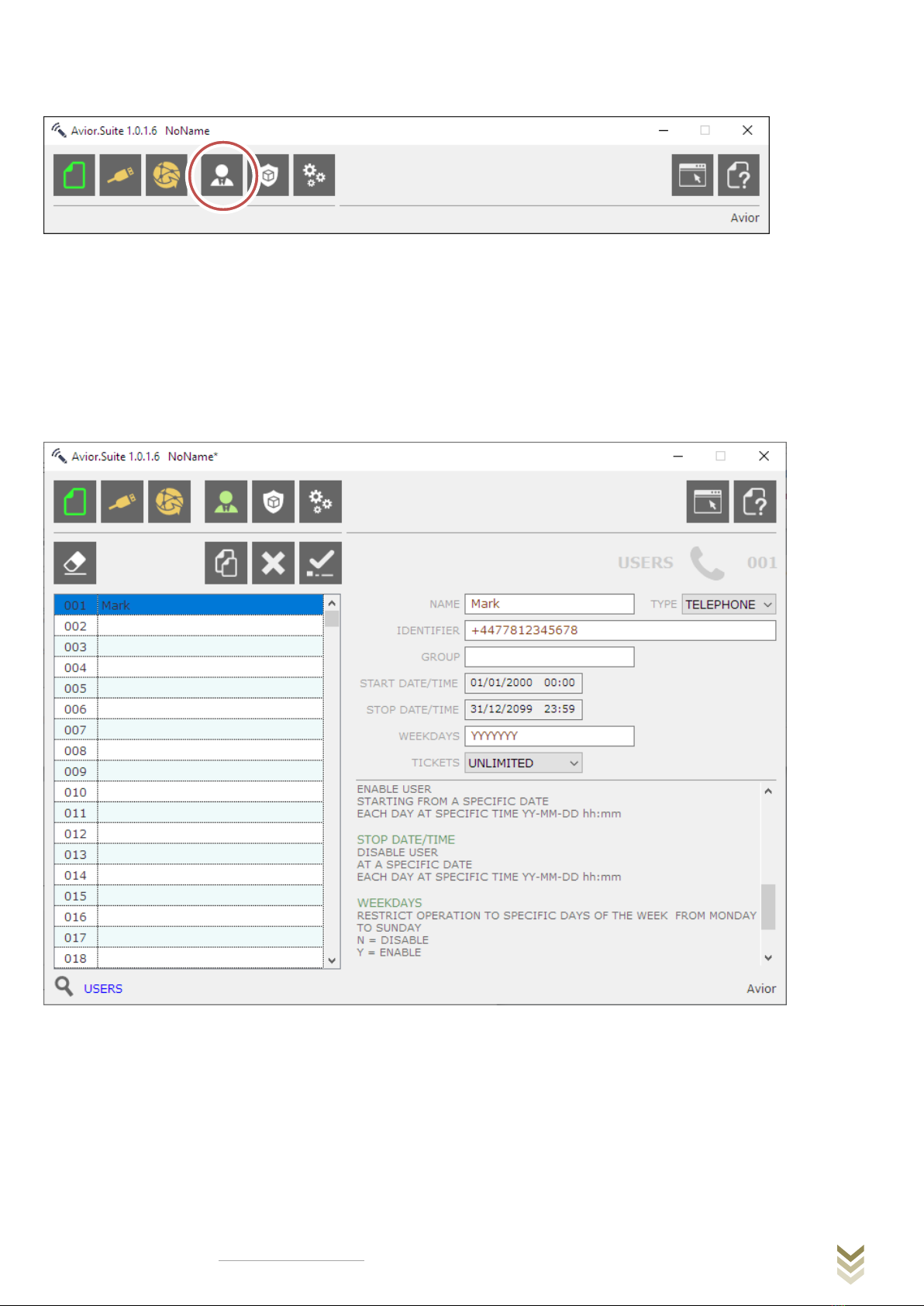
Initial Programming –USERS
USERS are people that are authorised to send commands to the remote Avior unit to change values or process
ACTIONS.
Example:
A USER would like to turn on output relay 1 when they send a SMS word “start” to the Avior.
Step 1: Set the user name and their authorised mobile number
Users can be identified by their phone number or email and we can also set other Avior units as users to allow
communication between units either over their own Avior LAN or remotely over the mobile network.
Avior Quick Start Guide SeNd Tech Ltd
SeNd Technology 2020 –www.sendtech.co.uk - Call 01488 762 763 for support
Page 6
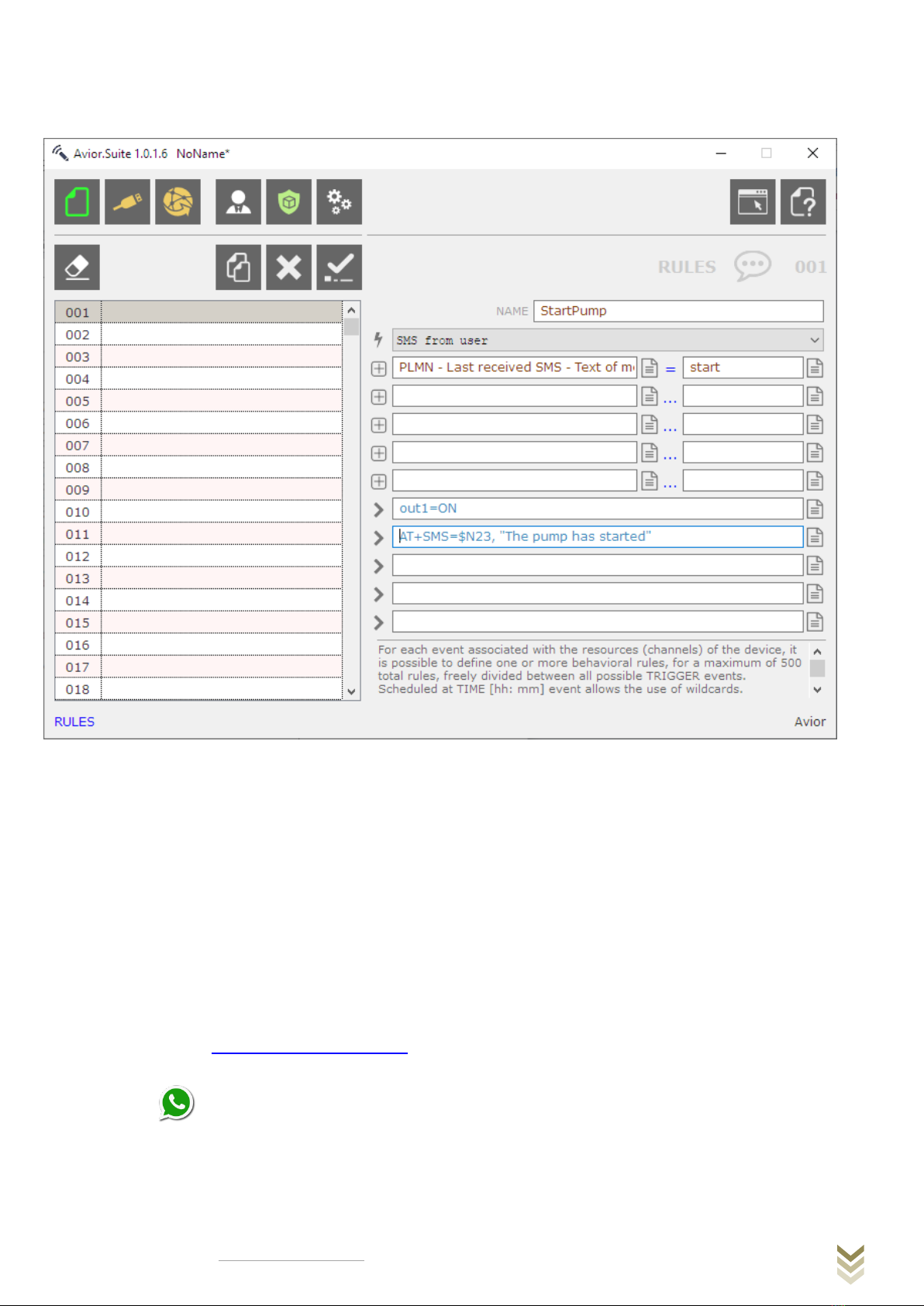
Step 2: Set a RULE that when a TRIGGER (incoming SMS) contains the CONDITION (the word “start”) the ACTION
turn relay output 1 ON is performed. In the example below a SMS is also sent confirming the action.
RULES –Rules consist of a TRIGGER (eg SMS from USER) and can be combined with up to 5 CONDITIONS (eg Last
SMS received contains the word “start”) and a subsequent ACTION (eg Turn Output 1 ON and send a SMS to the
last sender $N23) –up to 5 ACTIONS can be triggered per RULE.
This QuickStart is just a very basic overview of what the Avior can do to get you up and running.
Monitoring and configuration can also be done remotely via the Avior Website or using the optional embedded
webserver on SD-Card via WiFi. Please contact SeNdTech for help and advice with configuration and your
application.
Please feel free to contact us if you have any questions or need any help with your application:
Email: sales@sendtech.co.uk
Phone: +44 (0)1488 762 763
WhatsApp: +44 7453 758 846

Avior Quick Start Guide SeNd Tech Ltd
SeNd Technology 2020 –www.sendtech.co.uk - Call 01488 762 763 for support
Page 7
MyAvior –Web Portal for monitoring and configuration
If your Avior is connected to the internet via WiFi or a mobile data connection you will be
able to access it through the Avior web portal at https://avior.webadmin.mobi/
The Web-ID for your unit is shown above the Device Name in Avior Suite in the
Configuration section. You can also request this if you have an active SIM in the Avior by
sending the following SMS: 0000 at#rm=D13 (This is useful is your Avior is installed
remotely and you need the Wed-ID!)
Default Password is 0000
You can then monitor, control and configure in a similar way to the instructions for local cable connection
configuration.
Tabla de contenidos
Otros manuales de Equipos industriales de SeNd Technology


