Sencor SEC 102 Manual de usuario


© FAST ČR a. s.

3 - EN
Contents
Two-line Display ....................................................................................................................................... 2
Before getting started.............................................................................................................................. 2
KModes..............................................................................................................2
Input Capacity......................................................................................................3
Making Corrections During Input .............................................................................3
Replay Function ...................................................................................................3
Error Locator .......................................................................................................3
KMulti-statements.................................................................................................3
Exponential Display Formats...................................................................................4
Decimal Point and Separator Symbols......................................................................4
Initializing the Calculator.........................................................................................4
Basic Calculations.................................................................................................................................... 5
Arithmetic Calculations ..........................................................................................5
Fraction Operations ..............................................................................................5
Percentage Calculations ........................................................................................6
Degrees, Minutes, Seconds Calculations .................................................................7
FIX, SCI, RND......................................................................................................7
Memory Calculations................................................................................................................................ 8
Answer Memory ...................................................................................................8
Consecutive Calculations.......................................................................................9
Variables .............................................................................................................9
Scientific Function Calculations................................................................................................................ 9
Trigonometric/Inverse Trigonometric Functions........................................................10
Hyperbolic/Inverse Hyperbolic Functions ...............................................................10
Common and Natural Logarithms/Antilogarithms......................................................10
Square Roots, Cube Roots, Roots, Squares, Cubes. Reciprocals, Factorials. Random
Numbers, vvv, and Permutation/Combination..........................................................11
Angle Unit Conversion ......................................................................................... 11
Coordinate Conversion (Pol (x, y), Rec (r, zzz)).........................................................12
Engineering Notation Calculations .........................................................................12
Statistical Calculations ........................................................................................................................... 12
Standard Deviation .............................................................................................12
Regression Calculations ......................................................................................14
Technical Information............................................................................................................................. 17
When you have a problem.................................................................................... 17
Error Messages..................................................................................................28
Order of Operations............................................................................................19
Stacks ..............................................................................................................19
Input Ranges .....................................................................................................20
© FAST ČR a. s.

4 - EN
Two-line Display
The two-line display makes it possible to view both the calculation formula and its result at the same time.
•The upper line shows the calculation formula.
•The lower line shows the result.
A separator symbol is displayed every three digits when the integer part of the mantissa has more
than digits.
Before getting started
Modes
Before starting a calculation, you must first enter the correct mode as indicated in the table below.
To perform this type of
calculation:
Perform this key operation: To enter this mode:
Basic arithmetic calculations MODE a 1 COMP
Standard deviation MODE a 2 SD
Regression calculations MODE a 3 REG
•Pressing the MODE key more than once displays additional setup screens. Setup screens
are described in the sections of this manual where they are actually used to change the
calculator setup.
•In this manual, the name of the mode you need to enter in order to perform the calculations
being described is indicated in the main tills of each section
Example: Statistical
Calculations
Note!
•To return the calculation mode and setup to the initial defaults shown below,
.
Calculation Mode: ...................... COMP
Angle Unit: ................................Deg
Exponential Display Format:......... Norm 1
Fraction Display Format:.............. a b/c
Decimal Point Character.............. Dot
•Mode indicators appear in the upper part of the display.
•Be sure to check the current calculation mode (SD.REG, COMP) and angle unit setting
(Dog, Rad, Gra) before beginning a calculation.
© FAST ČR a. s.

5 - EN
Input Capacity
• The memory area used for calculation input can hold 79 “steps,” One step Is taken up each
time you press a number key or arithmetic operator key (
M
). A SHIFT or
ALPHA key operation does not take up a step, so inputting SHIFT or √. for example, takes up
only one step.
•You can input up lo 79 steps for a single calculation. Whenever you input the 73rd step of
any calculation, the cursor changes from “_” to “” to let you know memory is running low.
If you need to input more than 79 steps, you should divide you calculation into two or more
parts.
•Pressing the Ans key recalls the last result obtained, which you can use in a subsequent
calculation. see “Answer Memory” for more information about using the Ans key.
Making Corrections During Input
•Use and to move the cursor to the location you want.
•Press DEL to delete the number or function at the current cursor position.
•Press SHIFT INS to change to an insert cursor kkk. Inputting something while the insert
cursor is o the display insert the input at the insert cursor position,
•Pressing SHIFT INS, or = return to the normal cursor from the insert cursor.
Replay Function
•Every time you perform a calculation, the replay function stores the calculation formula and
its result in replay memory. Pressing the key displays the formula and result of the calcula-
tion you last performed. Pressing again back steps sequentially (new-to-old) through past
calculations.
•Pressing the or key while a replay memory calculation is on the display changes to the
editing screen.
•Pressing the or key immediately after you finish a calculation display the editing screen
for that calculation.
•Pressing AC does not clear replay memory, so you can recall the last calculation even after
you press AC.
•Replay memory capacity is 128 bytes for storage of both expressions and results.
•Replay memory is cleared by any of the following actions.
When you press the ON key
When you initialize modes and settings by pressing SHIFT CLR 2 (or 3) =.
When you change from one calculation mode to another.
When you turn off the calculator.
Error Locator
•Pressing or after an error occurs displays the calculation with the cursor positioned at
the location where the error occurred.
Multi-statements
A multi-statement is an expression that is made up of two or more smaller expressions, which are
joined using a colon ( :).
•
Example: To add 2 + 3 and then multiply the result by 4
\
© FAST ČR a. s.

6 - EN
Exponential Display Formats
This calculator can display up to 10 digits. Larger values are automatically displayed using expo-
nential notation. In the case of decimal values, you can select between two formats that determine
at what point exponential notation is used.
•To change the exponential display format, press the MODE key a number of times until you
reach the exponential display format setup screen shown below.
•Press 3 . On the format selection screen that appears, press 1 to select Norm 1 or 2 for
Norm 2.
NORM 1
With Norm 1, exponential notation is automatically used for integer values with more that 10
digits and decimal values with more than two decimal places.
NORM 2
With Norm 2, exponential notation is automatically used for integer values with more than 10
digits and decimal values with more than nine decimal places.
•All of the examples in this manual show calculation results using the Norm 1 format.
Decimal Point and Separator Symbols
You can use the display setup (Disp) screen to specify the symbols you want for the decimal point
and 3-dlglt separator.
•To change the decimal point and separator symbol setting, press the MODE key a number of
times until you reach the setup screen shown below.
•Display the selection screen.
1
•Press the number key 1 or 2 that corresponds to the setting you want to use.
1 (Dot): Period decimal point, comma separator
2 (Comma): Comma decimal point, period separator.
Initializing the Calculator
•Perform the following key operation when you want to initialize the calculation mode and
setup, and clear replay memory and variables.
© FAST ČR a. s.

7 - EN
Basic Calculations
Arithmetic Calculations
Use the MODE key to enter the COMP Mode when you want to perform Basic calculations.
COMP ...................................................................................................... MODE 1
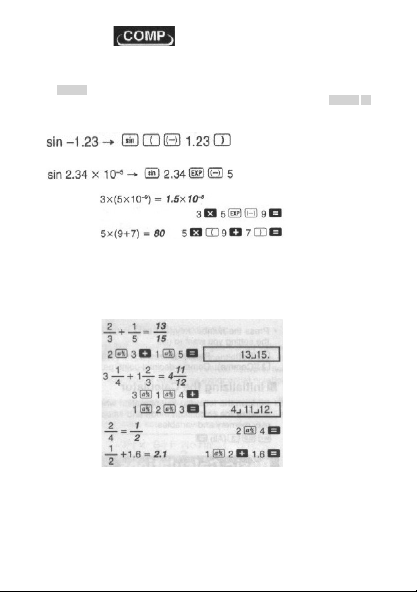
•Negative values inside of calculations must be enclosed within parentheses.
•It is not necessary to enclose a negative exponent within parentheses.
•
Example 1:
Example 2:
Fraction Operations
Fraction Calculations
•Values are displayed in decimal format automatically whenever the total number of digits of
a fractional value (integer + numerator + denominator + separator marks) exceeds 10.
•
Example 1:
•Example 2:
•Example 3:
•Example 4:
• Results of calculations that mix fraction and decimal values are always decimal.
•
Decimal Fraction Conversion
•Use the operation shown below to convert calculation results between decimal values and
fraction values
•Note that conversion can take as long as two seconds to perform.
© FAST ČR a. s.

8 - EN
•Example 1:
•Example 2:
•Mixed Fraction rrr Improper Fraction Conversion
•Example:
•You can use the display setup (Disp) screen 10 specify the display format when a fraction
calculation result is greater then one.
•To change the fraction display format, press the MODE key a number of times until you
reach the setup screen shown below.
•Display the selection screen.
1
•Press the number key ( 1 or 2 ) that corresponds to the setting you want to use.
1 (a
b
/
c
): Mixed fraction
2 (d/c): Improper fraction.
•An error occurs if you try to input a mixed fraction while the d/c display format is selected.
Percentage Calculations
•
Example 1: To calculate 12% of 1500 (180)
•
Example 2: To calculate what percentage of 880 is 660 (75%)
•
Example 3: To add 15% onto 2500 (2875)
© FAST ČR a. s.

9 - EN
•
Example 4: To discount 3500 by 25% (2625)
•
Example 5: To discount the sum of 168, 98, and 734 by 20% (800)
•As shown here, if you want to use the current Answer Memory value in a mark up or discount
calculation, you need to assign the Answer Memory value into a variable and then use the
variable in the mark up/discount calculation. This is because the calculation performed when
% is pressed stores a result to Answer Memory before the - key is pressed.
•
Example 6: If 300 grams are added to a test sample originally weighing 500 grams, what is
the percentage increase in weight? (160%)
•
Example 7: What is the percentage change when a value is increased from 40 to 46? How
about to 48? (15%, 20%)
Degrees, Minutes, Seconds Calculations
•You can perform sexagesimal calculations using degrees (hours), minutes, and seconds, and
convert between sexagesimal and decimal values.
•
Example 1: To convert the decimal value 2.258 to a sexagesimal value and then back to
a decimal value
•
Example 2: To perform the following calculation:
FIX, SCI, RND
•To change the setting for the number of decimal places, the number of significant digits, or
the exponential display format, press MODE key a number of times until you reach the setup
screen shown below
M
© FAST ČR a. s.

10 - EN
•Press the number key ( 1 , 2 , or 3 ) that corresponds to the setup item you want to change.
1 (Fix): Number of decimal places
2 (Sci): Number of significant digits
3 (Norm): Exponential display format
•
Example 1: 200: 7x14 =
(Specifies there decimal places).
(Internal calculation continues using 12 digits).
The following performs the same calculation using the specified number of decimal places.
(internal rounding)
•Press to clear the Fix specification.
•
Example 2: 1 ÷ 3, displaying result with two significant digits (Sci 2)
•Press to clear the Sci specification.
Memory Calculations
Use the key to enter the MODE COMP Mode when you want to perform a calculation using
memory.
COMP ...................................................................................................... MODE 1
Answer Memory
•Whenever you press = after inputting values or an expression, the calculated result auto-
matically updates Answer Memory contents by storing the result.
•In addition to = , Answer Memory contents are also updated with result whenever you press
SHIFT %, M+, SHIFT M- or SHIFT STO followed by a letter (A through F, or M, X, or Y).
•You can recall Answer Memory contents by pressing Ans .
•Answer Memory can store up to 12 digits for the mantissa and two digits for the exponent.
•Answer Memory contents are not updated if the operation performed by any of the above key
operations results in an error.
© FAST ČR a. s.
Este manual sirve para los siguientes modelos
3
Tabla de contenidos
Idiomas:
Otros manuales de Calculadora de Sencor