
SB SB-VR9000 Manual de usuario
ank you for purchasing from SafetyBasement.com! We appreciate your business.
We made this simple manual to help you enjoy your new product as quickly and easily as
possible.
Be sure to check the TECH SUPPORT tab on your product page at SafetyBasement.com
for the latest available manual.
INSTRUCTION MANUAL
Mi6 Mini Voice Recorder
SB-VR9000
Revised: July 8, 2013
Page 2
PRODUCT MANUAL Mi6 Mini Voice Recorder : SB-VR9000
www.SafetyBasement.com Phone: 877-345-2336 Fax: 888-236-2524
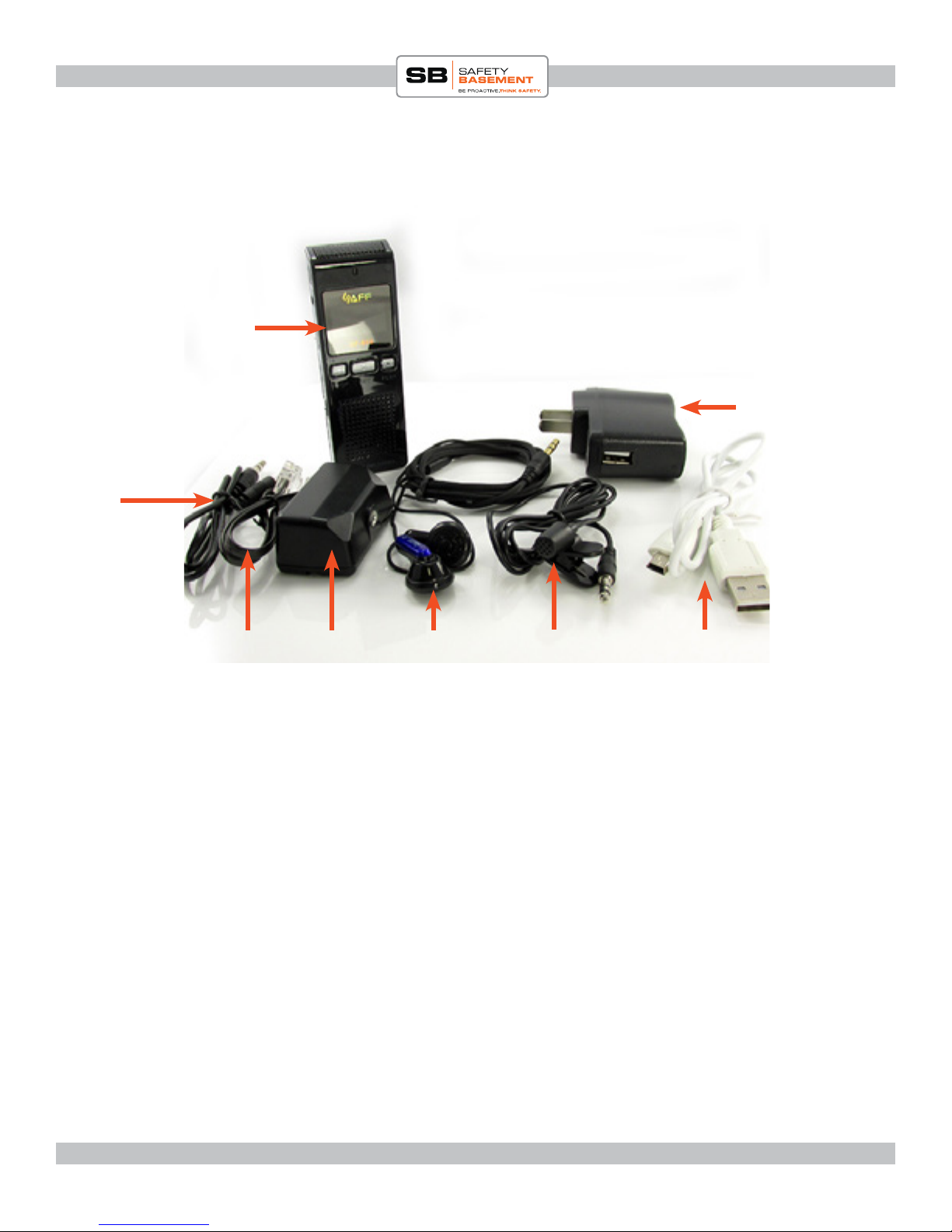
PRODUCT REFERENCE
Audio
Cable
Mi6 Recorder
Phone
Line
Wall Charger
What’s Included with
Your Mi6
Phone
Adapter
Ear Buds External
Microphone
USB Cable
PRODUCT MANUAL Mi6 Mini Voice Recorder : SB-VR9000
Page 3
www.SafetyBasement.com Phone: 877-345-2336 Fax: 888-236-2524
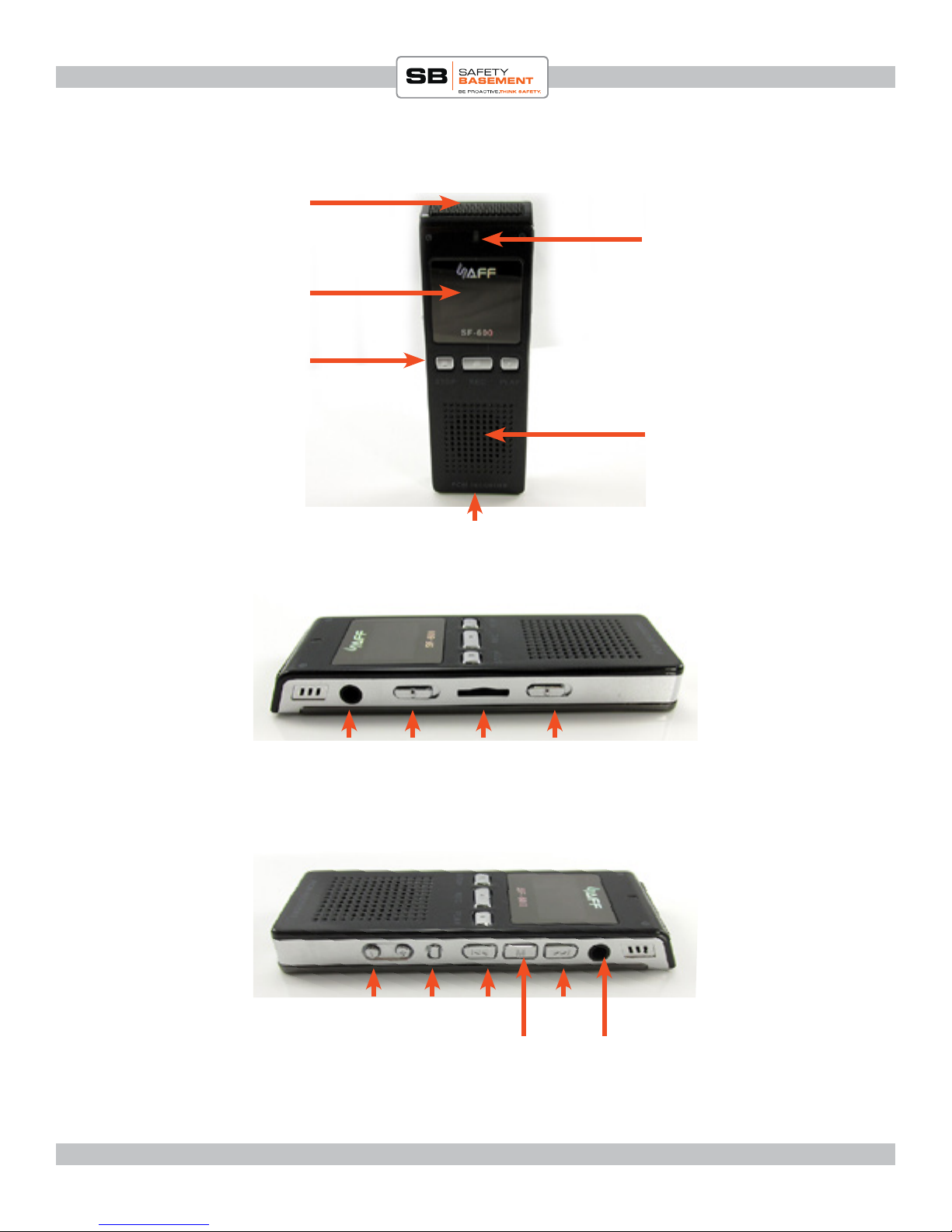
PRODUCT REFERENCE
Display
Microphone
Status Light
USB Port
(on bottom)
Speaker
STOP / REC / PLAY
Buttons
External
Microphone
Port
Le Side
Hold
Switch
SD Card
Slot
Power
Switch
Volume + / -
Buttons
A/B
Erase
Prev Next
“M”
Button
Ear
Buds
Port
Right Side

Page 4
PRODUCT MANUAL Mi6 Mini Voice Recorder : SB-VR9000
www.SafetyBasement.com Phone: 877-345-2336 Fax: 888-236-2524
CHARGING
Before you use your Mi6 recorder, you should
charge it for several hours.
You can do this by connecting your Mi6 to
your computer’s USB port, or use the included
wall adapter.
CONNECTING TO A PC
You do not need to download any drivers to connect your Mi6 to a PC or Mac.
Simply connect the USB cable to your Mi6. Connect the other end directly to a USB port on
your PC. Do not use a hub.
In a few moments, your PC will automatically connect to the Mi6. e rst time, it may
install standard drivers. is is normal. Your Mi6 will charge while connected, and you can
also access the les on it.
You can now use the Mi6 as you would any external drive or USB ash drive.
Remember to EJECT your device before pulling the USB cable out.

PRODUCT MANUAL Mi6 Mini Voice Recorder : SB-VR9000
Page 5
www.SafetyBasement.com Phone: 877-345-2336 Fax: 888-236-2524
QUICK START - RECORD
Need to start recording immediately?
Turn the Power Switch ON. In fact, leave the
Power Switch ON all the time. You should
only turn it OFF when you are not going to
use your Mi6 for an extended period of time.
Quickly press the REC button. Your Display
Screen should light up.
Quickly press the REC button again. e
Status Light will light up, and you have started
recording.
To stop recording, press the STOP button to
light up your Display. Press the STOP button
again to stop recording.
e Mi6 saves your le and you are ready to
record again.
RECSTOP
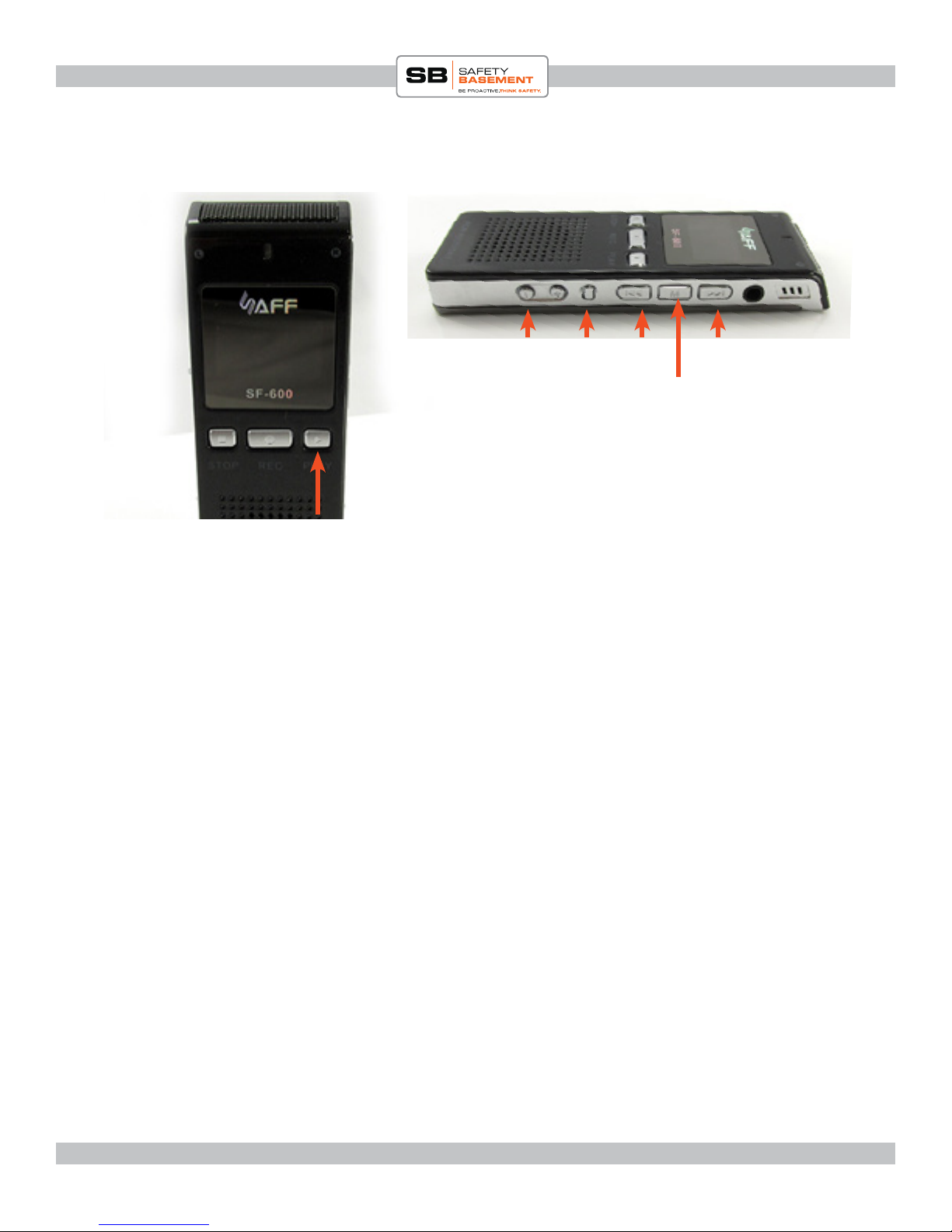
With the power switch on all the time, you will use the PLAY button to turn your Mi6 on
and o.
Press the PLAY button to wake up your Mi6.
HOLD the PLAY button to shut it o.
POWER ON & OFF
Page 6
PRODUCT MANUAL Mi6 Mini Voice Recorder : SB-VR9000
www.SafetyBasement.com Phone: 877-345-2336 Fax: 888-236-2524
SETTINGS
PLAY
Volume + / -
Buttons
A/B
Erase
Prev Next
“M”
Button
e Mi6 has a number of settings you can customize to your particular needs. You will use
the buttons noted above to enter these settings, make changes and save your settings.
Please follow these instructions carefully.
Please turn the Main Power Switch to ON.
You will want to leave it in the ON position at all times. You will set the Time and Date
once, but if you turn o the main power, you will need to set it again.
Your Mi6 will automatically power down when not in use. To WAKE UP your Mi6, press
P L AY.

PRODUCT MANUAL Mi6 Mini Voice Recorder : SB-VR9000
Page 7
www.SafetyBasement.com Phone: 877-345-2336 Fax: 888-236-2524
MODES
ere are several MODES available to you with the Mi6. You can see the Modes by
pressing the M button, between the Next and Prev buttons on the right side of the device.
Press the M button now. Use the PREV and NEXT keys to see the dierent Modes
available.
You will see one of the following;
MUSICPLAY - Play your MP3 les.
MUSIC - Find your MP3 les. ere will be dierent options available, such as All Songs,
or Artist. Your MP3 les must be tagged correctly for this feature to work properly.
VOICE - Play your recorded les, either Mic Record or Line-In Record les.
RECORD SETTINGS - Adjust the dierent Settings for your Recordings.
TIME - See the current system time.
EBOOK - View text les.
SETTINGS - Adjust dierent System Settings, including the Date and Time.
BROWSE - Browse the les on your Mi6 or SD Card. Note: we will not use this. It is more
convenient to use a PC to browse the les you will have on your device.
at is a list of the available MODES. We will skip around into various modes as we
review the Mi6. Use the M key to return to the list of Modes at any time.

Page 8
PRODUCT MANUAL Mi6 Mini Voice Recorder : SB-VR9000
www.SafetyBasement.com Phone: 877-345-2336 Fax: 888-236-2524
SET THE DATE AND TIME
You’ll rst want to set the Date and Time for your Mi6. Remember, your Date and Time
will RESET when you turn OFF the Main Power Switch. Button presses are shown in RED.
1. M to Mode Menu.
2. NEXT/PREV to choose SETTINGS.
3. PLAY to enter the Settings Menu.
4. NEXT/PREV to highlight the SET TIME option.
5. P L AY.
6. VOLUME +/- to adjust the Year.
7. NEXT to highlight the Month.
8. REPEAT until you have set the Minute.
9. PLAY to Save.
10. PLAY to Conrm OK.
Your Date and Time is now set.
Conrm your Date and Time.
1. M to Mode Menu
2. NEXT/PREV to TIME
3. PLAY to see current system date and time.

PRODUCT MANUAL Mi6 Mini Voice Recorder : SB-VR9000
Page 9
www.SafetyBasement.com Phone: 877-345-2336 Fax: 888-236-2524
FORMAT & QUALITY
e settings most users may want to adjust next is related to the Format and Quality of
your recordings.
FORMATS available are: MP3 and PCM. MP3 is a compressed format, good quality
using less space. PCM is uncompressed, great quality, using more space. Of course, your
recording quality will vary depending on the Quality Settings you choose as well.
QUALITY available; STANDARD (good), INTERVIEW (better) and SESSION (best).
Please refer to this info to choose the best combination for your needs.Recommended
settings are in Red.
Choose a FORMAT.
1. M to Mode Menu
2. NEXT/PREV to RECORD
SETTINGS.
3. PLAY.
4. NEXT/PREV to FORMAT
SELECT.
5. PLAY
6. NEXT/PREV to highlight MP3 or
PCM.
7. PLAY to Save.
FORMAT QUALITY / RATE EST. TIME AVAILABLE (4GB Internal)
PCM SESSION / 1411 Kbps 6 hours 10 minutes
PCM INTERVIEW / 1024 Kbps 8 hours 30 minutes
PCM STANDARD / 256 Kbps 34 hours
MP3 SESSION / 160 Kbps 53 hours 30 minutes (DEFAULT)
MP3 INTERVIEW / 128 Kbps 67 hours
MP3 STANDARD / 96 Kbps 89 hours
More time and space is available to you when using an optional SD card. For example, an
8GB card will double the times shown on the card alone.
Choose a QUALITY.
1. M to Mode Menu
2. NEXT/PREV to RECORD
SETTINGS.
3. PLAY.
4. NEXT/PREV to RECORD
QUALITY.
5. PLAY
6. NEXT/PREV to highlight desired
Quality Setting.
7. PLAY to Save.

Page 10
PRODUCT MANUAL Mi6 Mini Voice Recorder : SB-VR9000
www.SafetyBasement.com Phone: 877-345-2336 Fax: 888-236-2524
OTHER DEVICE SETTINGS
You’ve adjusted the settings most people use on the Mi6. Here are the rest of the device
settings under MODE / SETTINGS.
EQ: Equalizer settings during playback
1. M to Mode Menu
2. NEXT/PREV to SETTINGS.
3. PLAY.
4. NEXT/PREV to EQ.
5. PLAY
6. NEXT/PREV to highlight the sound
you want.
7. PLAY to Save.
You can customize the EQ by choosing
USER, then using NEXT/PREV and VOL
+- to adjust levels.
PLAY MODE: Do you want to Repeat
Playback or Randomize?
1. M to Mode Menu
2. NEXT/PREV to SETTINGS.
3. PLAY.
4. NEXT/PREV to PLAYMODE
5. PLAY
6. NEXT/PREV to highlight desired
Play Mode.
7. PLAY to Save.
SCREEN OFF: To save battery power,
how quickly do you want the screen to go
dark?
1. M to Mode Menu
2. NEXT/PREV to SETTINGS.
3. PLAY.
4. NEXT/PREV to SCREEN OFF.
5. PLAY
6. NEXT/PREV to highlight the time.
Select OFF if you want the screen to
stay on.
7. PLAY to Save.
SLEEP TIME: During playback only, how
long do you want les to play before the
Mi6 auto powers OFF?
1. M to Mode Menu
2. NEXT/PREV to SETTINGS.
3. PLAY.
4. NEXT/PREV to SLEEP TIME
5. PLAY
6. NEXT/PREV to highlight desired
Sleep Time. Choose OFF to keep Mi6
on all the time during playback.
7. PLAY to Save.
Tabla de contenidos
Otros manuales de Grabadora de voz de SB


