SANEI ELECTRIC ?TP-5820A Manual de usuario

μTP-5820A
μTP-5824A
INSTRUCTION
MANUAL
Before using the printer you must read this instruction manual well for proper operation. Be
sure to save this manual and keep it at hand.

Precautions on Handling the Printer
When incorporating our product in another system or unit, the system must be so
designed so that the customer's final product and system are not defective due to any faults
caused by our product and the corresponding delivery must be performed.
When incorporating our product in another system or unit, please consult with our sales
office.
We shall not assume any responsibility with respect to damage and loss occurring due to
use of the product without our consultation.
If a fault occurs for any reason, please be aware that the product shall basically be
replaced up to a limit such that the extent of replacement does not exceed the product value
or its equivalent.
In addition, we shall confirm the faults and then take swift action when replacing the
product in question.

Contents
Before Use 1
Parts Designation 3
Features 3
How to Use 4
1. Preparation......................................................................................... 4
1-1.Unpacking.................................................................................4
1-2.Part functions............................................................................ 4
1-3.Outer dimensions......................................................................5
2.Setting roll paper.................................................................................6
3.Functions............................................................................................. 8
3-1.Test printing..............................................................................8
3-2.Printing mode............................................................................ 8
3-2-1.Front view.........................................................................8
3-2-2.Setting correct standing printing
and reversed standing printing.............................9
3-3.Control codes............................................................................9
3-4.Character font configuration....................................................12
4.Data code table.................................................................................13
Maintenance 14
Specifications 15
1. General specifications...................................................................... 15
1-1. Printer specifications.............................................................. 15
1-2. Operating conditions.............................................................. 15
2. Interface specifications..................................................................... 17
2-1. I/O connection terminals........................................................ 17
2-2. Input/output functions.............................................................18
2-3. Basic operations .................................................................... 19
2-4. Data timing.............................................................................19
2-5. Electric conditions.................................................................. 19
Options 20

1
Before use
Precautions on Use
•Use the specified DC power supply (+5Vdc 3A).
An extremely high or low voltage may cause a malfunction. Take care not to mix excessive
noise in the power line. When wiring the power line, fully consider the line impedance.
•Printing with no sheet loaded may cause a malfunction. Avoid such unloaded printing.
•Do not drop or bump the printer.
•Absolutely avoid disassembling or repairing the printer yourself.
•Do not moisten the printer with water.
•When using the printer, do not remove the panel.
•Pulling a printing sheet from the insertion slot in the reverse direction may cause a
malfunction.
•If an abnormality is found in the printer (when a strange sound or odor is issued),
immediately turn off the power supply. Determine whether or not the abnormality
remains and consult with the shop where you purchased the product or us.
Precautions on Handling Thermal-Sensitive Paper
The thermal-sensitive paper has been specially treated with a chemical agent and is colored
by thermal chemical reaction. Fully heed the following:
•Store paper in a dry, cool, or dark place.
•Do not scrub paper hard with a solid substance.
•Do not place it near an organic solvent.
•Do not leave paper in contact with PVC film, an eraser, or adhesive tape for a long period
of time.
•Do not overlap it with diazo paper or wet copy paper just after copying.
•When gluing paper, do not use chemical paste.
•Adhesive tape may discolor thermal-sensitive paper. Use double-faced tape to join the
rear surfaces.
•Touching paper with a sweaty hand causes your fingerprint to be marked on the paper or
the record to become blurred.
•When using paper as a receipt for a customer, clarify that it is thermal-sensitive paper
and print the precautions for storage on the sheet.
•Use specified thermal-sensitive paper.
CAUTION (Observe precautions for safe use)
Just after printing, the printer motor becomes hot and dangerous. Do not touch it
directly.
Set the operating power supply to 5Vdc±5%. An
extremely high current flow may
cause a fire.

2
Location
lUse your printer in a horizontal to vertical place.
lUsing or storing your printer in the following places may cause a malfunction.
lWhen using your printer in a very dusty location, attach the dust-proof cover to the
printer, locate an air ventilation hole in the system you incorporate the printer in, and
take other measures against dust.
Avoid dusty places or a
places with excessive
particulates.
Avoid places subjected to
strong vibration.
Avoid places with much
water or oil. particulates.
Avoid places subjected to
direct sunlight.
Avoid places whose
temperature is 40°C or
higher.
Avoid places where
electromagnetic noise or
corrosive gas is generated.
Avoid places where the
relative humidity is 80%
or greater.
Avoid places subject to abrupt
temperature changes and where
condensation can occur.
Avoid places whose
temperature is below 0°C

3
Parts Designation
Features:
uTP-5820A/24A incorporates data memory and a character generator. It is an ultra-small
thermal printer that prints data input from a computer or the other host systems via a
thermal-sensitive printing method.
It has the following features:
Design/
mechanism
The printer is contained in a compact case and can be mounted in a
horizontal to vertical location. It needs little space for mounting owing to
its small size and one-touch operation.
Printing
The thermal-sensitive printing method eliminates the need for
consideration of the surroundings and issues almost no noise during
operation.
The character size is 7 x 5 in and they are clear.
Functions
and Power
supply
The printer enables positionally correct or reversed printing as well as
double-sized printing. It stores roll paper inside the main body. It is
available with a no-sheet sensor.
It allows test printing. The operating voltage is +5Vdc±5%. It applies
no-load with the system with low power consumption. Further, it is highly
reliable because it is available with a power protection circuit.
Main body case
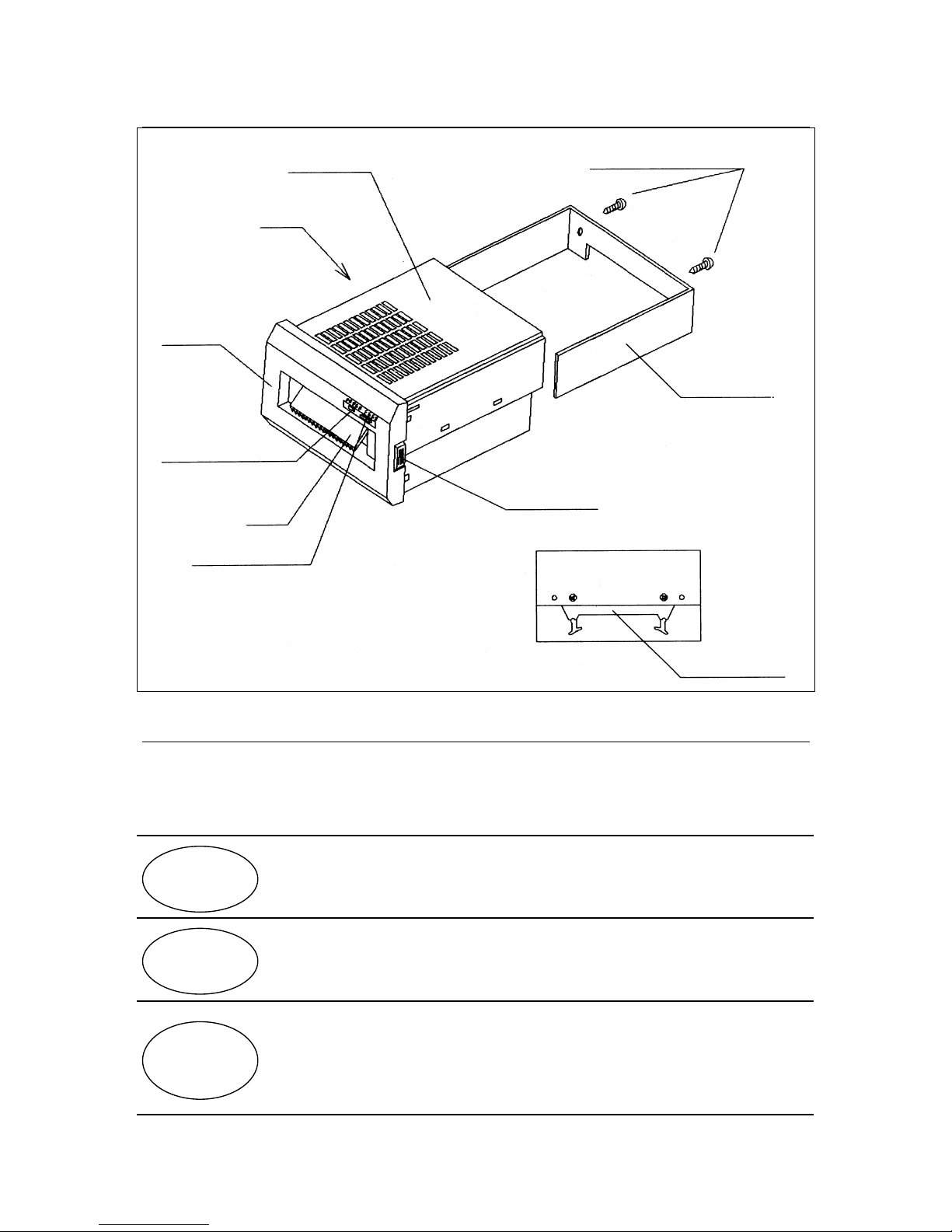
Mounting screw for main body fitting
Main body
Panel
PAPER LED
(No sheet LED)
Paper cutter
FEED switch
Lock lever
Main body fitting
. I/O connector
Printer rear side

4
How to Use
1. Preparation
1-1. Unpacking
After unpacking the product, ensure that the main body and accessories are all found.
Main body (μTP-5820A or 24A) 1
Main body fitting 1
Main body fitting mounting screw 2
Thermal-sensitive paper
(incorporated in the main body, P-58-15) 1 volume
Instruction Manual 1 volume
A variety of thermal-sensitive paper is available from us.
1-2 Part functions
•FEED switch
Pressing this switch consecutively feeds paper while it is pressed.
* Turning on the power with the switch pressed performs test printing.
•PAPER LED
Paper end (PE) LED that goes on when no roll paper is found.
•Sheet cutter
Used for cutting roll paper
* Paper can be cut by slightly lifting roll paper up and pulling it.

5
1-3. Outer dimensions
Unit: mm
•Main body fitting
Inner dimension:99
Mount hole dimensions
Inner dimension:111.5
Unit: mm

6
2. Setting roll paper
Roll paper can be set inside the main body. Pull the main body out from the front surface and
set roll paper.
(1) While pushing the lock levers on both sides of the panel, remove the panel.
(2) Use the pull-out knob to draw the body inside the printer, and set roll paper onto the roll
paper fixing shaft. (Horizontally cut the tip of roll paper as shown in Figure 1.)
Note: The pasted section of roll paper does not accept printing, so cut roll paper for the
corresponding section without the pasted section.
When setting roll paper with the power ON, be sure to use the pull-out
knob to draw the board. Because a small amount of current is flowing in
it, do not touch the board directly.
Caution
Roll paper
fixing shaft
Remove
Push
Pull-out knob
Note: Properly set roll paper while
checking its direction.
Push
Fig. 1

7
(3) Pull out roll paper to this side and turn on the power supply. While pressing the FEED
switch, insert the tip of roll paper with it straight so that it can be set horizontally with the
wall surface of the sheet insertion slot.
Note: If paper is bent, it may cause jams.
If roll paper is not engaged with the roller, no paper is fed. Insert paper deep enough
to reach the roller.
Continuously press the FEED switch until roll paper comes out from the printer head section.
(4) Place the tip of roll paper that has come out on the outer side of the sheet cutting outlet of
the panel and set the inner case and panel in the case.
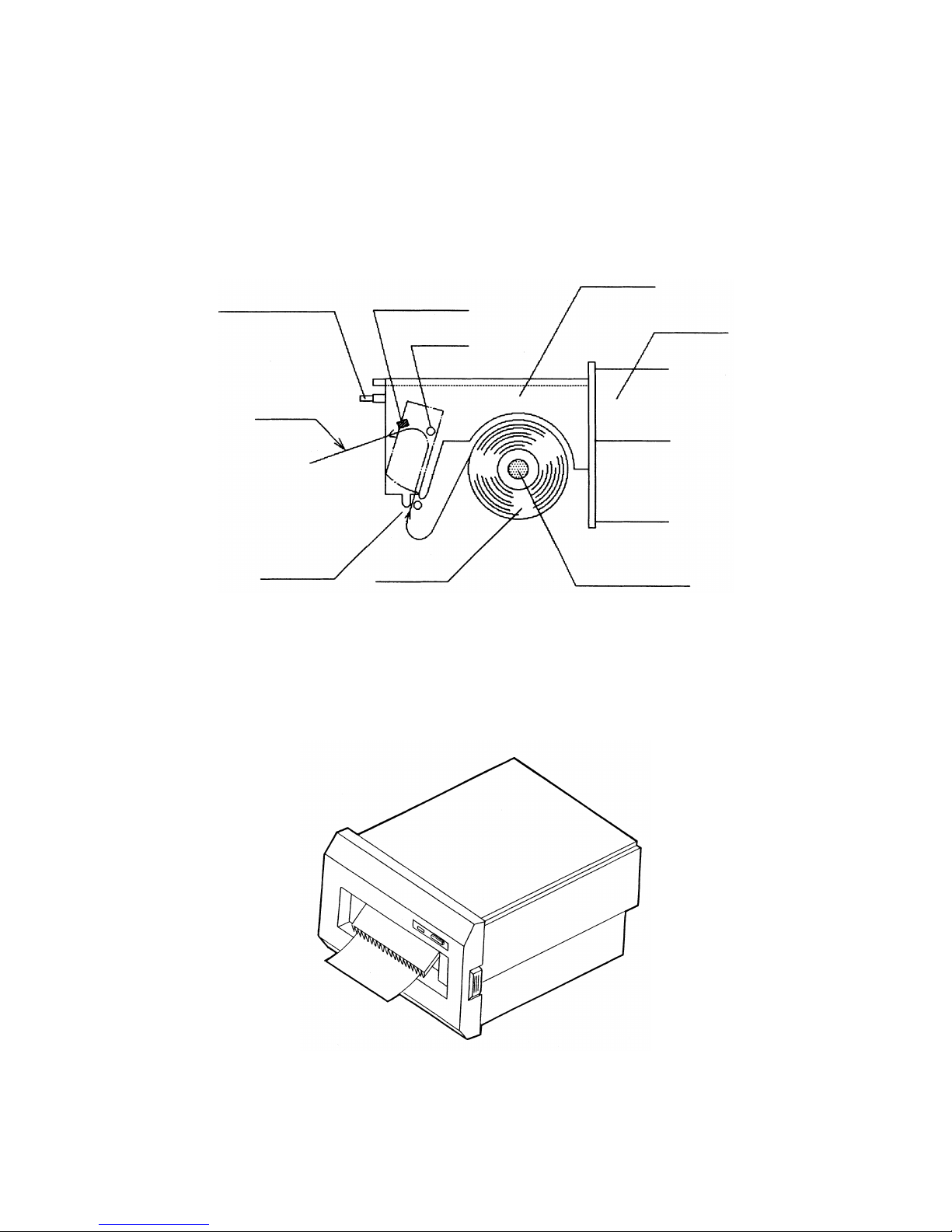
FEED switch
Printer head
Inner case
Main body case
Roll paper fixing shaft
Roll paper
Sheet insertion slot
Printing surface
Roller
Este manual sirve para los siguientes modelos
3
Tabla de contenidos
Otros manuales de Impresora de SANEI ELECTRIC