SanDisk Connect Wireless Media Drive Manual de usuario

USER MANUAL
(For Use with Android™ Mobile Devices)
SanDisk Connect™
Wireless Media Drive

SanDisk is a trademark of SanDisk Corporation, registered in the United States and other
countries. SanDisk Connect is a trademark of SanDisk Corporation. microSDHC is a trademark
of SD-3C, LLC. Android is a trademark of Google Inc. Wi-Fi is a registered trademark of the Wi-Fi
Alliance. All other trademarks are the property of their respective owners.
©2013 SanDisk Corporation. All rights reserved.

SanDisk Connect™Wireless Media Drive User Manual for Android i
Contents
1. Introduction . . . . . . . . . . . . . . . . . . . . . . . . . . . . . . . . . . . . . 1
Media Drive Overview . . . . . . . . . . . . . . . . . . . . . . . . . . . . . . . . . . . . . 1
Features . . . . . . . . . . . . . . . . . . . . . . . . . . . . . . . . . . . . . . . . . . . . . . . . 1
System Requirements . . . . . . . . . . . . . . . . . . . . . . . . . . . . . . . . . . . . . 2
Supported File Formats . . . . . . . . . . . . . . . . . . . . . . . . . . . . . . . . . . . . 2
Laptops, Tablets, and Smart Phones . . . . . . . . . . . . . . . . . . . . . . . 2
Hardware Specifications . . . . . . . . . . . . . . . . . . . . . . . . . . . . . . . . . . . 2
2. Getting Started . . . . . . . . . . . . . . . . . . . . . . . . . . . . . . . . . . 3
Charging the Media Drive . . . . . . . . . . . . . . . . . . . . . . . . . . . . . . . . . . 3
Battery LED . . . . . . . . . . . . . . . . . . . . . . . . . . . . . . . . . . . . . . . . . . 3
Downloading the Media Drive App . . . . . . . . . . . . . . . . . . . . . . . . . . . . 4
Connecting to the Media Drive . . . . . . . . . . . . . . . . . . . . . . . . . . . . . . . 4
Loading Content on the Media Drive . . . . . . . . . . . . . . . . . . . . . . . . . . 5
From a Computer . . . . . . . . . . . . . . . . . . . . . . . . . . . . . . . . . . . . . . 5
From a Mobile Device . . . . . . . . . . . . . . . . . . . . . . . . . . . . . . . . . . 6
3. Working with Media Files . . . . . . . . . . . . . . . . . . . . . . . . . 10
Media Drive Application Overview . . . . . . . . . . . . . . . . . . . . . . . . . . . 10
Media Drive Main Screen . . . . . . . . . . . . . . . . . . . . . . . . . . . . . . . 10
Common App Icons . . . . . . . . . . . . . . . . . . . . . . . . . . . . . . . . . . . 11
Common App Actions . . . . . . . . . . . . . . . . . . . . . . . . . . . . . . . . . . . . 11
Displaying the Basic Menu Options . . . . . . . . . . . . . . . . . . . . . . . 12
Selecting Files . . . . . . . . . . . . . . . . . . . . . . . . . . . . . . . . . . . . . . . 13
Moving Files . . . . . . . . . . . . . . . . . . . . . . . . . . . . . . . . . . . . . . . . . 14
Uploading and Downloading Files . . . . . . . . . . . . . . . . . . . . . . 14
Sharing Your Files . . . . . . . . . . . . . . . . . . . . . . . . . . . . . . . . . . 15
Allowing Access to your Media Drive . . . . . . . . . . . . . . . . . . . 15

SanDisk Connect™Wireless Media Drive User Manual for Android ii
Sending Files to Others . . . . . . . . . . . . . . . . . . . . . . . . . . . . . . 16
Deleting Files and Folders . . . . . . . . . . . . . . . . . . . . . . . . . . . . . . 17
Deleting Multiple Files and Folders . . . . . . . . . . . . . . . . . . . . . 18
Deleting Single Files and Folders . . . . . . . . . . . . . . . . . . . . . . 18
Unsupported File Formats . . . . . . . . . . . . . . . . . . . . . . . . . . . . . . . . . 19
Working with Photos . . . . . . . . . . . . . . . . . . . . . . . . . . . . . . . . . . . . . 19
Viewing Photos . . . . . . . . . . . . . . . . . . . . . . . . . . . . . . . . . . . . . . . 19
Using the Photo Controls . . . . . . . . . . . . . . . . . . . . . . . . . . . . . . . 21
Zooming In and Out . . . . . . . . . . . . . . . . . . . . . . . . . . . . . . . . 22
Starting a Slideshow . . . . . . . . . . . . . . . . . . . . . . . . . . . . . . . . 22
Displaying Photo Details . . . . . . . . . . . . . . . . . . . . . . . . . . . . . 23
Setting a Photo as Wallpaper . . . . . . . . . . . . . . . . . . . . . . . . . 23
Cropping a Photo . . . . . . . . . . . . . . . . . . . . . . . . . . . . . . . . . . 23
Rotating a Photo . . . . . . . . . . . . . . . . . . . . . . . . . . . . . . . . . . . 24
Streaming Videos . . . . . . . . . . . . . . . . . . . . . . . . . . . . . . . . . . . . . . . . 24
Playing Music . . . . . . . . . . . . . . . . . . . . . . . . . . . . . . . . . . . . . . . . . . . 25
Sorting Music . . . . . . . . . . . . . . . . . . . . . . . . . . . . . . . . . . . . . . . . 26
Playing a Song . . . . . . . . . . . . . . . . . . . . . . . . . . . . . . . . . . . . . . . 27
Using the Music Play Options and Song Controls . . . . . . . . . . . . 28
Album Options: . . . . . . . . . . . . . . . . . . . . . . . . . . . . . . . . . . . . 29
Playing Multiple Albums: . . . . . . . . . . . . . . . . . . . . . . . . . . . . . 29
Playing a Single Album: . . . . . . . . . . . . . . . . . . . . . . . . . . . . . 30
Song Play Controls: . . . . . . . . . . . . . . . . . . . . . . . . . . . . . . . . 31
Using Playlists . . . . . . . . . . . . . . . . . . . . . . . . . . . . . . . . . . . . . . . 31
Creating a Playlist . . . . . . . . . . . . . . . . . . . . . . . . . . . . . . . . . . 32
Adding to a Playlist . . . . . . . . . . . . . . . . . . . . . . . . . . . . . . . . . 34
Renaming a Playlist . . . . . . . . . . . . . . . . . . . . . . . . . . . . . . . . 35
Controlling Music from Outside the Play Screen . . . . . . . . . . . . . 35
Managing the Files Folder . . . . . . . . . . . . . . . . . . . . . . . . . . . . . . . . . 37
Sorting File Contents . . . . . . . . . . . . . . . . . . . . . . . . . . . . . . . . . . 38
Searching Files . . . . . . . . . . . . . . . . . . . . . . . . . . . . . . . . . . . . . . . 38

SanDisk Connect™Wireless Media Drive User Manual for Android iii
Using a Memory Card . . . . . . . . . . . . . . . . . . . . . . . . . . . . . . . . . . . . 39
Downloading Files From a Memory Card . . . . . . . . . . . . . . . . 40
4. Managing the Media Drive . . . . . . . . . . . . . . . . . . . . . . . . 43
Using the Power Button . . . . . . . . . . . . . . . . . . . . . . . . . . . . . . . . . . . 43
Managing Auto-shutdown . . . . . . . . . . . . . . . . . . . . . . . . . . . . . . . . . 43
Media Drive Settings Overview . . . . . . . . . . . . . . . . . . . . . . . . . . . . . 44
General Settings . . . . . . . . . . . . . . . . . . . . . . . . . . . . . . . . . . . . . . 44
Admin Settings . . . . . . . . . . . . . . . . . . . . . . . . . . . . . . . . . . . . . . . 45
Using Admin Settings . . . . . . . . . . . . . . . . . . . . . . . . . . . . . . . . . . . . . 46
Admin Login/Logout . . . . . . . . . . . . . . . . . . . . . . . . . . . . . . . . . . . 46
Change Admin Password . . . . . . . . . . . . . . . . . . . . . . . . . . . . . . . 47
Wi-Fi Settings . . . . . . . . . . . . . . . . . . . . . . . . . . . . . . . . . . . . . . . . 48
Wi-Fi Name . . . . . . . . . . . . . . . . . . . . . . . . . . . . . . . . . . . . . . . 48
Set/Change a Wi-Fi Security Password . . . . . . . . . . . . . . . . . 49
Connect to/Disconnect from the Internet . . . . . . . . . . . . . . . . . . . 50
Connecting . . . . . . . . . . . . . . . . . . . . . . . . . . . . . . . . . . . . . . . 51
Disconnecting . . . . . . . . . . . . . . . . . . . . . . . . . . . . . . . . . . . . . 53
Firmware Upgrade . . . . . . . . . . . . . . . . . . . . . . . . . . . . . . . . . . . . 54
USB Access . . . . . . . . . . . . . . . . . . . . . . . . . . . . . . . . . . . . . . . . . 58
Restore Factory Settings . . . . . . . . . . . . . . . . . . . . . . . . . . . . . . . 58
Format Drive . . . . . . . . . . . . . . . . . . . . . . . . . . . . . . . . . . . . . . . . . 59
5. Product and Safety Information . . . . . . . . . . . . . . . . . . . . 62
Product Specifications . . . . . . . . . . . . . . . . . . . . . . . . . . . . . . . . . . . . 62
Regulatory Information . . . . . . . . . . . . . . . . . . . . . . . . . . . . . . . . . . . . 62
Safety and Care . . . . . . . . . . . . . . . . . . . . . . . . . . . . . . . . . . . . . . . . . 64
Cleaning . . . . . . . . . . . . . . . . . . . . . . . . . . . . . . . . . . . . . . . . . . . . . . . 65
Maintenance and Storage . . . . . . . . . . . . . . . . . . . . . . . . . . . . . . . . . 65
Standard Maintenance . . . . . . . . . . . . . . . . . . . . . . . . . . . . . . . . . 65
Long Term Storage . . . . . . . . . . . . . . . . . . . . . . . . . . . . . . . . . . . . 65

SanDisk Connect™Wireless Media Drive User Manual for Android iv
Recycling . . . . . . . . . . . . . . . . . . . . . . . . . . . . . . . . . . . . . . . . . . . 65
Index . . . . . . . . . . . . . . . . . . . . . . . . . . . . . . . . . . . . . . . . . . . 67

1. Introduction Media Drive Overview
SanDisk Connect™Wireless Media Drive User Manual for Android 1
1. Introduction
Media Drive Overview
The SanDisk Connect™ Wireless Media Drive stores, shares, and streams digital
content wirelessly across multiple mobile devices.
Features
Here are some of the things you can do with the Media Drive:
•Share media with others. The Media Drive functions as a mobile Wi-Fi Access
Point. Up to eight people at one time can select the Media Drive Wi-Fi network on
their mobile devices and view media stored on the Drive. Up to five people can
watch high definition videos simultaneously. Got three kids who want to watch
three different movies on a plane trip? No problem.
•Browse the Internet while accessing content from the Media Drive. In areas
where Wi-Fi is available, you can stream content from the Media Drive and
access the Internet at the same time.
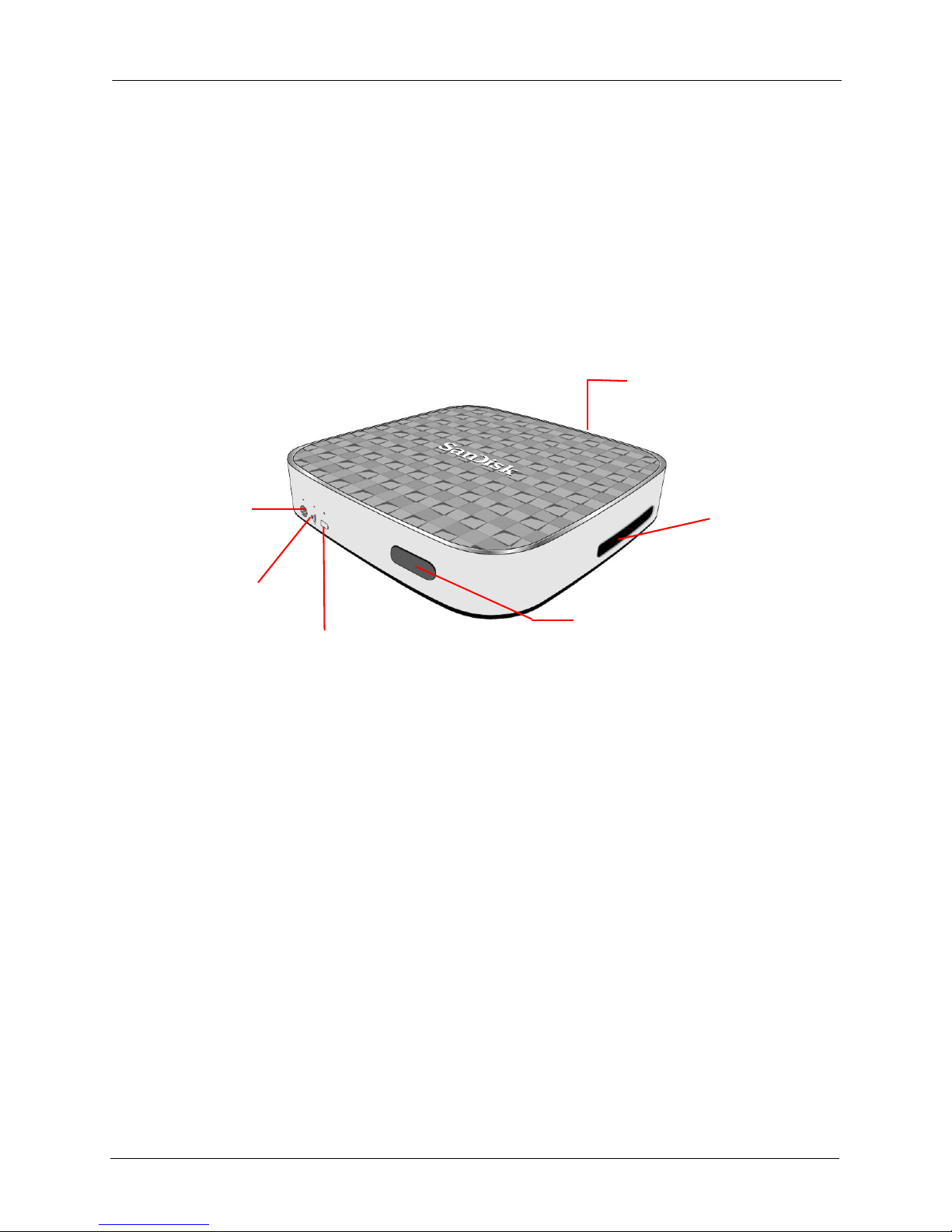
Micro-USB
port
(SD™/SDHC™/SDXC™)
Memory card slot
Press 10 seconds: Restore default Admin and Wi-Fi
(until all lights blink) passwords
Internet LED:
Drive is connected
to Internet Wi-Fi®
network
Wi-Fi LED:
Drive is broadcasting
its Wi-Fi signal
Battery LED:
Green = Sufficient power for usage
Red = Power below 10%
Light blinks while charging Press 25 seconds: Hard restart to force unresponsive
Drive to reboot
Press 3 seconds: Turn On and Off
Power/Reset button:

1. Introduction System Requirements
SanDisk Connect™Wireless Media Drive User Manual for Android 2
•Use the Media Drive to connect two mobile devices to a Wi-Fi network.
Rather than paying two separate fees to connect a smart phone and a tablet to a
hotel Wi-Fi network, you can connect your Media drive to the hotel Wi-Fi and then
connect two mobile devices to the Media Drive. Your Media Drive can remember
two Wi-Fi networks.
System Requirements
• Mobile devices running Android version 2.3 or higher or other Wi-Fi-enabled
devices with a web browser
• Computers running Windows® 8, Windows 7, Windows Vista®, Windows XP or
Mac OS 10.5.x+, or later operating systems
Supported File Formats
Laptops, Tablets, and Smart Phones
• Any file formats supported by the device
Hardware Specifications
• Drive Capacity: 32 GB or 64 GB1
• USB 2.0 port
• Battery: Non-user replaceable lithium-ion battery
• Battery Life: Up to 9 hours of continuous streaming; up to 25 hours standby2
• Maximum Wi-Fi range: 160 feet (50 meters)
• Media Drive Internal Memory File System: exFAT
• Media Drive Memory Card File System: FAT32
11GB=1,000,000,000 bytes. Actual user storage less.
2Based on streaming 720p content at 2mbps to one device; actual life and performance may vary
depending upon usage and settings; battery not replaceable.

2. Getting Started Charging the Media Drive
SanDisk Connect™Wireless Media Drive User Manual for Android 3
2. Getting Started
Charging the Media Drive
Although the Media Drive is shipped with a charged battery, we urge you to fully
charge the Drive before you begin to use it. (This can take up to three hours.)
Battery LED
The battery indicator light on the front the Media Drive indicates the current battery
strength and tells you whether the Drive is charging when it’s connected to an outlet:
.
Table 1: Battery LED States
Battery Strength LED In Use LED While Charging
Below 20% Steady red Blinking Red
Above 20% Steady green Blinking Green

2. Getting Started Downloading the Media Drive App
SanDisk Connect™Wireless Media Drive User Manual for Android 4
Downloading the Media Drive App
After your Media Drive is charged, download the free Media Drive app from your
mobile device application store onto each mobile device you want to use with the
Drive.
1. Download the Media Drive app.
2. Find the Media Drive app icon on your mobile device and tap
it to open the Media Drive app.
Connecting to the Media Drive
Once the app has been installed, connect your mobile device to the Media Drive Wi-
Fi.
1. Make sure your Media Drive is turned on and its Wi-Fi network is connected. The
power and Wi-Fi LEDs on the Drive should both be lit.
2. On your mobile device, go to Settings and tap Wi-Fi:
3. In Wi-Fi settings,
a. From the list of available Wi-Fi networks, tap your Media Drive network, in the
example below, SanDisk Media7A8F (the number following SanDisk Media
is different for each Media Drive).
Tabla de contenidos