
Salora ACP1250 Manual de usuario
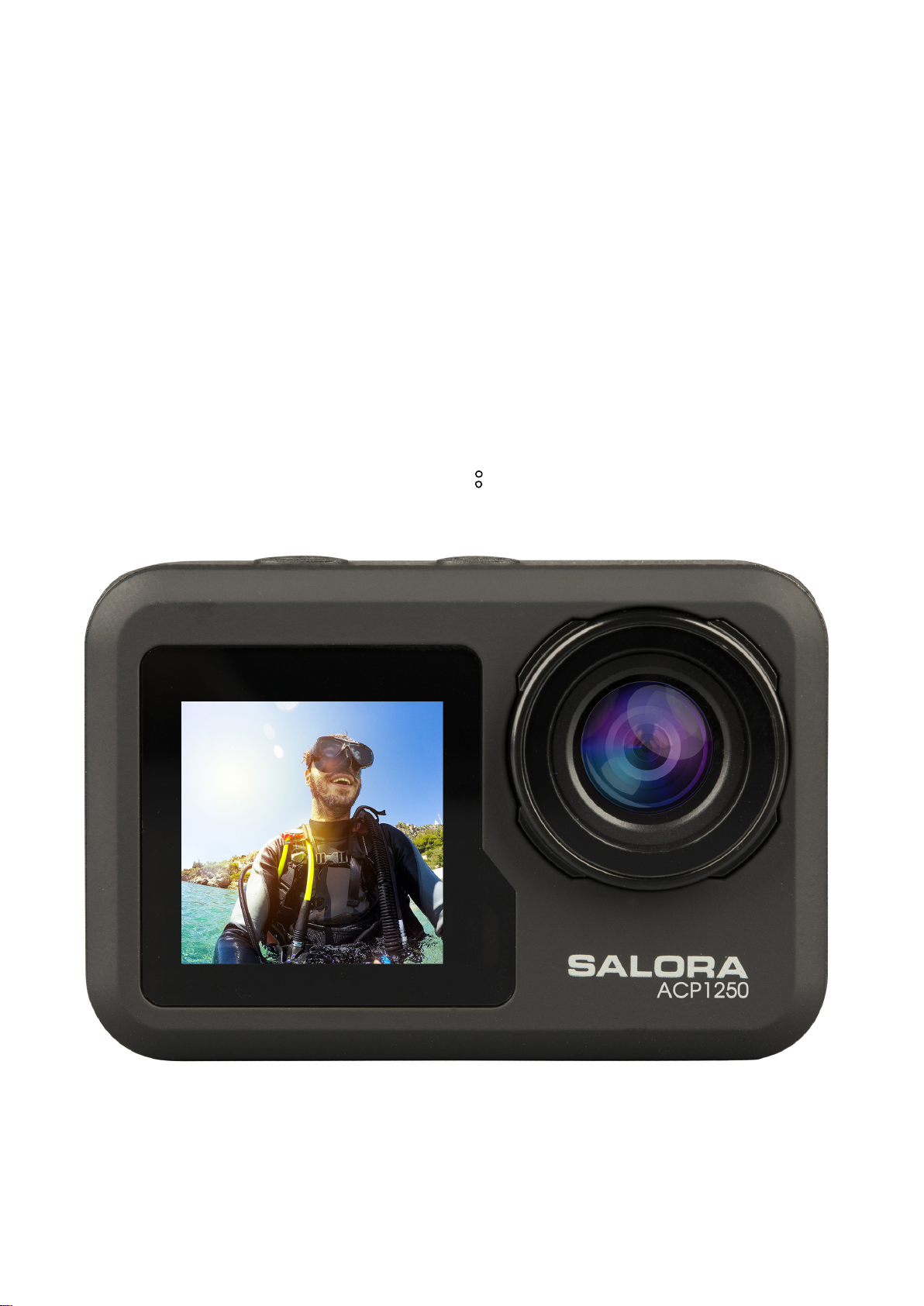
Instruction Manual
For Body Waterproof
Product NO.:ACP1250

Operational precautions
1. This product is a high-precision product, please do not drop or hit.
2. Please do not place the camera close to objects with strong magnetic fields, such as magnets
and motors, and also avoid placing the product close to objects that emit strong radio waves.
Strong magnetic fields may cause product failure, or damage images and sounds.
3. Please select the brand's Micro Sd card, ordinary cards cannot be guaranteed to work
normally.
4. Please do not store the Micro Sd card in or near a strong magnet to avoid losing the stored
data in the Micro Sd card.
5. During the charging process, if there is overheating, smoke, or odor, please unplug the power
immediately and stop charging to avoid fire.
6. When charging, please keep the product out of reach of children. The power cord may cause
accidental suffocation or electric shock to children.
7. Please place the product in a cool, dry and dusty-free place.
Product Features
>Video resolution up to 4K@30fps
> wide-angle lens
> Ultra HD 2.0 inch +1.3inch screen
>The battery is detachable, it is easy to replace the battery and prolong the service life.
>Support for up to 128G Micro Sd memory card
>Multiple video recording format: 4K, 2.7K, 1080P, 720P
>Multiple shooting modes: single, timing, auto, Burst
>Multiple video modes: normal, loop, time-lapse, slow motion

Product Schematic Diagram
1 OK button 2 Mode button
3 Speaker 4 Magnetic charging interface
5 1.3 inch screen 6 Up button
7 Down button 8 Battery cover
9 Support interface
Micro Sd memory card is not included
Function Definition
Mode button
1. Press and hold the “Mode button” for 2-3 seconds to power on/off.
2. Short press this key after power on to switch between video/photo/menu modes.
3. Short press on the menu interface to return to the previous menu or exit.
OK button
1. In recording mode, short press to start recording, short press again to stop recording.
2. Short press OK button to take photo in photo model.
3. Short press OK button in playback mode to play video.

4. Short press OK button to confirm option in settings menu.
5. In video or photo mode, press and hold OK button to open the multi-function setting interface,
and set different photo or video modes.
Up button
1. In video recording mode, short press UP button to turn on playback mode.
2. In playback mode, short press Up button to scroll through videos or photos.
3. In Menu setting mode, short press Up button to select the setting item in the menu.
Down button
1. In playback mode, short press Down button to scroll through videos or photos.
2. In Menu setting mode, short press Down button to select the setting item in the menu.
3. In photo or video mode, Short press Down button to turn on/off WIFI .
4. In photo or video mode, long press Down button to switch between 2.O inch Screen and 1.3
inch screen
Magnetic charging interface
Use the provided magnetic charging cable to charge the camera .
Micro SD card slot
Support 16-128G capacity Micro SD card. (Note: C10 or above standard high-speed card should
be used. Please format it with this machine before starting to use)
Indicators
Work indicator: green light
Charging indicator: red light
Product main function introduction
Camera settings:
Press Mode button to switch to the setting interface, press the Mode button or up and down
button to select the setting item, and press the OK button to open the menu.

1. Playback mode:
After entering playback mode, press the up/down buttons to select video album, photo album,
Delete and Exit.
1) Video album: Select the video album icon, press Mode button to enter the video file selection,
press up/down to select, and press OK button to play the video. When a video is playing, press
the OK button to play/pause it, and press the Mode button to exit. Press the Mode button to
return to album selection.
2) Photo album: Select the photo album icon and press OK button to open the album, press
Mode button to enter the photo file selection, press up and down to select, press OK button to
display photos in full screen, and press up/down to browse. Press the Mode button to return to
album selection.
3) Delete: After opening the video or photo album, press the up/down button to select the
delete function, then press the mode button to enter the corresponding album to select the file
to be deleted, press the up/down button to select, press the OK button to confirm, and finally
press the mode button to enter the delete operation. You can choose to delete selected and
delete all.
4) Exit playback Mode
2. Settings Menu
Enter the menu interface after selecting video settings or camera settings

On the menu interface, press the up/down button to switch between different setting menus:
Current mode setting→Camera system setting→Exit. Press OK button to enter the lower menu.
Press the up and down buttons to select the setting item, press the OK button to confirm, press
the mode button to return to the upper level or exit.
Video recording function
Normal recording
In recording mode, short press OK button to start recording. At this time, the recording duration
is showing. Short press the "OK button" again, the camera stops recording and saves the file.
Loop recording
On the photo and video mode selection interface, select loop recording. After entering loop
recording mode, the loop recording icon will be displayed in the upper left corner of the screen.
In the loop recording menu, you can set the length (1 minute, 3 minutes, 5 minutes) and video
resolution of each video in the loop recording, press the "OK button" to start the loop recording.
Time-lapse video
Select time-lapse video on the photo and video mode selection interface. After entering the
time-lapse video mode, the time-lapse video icon will be displayed in the upper left corner of the
screen. Time-lapse recording parameters (1 second, 3 seconds, 5 seconds, 10 seconds, 30
seconds, 1 minutes) and video resolution can be set in the time-lapse recording menu, and press
"OK" to start time-lapse recording.
Slow motion video
Select slow motion video on video mode selection interface. After entering the slow motion
video mode, the slow motion icon will be displayed in the upper left corner of the screen, and
press the "OK button" to start recording.
Photo function

Ordinary photo
Select the photo mode in the photo and video mode selection interface. After entering the photo
mode, the photo icon will be displayed in the upper left corner of the screen. You can set the
photo pixels (20M, 16M, 14M, 10M, 8M, 5M, 2M) and other parameters in the photo mode
menu. Press "OK" to take a photo.
Self-time photo
Select the self-time photo mode on the photo and video mode selection interface. After entering
the self-time photo mode, the self-time photo icon will be displayed in the upper left corner of
the screen. You can set the timer time (2s, 5s, 10s) in the self-time photo mode menu. Press the
"OK button" to start the countdown and take a photo when the timer ends.
Burst Photo
Select the burst photo mode in the photo and video mode selection interface. After entering the
burst photo mode, the burst photo icon will be displayed in the upper left corner of the screen.
3p/s, 7p/s,15p/s,30p/s). Press the "OK button" and the camera continuously emits a "click" sound
and the blue light flashes.
(Note: The camera needs a certain period of time to store photos during burst photo, and it
cannot take another photos by pressing the "OK button" before the storage ends.)
Timelapse Photo
Select the timelapse photo mode in the photo and video mode selection interface. After entering
the timelapse photo mode, the timelapse photo icon will be displayed in the upper left corner of
the screen. The photo interval time (3s, 5s, 10s, 15s, 30s, 60s) can be set in the timelapse photo
mode menu. Press the "OK button" to start taking pictures continuously according to the set time
interval, and press the "OK button" again to stop.
WiFi and APP Function
APP download
For Android system, please search "iSmart DV2" in the Google APP store to download and install.
For IOS system, search "iSmart DV2" in Apple App Store to download and install.

Open WIFI
In the video mode or photo mode, press the "down button" to turn on the WIFI, the camera
enters the WIFI interface, and displays the WIFI name "ActionCam-XXXX" and the WIFI password
"12345678". Find the corresponding WIFI name of the camera in the phone WIFI settings to
connect to WIFI.
APP Operation
After the mobile phone is connected to the camera WIFI, open the APP and enter the APP home
page.
A) Click to add a new camera →WI-FI Connect to enter the APP operation interface
B) Click "Offline Album" to enter the APP offline album, the pictures and videos downloaded from
the camera side album on the APP are saved here.
APP operation interface function introduction

1 Setting 2 Resolution
3 WIFI Signal 4 Battery capacity
5 White balance 6 Album
7 Shutter 8 Video mode selection
Spec
Function mode Recording, photo, playback….
LCD screen 2.0inch+1.3inch Screen
Picture
resolution
20M, 16M, 14M, 10M, 8M, 5M, 2M
Video resolution 4K, 2.7K, 1080P, 720P
Storage medium Micro SD Card (Maximum supporting 128GB)
File format JPG/ MOV
USB Port USB2.0
Power supply Built- in
3.7V rechargeable lithium battery
Menu language English/ Spanish……

Gebruiksaanwijzing
Waterdichte camera
Productnr.: ACP1150
Tabla de contenidos
Idiomas:
Otros manuales de Cámara de acción de Salora

Salora
Salora ACE800 Manual de usuario

Salora
Salora ACP750 Manual de usuario

Salora
Salora ACP950 Manual de usuario

Salora
Salora ACE100 Manual de usuario

Salora
Salora PSC5335FWD Manual de usuario

Salora
Salora ACE500 Manual de usuario

Salora
Salora ACP550 Manual de usuario

Salora
Salora ACP1150 Manual de usuario


