
Ruin & Wesen Midi Command Manual de usuario
User manual
Ruin & Wesen c/o Odendahl Systemprogrammierung, Jägerstrasse 36!76227, Durlach, Germany [email protected] http://ruinwesen.com/
RUIN & WESEN
MIDI COMMAND

Midi Command!3
Introduction!3
Midi Command User Interface!4
Midi Command basic operation!5
Macro Knob!7
Midi Command settings!9
Page type submenu!10
Page settings menu!12
MID type page settings !13
Machinedrum type page settings (ECH, REV. EQ, DYN)!15
Macro Knob settings!17
MIDI Command Incoming MIDI Support!20
Using the MIDI Command to control Ableton Live!21
Midi Command Sysex Reference!24
Midi Command Schematics!29
Ruin & Wesen Electronics
Midi Command Documentation!2

Midi Command
Introduction
Thank you for choosing the Ruin & Wesen Midi Command. The Midi Command is a flexible MIDI controller designed to
be small and easy to use. It is especially designed for users of the Elektron Machinedrum synthesizer, as it can directly
control the parameters of it’s 4 effects. This document describes how to use the Midi Command to control other musical
gear, how to edit its settings, and how to control Ableton Live with the Midi Command. It also describes the SYSEX
commands supported by the device, and how to load new firmware on the device. Finally, the electronic hardware of the
Midi Command is described, allowing you to design your own firmware.
We provide a one-year warranty covering all malfunctions occuring from normal use. Damage caused by abusive
handling is not covered. Please contact us before returning a device for repair. Shipping to Ruin & Wesen is covered by
the customer, shipping from Ruin & Wesen is covered by Ruin & Wesen.
Ruin & Wesen Electronics
Midi Command Documentation!3

Midi Command User Interface
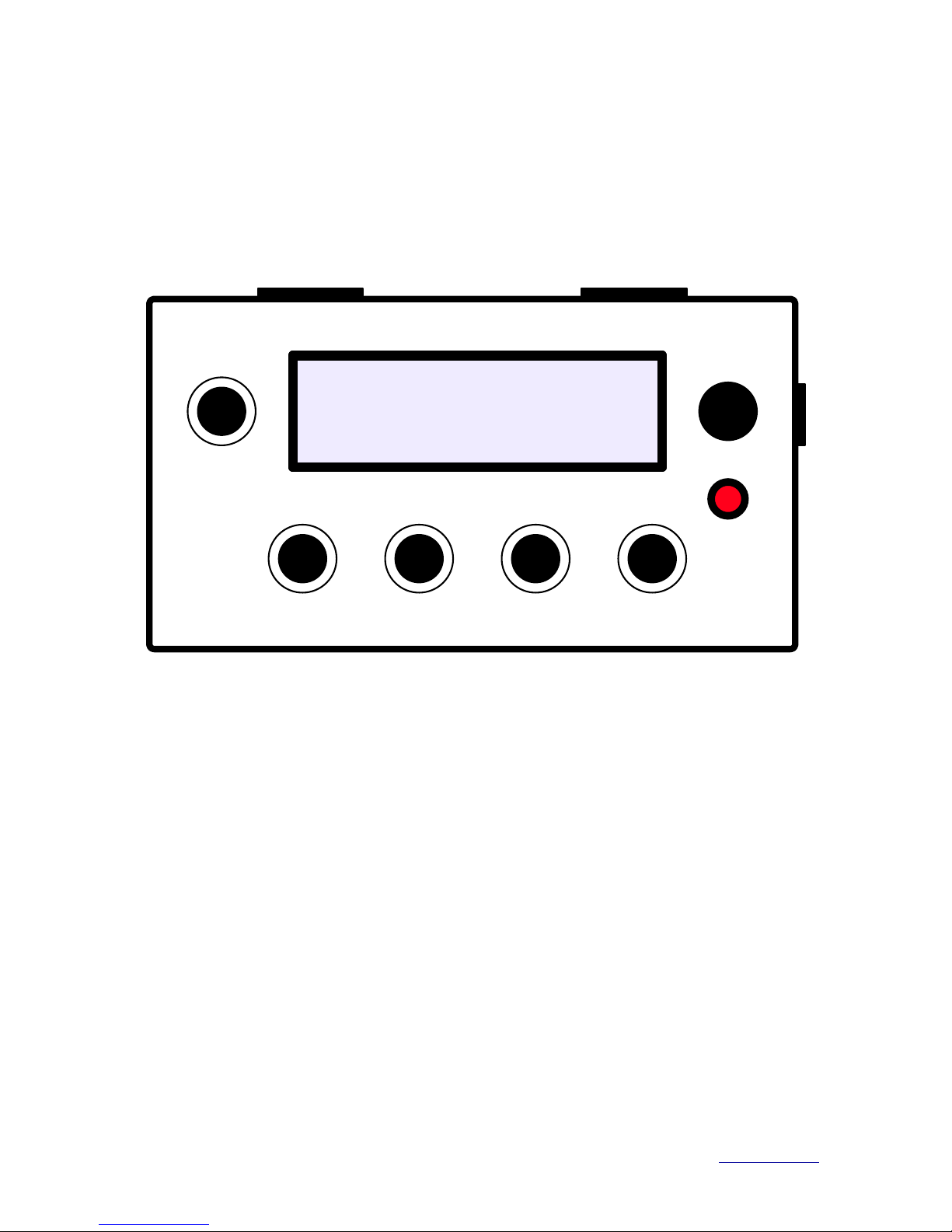
The Midi Command features a LCD display (1), 4 control encoders (2), a menu encoder (3) and a shift button (4). It also
has a MIDI IN connector (5), a MIDI OUT connector (6), a power supply connector (7), and a power indicator LED (8). The
4 control encoders are used to send MIDI control parameters, as well as to set values while editing the settings of the
MIDI Command. The menu encoder is used as a macro knob in normal operation (for more information see the section
Macro Knob). The shift button is used to access additional functions in order to switch pages, change patches, access
the editing functions and to set secondary settings.
Ruin & Wesen Electronics
Midi Command Documentation!4
2. control encoders
3. menu encoder
1. display
5. MIDI IN 6. MIDI OUT
7. power connector
4. shift button
8. power led
RUIN & WESEN
Midi Command User Interface

Midi Command basic operation
To use your Midi Command, hook up a device that you want to control by connecting the MIDI OUT port (6) of the Midi
Command to the MIDI IN port of the device you want to control. Power up the Midi Command by plugging in the power
supply into the power supply connector (7). The power indicator LED (8) will light up, and the display (1) will show the
company logo “RUIN AND WESEN”. After a short amount of time, the Midi Command will show the parameters values
for the first page of the first patch. The upper line of the display shows the parameter names, while the lower line shows
the current parameter value.
You can adjust the parameters of the current page by turning the control encoders (2). Each parameter can go from 0 up
to 127. Pressing a control encoder and turning it will make the values increment or decrement faster (by an amount of 5
instead of 1). This is similar to the push-turn functionality of the Elektron machines. Double clicking a control encoder will
reset the value of the parameter to 0. Be careful not to turn the encoder while double-clicking it because this will cancel
the double-click. Turning the menu encoder (3) will activate the macro knob feature, which is describe in more detail in
the section Macro Knob.
C01 C02 C03 C04
002 080 003 100
Turn encoders (press for bigger steps)
Parameter name
Parameter value
Changing parameters
Ruin & Wesen Electronics
Midi Command Documentation!5

The Midi Command can store 8 patches, where each patch is made of 4 parameter pages. Each parameter page is a
grouping of 4 MIDI parameter that can be controlled using the 4 control encoders (2). To switch pages, press the shift
button (4) and hold it down, then press one of the control encoders (2). Be careful not to turn the control encoder while
turning it, as this will cancel the press. The display will display the number of the new page, as well as the page type, for
a short amount of time, and then show the parameter values of the new page. The control encoders now control the
values of the new page.
To switch the current patch, press the shift button (4) and turn the menu encoder (3). Be careful not to press the menu
encoder while turning it, as this will cancel the turn. The display will show the number of the newly loaded patch for a
short amount of time, as well as the number of the current page, and will then show the values of the parameters of the
EDIT PAGE 1
MIDI PAGE
Double-click encoder to reset parameter to 0
Resetting a parameter to 0
PAGE 2
MIDI PAGE
Hold shift down
Press encoder button
Page number
Page type
Switching pages
Ruin & Wesen Electronics
Midi Command Documentation!6

new current patch. You can then adjust the parameters using the control encoders (2), and switch pages as described in
the paragraph above.
The factory patches of the MIDI Command are described in the appendix “Factory patches”.
Macro Knob
Each parameter page features 4 parameters that can be directly controlled using the control encoders (2). In addition to
these 4 encoders, the Midi Command features a Macro Knob that is controlled by turning the menu encoder. The Macro
Knob allows you to modify the 4 page parameters by twisting a single knob. You can adjust the range inside which each
page parameter is modified by editing the Macro Knob settings (see the section Macro Knob Settings below). You can
set the lower boundary and upper boundary for each parameter independently. For example, you could configure the
Macro Knob to modify the first parameter from 30 to 60, the second parameter from 60 to 30, the third parameter from 0
to 127 and the fourth parameter from 127 to 0.
PAGE 2
LOADING PATCH 2
Hold shift down
Turn menu encoder
Page number
Patch number
Switching patches
Ruin & Wesen Electronics
Midi Command Documentation!7

C01 C02 C03 C04
000 000 000 000
Turn macro knob (press for bigger steps)
Turning the menu encoder (3) to set the Macro Knob to 0 will set the first parameter to 30, the second parameter to 60,
the third parameter to 0 and the fourth parameter to 127. Gradually turning the menu encoder to the right will change the
value of the first parameter from 30 to 60, the value of the second parameter from 60 to 30, the third parameter will
follow the Macro Knob exactly, and the fourth parameter will be the inverse of the Macro Knob value. You can also
double-click the menu encoder to set the Macro Knob to 0, thus resetting all the 4 parameters to a default value.
Using the Macro Knob, you can achieve drastic sound modifications at the twist of a single knob.
The Macro Knob can also be used to send two different relative CCs. This way, stepping through software menus or
other relative CC functions can easily be reached from each page. This is especially useful for scrolling through tracks in
scenes in a program like Ableton Live.
Macro Knob
Ruin & Wesen Electronics
Midi Command Documentation!8

Midi Command settings
To edit the settings of the Midi Command, press the shift button (4) and hold it down, and while keeping it down, hold the
menu encoder (3) down. After approximately 1 second, the Midi Command will enter the settings menu. The settings
menu edits the settings of the current patch.
MENU
PAGE TYPES
Press for 1 second to enter settings menu
Hold shift button
To change the edited patch, hold the shift button (4) down and turn the menu encoder (3). The changes to the current
patch settings will not be saved when loading a new patch. To exit the settings menu without saving the settings, hold
the shift button (4) down and double-click the menu encoder (3). The Midi Command will go back to the current page. To
exit the settings menu and save the settings, hold the shift button (4) down and press the menu encoder (3) for about 1
seconds. The Midi Command will save the modifications made to the current patch and go back to the current page.
Entering the Settings menu
PAGE 3
MIDI PAGE
Double-click to leave settings menu without saving
Hold shift button
Leaving the settings menu without saving
Ruin & Wesen Electronics
Midi Command Documentation!9

The settings menu is composed of a number of submenus which can be accessed by pressing the different encoders.
The following diagram shows how the submenus are organized.
Page type submenu
The Page Types menu is used to set the “type” of the 4 pages of the current patch. Each page can be of one of the
following types:
•MID Type: MIDI page type. The encoders send MIDI CC messages. The channel and number of the CC message can
be configured.
•ECH Type: Machinedrum DELAY page type. The encoders send SYSEX messages used to control the Delay effect of
the Elektron Machinedrum. The parameter of each encoder can be configured.
•REV Type: Machinedrum REVERB page type. The encoders send SYSEX messages used to control the Reverb effect
of the Elektron Machinedrum. The parameter of each encoder can be configured.
•EQ Type: Machinedrum EQUALIZER page type. The encoders send SYSEX messages used to control the Equalizer
effect of the Elektron Machinedrum. The parameter of each encoder can be configured.
•DYN Type: Machinedrum DYNAMIX page type. The encoders send SYSEX messages used to control the Compressor
effect of the Elektron Machinedrum. The parameter of each encoder can be configured.
SAVING SETTINGS
TO PATCH 1
Press for 1 second to save the current settings
Hold shift button
Saving the current settings
Ruin & Wesen Electronics
Midi Command Documentation!10
Tabla de contenidos


