
Rolodex Rolodex RF-8121 Manual de usuario

www.franklin.com
Personal
Digital Assistant
User’s Guide
RF-8121
RF-8131

1
Contents
License Agreement . . . . . . . . . . . . . . . . . . . . . . . . . . . . . .2
Notice . . . . . . . . . . . . . . . . . . . . . . . . . . . . . . . . . . . . . . . .3
Getting Started . . . . . . . . . . . . . . . . . . . . . . . . . . . . . . . . .4
Understanding the Display . . . . . . . . . . . . . . . . . . . . . . . .6
Using the Clocks . . . . . . . . . . . . . . . . . . . . . . . . . . . . . . .8
Entering a Phone Record . . . . . . . . . . . . . . . . . . . . . . . .12
Entering a Schedule record . . . . . . . . . . . . . . . . . . . . . .14
Entering an Anniversary . . . . . . . . . . . . . . . . . . . . . . . . .16
Entering a Todo . . . . . . . . . . . . . . . . . . . . . . . . . . . . . . . .17
Entering a Memo Record . . . . . . . . . . . . . . . . . . . . . . . .19
Entering an Internet Record . . . . . . . . . . . . . . . . . . . . . .20
Entering an Expense . . . . . . . . . . . . . . . . . . . . . . . . . . .21
Searching and Editing Records . . . . . . . . . . . . . . . . . . .23
Using the Timer . . . . . . . . . . . . . . . . . . . . . . . . . . . . . . . .25
Playing the Games . . . . . . . . . . . . . . . . . . . . . . . . . . . . .26
Reading a Book . . . . . . . . . . . . . . . . . . . . . . . . . . . . . . .29
Using the Calculators . . . . . . . . . . . . . . . . . . . . . . . . . . .30
Using the Converters . . . . . . . . . . . . . . . . . . . . . . . . . . .36
Installing the Rolodex® Electronics Desktop Manager .40
Synchronizing Records . . . . . . . . . . . . . . . . . . . . . . . . .42
Using IntellisyncTM . . . . . . . . . . . . . . . . . . . . . . . . . . . .43
Transferring Data . . . . . . . . . . . . . . . . . . . . . . . . . . . . . .48
Using a Password . . . . . . . . . . . . . . . . . . . . . . . . . . . . . .51
Replacing the Batteries . . . . . . . . . . . . . . . . . . . . . . . . .54
Specifications . . . . . . . . . . . . . . . . . . . . . . . . . . . . . . . . .55
FCC Notice . . . . . . . . . . . . . . . . . . . . . . . . . . . . . . . . . . .56
Limited Warranty (U.S. only) . . . . . . . . . . . . . . . . . . . . . .57
Limited Warranty (EU and Switzerland) . . . . . . . . . . . . .59
Limited Warranty (outside U.S., EU and Switzerland) . .60
Table of Cities in World Clock . . . . . . . . . . . . . . . . . . . .61
Bonus Nutritional Guide . . . . . . . . . . . . . . . . . . . . . . . . .62

READ THIS LICENSE AGREEMENT BEFORE USING THE
ELECTRONIC REFERENCE.YOUR USE OF THE ELEC-
TRONIC REFERENCE DEEMS THAT YOU ACCEPT THE
TERMS OF THIS LICENSE. IF YOU DO NOT AGREE WITH
THESE TERMS, YOU MAY RETURN THIS PACKAGE WITH
PURCHASE RECEIPT TO THE DEALER FROM WHICH
YOU PURCHASED THE ELECTRONIC REFERENCE AND
YOUR PURCHASE PRICE WILL BE REFUNDED. ELEC-
TRONIC REFERENCE means the software product and
documentation found in this package and FRANKLIN means
Franklin Electronic Publishers, Inc.
Limited Use License
All rights in the ELECTRONIC REFERENCE remain the
property of FRANKLIN.Through your purchase,
FRANKLIN grants you a personal and nonexclusive
licensed to use this ELECTRONIC REFERENCE.You
may not make any copies of the ELECTRONIC REFER-
ENCE or of the data stored therein, whether in electronic
or print format. Such copying would be in violation of
applicable copyright laws. Further, you may not modify,
adapt, disassemble, decompile, translate, create deriva-
tive works of, or in any way reverse engineer the ELEC-
TRONIC REFERENCE.You may not export or reexport,
directly or indirectly, the ELECTRONIC REFERENCE
without compliance with appropriate governmental regu-
lations.The ELECTRONIC REFERENCE contains
Franklin’s confidential and proprietary information which
you agree to take adequate steps to protect from unau-
thorized disclosure or use.This license is effective until
terminated.This license terminates immediately without
notice from FRANKLIN if you fail to comply with any pro-
vision of this license.
2
License Agreement

Recommendations
•The manufacturer strongly recommends that sepa-
rate permanent written records be kept of all impor-
tant data. Data may be lost or altered in virtually any
electronic memory product under certain circum-
stances.Therefore, the manufacturer assumes no
responsibility for data lost or otherwise rendered
unusable whether as a result of improper use,
repairs, defects, battery replacement, use after the
specified battery life has expired, or any other cause.
•The manufacturer assumes no responsibility, directly
or indirectly, for financial losses or claims from third
parties resulting from the use of this product and any
of its functions, such as stolen credit card numbers,
the loss or alteration of stored data, etc.
•The information provided in this manual is subject to
change without notice.
Cautions
•Do not carry the organizer in the back pocket of your
slacks or trousers.
•Do not drop the organizer or apply excessive force to
it.
•Do not subject the organizer to extreme tempera-
tures.
•Clean only with a soft, dry cloth.
•Since this product is not waterproof, do not use it or
store it where fluids can splash onto it. Raindrops,
water spray, juice, coffee, steam, perspiration, etc.
will also cause the organizer to malfunction.
3
Notice

Important Notice
This unit is shipped in “Sleep”mode in order to con-
serve battery life.To start the unit, it must first be
reset.The Reset button is accessed via the hole
above the battery door on the back of the unit.
Using the Organizer for the First Time
The first time you use this organizer, you should per-
form a system reset. Warning! A system reset erases
any user-entered information and clears all settings.
1.Turn the organizer over and carefully pull the
battery insulation sheet to remove it.
2. Press ON/OFF to turn the organizer off.
3. Use a paper clip to gently press the reset but-
ton on the back of the organizer.
4.Tap ENTER to reset the organizer.
✎
Selecting a Language
1.Tap and then tap LANG at the bottom of
the screen.
ENGLISH? appears on the screen.
2.Tap or to cycle through the seven avail-
able languages: English, Español, Français,
Deutsch, Português, Italiano, Nederlands.
3.Tap ENTER when you see the one you want.
4
Getting Started
When the device is on, press and hold ON/OFF for
about two seconds to turn the backlight on. Press and
hold again to turn the backlight off (RF-8131 only).

✎
About Screen Illustrations
Some screen illustrations in this User’s Guide may
vary slightly from what you see on the screen.
This does not mean that your organizer is mal-
functioning.
✎
Auto-Shut Off
When none of the keys have been pressed for
approximately seven minutes, the organizer auto-
matically turns the power off to save the battery.
Press ON/OFF to resume.The actual life of the
battery depends on the usage.
✎
Keyboards
ABC/123 at bottom right of screen controls the
keyboards.Tap this to toggle between the
letter/number keyboards.The Calculator function
icons and SYML appear only in the numeric key-
board. Note:ABC/123 only appears in data entry
screens.
✎
Symbols
You can enter 22 symbols such as @, $, and 32
accented characters such as Ä, É, etc.To enter a
symbol or special character when tapping letters,
first tap ABC/123, then tap SYML, then tap or
to cycle through the 53 available symbols and
characters.When you see the symbol or character
you want, tap 1-6.Tap ABC/123 to return to the
letter keyboard.
5
Getting Started
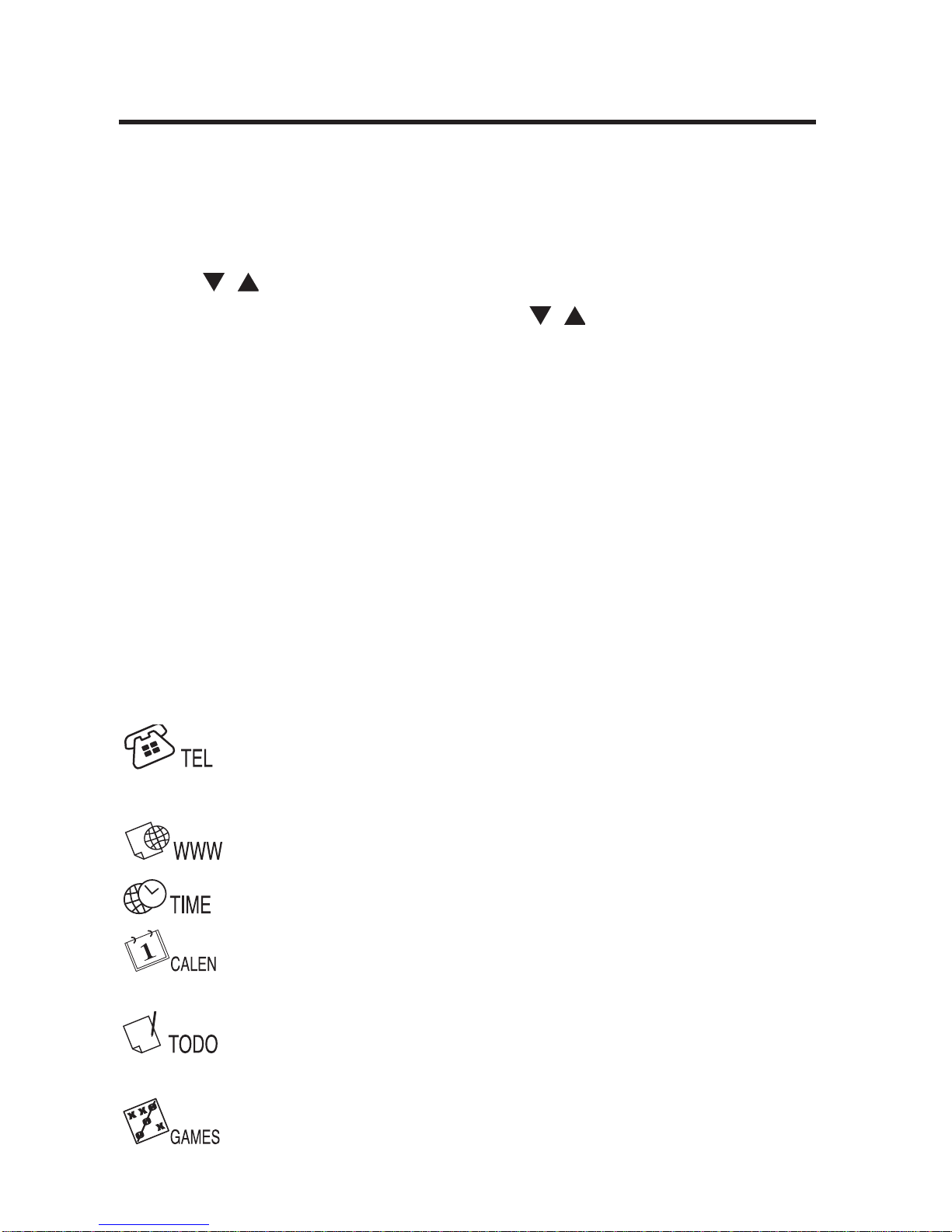
Several icons appear on the upper left of the screen
to indicate active modes.These are indicator icons
only and perform no function when tapped.
Note: / on the upper left indicates data extending
beyond the current screen.Tap / to scroll up and
down and read all the available data.
The bottom half of the screen contains the function
icons, directions arrows, letters, numbers and other
icons that you can tap to perform a number of func-
tions.
Note:The display is dependent on the mode you are
in. For example, the Calculator function keys are dis-
played only in the Calculator.
Function Icons
The function icons appear in a row beneath the data
display. Cycles between the Business,
Business 2, and Personal phone
directories.
Goes to the Internet directory.
Cycles between Home Time, World
Time and daily alarm mode.
Cycles between the Calendar,
Schedule and Anniversary (RF-8131
only).
Toggles between the Todos and
Memos.
Cycles through the available games.
6
Understanding the Display

Goes to the Timer.
Goes to the currently installed book.
Cycles through the four calculators.
Cycles through the three converters
and the Expense manager (RF-8131
only).
Goes to the Data Synchronization
screen.This is active only if you have
the PC Sync program installed on
your PC and your unit is connected to
your PC.
Other Icons
/ / / Moves cursor in the indicated direc-
tion.
Searches up through records.
Searches down through records.
Enables/disables the alarms.
Enables/disables the keytone.
Goes to the Enter Password screen.
Enters a hard return.
Jumps directly to the e-mail field in a
phone record.
7
Understanding the Display

8
Each time you press ON/OFF, tap , or after a
system reset, you see the Home Time screen.You
can perform the following functions in Home Time.
•Tap to go to World Time.
•Tap MD/DM on bottom left of screen to toggle
between the month/day and day/month formats.
•Tap 12/24 on bottom of screen to toggle between
12- and 24-hour displays for the clock.
•Tap DST on bottom right of screen to enable/dis-
able daylight savings time.
•Tap to enable/disable the keytone.
The keytone is the beep that sounds when you
touch the screen. on the upper left indicates the
keytone is enabled.
•Tap to enable/disable the hourly chime.
on the upper left indicates the hourly chime is
enabled.
•Tap to go to the Password entry screen.
•Tap to start data synchronization with your PC.
•Tap M.CHK to see the percent of available memory.
•Tap / to adjust the LCD contrast.
•Tap LANG to go to the Language selection
screen.
•Tap EDIT to go to the Home Time edit screen.
Using the Clocks

9
Setting Home Time
1. Tap until you see HOMETIME.
2. Tap EDIT.
3. At the city name, tap or to cycle through
the available city names.
Tap A-Z to edit a city name.This will be your
Home city.
You can edit the city, month, day, year, hour and
minute.
Tap / / / to move the cursor in the indicated
direction.
4. Tap 0-9 to edit the year, day and month.
5. Tap 0-9 to edit the hour and minute.
Tap AM/PM at bottom left of screen to toggle
between a.m. and p.m. in the 12-hour format.
6. Tap ENTER to store the time.
Seconds are updated automatically.
If you enter an invalid time, you will be prompted
for a correction.
Using the Clocks
Este manual sirve para los siguientes modelos
1
Tabla de contenidos
Otros manuales de PDA de Rolodex

Rolodex
Rolodex Rolodex RFPC-07 Manual de usuario

Rolodex
Rolodex Executive Organizer RF-1000 Manual de usuario

Rolodex
Rolodex Rolodex RF-384 Guía de inicio rápido

Rolodex
Rolodex Mini-USB Organizer RL-8221 Manual de usuario

Rolodex
Rolodex Rolodex RFPC-06 Guía de inicio rápido

Rolodex
Rolodex RF-3A Manual de usuario

Rolodex
Rolodex Rolodex RT-8015 Manual de usuario

Rolodex
Rolodex RF-8001 Guía de inicio rápido

Rolodex
Rolodex Rolodex RF-8003 Guía del usuario

Rolodex
Rolodex Rolodex RF-3 Manual de usuario


