Roberts STREAM 83I Manual de usuario

ROBERTS
Enjoy Listening
DAB/FM WiFi Sound System with Internet Radio, Music Player and Last.fm
Please read this manual before use

Introduction ......................................................................................... 2-9
Stream 83i Sound System features ..................................................... 2
Before you can use this product .......................................................... 3
About this instruction manual .............................................................. 4
Controls and connections ................................................................. 5-7
Remote control battery operation ........................................................ 8
Navigation controls .............................................................................. 9
Network configuration ................................................................... 10-18
Connecting your radio to your computer network ......................... 10-15
Manual network configuration ...................................................... 16-18
Internet Radio mode ....................................................................... 19-32
Internet Radio - the basics ................................................................ 19
Selecting a radio station by location and genre ............................ 20-22
Searching for a radio station by name ............................................... 23
Selecting a new or popular station .................................................... 24
Selecting a podcast / BBC Listen Again ............................................ 25
Presetting stations ............................................................................. 26
Last Listened ..................................................................................... 27
Display modes .............................................................................. 27-28
Customising your radio ...................................................................... 29
Configuring My Favourite Stations .................................................... 30
Configuring My Added Stations ......................................................... 30
Selecting favourite stations ............................................................... 31
Selecting your added stations ........................................................... 32
Music Player mode ......................................................................... 33-45
Use with Windows, Apple Mac, Linux, USB memory ........................ 33
Accessing your files via UPnP ...................................................... 34-35
Locating and playing media files using UPnP ................................... 36
Media selection ................................................................................. 37
Controlling playback ..................................................................... 38-39
Display modes ................................................................................... 40
Using USB memory devices .............................................................. 41
Playing files from USB memory devices ........................................... 42
Playlists ........................................................................................ 43-45
Last.fm mode .................................................................................. 46-54
Last.fm - the basics ........................................................................... 46
Set up a Last.fm user account ........................................................... 47
Listening to Last.fm ...................................................................... 49-51
Display modes ................................................................................... 52
Your listening history ......................................................................... 53
Contents
Deleting details of a Last.fm account ................................................ 54
Scrobbling - On / Off control .............................................................. 54
DAB mode ....................................................................................... 55-63
Selecting a DAB radio station ............................................................ 56
Secondary services ........................................................................... 56
Display modes ............................................................................. 57-58
Finding new DAB radio stations ........................................................ 59
Manual Tuning .................................................................................. 60
Dynamic Range Control settings ...................................................... 61
Station order setup ............................................................................ 62
Prune stations ................................................................................... 63
FM mode .......................................................................................... 64-69
Manual tuning .................................................................................... 65
Display modes ................................................................................... 66
Scan setting ....................................................................................... 67
Stereo / Mono switching .................................................................... 68
Presetting stations in DAB and FM modes ........................................ 69
Clock and Alarms .......................................................................... 70-78
Automatically updating the clock ....................................................... 70
Setting the clock format .................................................................... 71
Manually setting the clock ............................................................ 72-73
Setting the alarm clock ................................................................ 74-76
Disabling alarms ............................................................................... 77
Snooze timer .................................................................................... 77
Sleep timer ....................................................................................... 78
Display and Audio .......................................................................... 79-84
Equaliser ...................................................................................... 79-80
Brightness control .............................................................................. 81
Contrast / viewing angle control ........................................................ 82
Headphone socket and Line out socket ............................................ 83
Auxiliary input socket ......................................................................... 84
Information ...................................................................................... 85-95
Factory reset ..................................................................................... 85
Software update ................................................................................ 86
Network profiles ................................................................................. 87
Software version display ................................................................... 88
Audio FAQ ......................................................................................... 88
Troubleshooting ............................................................................ 89-90
Cautions and Specifications ......................................................... 91-92
Guarantee ......................................................................................... 94

If you need any further advice, please call our Technical Helpline on 020 8758 0338 (Mon-Fri)
Introduction
Stream 83i Sound System features
The Roberts Stream 83i provides the following features in an attractive
compact unit:-
● Listen to local, regional, national and international broadcasts using
FM, DAB and Internet radio
● Listen to over 1000 radio stations from around the country, and over
10,000 from around the world without using your PC.
● Listen to previously broadcast material from the BBC (using Listen
Again)
● Listen to podcasts from a wide range of broadcasters.
● 15 radio station presets (5 Internet Radio, 5 DAB and 5 FM).
● Use the Music Player to play your music collection from your
computer (using Windows Media Player 11). Connection to Apple
and Linux based computers is also possible using suitable software.
● Playback of audio files from USB memory devices.
● MP3, WMA, AAC, FLAC and Real Audio formats are supported (Real
Audio for Internet Radio only).
● The Stream 83i connects to your home computer network, either
using WiFi or via a wired Ethernet connection.
● WiFi Protected Setup (WPS) is supported for simpler setting up with
compatible wireless routers.
2
● Works with Last.fm, an on-line music service with millions of tracks
available. It plays personalised radio stations based on your choice
of artists, songs, listening history and similar tracks based on the
preferences of other Last.fm listeners with similar music tastes.
● All radio station presets, network configuration details and user
settings are retained in the event of a power failure.
● Large clock display with time and date when in Stand-by.
● Two alarm timers with snooze feature to wake you to either buzzer or
radio alarm.
● Adjustable sleep timer, can be set to turn the radio off between 15
and 120 minutes.
● Easy-to-read graphic display.
● Adjustable display backlight.
● Auxiliary input for playing audio from MP3 players, iPods or other
audio equipment.
● A standard 3.5mm Line Output socket for connecting the audio signal
to an external amplifier or recorder.
● A standard 3.5mm headphone socket for private listening.
● High quality three way speaker system with bass woofer.
Introduction .

Before you can use this product
Before you can use your sound system, you must have the following:
● A broadband Internet connection (not required for DAB, FM or Music
Player functions).
● A wireless access point (WiFi) or a wired Ethernet connection connected
to your broadband Internet Service Provider, preferably via a router.
In many cases the broadband modem, router and wireless access
point will be a single combined unit supplied by your Internet Service
Provider or bought from a computer store.
● If your wireless network is configured to use Wired Equivalent Privacy
(WEP) or WiFi Protected Access (WPA/WPA2) data encryption then you
either need to know the WEP, WPA or WPA2 key used for encryption
so you can get the sound system to communicate with the network,
or your router needs to offer WiFi Protected Setup (WPS).
If connecting using WiFi, the sound system will typically work within a 10-20
metre radius from your wireless access point. The actual range achieved will
depend upon the building type, other nearby wireless networks, and possible
interference sources. DAB and FM radio functions can operate wherever
the sound system is able to receive a suitable broadcast signal.
IMPORTANT: Before you continue, make sure that your wireless access
point or router is powered up and working with your broadband Internet
service (use your computer to verify this). To get this part of the system
working you must read the instructions supplied with the wireless access
point or router.
3

If you need any further advice, please call our Technical Helpline on 020 8758 0338 (Mon-Fri)
About this instruction manual
This instruction manual is split into sections for each of the different
operating modes of your Roberts Stream 83i sound system. Each section
is clearly identified by the shaded heading in the top right hand corner of
each pair of pages.
Before using the Internet Radio and Music Player functions, you will need
to connect your radio to your computer network using either the WiFi or
Ethernet connection. This is covered in the section titled Configuration.
The Internet Radio section describes how to find radio stations to listen
to. These can be radio stations that you already know and listen to
conventionally, or new stations you may search for. You may set up stations
that you like as Favourites so that they are more readily accessible.
The section for the Music Player describes how you may play music files
that you may have stored on a computer connected to your network. The
use of Shared Media (using UPnP) and USB playback is explained.
The Last.fm section explains the use of the sound system in conjunction
with the Last.fm internet based music streaming service.
The two sections for DAB Radio and FM Radio describe how to use the
radio to listen to conventional radio broadcasts.
The section titled Clock and Alarms describes the different ways by
which the clock in the radio may be set, as well as explaining the use of
the alarms, snooze and sleep timer features.
The Display and Audio section shows how to adjust the display, use the
equaliser and connect your sound systen to other audio equipment.
The Information section includes troubleshooting, specifications and
warranty information.
4
Configuration
Internet Radio
Music Player
DAB Radio
FM Radio
Clock and Alarms
Display and Audio
(page 10)
(page 33)
(page 19)
(page 64)
(page 55)
(page 70)
(page 79)
Information (page 85)
Introduction .
Last.fm (page 46)

5
Controls and connections
Front view
1. Preset 1 / Rewind button
2. Preset 2 / Fast-forward button
3. Preset 3 button
4. Preset 4 / Pause button
5. Preset 5 / Play button
6. Loudspeaker x 2
7. Menu button
8. Info button
9. Mode button
10. On / Standby button
11. Volume control
12. Remote control sensor
13. Display panel
14. Tuning / Select / Snooze control
15. USB socket
16. Menu Forward button
17. Last.fm 'Ban' button
18. Last.fm 'Love' button
19. Menu Back button
5
6
8
9
10
11
13
14
16
17
18
719
4321
12
15
6

If you need any further advice, please call our Technical Helpline on 020 8758 0338 (Mon-Fri) 6
Controls and connections - cont.
Rear view
20. Headphone socket
21. Line output socket
22. Auxiliary input socket
23. Ethernet socket (RJ-45)
24. USB socket (for service use only)
25. DC input socket
26. Subwoofer
27. Telescopic aerial (antenna cable socket behind)
Introduction .
25 24 23 22 21 20
27
26

7
1
2
3
4
6
5
8
7
9
10
11 12
13
14
Controls and connections - cont.
Remote control handset
1. On / Standby button
2. Preset buttons 1-5 / Playback control buttons
3. Mode button
4. Info button
5. Last.fm 'Love' button
6. Last.fm 'Ban' button
7. Select / Snooze button
8. Tuning / Menu Up button
9. Menu Back button
10.Tuning / Menu Down button
11.Volume Down button
12.Volume Up button
13.Menu Forwards button
14.Menu button

If you need any further advice, please call our Technical Helpline on 020 8758 0338 (Mon-Fri)
Remote control battery replacement
1. Remove the battery cover on the rear of your remote control by rotating
the cover approximately 45 degrees in an anti-clockwise direction to
align the dot on the cover with the "OPEN" marking on the remote
control. Gently tap the control to release the cover. If necessary, use
a coin in the slot in the cover in order to rotate it.
2. Insert 1 x CR2025 size battery into the compartment with the positive
side (marked +) facing towards the battery cover, as shown on the
reverse side of the battery cover.
3. Close the battery cover by re-applying the cover to the control in
the position marked "OPEN" and then use a coin to rotate the cover
clockwise so that there is a slight click and the dot on the cover is
aligned with the "LOCK" marking on the remote control.
4. If the remote is not to be used for an extended period of time it is
recommended that the battery is removed.
IMPORTANT: The battery should not be exposed to excessive heat such
as from direct sunshine, fire or the like. After use, disposable batteries
should if possible be taken to a suitable recycling centre. On no account
should batteries be disposed of by incineration.
Do not leave batteries within reach of young children. They can be a
choking hazard.
Coin slot
Introduction .
8

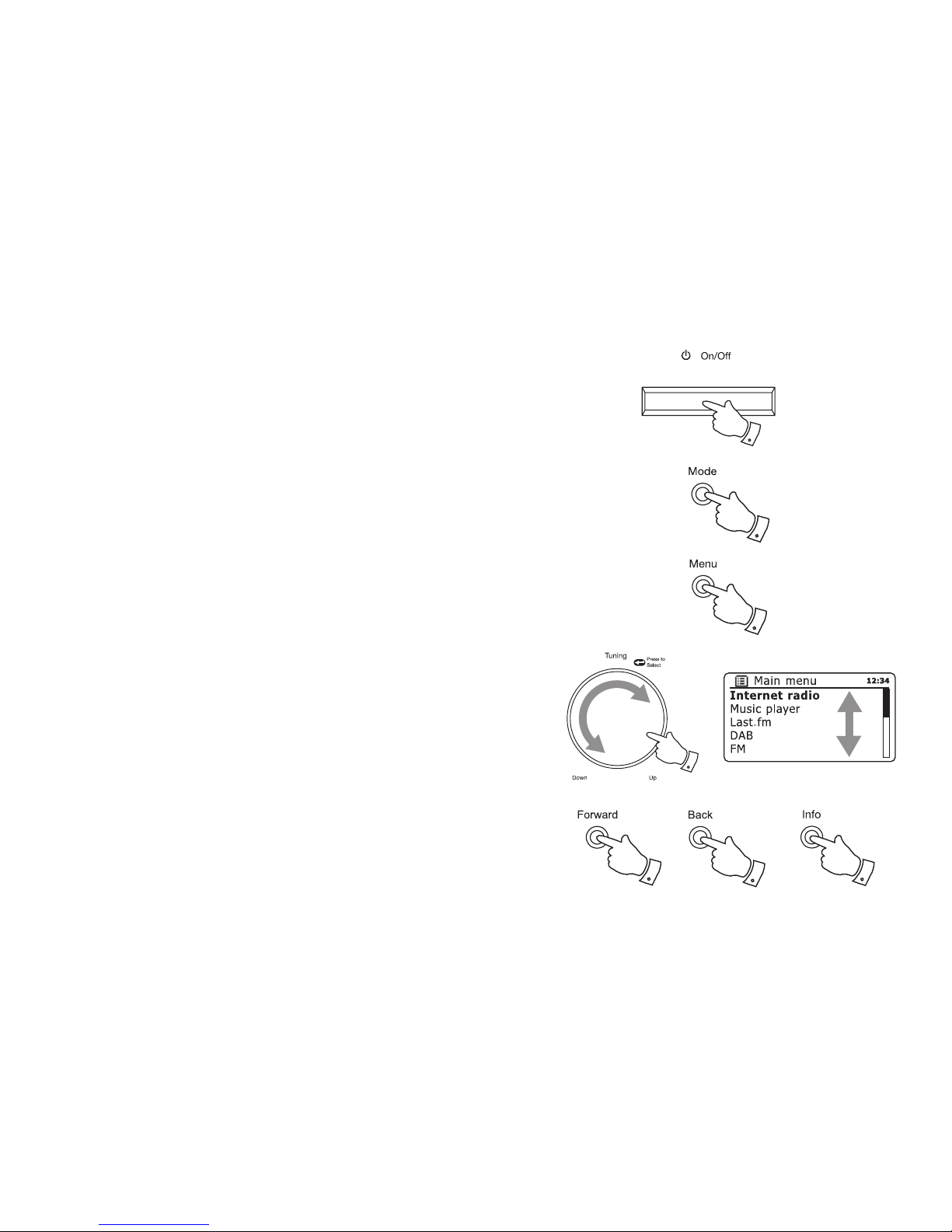
Navigation controls
This page describes the basic means of controlling your Stream 83i sound system.
Instructions for each operating mode are given in the later sections of this book.
1. Pressing the On/Off button brings your sound system out of Stand-by mode.
Pressing On/Off while the sound system is in use will cause it to return to the
Stand-by mode with the clock display.
2. Pressing the Mode button gives you access to each of the operating modes in turn:
Internet Radio, Music Player, Last.fm, DAB radio, FM radio and Auxiliary Input.
3. Pressing the Menu button will access the menu system.
4. Many operations require the user to make a selection from the menu. This is done
using the Tuning/Select control. Turn the control clockwise or anti-clockwise to
highlight the desired menu item then press the control to select that item.
If there are more than five items in a menu, then the display will automatically scroll
up or down so that the additional items become visible. A sliding bar on the right
will give an indication showing the current portion of the menu that is displayed.
If there are many items in a menu, then the sound system allows the menu to
'wrap around' in either direction. This can make it easier to reach items at the end
of a long menu, such as a list of countries or Internet radio stations.
5. The Forward button may also be used to make selections from the displayed
menu or to select the next character in text entry screens.
If an error is made when navigating the menus, it is generally possible to go back
to a higher level menu by pressing the Back button.
6. The Info button allows the display of information relating to the radio station or
music file being played.
Note: In this booklet, press always means press and release. Although controls on the
sound system are shown, all functions are also available using the remote control.
4
2
3
5
5
1
9
6
Otros manuales para STREAM 83I
2
Tabla de contenidos
Otros manuales de Sistema estéreo de Roberts

Roberts
Roberts Blutune65 Manual de usuario

Roberts
Roberts MP-16CD Manual de usuario

Roberts
Roberts Stream 67 Manual de usuario

Roberts
Roberts Swallow CD9959 Manual de usuario

Roberts
Roberts CD9912 Manual de usuario

Roberts
Roberts MP-23 Manual de usuario

Roberts
Roberts STREAM 83I Manual de usuario

Roberts
Roberts CD9925 Manual de usuario

Roberts
Roberts MP-SOUND 53 Manual de usuario

Roberts
Roberts Blutune 100 Manual de usuario