Returnstar Interactive Tech IQTouch L Series Manual de usuario

第1页 共 44 页
IQTouch
L Series
——User Manual——

第2页 共 44 页
Content
I. Systems Instructions........................................................................................................................ 3
1.1 Education System Launcher..................................................................................................4
1.1.1 Status Bar....................................................................................................................4
1.1.2 Preview Window........................................................................................................ 4
1.1.3 Shortcut Bar................................................................................................................ 4
1.1.4 Application Bar...........................................................................................................5
1.1.5 Channel Switching Shortcut Bar................................................................................ 6
1.2 Pull up touch menu................................................................................................................7
1.2.1 Function Introduction................................................................................................. 7
1.3 Touch Menu.........................................................................................................................11
1.3.1 Sound........................................................................................................................ 11
1.3.2 Screen........................................................................................................................12
1.3.3 Display...................................................................................................................... 12
1.3.4 Adjustment................................................................................................................13
1.3.5 Intelligence................................................................................................................13
1.3.6 Channel..................................................................................................................... 17
1.4 System Settings Menu......................................................................................................... 18
1.4.1 Wireless and Network...............................................................................................18
1.4.2 Hotspots.................................................................................................................... 20
1.4.3 General......................................................................................................................21
1.4.4 System.......................................................................................................................25
II. Software Description....................................................................................................................29
2.1 Electronic Whiteboard.........................................................................................................29
2.1.1 Interface Display.......................................................................................................29
2.1.2 Function Menu..........................................................................................................30
2.2 Annotation........................................................................................................................... 38
2.3 Multi-screen Interactive...................................................................................................... 40
2.3.1 Application Interface Introduction........................................................................... 41
2.3.2 Mobile Screen........................................................................................................... 42

第3页 共 44 页
I. Systems Instructions
1.1 Education System Launcher
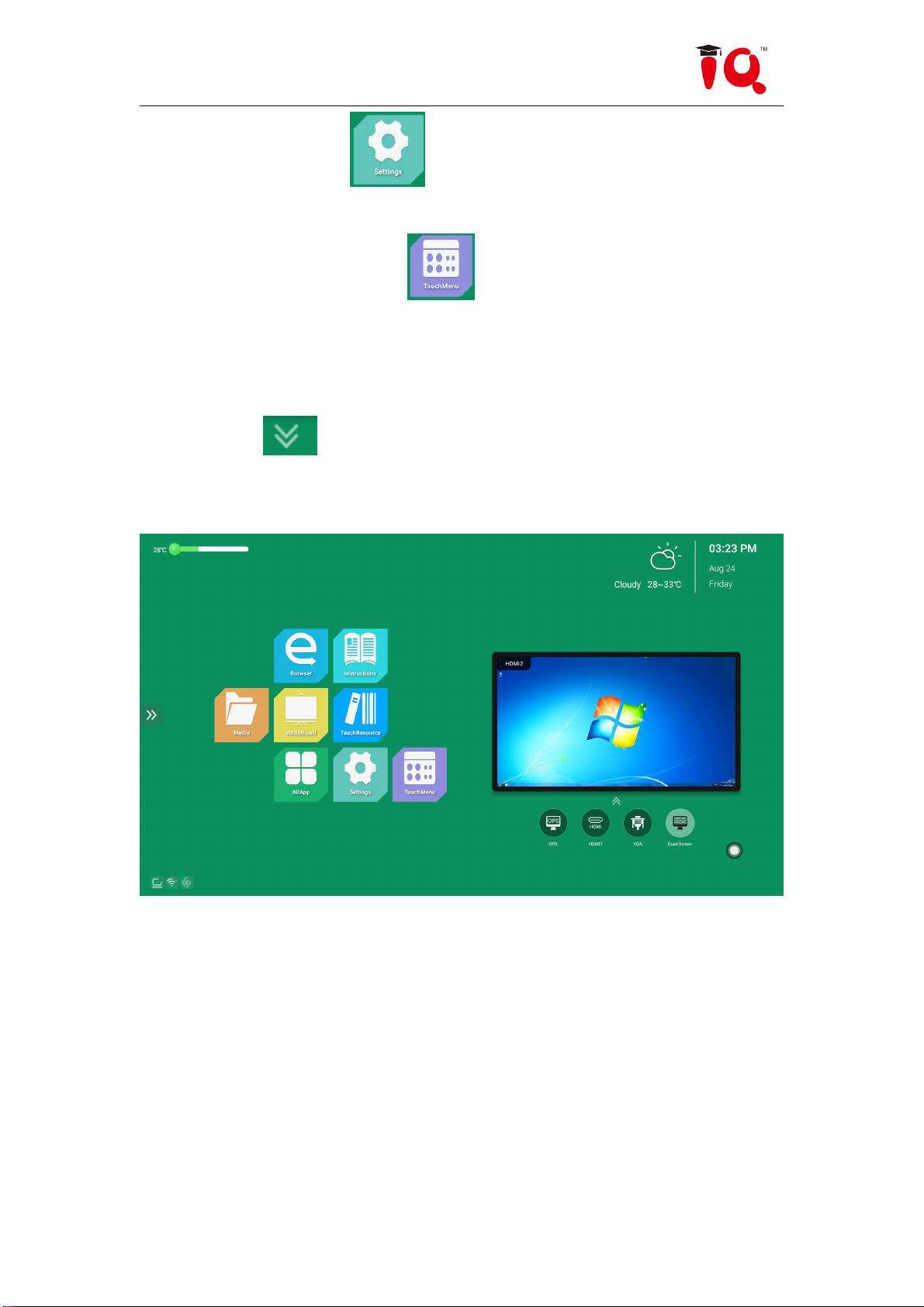
The main interface of Android system is as follows:
The main interface is mainly divided into a status bar, a preview window, a
shortcut bar, an application bar, and a channel switching shortcut bar.

第4页 共 44 页
1.1.1 Status Bar
It mainly shows the temperature, date, time, weather status, and the connection
status of wired network, wireless network, and video sharing.
1. Temperature monitoring: a. When the whole machine temperature is below
45°C, the temperature bar shows green; b. When the whole machine temperature
reaches 45°C~65°C, the temperature adjustment shows orange; c. When the whole
machine temperature reaches 65°C or above, the temperature The bar displays red for
early warning.
2. Time and weather: When the whole machine is connected to the network, the
time and weather conditions are obtained through the network.
3. Network, screen connection status: a. Visually view the whole machine
network, screen connection status; b. Click the icon to jump directly to the network /
screen setting interface.
1.1.2 Preview Window
You can view the preview interface of the current channel.
1.1.3 Shortcut Bar
Click the screen icon to call up the shortcut bar menu. Application software of
all application interfaces can be added to the main interface, so that users can quickly
open the required applications.
1. Adding method
Long press all the application software that needs to be added under the
application interface, it will pop up whether to add the application to the shortcut bar
prompt, select Yes to add.
2. Delete method
Long press the shortcut bar to delete the application software, it will pop up
whether to delete the prompt, select Yes to delete.
1.1.4 Application Bar
The application bar displays media courseware, whiteboard teaching, teaching
resources, all applications, browsers, electronic manuals, settings, touch menus and
other applications by default.

第5页 共 44 页
1. Media courseware: Click the icon to enter the multimedia interface,
which can read the external storage device file.
2. Whiteboard teaching: Click the icon to open the whiteboard
application. For details on the whiteboard function, see chapter 2.1.
3. Teaching Resources: Click on the icon to open the Teaching
Resources website. (The teaching resource website needs to be provided by the
customer. The factory default is Baidu website)
4. All apps: Click the More Apps icon to go to the Education System
More Apps interface where users can view or open apps as shown.
5. Browser: When connected to the network, click the icon to access
the Internet.
6. Electronic manual: You can view the system description.

第6页 共 44 页
7. Settings: Click the icon to enter the system settings interface, you
can set some parameters of the system. See chapter 1.4 for details.
8. Touch the menu: Click the icon to adjust the system's screen, sound,
display and other functions. See chapter 1.3 for details.
1.1.5 Channel Switching Shortcut Bar
Click the icon at the bottom of the preview window to call up the
channel switching shortcut bar. There are built-in computers, HDMI, VGA, and quad
screen to switch.
1. Quad screen: After the quad screen function is turned on, the preview screen
of the Android home page will display a preview screen of four channels.

第7页 共 44 页
1.2 Pull up touch menu
1.2.1 Function Introduction
Pull up the menu and pull up from the bottom of the screen to display the sidebar.
The expanded function buttons are Back, Home, Task, Input Source, Menu, Volume -,
Volume +, Backlight -, Backlight + , whiteboard, annotations, screenshots.
When there is no operation in the sidebar expansion state, it will be
automatically hidden after 3S.

第8页 共 44 页
1. Back
Click the icon to return or exit the current program.
2. Homepage
Click the icon to enter the main interface of the system.
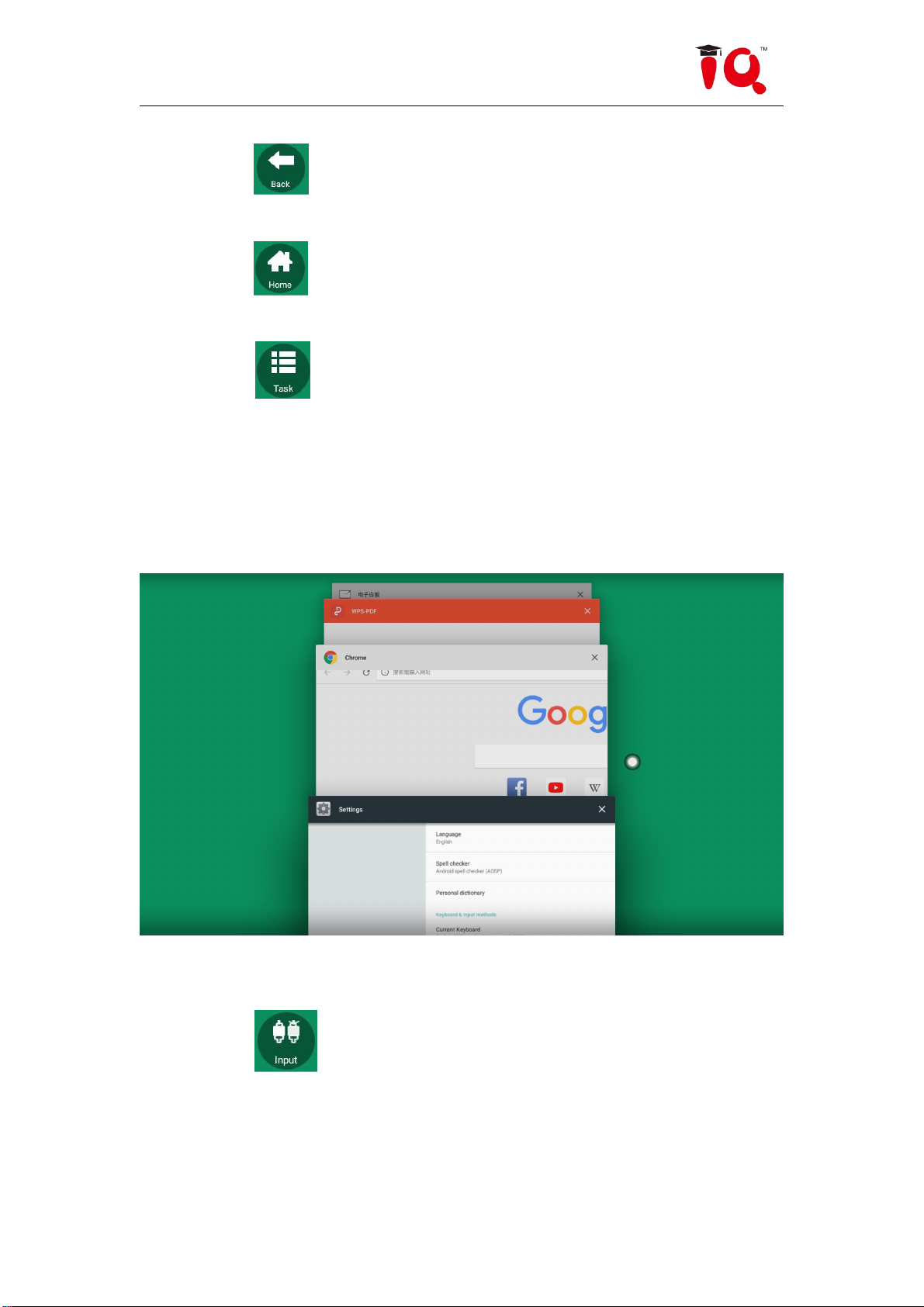
3. Mission
Click the icon to enter the task management interface, you can choose to
open or close the application.
(1) In the multitasking state, touch the task list area and slide up and down to
view the task list.
(2) Touch the task thumbnail to slide left or right until you slide out of the task
list area to release the thumbnail.
4. Input source
Click the icon to call up the source channel list, and the user can choose
to switch the desired channel.

第9页 共 44 页
5. System menu
Click the icon to call up the system menu, and the user can set the
corresponding function to the system.
The system menu settings mainly include sound, screen, display, adjustment,
smart, and channel function settings.

第10 页 共 44 页
6. Volume reduction
Click the icon to turn down the volume.
7. Volume plus
Click the icon to turn up the volume.
8. Brightness reduction
Click the icon to decrease the screen brightness.
9. Brightness plus
Click on the icon to increase the screen brightness.
10. Whiteboard
Click on the icon to enter the educational whiteboard software.
11. Endorsement
Click the icon to open the annotation for writing.
Tabla de contenidos
Otros manuales de Monitor de Returnstar Interactive Tech