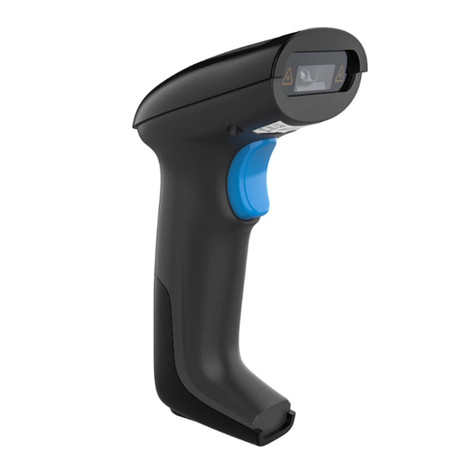
REALINN RL6200BT Instrucciones de montaje


In order to correctly use the bar code scanner, please read the instruction
carefully and do not arbitrarily scan the settings code otherwise some settings
may not be available.
Please keep this instruction for reference in the future.
If you have any question or concern about the operation of the scanner, please
contact us at Email:

Contents
Product Specification
.....................................
1
Packing List
.....................................
2
Battery & Charging
....................................
2
Quick Guide
....................................
3
FAQs
....................................
5
Optional Function settings
....................................
8
1. Upload Mode Setting
................................................
8
2. Scanning Mode Setting
................................................
11
3. Beep Setting
................................................
12
4. Anti-duplication Setting
................................................
13
5. Aiming & LED Light Setting
................................................
14
6. Case Sensitivity Setting
................................................
15
7. Restore factory setting
................................................
15
8. Identity Barcode Type
................................................
16
9. Frequently-used End Character Setting
................................................
17
10. Interface Setting
................................................
18
11. Battery Remaining
................................................
18
12. Stand-by Setting
................................................
19
13.Keyboard Language Setting
................................................
20
14. Enable / Disable Barcode Type
................................................
21
15.Insert and Delete Character
................................................
35
ASCII Barcode Table
................................................
39

1
Product Specification
Model-Number
RL6200BT
Connection
Bluetooth+2.4GHz Wireless + Wired
Memory
16MB = 100,000 barcodes
Battery capacity
2000mAh
Voltage
DC 5V
Standby current
30mA
Charging power
5V-400mA
Printing Contract
>25%
Light source
624nm LED
LED life
12000 hours
Button life
5000,000 times
Camera
640*480 CMOS
Illumination
6500K LEDs
Indication
Buzzer & LED
Resolution
4 mil
CPU
ARM 32-bit Cortex
Printing Contract
>25%
Decoding speed
500 times/sec
Scanning angle
Angle of rotation360°, inclination± 65°,declination ± 60°
Anti-interference
0-100000Lux Max
Drop test
2.0m
Certificate
CE,FCC,RoHS ,IP54
Applicable 1D barcode
UPC-A,UPC-E,EAN-8,EAN-13,Code 128, Code 39,Code 93,
Code 11,Interleaved 2 of 5,Standard 2 of 5,Industrial 2 of 5,Coda bar
MSI ,etc.
Applicable 2D barcode
QR Code, Data Matrix,PDF417,Aztec code,Maxicode,etc

2
Packing List
•Bar code scanner*1
•USB Cable*1
•Instruction Manual*1
•USB Wireless Receiver*1
Battery & Charging
The scanner is powered by 2000mAh rechargeable battery.
Please ensure that the scanner has enough power before use.
Battery level indication:
1). Plug in the USB receiver,the blue indicator light of the scanner is on all the time, it
indicates that the battery is sufficient.
2). The lower battery warning: 6 times continuous beeps and the light on the top of
scanner blinks continuously. You need to charge the scanner.
Insert one end of USB cable into the bottom of scanner, and insert another end to
computer USB interface or 5V DC USB interface power
Charging indication:
1. Normal charging: The red light is steady on.
2. Fully charged: The blue light is on, red light goes out.
NOTE:
1. Please use computer USB interface or special 5V DC power adapter for charging, the
abnormal power will cause permanent damage to scanner and battery.
2. To know how much the battery is left, please refer to page 18.

3
Quick Guide
The scanner has 3 connection modes: Bluetooth mode, wireless mode and wired
mode.
Mode 1:Bluetooth mode
1.Turning on the scanner. Scan below “ Bluetooth HID ” and “ Match“ codes in
order. The Bluetooth indicator blinking quickly indicate that the scanner is discoverable
by the Host.
Bluetooth Mode
Match
2.On the Host, use the dedicated Bluetooth application to search for new devices.
Select the “ BarCode Scanner HID” from the list of available devices. When the
scanner finish pairing with the Host, the Bluetooth indicator remains on and the buzzer
beeps “di”.
3. Scan “ Instant upload mode” code allow the scanner to upload barcodes to host
instantly.

4
Instant upload mode
4.Open the Notepad or Word in the Host, put the cursor on the blank, read labels for
testing. When scanner decodes successfully, the scanner will beeps once( The beeper
indication can be turned off. See Decoding Volume Setting on page 12)
Mode 2: Wireless mode
1). Turning on the scanner. Pull the trigger again, the green aiming light and white LED
light will show up. (The scanner has been paired with the receiver, and set up already.)
2). Insert the USB receiver into the USB port of computer. The scanner top light will
steady on blue and have “di”beep, it means the scanner paired successful. (Unplug
the USB receiver from the PC’s port, the scanner top light will blink green twice and
then goes out.
3). Open notepad on computer and move cursor to the blank where scanning output
should be placed. Scanning results can be displayed on notepad then.
If the bar code does not displayed, please set up the scanner again according to the
following steps.
Step 1. Scan the code below to start pairing the USB receiver with scanner.The green
light keep blinking.

5
2.4G Wireless Mode Match
Step 2. Unplug the USB receiver and plug it again, then the scanner will have “di--di”
beep , the light on the top of scanner will turn to green and lighting stably, it means the
scanner paired successful.
Step 3. Scan the code “ instant upload mode “to set the scanner instantly upload
barcode.
Instant upload mode
Step 4. Open notepad on computer and move cursor to the blank where scanning
output should be placed. Scanning results can be displayed on notepad then.
( If there is triple quick “di-di-di”beep, that means paired unsuccessful, please
operate the step1 and step 2 again. )
Mode 3. Wired mode
Step 1. Connect the scanner to your computer via USB cable. When the usb cable is
plugged, the scanner will automatically switch to the wired mode by default.
Step 2. Open notepad on computer, move cursor to the blank, scan a barcode to see if
it can be uploaded

6
FAQs:
Q1. If I scan a product bar code, will it include the name of the product in the file
automatically?
Answer:
The scanner works like a keyboard. It does not interpret what the bar code is, it just
"types" out a string of alphabet numeric characters that the bar code represents.
it's up to the database software you are using to interpret what that string of characters
means. Once you acquire the bar codes, you have to correlate them to something more
meaningful by either purchasing a software service that will interpret the barcode and
relate it to a product, or you can use your own internal inventory system like excel to
assign the bar codes to specific products.
After creating the relationship between your bar code and the corresponded
information ,when you enter the bar code into the software by the scanner,your
software will look up the bar code and then output the related information of your
product.
Q2. Why does scanner not read the bar code exactly. When I use the scanner to read
a bar code of an item, I get a different result from the barcode itself.
Example 1: We use Code 39. it puts an * at the beginning and a * at the end. How do
we program the scanner to read whole bar code? The bar code the computer received
is 123456789. The bar code we need is *123456789*.
Solution: To show the start and stop digit of code39, please scan the code“Code39
start&stop digit -On” on page 30.
Example 2: The original bar code is “ abc12345 ” , the scanning result is
“+A+B+C+D12348”,the scanner put “+” between character.
Solution:Please scan the code “Code39 Full ASCII-On”on page 29.
Tabla de contenidos
Otros manuales de Lector de código de barras de REALINN