
RACOM RipEX Manual de usuario

DEMO handbook
.
RipEX – Radio modem & Router
.
version 1.0
5/6/2013
fw 1.2.x.x
www.racom.eu
RACOMs.r.o. •Mirova1283•59231NoveMestonaMorave•CzechRepublic
Tel.:+420565659511•Fax:+420565659512•E-mail: racom@racom.eu


Table of Contents
1. RipEX – Live Demo ......................................................................................................................... 5
1.1. Introduction ........................................................................................................................... 5
1.2. General Overview ................................................................................................................. 5
1.3. Wizard Configuration ............................................................................................................ 6
1.4. Practical Tests ...................................................................................................................... 6
1.5. Diagnostic ............................................................................................................................. 8
1.6. Summary ............................................................................................................................ 12
2. ZABBIX – Live DEMO ................................................................................................................... 13
2.1. Introduction ......................................................................................................................... 13
2.2. Zabbix Overview ................................................................................................................. 13
2.3. Zabbix Live Demo .............................................................................................................. 14
2.4. Summary ............................................................................................................................ 21
3. Demo Case – RipEX & M!DGE ..................................................................................................... 23
3.1. Introduction ......................................................................................................................... 23
3.2. Demo Case ........................................................................................................................ 24
3.3. Programming RipEX via Computer .................................................................................... 24
3.4. RipEX General Overview ................................................................................................... 28
3.5. RipEX Wizard Configuration ............................................................................................... 28
3.6. RipEX Practical Tests ......................................................................................................... 30
3.7. RipEX Diagnostic ............................................................................................................... 38
3.8. RipEX Advanced Tests ....................................................................................................... 42
3.9. M!DGE General Overview .................................................................................................. 43
3.10. Accessing M!DGE ............................................................................................................ 43
3.11. Basic M!DGE Configuration .............................................................................................. 45
3.12. Practical Tests .................................................................................................................. 49
3.13. M!DGE Advanced Tests ................................................................................................... 55
3.14. Summary .......................................................................................................................... 56
3© RACOM s.r.o. – RipEX – Radio modem & Router

4

1. RipEX – Live Demo
1.1. Introduction
RipEX Live demo should answer most of your questions regarding the RipEX product and give you a
quick and easy summary about the product itself.
There are two RipEX units connected to each other via a radio channel available 24/7 for testing. The
units are set to factory settings every day at 02:00 GMT. Each access password is valid for one week
and is changed every Monday at 02:00 GMT. The login name remains the same.
You may access RipEX live demo units on the following IP addresses:
• RipEX-A: https://89.190.53.163:8001
• RipEX-B: https://89.190.53.163:9001
If you do not have the login credentials yet, feel free to contact us using the following link:
http://www.racom.eu/eng/products/remote-access.html#load%28product=ripex%29
RipEX Live demo settings have the following minor changes compared to RipEX factory settings:
•Unit names – RipEX-A and RipEX-B
•Ethernet IP addresses – 192.168.169.169 and 192.168.169.170
•Modulation rate – 20.83 Kbps (4CPFSK)
•RX/TX frequency – 448.250 MHz
1.2. General Overview
RipEX Live demo gives you the most straightforward way to discover and understand all RipEX features
and functionalities. Pay attention to the Settings tab, where one can set most configuration parameters.
A few clicks will give you an easy summary about the product faster than reading many pages of text.
5© RACOM s.r.o. – RipEX – Radio modem & Router
RipEX – Live Demo

For detailed parameter descriptions, click on the Help button. Kindly note, balloon tips are also available
for some parameters.
Keep in mind that accessibility of some parameters depends on the settings of other parameters. For
example serial SCADA protocols on COM ports can only be set when Operating mode is set to the
Router mode.
Fig. 1.1: Help question marks and balloon tips
1.3. Wizard Configuration
The easiest procedure to configure the units in real usage is to use our Wizard feature. Click on the
Wizard tab to be guided through all necessary settings. The Wizard will provide you with helpful notes
for respective parameters.
1.4. Practical Tests
Since the best way to understand the product is through practice, we have described a few practical
tests you may wish to conduct.
1.4.1. Ping
Ping is the basic tool for checking connectivity between two hosts with IP addresses. Because RipEX
is a native IP device, ping can also be used for radio link testing.
RipEX – Radio modem & Router – © RACOM s.r.o.6
RipEX – Live Demo

Go to the Ping tab in the Diagnostic menu. You can either set the Ping Type to „ICMP“ (common ping)
or to „RSS“. The RSS type is a RipEX proprietary ping with extended reports.
The destination is the remote RipEX's IP address. For example when you are locally connected to
RipEX-A (192.168.169.169), fill in 192.168.169.170 and vice versa.
When Ping is started, you will see the following on-line report on your screen.
Fig. 1.2: Ping on-line report
When the specified count of ping packets is transmitted, following detailed summary is displayed. It
consists of: throughput usage, PER/BER, RSS, Data Quality (DQ) and Round Trip Time (RTT) histogram.
It can be very useful during RipEX unit installation and coverage optimisation.
Please read the detailed Ping report description by clicking on the Help question mark.
7© RACOM s.r.o. – RipEX – Radio modem & Router
RipEX – Live Demo

Fig. 1.3: Detailed Ping report
Feel free to change the packet length (Ping option) or the Modulation rate (Settings tab) in order to see
the impact on the measured RTT. Do not forget to set the same Modulation rate in both units.
1.5. Diagnostic
RipEX web interface is equipped with comprehensive and detailed statistics and graphs. One could
say, there is an embedded NMS (Network Management System) within RipEX.
Every RipEX can broadcast its Watched values to other reachable RipEX units within the network.
Among these Watched values are: current supply voltage, internal temperature, RF output power,
Voltage Standing Wave Ratio on the antenna feed line, packet counters on separate interfaces and
other values.
1.5.1. Neighbours
These Watched values are displayed in the Diagnostic → Neighbours menu. See the following example
with one neighbouring unit.
RipEX – Radio modem & Router – © RACOM s.r.o.8
RipEX – Live Demo
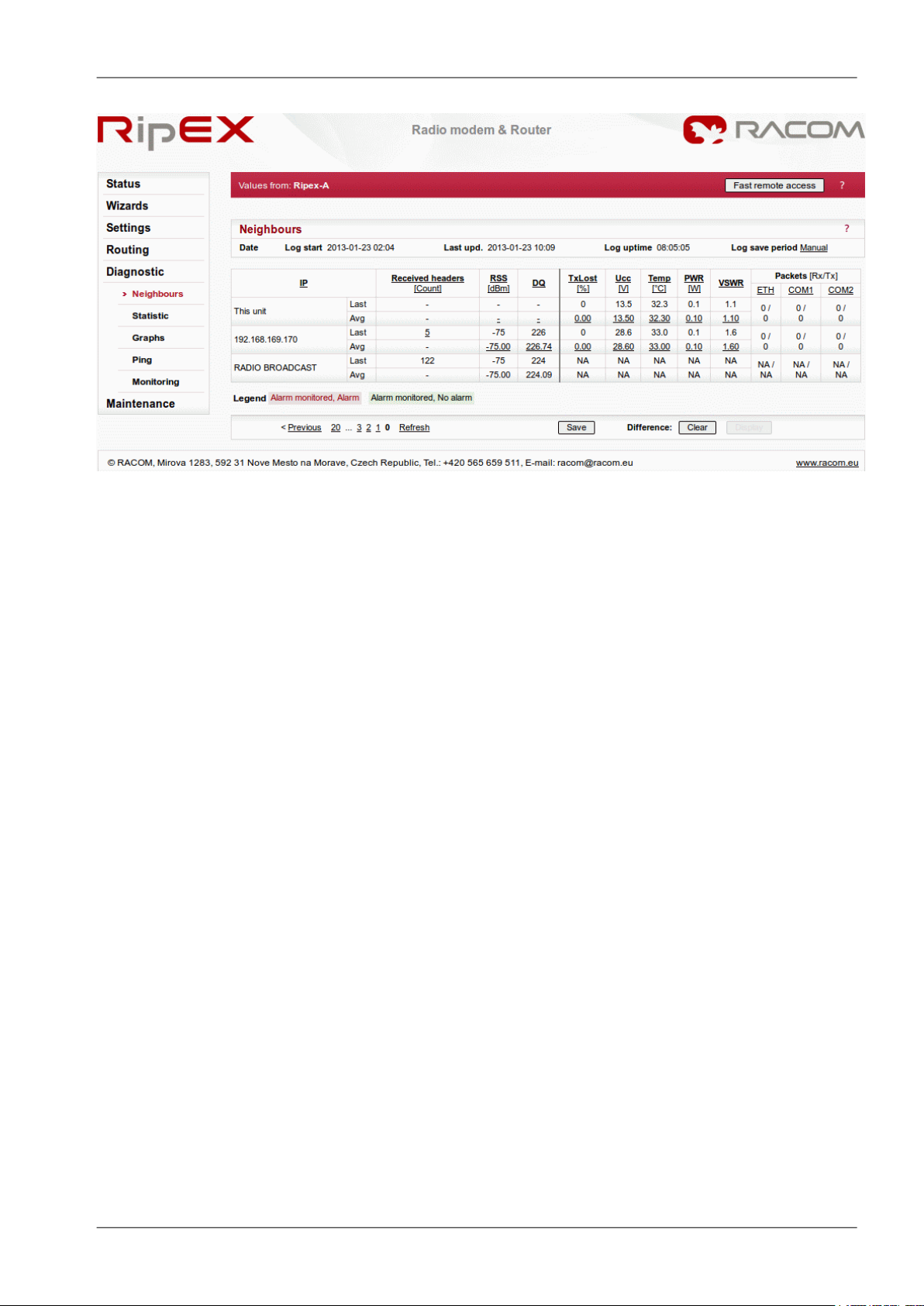
Fig. 1.4: Neighbours menu
1.5.2. Statistic
The Diagnostic → Statistic menu provides you with information about data volume on all interfaces:
Radio, Ethernet, COM1 and COM2. The menu displays the number of received and transmitted packets,
their sizes and current throughput. Moreover, a detailed division into user and service packets is
available for the radio channel.
The quick value descriptions are displayed in the balloon tips (place the cursor on any column header).
The detailed description can be read in the respective Help.
9© RACOM s.r.o. – RipEX – Radio modem & Router
RipEX – Live Demo

Fig. 1.5: Statistic menu
1.5.3. Graphs
Neighbours and Statistic values can also be displayed as graphs in the Diagnostic → Graphs menu.
Each graph is available in a summary or detailed version and can display two different elements at
once. The detailed graphs can be created continuously or can be triggered whenever monitored values
are out of their threshold ranges. Each graph can be created based on the values of the unit itself or
any other neighbouring unit.
The detailed Graphs description can be read in the respective Help.
RipEX – Radio modem & Router – © RACOM s.r.o.10
RipEX – Live Demo
Otros manuales para RipEX
2
Este manual sirve para los siguientes modelos
2
Tabla de contenidos
Otros manuales de Módem de radio de RACOM

RACOM
RACOM RipEX 1.12.2 Manual de usuario

RACOM
RACOM RipEX 1.3 Manual de usuario

RACOM
RACOM RipEX2 Manual de usuario

RACOM
RACOM RipEX 1.12.0 Manual de usuario

RACOM
RACOM RipEX Manual de usuario

RACOM
RACOM RipEX2 Manual de usuario

RACOM
RACOM RAy3 Manual de usuario

RACOM
RACOM RipEX 1.5 Manual de usuario

RACOM
RACOM RipEX 1.4 Manual de usuario

RACOM
RACOM RipEX 1.6.0 Manual de usuario


