
Proxima Y6 Manual de usuario

User's Manual
Y6
Proxima smart watch

Tips:
Connect USB cable from watch and charge from wall charger or
computer usb to charge, Take about 2hours for full charge
1 Getting Start
1.1 Product general view
1: Microphone 2: USB Interface 3: Speaker 4: Camera 5: Power
button
Power Button: On/Off; Screen on/off; Return;
USB Interface: Charging, Data
Touch Screen: capacitive touch screen, all functions can be
operating here
Open the battery cover by buckle, insert Micro sim card, replace

battery, watch can be used. High-sensitivity capacitive screen
can bring rich experience by sliding and touching. Button key
return home page
1.2 Product Quick Access
After power on, slide to change pages. Slide left to next
menu; slide right to return; slide down to note page; slide up to
main menu. Dragging distance should more than half of the
screen, or will be considered as a hit-touch. Icons can be drag to
any place you want, click Enter to confirm
1.3 Watch Dial Setting
Click dial to change clock face
Setting
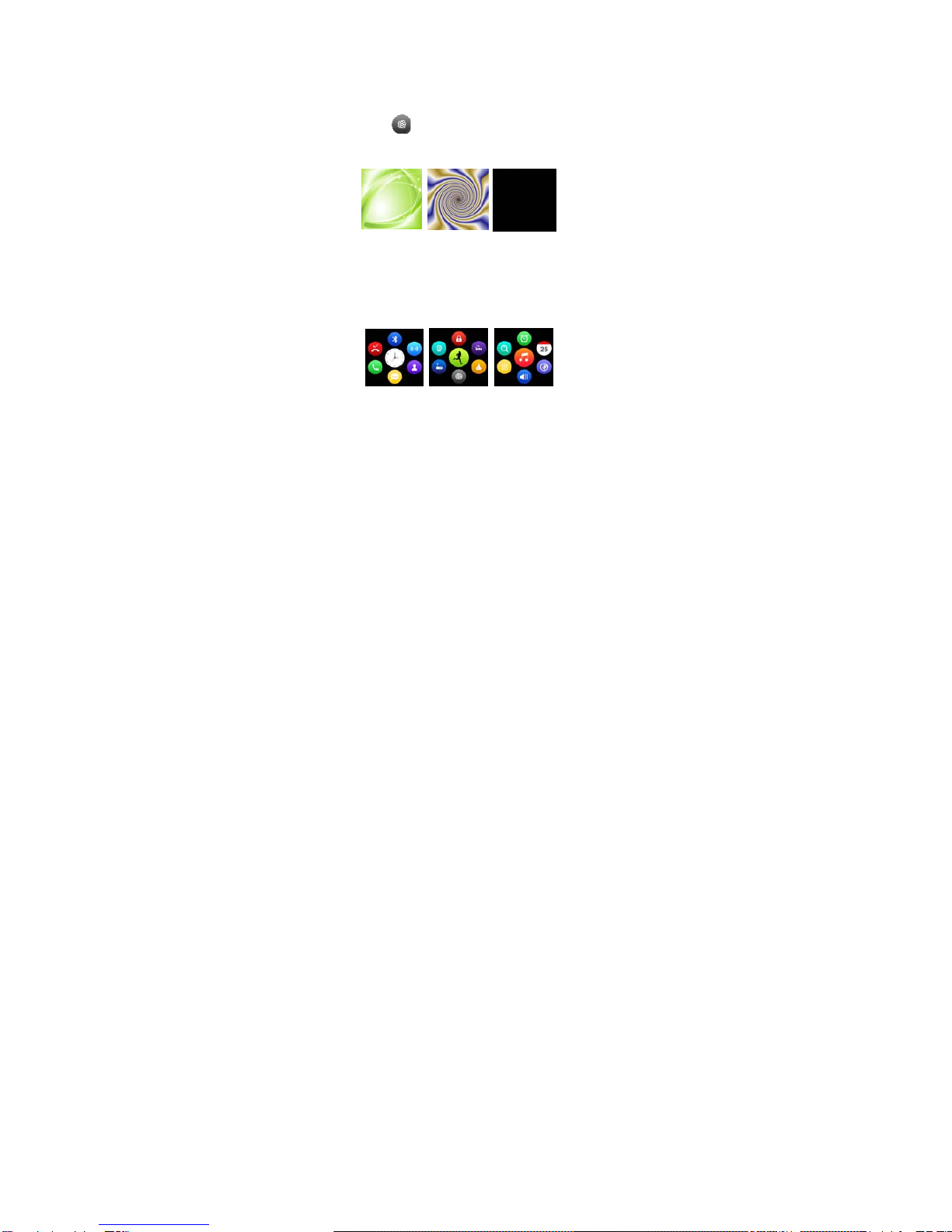
Option 1: Power on, in the situation of clock interface, dial
face can be changed automatically by touching the middle place;
you can change any of the three every day.
Option 2: Power on, select menu:
Setting —watch setting—standby display--unlock type,
select one of your favorite.
1.4 Product Theme Settings
Setting:
Enter menu: Theme—Theme setting, select one of your
favorite

2 Quick use
2.1 Download synchronizationApp
Scan two-dimensional code , download the App which for
Android smart phone, this App only used to synchronization
between Android smart phone and smart watch
2.2 Setup and use
App Setup
Setup as other App in Android smart phone, can be stored
in phone or SD card, also can be setup byApp assistant
App use setting from smart phone
Settings – Accessibility – BTnotification Click to enter,
enable this service. (When enabled, a warning prompt, select
"OK") Software can be run automatically in the background,

the synchronization function
which can be used. As shown below:
Click BTnotification, select "Notification Service" in the
"notify applications" item, select the individual application or
system applications you want to be pushed; telephone service,
including text messages and phone calls; finding watch.
NOTE: Please do not close the Bluetooth notification
service, when using the background cleanup function or close
background applications, or the data cannot be synchronized

between watch and phone.
2.3 Bluetooth connectivity and synchronization
2.3.1 Connecting the watch from the phone
Enter the phone setting - Bluetooth - searching, when you find
Y6, click to select the pairing, the watch choose "Yes", the
pairing is success, when the phone book requests, please click
"OK", It is best to select "Save not prompt" , then next time the
phone book can synchronize directly without further prompting
you.
Note: when synchronization software has been installed and
the App is opened, within 2-5 seconds after the connection, the
phone display the Bluetooth connected notify; at the same time,
the watch shows the synchronize time, which means the
synchronization feature is enabled. When you have new
information to come in the phone, it will end in time synchronized
to the Smart Watch.

2.3.2 Connect phone from Smart Watch
Smart Watch – Bluetooth Dialer – Search New Device – Click
(smart phone you find) – Pairing ; follow the procedure as above
3.3.1;
2.4 Function menu description
2.4.1 Information
SMS for Smartphone or watch phone
2.4.2 Bluetooth
Set Bluetooth status, open or close Bluetooth.
2.4.3 Call records
After Bluetooth connect, you can view call record on the
watch.
2.4.4 Bluetooth Dialer
From watches to choose Pairing connection;
2.4.5 Remote notifier
Sync display information with the phone such as: QQ,

Wechat, SMS, Time, Twitter, Facebook etc;
2.4.6 Remote camera
Control the smart phone to take pictures by smart watch
(smart phone camera open)
2.4.7 Anti-lost
Find each other by the other device.
2.4.8 Setting
Note: You can set the Dialer in phone settings and
themes; security settings, the default security code is: 1122
2.4.9 Pedometer
In the pedometer settings, drag left, you can see run
step/Fat/Heat/Speed/Mileage recorder;
During exercise, if want to return to the main menu,
without stop the pedometer, press power button; pedometer
continue run in the background.
2.4.10 Sleep monitor

According to your sleeping time and show the quality of
your sleep.
2.4.11 Sedentary reminder
You can set a time to remind you when you need to get
up; we recommend that you get up at least once an hour;
2.4.12 QR Code
Scan QR Code, you can download the synchronization
App, if a new version of the software needs to be upgraded,
please communicate with customer service related companies
to provide new download source by the company;
2.4.13 Smart search
Find the watch information
2.4.14 Alarm
2.4.15 Calendar
2.4.16 Calculator
2.4.17 Profiles


