
PROMULTIS EarlyLearning Table Manual de usuario
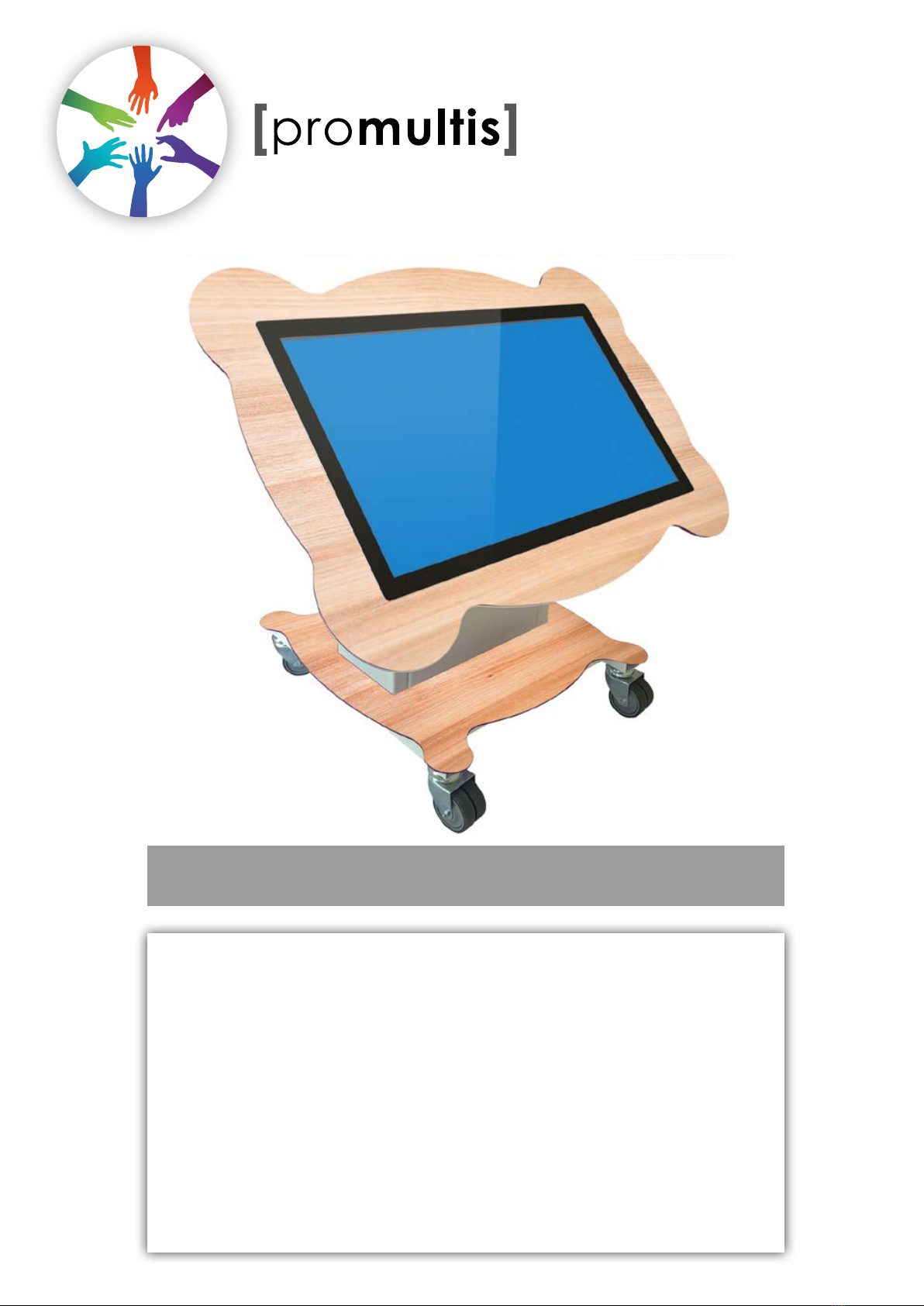
earlyLearningtable
U S E R ’ S M A N U A L
CAUTION
• Changes or modications not expressly approved by the party responsible
for compliance could void the user’s authority to operate the equipment.
• This User’s Manual includes detailed usage instructions for your product.
• Please read this manual thoroughly.
• Figures and illustrations in this User Manual are provided for reference only
and may differ from actual equipment appearance. Equipment design
and specications may be changed without notice.
• Due to the processes required for manufacturing a large format Projected
Capacitive product Promultis will only accept warranty requests for units
that have a blemish, mark or smear on the touch skin that is 5% or larger
than the total interactive area.

For more exciting multitouch products visit
www.promultis.info
or call +44 (0) 239 251 2794
MULTITOUCH SOLUTIONS
earlylearningtable
2
AC Power Supply Remote Control Promultis Manual
Getting started
The following items are included in your
product box.
Battery (OPTIONAL)

For more exciting multitouch products visit
www.promultis.info
or call +44 (0) 239 251 2794
MULTITOUCH SOLUTIONS
earlylearningtable
3
Start the device
1. Check the plug is switched on at the wall socket or on the battery unit.
2. Take the TV remote control, point towards the bottom right of the screen and press
the power button.
3. The screen should start up.
4. Then PRESS the silver button at the front of the screen
to turn on the PC.
Silver button

For more exciting multitouch products visit
www.promultis.info
or call +44 (0) 239 251 2794
MULTITOUCH SOLUTIONS
earlylearningtable
4
Rotate screen
Rotate top screen with care
1. Make sure that the castor wheels on the base unit are locked.
2. Hold the top rmly with one hand and take the weight of the screen.
3. With the other hand pull out stopper on the side. This will release the screen
from its original position.
4. Rotate screen to the desired position and select the appropriate hole before
releasing the stopper. Make sure the table is stable before releasing.

For more exciting multitouch products visit
www.promultis.info
or call +44 (0) 239 251 2794
MULTITOUCH SOLUTIONS
earlylearningtable
5
Controller for Electra

For more exciting multitouch products visit
www.promultis.info
or call +44 (0) 239 251 2794
MULTITOUCH SOLUTIONS
earlylearningtable
6
Screen Cleaning
Over time and use the screen will
become tarnished with nger prints;
to clean a mist spray class cleaner /
degreaser should be used when the
screen is at a 45 degree angle. Should
any liquid be dropped on the screen
when it is in the horizontal position this
should be mopped up with a liquid
absorbent cloth prior to cleaning.
Operation Guidance
When using the screen the gesture
functions are similar to using your
smartphone or tablet but on a much
larger scale.
The way Projected Capacitive touch
technology works is by xing a sensor grid
between a layer of cover glass and the
LCD panel, so when a nger touches the
glass the grid detects the coordinates of
the touch point.
With this type of technology no recessed
bezel is required so our Projected
Capacitive Touch Screens have a strong
tempered edge-to-edge glass front for a
more striking display. From easy cleaning
to smooth gesture recognition Projected
Capacitive is the denitive touch
technology.

For more exciting multitouch products visit
www.promultis.info
or call +44 (0) 239 251 2794
MULTITOUCH SOLUTIONS
earlylearningtable
7
1
2. Touch calibration
3
1. Open start menu by tapping the
Windows button in the lower left corner
of the screen
2. Open settings by tapping the gear
icon
2
3. Once on the settings page, tap on
“nd a setting” at the top and type in
calibrate
Promultis touch screens are calibrated
with the pre-installed Windows
Touch Pack and should be working
automatically. The settings should not
require any further adjustment.
If there is no touch response
Please check the power connections
to the overlay are pushed in fully. Also
check the USB cable is connected
into the overlay and the PC, try
disconnecting and re-connecting both.
After checking all cables are fully
connected please try shutting down or
restarting the PC.
If the touch is not precise
Go through calibration setup.
If there are any further faults or issues,
please contact Promultis technician.

For more exciting multitouch products visit
www.promultis.info
or call +44 (0) 239 251 2794
MULTITOUCH SOLUTIONS
earlylearningtable
8
4
2. Touch calibration
4. You will get two results, tap on “calibrate the screen
for pen or touch input”
This will open a small “Tablet PC Settings” window
Tap “calibrate…”
You may get a pop up asking to
allow this app to make changes,
tap yes

For more exciting multitouch products visit
www.promultis.info
or call +44 (0) 239 251 2794
MULTITOUCH SOLUTIONS
earlylearningtable
9
2. Touch calibration
You will see a white screen with a crosshair in the top left corner
Tap on each crosshair as accurately as possible in the sequence they appear: Upper
top left, Upper top right, lower top left, lower top right, upper bottom left, upper bottom
right etc
You should have to tap a total of 16 times at which point the calibration will nish
A prompt will appear asking if you would like to save these settings, tap yes
The touch will now be calibrated
Tabla de contenidos


