Primera Max Manual de usuario

012004-510887-(01)
Connectivity Guide
© 2004 All rights reserved.
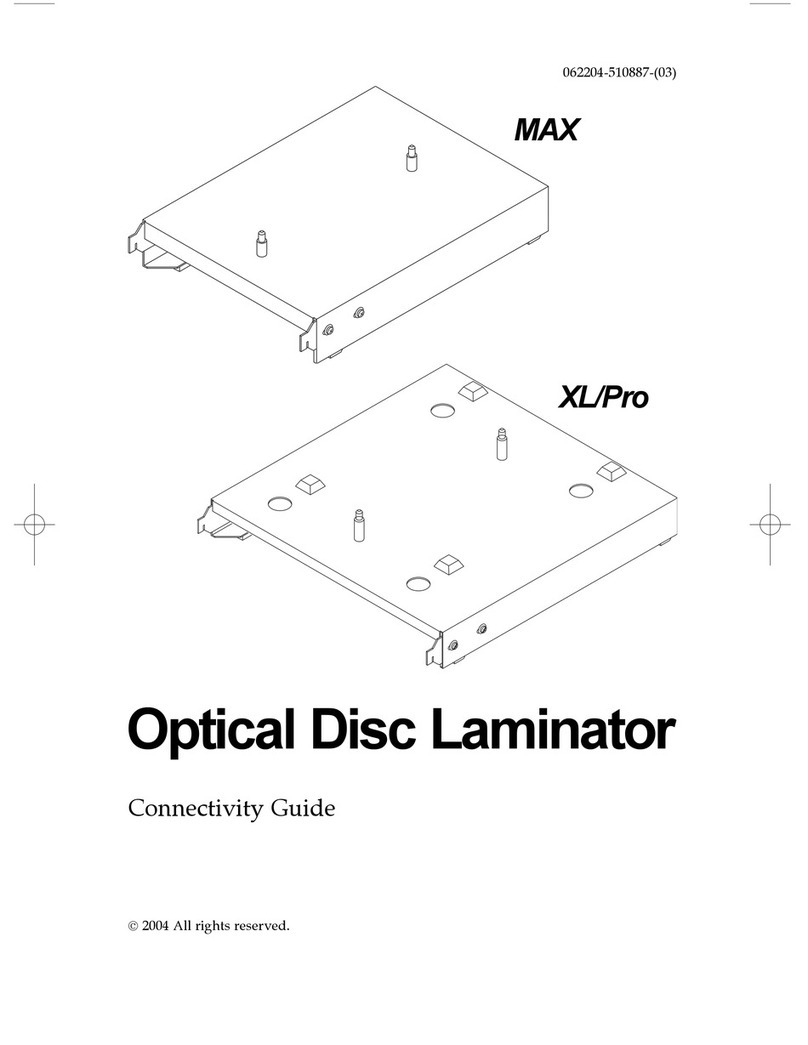
Optical Disc Laminator
XL/Pro
MAX
510887.qxd 1/21/2004 7:35 PM Page i

Notices:The information in this document is subject to change without notice. NO WARRANTY OF
ANY KIND IS MADE WITH REGARD TO THIS MATERIAL, INCLUDING, BUT NOT LIMITED TO,
THE IMPLIED WARRANTIES OF MERCHANTABILITY AND FITNESS FOR A PARTICULAR
PURPOSE. No liability is assumed for errors contained herein or for incidental or consequential
damages in connection with the furnishing, performance, or use of this material. This document
contains proprietary information, which is protected by copyright. All rights are reserved. No part of
this document may be photocopied, reproduced, or translated into another language without prior
written consent.
Trademark Acknowledgments: Windows is a registered trademark of Microsoft Corporation. All
other trademarks are the property of their respective owners.
Printing History
Edition 1.0, #510887, © Copyright 2004, All rights reserved.
ii
510887.qxd 1/21/2004 7:35 PM Page ii

iii
Table of Contents
Optical Disc Laminator Guide .....................................................................................1
A. Unpacking and Inspection ...............................................................................1
B. Installing the Laminator Software Driver......................................................1
C. Connecting the Laminator to Your Duplicator .............................................3
D. Creating Discs with Your Duplicator MAX in Primo ..................................7
E. Connecting the Laminator to Your Duplicator XL/Pro ..............................7
Stand-Alone Mode.............................................................................................8
Full Production Mode .....................................................................................11
F. Troubleshooting ...............................................................................................15
G. Technical Support ............................................................................................15
510887.qxd 1/21/2004 7:35 PM Page iii

iv
Interactive Feature in this
PDF Document
There are interactive features that will allow you to
jump to different locations within the document. Each
listing in the Table of Contents is interactive. Place the
cursor on either the words or the page number. A
small hand with a pointing finger icon appears. Click
on the line with the icon and the document will jump to
that page. If you want to return to the Table of
Contents, move the icon to the top of the page and
click on the arrow marked TOC.
510119pdf.qxd 5/29/2002 11:14 AM Page iv

Optical Disc Laminator Connectivity Guide 1
Optical Disc Laminator Connection Guide
THANK YOU…
Thank you for purchasing the Optical Disc Laminator
Connectivity Kit. This kit will allow you to use your Optical
Disc Laminator in conjunction with the Pro, XL and MAX
versions of Optical Disc Duplicators. This guide will explain
the connection of the Laminator to these systems, the
installation of software and the running of disc jobs.
A. UNPACKING AND INSPECTION
While unpacking your Laminator Connectivity Kit make sure
that all supplied accessories are included with your kit. The
following items are included:
•Laminator Stand
•Software Installer Disc
•USB Cable
•6-Pin Mini Circular Cable (Pro/XL Stand only)
•Warranty Statement, Manual and other documentation.
B. INSTALLING THE LAMINATOR SOFTWARE DRIVER
When using the Laminator with a Primera Technology Disc
Duplicator it will be necessary to install a driver. This driver
will allow the PC to control the functions of your Laminator.
Because your Disc Laminator is a plug-and-play device, do not
connect the Laminator's USB cable to the PC until instructed to
do so by the installer. The driver is installed as follows:
a. This installer will reboot your system so make sure all
applications are closed. Insert the Software Driver Install
disc into your PC's CD-ROM drive
b. The Installer Quick Start program should launch. If it does,
proceed to step c. If not, please follow these steps:
•Click the Start button in the lower left hand side of the
screen, and then select My Computer from the menu.
•Double-click the Disc Laminator Installer Icon.
c. Choose the Duplicator you are using, either Duplicator
XL/Pro or Duplicator MAX.
d. You will now be prompted to install and update to Primo
DVD that will allow you to print, record and laminate
unnatended. Click Next to install the update.
510887.qxd 1/21/2004 7:35 PM Page 1

2 Optical Disc Laminator Connectivity Guide
e. Make certain the Laminator has been plugged into power
and turned on.
f. Select "Install Software Automatically" and click Next.
510887.qxd 1/21/2004 7:35 PM Page 2

Optical Disc Laminator Connectivity Guide 3
g. You may see a notice like the one shown here stating that
the Accent Disc Laminator has not passed Windows Logo
Testing. Click the Install Anyway button to continue
installing the printer driver for your Laminator.
Once the driver has finished installing, click the Finish button.
This will install an update to your PrimoDVD software and
will reboot your system.
C. CONNECTING THE LAMINATOR TO YOUR DUPLICATOR
MAX
Your Laminator connects easily to a DuplicatorMAX allowing
for hands-free printing, recording and laminating of Optical
Discs. This configuration does require you to remove one bin
bringing total capacity from 400 to 300 discs. The optional
DuplicatorMAX Laminator Stand is shown here:
MAX Stand
Adjustable Screws
510887.qxd 1/21/2004 7:35 PM Page 3

4 Optical Disc Laminator Connectivity Guide
The following steps describe in detail how to connect the
Laminator to your DuplicatorMAX:
a. Connect the Laminator Stand to the left hand side of the
DuplicatorMAX as shown:
b. Remove the Input Bin closest to the Laminator Stand to
make room for the Laminator's disc tray.
c. Place the Laminator on the stand using the Locating Pegs
to align the Laminator properly.
d. Connect your Laminator to the PC using the provided USB
Cable.
e. The Laminator must now be aligned with the
DuplicatorMAX Picker Mechanism. This is done as
follows:
1) If the Laminator Tray is not in the "OUT" position,
press the Laminate Button on the Laminator to eject
the tray. Make certain the DuplicatorMax has been
connected to the computer and is on and ready to use.
2) Press the Sequence Button on the front of the
DuplicatorMax until the picker mechanism is
positioned over a bin containing discs.
3) Press the Pick Button on the front of the
DuplicatorMax to pick a disc.
4) Launch PrimoDVD Pro .
510887.qxd 1/21/2004 7:35 PM Page 4

Optical Disc Laminator Connectivity Guide 5
5) From the Main Application Screen click Robotics then
Options.
6) Enable the Use Laminator checkbox.
7) Click the button labeled Move to (Calibrate). This will
move the Picker Mechanism to the Laminator Tray
position.
8) Lower the disc to the Laminator Tray Position as
follows:
a) Press and hold the Sequence and Pick buttons
simultaneously for 5 seconds to enter calibration
mode. The LEDs on the front of the
DuplicatorMAX will flash back and forth indicating
that the unit is in calibration mode.
Press Simultaneously
Until LEDs Toggle
510887.qxd 1/21/2004 7:35 PM Page 5

6 Optical Disc Laminator Connectivity Guide
b) While the LEDs are flashing, press the Pause
button. The Picking Mechanism will lower to the
Laminator Tray Position.
c) Adjust the Laminator Tray forward and back by
loosening the adjusting screws located towards the
front of the stand.
d). For left-to-right adjustment, nudge the Picker
Mechanism left by pressing the Pause Button or
nudge it right by pressing the Sequence Button.
e) Once the Picking Mechanism and Disc are
perfectly aligned press the Pick Button to end
calibration
Press Pause to Lower
Mechanism to Laminator
Tray Position
End Calibration
Nudge Picking Mechanism Right
(Counter Clockwise)
Nudge Picker Mechanism Left
(Clockwise)
510887.qxd 1/21/2004 7:35 PM Page 6
Otros manuales para Max
2
Este manual sirve para los siguientes modelos
1
Tabla de contenidos
Otros manuales de Laminadora de Primera