
Polycom EagleEye Mini Manual de usuario

USER GUIDE 1.6 | September 2020 | 3725-61839-001I
Polycom® Companion

Copyright and Trademarks Copyright© 2020, Plantronics, Inc. All rights reserved. Poly and the propeller
design are trademerks of Plantronics, Inc. All other trademarks are property of their respective owners.
Plantronics, Inc. (Poly — formerly Plantronics and Polycom)
345 Encinal Street Santa Cruz, California 95060
End User License Agreement By installing, copying, or otherwise using this product, you acknowledge
that you have read, understand and agree to be bound by the terms and conditions of the End User
License Agreement for this product. The EULA for this product is available on the Poly Support page for
the product.
Patent Information The accompanying product may be protected by one or more U.S. and foreign
patents and/or pending patent applications held by Plantronics, Inc.
Open Source Software Used in this Product This product may contain open source software. You may
receive the open source software from Poly up to three (3) years after the distribution date of the
applicable product or software at a charge not greater than the cost to Poly of shipping or distributing the
software to you. To receive software information, as well as the open source software code used in this
product, contact Poly by email at typeapproval@poly.com.
Limitation of Liability Poly and/or its respective suppliers make no representations about the suitability
of the information contained in this document for any purpose. Information is provided "as is" without
warranty of any kind and is subject to change without notice. The entire risk arising out of its use remains
with the recipient. In no event shall Poly and/or its respective suppliers be liable for any direct,
consequential, incidental, special, punitive or other damages whatsoever (including without limitation,
damages for loss of business profits, business interruption, or loss of business information), even if Poly
has been advised of the possibility of such damages.
Disclaimer While Poly uses reasonable efforts to include accurate and up-to-date information in this
document, Poly makes no warranties or representations as to its accuracy. Poly assumes no liability or
responsibility for any typographical or other errors or omissions in the content of this document.
Customer Feedback We are striving to improve our documentation quality and we appreciate your
feedback. Email your opinions and comments to DocumentationFeedback@poly.com.
Support Visit the Poly Support Center for End User License Agreements, software downloads, product
documents, product licenses, troubleshooting tips, service requests, and more.

Contents
Before You Begin................................................................................................3
Related Documentation.......................................................................................................3
Getting Started with the Polycom Companion................................................ 4
Install Application Software................................................................................................. 4
Check Application Version.................................................................................................. 4
Send Application Log Files..................................................................................................5
Managing the EagleEye Mini USB Device........................................................6
View Camera Information....................................................................................................6
Update the EagleEye Mini USB Device.............................................................................. 6
Managing the Studio USB Device.....................................................................8
Initialize the Studio USB Device Using the Setup Wizard...................................................8
View Studio Information...................................................................................................... 9
Update the Studio USB Device and the Remote Control..................................................10
Update the Studio Firmware from Your Local PC...................................................10
Studio User Settings..........................................................................................................11
Control the Device Camera.................................................................................... 11
Configure Advanced Camera Settings................................................................... 11
Pair the Studio USB Device to a Bluetooth Device................................................ 12
Configuring Audio Settings.....................................................................................13
Studio Admin Settings.......................................................................................................14
Log In to Studio Admin Settings............................................................................. 14
Change Your Password..........................................................................................14
Configure General Settings.................................................................................... 15
Configuring Camera Tracking.................................................................................15
Join a Wi-Fi Network.............................................................................................. 18
Delete Known Wi-Fi Networks................................................................................19
Configure Bluetooth Settings..................................................................................20
Configure a Provisioning Server for the Studio USB Device..................................20
Certificate Signing Requests.................................................................................. 21
Import a Configuration File..................................................................................... 24
Export a Configuration File to Your Local System.................................................. 24
Studio Troubleshooting..................................................................................................... 24
Test Your Camera Audio Input................................................................................24
Display Camera Information On-Screen................................................................ 25
1

Download Log and Crash Files.............................................................................. 25
Restart Your Studio USB Device............................................................................ 25
Factory Reset Your Studio USB Device ................................................................ 25
Managing the EagleEye Cube USB Device.................................................... 26
Initialize the EagleEye Cube USB Device Using the Setup Wizard.................................. 26
View EagleEye Cube Information..................................................................................... 27
Update the EagleEye Cube Firmware...............................................................................27
Update the EagleEye Cube Firmware from Your Local PC....................................28
EagleEye Cube User Settings...........................................................................................28
Control the EagleEye Cube USB Device............................................................... 28
Save Camera Presets............................................................................................ 29
Load a Camera Preset........................................................................................... 29
Configure Advanced Camera Settings................................................................... 29
EagleEye Cube Admin Settings........................................................................................ 31
Log In to EagleEye Cube Admin Settings.............................................................. 31
Change Your Password..........................................................................................31
Configure General Settings.................................................................................... 31
Configuring Camera Tracking.................................................................................32
Certificate Signing Requests.................................................................................. 33
EagleEye Cube Network Settings.......................................................................... 36
Export a Configuration File to Your Local System.................................................. 39
Import a Configuration File..................................................................................... 39
Configuring Miscellaneous Settings....................................................................... 39
EagleEye Cube Troubleshooting.......................................................................................40
Test Your Camera Audio Input................................................................................40
View Audio Meters..................................................................................................40
Display Camera Information On-Screen................................................................ 40
Download Log Files................................................................................................41
Factory Reset Your EagleEye Cube USB Device ................................................. 41
Restart Your EagleEye Cube USB Device............................................................. 41
Contents
2

Before You Begin
Topics:
▪Related Documentation
This document is for users who want to manage Polycom EagleEye Mini USB camera, Poly Studio USB
video bar, and Poly EagleEye Cube USB camera.
Related Documentation
You can find all Polycom Companion documentation on the Documents & Software page on Poly
Support.
For additional information about the Polycom Companion, view the following documents on Poly Support.
▪Polycom Companion Release Notes
▪Polycom Companion Offer of Source for Open Source Software
▪Poly Studio User Guide
▪Poly EagleEye Cube USB Camera User Guide
▪Polycom Eagle Eye Mini USB Camera and Mounting Kit Setup Sheet
3

Getting Started with the Polycom
Companion
Topics:
▪Install Application Software
▪Check Application Version
▪Send Application Log Files
The Polycom Companion enables you to update firmware and manage the Polycom EagleEye Mini USB
camera, Poly Studio USB video bar, and Poly EagleEye Cube USB camera from a local PC or Mac.
Note: These devices are hereinafter referred to as USB devices.
Install Application Software
You can download the Polycom Companion software from Polycom Support.
Make sure that your computer already installs Microsoft® DirectX and display driver before you install
Polycom Companion software.
Note: For more device management features, update your Companion App to the latest version.
Procedure
1. Go to Polycom Support to get the software.
2. Select a version according to your operating system, then download the installation package to
your local disk.
Installation Package Formats
Format User Type Operating System
.exe IT administrator
End users
Windows
.dmg End users Mac
3. Launch the installation package and follow the onscreen instructions.
Check Application Version
You can find the Polycom Companion version in the application.
Procedure
1. Open the Polycom Companion application.
4

2. (Windows) Click the icon in the top left corner of the application, then go to About.
3. (MAC) Click the Polycom Companion button beside the Apple icon in the top left corner of the
application, then go to About.
Send Application Log Files
You can view or send the log files to your administrator to help determine causes and solutions of the
problem.
Procedure
1. Open the Polycom Companion application.
2. Do one of the options to download the Polycom Companion application log files. The download
method depends on your computer operating system.
▪ For Windows: click the icon in the top left corner of the application, then go to Log
Collector.
▪ For Mac: go to Help > Send Log.
3. Send the log files to your administrator for troubleshooting.
Getting Started with the Polycom Companion
5

Managing the EagleEye Mini USB Device
Topics:
▪View Camera Information
▪Update the EagleEye Mini USB Device
You can use the Polycom Companion to show basic information and update the firmware for the
EagleEye Mini USB device.
View Camera Information
You can view the basic camera information through the Polycom Companion application.
Procedure
1. Connect the EagleEye Mini USB device to your computer, then select the Polycom EagleEye Mini
tile from your Polycom Companion.
2. The application shows the Status:
▪ Device Name
▪ Firmware Version
▪ Serial Number
▪ Reference
Update the EagleEye Mini USB Device
You can use the Polycom Companion application to update the EagleEye Mini firmware.
After the EagleEye Mini USB device connects to your computer, the application checks for a new
software version from the server automatically. If the app detects a new version, the app displays a red
dot on the Firmware Update tab as a reminder.
Note: Make sure your computer doesn’t enter sleep mode during the firmware update. Otherwise, the
update may fail.
Procedure
1. Connect the EagleEye Mini USB device to your computer, then select the Polycom EagleEye Mini
tile from your Polycom Companion.
2. Click Firmware Update tab.
The application shows the current version and new version.
3. Click Update to update one specific camera, or click Update all to bulk update cameras
connected to the Polycom Companion.
Note: Do not disconnect the EagleEye Mini USB device while installing the update. If it
disconnects unexpectedly, you must finish the update first when reconnecting it.
6

Application shows the new version number after the update installs.
Managing the EagleEye Mini USB Device
7

Managing the Studio USB Device
Topics:
▪Initialize the Studio USB Device Using the Setup Wizard
▪View Studio Information
▪Update the Studio USB Device and the Remote Control
▪Studio User Settings
▪Studio Admin Settings
▪Studio Troubleshooting
You can use Polycom Companion to show basic information, update the firmware, and configure the user
and admin settings for the Studio USB device.
Initialize the Studio USB Device Using the Setup
Wizard
When you start up the Studio USB device for the first time, or after you factory reset the system, the setup
wizard leads you through the minimum configuration steps.
Ask your network administrator for the provisioning server used in your deployment before you choose
the Server Type.
Note: If you select Auto provisioning mode, make sure that you already have the provisioning server
address, user name, and password in your DHCP option 66 or 150. For example, https://
username:[email protected].
Procedure
1. Connect the Studio USB device to your computer, then select the Poly Studio tile from your
Polycom Companion.
2. Enter the admin password in the Password field (the default password is Polycom12#$).
3. Accept the End User License Agreement, and click Sign In.
4. Change the default password:
▪ Select the Simple Password check box to enter a simple password.
▪ Enter a password that adheres to the on-screen requirements.
5. Select Confirm.
6. Select your country, and select Next.
7. Optional: Change the device name, or select Skip.
8. Optional: Configure Wi-Fi network settings, or select Skip to ignore the settings.
Option Description
Wi-Fi Status Selects On to enable the Wi-Fi function.
8
Otros manuales para EagleEye Mini
1
Este manual sirve para los siguientes modelos
2
Tabla de contenidos
Otros manuales de Cámara IP de Polycom
Polycom
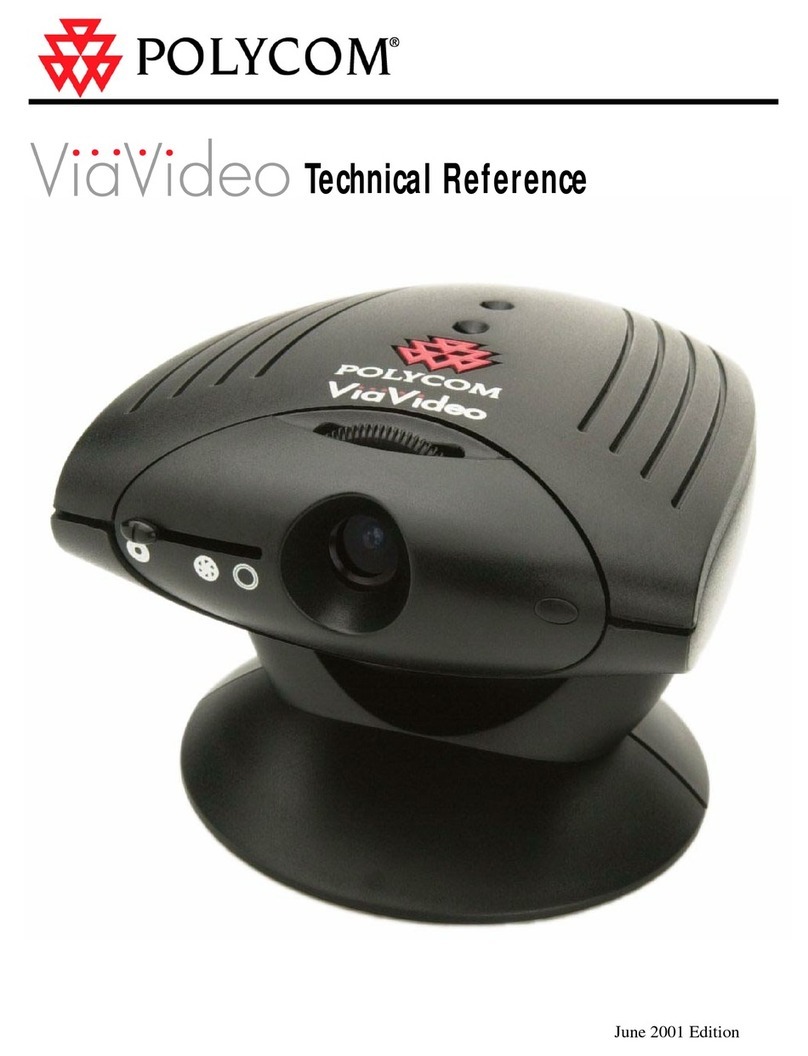
Polycom ViaVideo Manual de uso y cuidado

Polycom
Polycom EagleEye Director Guía de configuración rápida

Polycom
Polycom EagleEye Director II Manual

Polycom
Polycom PowerCam Manual de usuario

Polycom
Polycom ViewStation H.323 Manual de usuario

Polycom
Polycom PowerCam Manual de instalación y operación

Polycom
Polycom PowerCam Presenter Instrucciones de uso

Polycom
Polycom PowerCam Plus Manual de usuario
Polycom
Polycom ViewStation SP ViewStation Manual de usuario


