Plawa Scrivo.1 Manual de usuario

User’s Guide
_ Product Specification and System Requirements
_ How to use scrivo.1
_ Bluetooth Installation and Configuration
_ scrivo.1 Driver Installation and Configuration
_ How to use following utilities Finger NoteTM
scrivo1_manual_eng_rz_kb2.qxd 06.12.2004 17:39 Uhr Seite 1

Thank You
Thank you for purchasing the scrivo.1. You have made an excellent choice for your next digital
input device. scrivo.1 is designed to be used for many functions with ease.
Trademarks
The following are registered trademarks of plawa-feinwerktechnik GmbH & Co. KG: scrivo.1, the
scrivo.1 logo, and plawa mobilities logo is a trademark of plawa. Other product names mentio-
ned in this guide may also be trademarks or registered trademarks of their respective owners.
Manual Notice
plawa reserves the right to make changes to this manual and to the equipment described herein
without notice. Considerable effort has been made to ensure that this manual is free of inaccura-
cies and omissions. However, plawa makes no warranty of any kind including, but not limited to,
any implied warranties of merchantability and fitness for a particular purpose with regard to this
manual. plawa assumes no responsibility for, or liability for, errors contained in this manual or for
incidental, special, or consequential damages arising out of the furnishing of this manual, or the
use of this manual in operating the equipment, or in connection with the performance of the
equipment when so operated.
Contents
1. Description page 4
_ Features & Shipment Contents page 4
_Specifications page 4
_ Bundle Software page 5
2. System Requirements page 6
3. Using scrivo.1 page 6
_ Correct way to hold scrivo.1 page 7
_ OCR (OCR: Optical character recognition) page 8
_ Example of using scrivo.1 page 9
4. Installing & Configuring Bluetooth page 11
_ Installation for Windows 2000/XP page 11
_ Update Bluetooth setting in Windows XP service pack2 page 21
_ Installation for Windows 98SE/ME page 25
5. scrivo.1 Driver and Software page 28
_ Installing scrivo.1 driver and utilities page 28
_scrivo.1 Driver Setting page 29
_ Changing mode and usage page 32
6. Using Finger NoteTM page 34
_ What is Finger Finger NoteTM? page 34
_ Finger NoteTM Basic Menu page 34
7. Troubleshooting page 38
8. Contact and Support page 39
2 3
scrivo1_manual_eng_rz_kb2.qxd 06.12.2004 17:39 Uhr Seite 2

1. Description
Make hand written notes, design and contol your desktop. Create MMS messages on a smart
phone and manage memos on a PDA.
Features
_ Optical navigation & mouse-hover technology
_ Portable and convenient: light and durable (perfect for notebook users)
_ Ergonomic design: Fits comfortably in your hand. No wrist pains after long hours of use.
_ USB connection: plug and play.
_ Includes application software which maximizes usage of scrivo.1 “Finger NoteTM”
(Only for PC users).
Shipment Contents.
_Scrivo.1
_ Charger (receiver)
_ Manual
_ Pad
_ Software Finger NoteTM
_ Driver CD
Specifications
_ Communication: Bluetooth
_ Frequency: 2.4 GHz
_ Range: Within 10 Meter radius
_ Resolution: 800 dpi
_ Connection: USB
_ Battery 3.7 V DC, 400 mA Li Polymer
_ Continuous usage time: 5 hours
_ Stand by usage time: 26 hours (80 hours in power saving mode)
scrivo.1
_ Size: 157 (L) x18 (B) x30 (H) mm
_ Weight: 40 g
_ Power: 3.7 V rechargeable Battery
Charger:
_ Size: 108 (L) x 49 (B) x 42 (H) mm
_ Weight: 100 g (including wire)
_ Cable length: 1.7 m
_ Power: USB power (DC5V)
Software package
Finger NoteTM (Only for PC users)
Create memos and highlight text in any program. This program allows users to open Microsoft
PowerPoint, Word, Excel by slides. User can also save slides with created memos. (Image file for-
mat). This program is very especially useful in presentations. (Refer to “Using Finger NoteTM“).
Practical use in other Software programs*
_ Paint: It allows the user to draw or write in Microsoft Paint in Accessories, something which
users cannot do using a typical mouse.
_ Windows XP or Office XP installed on PC: Practical uses XP´s handwriting recognition (OCR).
_ Practical use in graphic programs in with other tablet systems.
2. System Requirements
scrivo.1 requires the following minimum system configuration:
_ Pentium II 400MHz or equivalent
_ Operating System: Windows 98SE/ME/2000/XP, Mac O 9.2-X
_ System Memory: At least 32MB or above
_ Hard Drive: At least 11.5MB available memory
_ HID Support with USB port
* PC without USB ports cannot be used.
* Requires 3rd party software when you use it on a PDA or mobile phone. (Not included)
4 5
scrivo1_manual_eng_rz_kb2.qxd 06.12.2004 17:39 Uhr Seite 4

Correct way to hold scrivo.1
When using a typical ballpoint pen, you can
write on a paper regardlessof how you hold the
pen. On the other hand, if you hold a fountain
pen and rotate its pen tip to an upright posi-
tion, you cannot write at all since the tip of a
fountain pen has a different structure to that of
a typical ballpoint pen. Similarly, the performan-
ce of scrivo.1 greatly depends on how you hold
it. As a result, when you try to write a memo
or draw a simple graph with scrivo.1, holding it
incorrectly may result in unexpected output
such as rotated letters, tilted axis and so on.
Therefore, you should be careful when you hold
scrivo.1
.
The Ccorrect way to hold scrivo.1 is shown in the pictures below. The forepart, where the push
button is attached, should face the front
If the angle of scrivo.1 and the surface is too low as shown in the figure (a), or if its forepart
does not face to the front as shown in the figure (b), (c), and (d), it will not perform correctly.
Front View Side View
(a) Angle of pen and surface
is too low.
(b) scrivo.1 is turned to right.
(c) scrivo.1 is reversed. (d) scrivo.1 is turned to left.
3. Using scrivo.1
scrivo.1 has a power switch, two function buttons, and two indicators.
Power switch
Turn the power ON/OFF using this switch located on the bottom of the pen. Power switch must
be in the ON position before use. Switch to the OFF position if it’s not in use for a long period of
time.
Pairing Button
Reset the pen to initial stage. After successful initiation, Status LED light will blink green
continuously.
First button (pen-tip button)
Located on the end of scrivo.1 and has same function as the left button on a typical mouse.
Second button (Jog button)
Located on the front top of the pen and has same function as the right button on typical mouse.
When you scroll the Jog switch, it will work like the mouse wheel scroll feature.
Status-LED
1) Green LED -> indicates status between Pen and Charger is ok.
- Blinking continuously: Initiating stage for pairing. (Blinking for the first 3 mins remain lit after
3 mins)
- No LED light: Complete Pairing Status.
- Continues to blink in 1-2 sec. interval: Power to receiver has been interrupted
2) Red LED – Check battery status
- Need to recharge scrivo.1 when red LED blinks (continues to be usable for 30 mins)
Battery indicator
Red LED during charging and green LED when fully charged. Total charging time: 3.5 hours.
Status-LED
First Button
Second button
Battery indicator
Pairing Button
Power switch
6 7
scrivo1_manual_eng_rz_kb2.qxd 06.12.2004 17:39 Uhr Seite 6

Changing Pen Tip
scrivo.1´s pen tip is designed to withstand abrasion. However for best results, the pen tip needs
to be replaced after it has been used for a long period of time.
_ First, prepare one of the tips included with
scrivo.1.
_ Hold the tip and pull towards arrow shown in
the figure on left (Use pincer or pliers for your
convenience).
_ Insert the new tip into the now empty space.
_ Place the pen on a hard surface and gently
press the tip.
Example of using scrivo.1 (Only for PC users)
_ OCR function (MS Office XP or above)
Converting handwriting into text using Office XP.
_ Finger NoteTM
Taking memos directly on the desktop using Finger NoteTM.
OCR (Optical Character Recognition)
If users´ PC has Windows XP or Office XP installed, they will be able to use their OCR programs
to convert their users own handwriting to text or save it as a picture file. (Handwritten to text
conversion will not be supported if OCR isn’t Windows XP and Office XP or above isn’t installed.)
For those environments that support OCR programs, IME pad is located on the task bar and can
be launched by clicking the icon (IME Pad). Users can write or draw using this function.
If the task bar isn´t visible, click the Windows
key – located on the bottom left of your key-
board, to enable the task bar.
To use the OCR function in Windows XP, open “Regional and Language Options” in the “Control
Panel” and click Details in the “Languages” tab to open the “Text services and input languages”
dialog box where you can add OCR function.
If Windows XP is not installed but has Office XP or above, open “Text service” in the “Control
Panel” to add OCR function.
Mouse Pad
scrivo.1 is designed to work on most surfaces except surfaces made out of materials that don’t
reflect lasers such as glass or white paper. Use the pad included for optimum results for writing,
drawing and other mouse function uses.
8 9
scrivo1_manual_eng_rz_kb2.qxd 06.12.2004 17:39 Uhr Seite 8

_Using in Microsoft OneNote
Microsoft OneNote is a program with wich you can input not only with the keyboard, but also
with a pen.
4. Installing and Configuring Bluetooth
4.1 Windows 2000/XP Environment
Please install/configure in the following order
_ Bluetooth Software (BTW) Installation
_ Connect charger to your computer
_ Bluetooth Configuration
Software Installation
1) Windows Installer will automatically run when you insert the CD into CD/DVD ROM drive. If
Windows Installer does not run automatically, use Windows Explorer to find the Setup.exe file on
the CD to launch the setup program. Click (Next) to continue software installation.
_ Using in Microsoft Paint or as a graphic tool
scrivo.1 can be used in graphic software programs such as Corel Painter, PhotoShop,
PaintShop, Microsoft Paint: www.corel.com / www.adobe.com / www.jasc.com
_ Correction function in Word documents
Using correction function in Microsoft Word. Practical use in document-creating applications
such as Microsoft Excel, Power Point, etc.
_ Input signatures
Input signatures in MS Word, PDF files, and other documents.
10 11
scrivo1_manual_eng_rz_kb2.qxd 06.12.2004 17:39 Uhr Seite 10

5) The following picture shows the installation process.
6) During the process, you might get a message as shown below. This tells you that you currently
do not have the Bluetooth signature program, but you can continue with installation without any
problems.
During the process, you might receive warnings as shown below. However, these will not harm
your computer in any way. You may continue with installation.
2) Please read the License Agreement carefully and choose “I accept the terms in the license
agreement”. Then click [Next] to continue setup.
3) Assign a Destination folder for Bluetooth software. We recommend you leave the default.
Click [Next] to continue with the next step.
4) The following window appears when ready to install. Click (Install).
12 13
scrivo1_manual_eng_rz_kb2.qxd 06.12.2004 17:39 Uhr Seite 12

Connect charger to your computer
Bluetooth software installation is complete. Lastly, you need to connect pen and cradle with confi-
guration.
1) Connect your charger to an available USB port.
2) “Found New Hardware Wizard” window will open once hardware setup is completed and will
search for “CSR USB Bluetooth Device”.
Windows 2000 Windows XP
3) When the new device is detected, the [Add Hardware Wizard] starts automatically. Select
[Automatic Installation (recommended)] and click [Next] to proceed.
(This process may take place automatically depending on your OS or user setting, and you may
not have to do it manually. If so, simply proceed to the next step)
4) “Setup Wizard” will automatically set the selection list of installation program and copy the
necessary files to the system. Click [Finish], and run “New Device Wizard”. The Bluetooth icon
will be created in the System Tray after the installation has successfully finished.
7) Checks whether hardware installation is completed or not. If you want to install hardware later,
simply click [Cancel]. Always, install software first and then hardware.
8) Click (Finish) to complete the software installation.
9) Restart your computer after completion.
Depending on your system specification, you may or may not get a ‘restart’ message. If you don´t,
you have to restart your system.
14 15
scrivo1_manual_eng_rz_kb2.qxd 06.12.2004 17:39 Uhr Seite 14

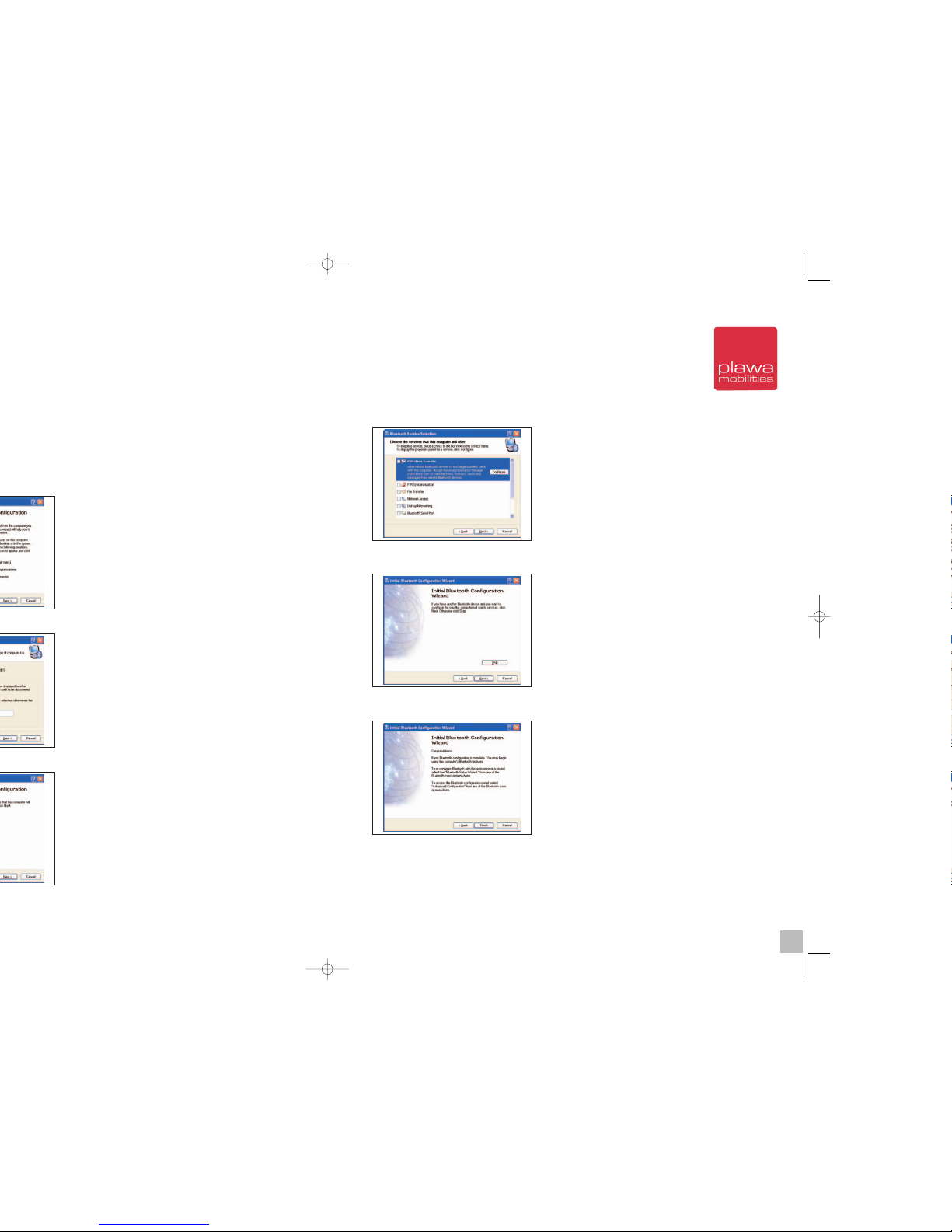
4) The following is the list of Bluetooth services. In this case, scrivo.1 does not require any of the
services so you can uncheck everything and click [Next] to continue with the next installation.
5) Click [Skip] to continue when you see the following message.
6) When configuration is complete, you will see the following message. Simply click [Finish].
Bluetooth Configuration
After hardware installation is complete, you need to configure the Bluetooth connection. This pro-
cess is required in Bluetooth technology different from previous version such as IR or RF techno-
logy.
1) The following is a basic Bluetooth setup process. If the “Initial Bluetooth Configuration
Wizard” does not appear, double click the “My Bluetooth Places” icon to run the basic Bluetooth
software setup process. Click [Next] to continue the process when the Wizard asks to add the
icon on the system.
2) Click [Next] after entering the computer name and type.
3) Click [Next] to start the wizard.
16 17
scrivo1_manual_eng_rz_kb2.qxd 06.12.2004 17:39 Uhr Seite 16

You can select [Bluetooth] -> [Search For Devices] from the menu instead of [Find Bluetooth
Devices].
If you run [My Bluetooth Places] and get the following picture, simply select [Bluetooth] ->
[Search for Devices] from menu the in order to find it.
10) After you search for devices, you see the scrivo.1 icon as shown in the following picture.
Double click this logo icon7. If you still don’t see the icon, go back to step 3, try pairing correctly
and search again.
7) When you are done with configuration, double click [My Bluetooth Places] on the desktop. Or
right click the Bluetooth Icon in the taskbar to run [Explore My Bluetooth Places].
8) Turn on the scrivo.1 switch after you have completed previous steps.
If you turn on the switch, the Green LED will blink rapidly.
This means that the pen is connected. If the LED light
blinks slowly or is not blinking at all, push the pairing but-
ton so that the LED light blinks faster. You can use a ball-
point to push the paring button.
9) When your pen is connected, run [Find Bluetooth Devices] in [My Bluetooth Places].
Status-LED
Pairing-Button
Power switch
18 19
scrivo1_manual_eng_rz_kb2.qxd 06.12.2004 17:40 Uhr Seite 18
Tabla de contenidos